
Users & roles
Invite people into your organization, give each one of four roles, see what they run and spend, and remove them cleanly when they leave.
The Users page lists everyone with access to your organization. From here you invite teammates, change their role, watch their usage and cost, and remove people who no longer need access. It lives under Organization in the left sidebar and is available to owners and admins.
Every person has exactly one role in an organization: Owner, Admin, Builder or Member. The role decides what they can create, edit, run, share and manage. Roles are enforced by the platform on every request, not just hidden in the interface, so a person cannot do more than their role allows from the API or from a connected assistant either.
How access works
The four roles
| Role | Type | What it does |
|---|---|---|
Owner | one per org | Full control. The only role that can change the plan, buy credit, transfer ownership or delete the organization. Created when the organization is created. |
Admin | manager | Full organization access except billing and ownership. Manages members, groups, workspaces, organization settings, tool and model connections, sharing, public links and API keys. Can see billing but not change it. |
Builder | maker | Creates and edits their own agents, teams, AI employees, knowledge bases and tables. Uses tools and models the organization has connected, and can connect personal tools and model keys for their own work. Cannot manage members or change organization settings. |
Member | user | Runs the agents, teams and AI employees shared with them, and reads knowledge bases their visibility allows. Cannot create, edit or delete anything, and cannot manage members or the organization. |
Step by step
Open the Users page
Click Users in the sidebar. The strip at the top shows Total users(with active, pending and disabled counts), Active · 7d, Total executionsand Cost · MTD (month to date, with the average per user). Below it, filter byAll, Active, Pending or Disabled, search by name, email or role, or narrow the list with the Role filter.
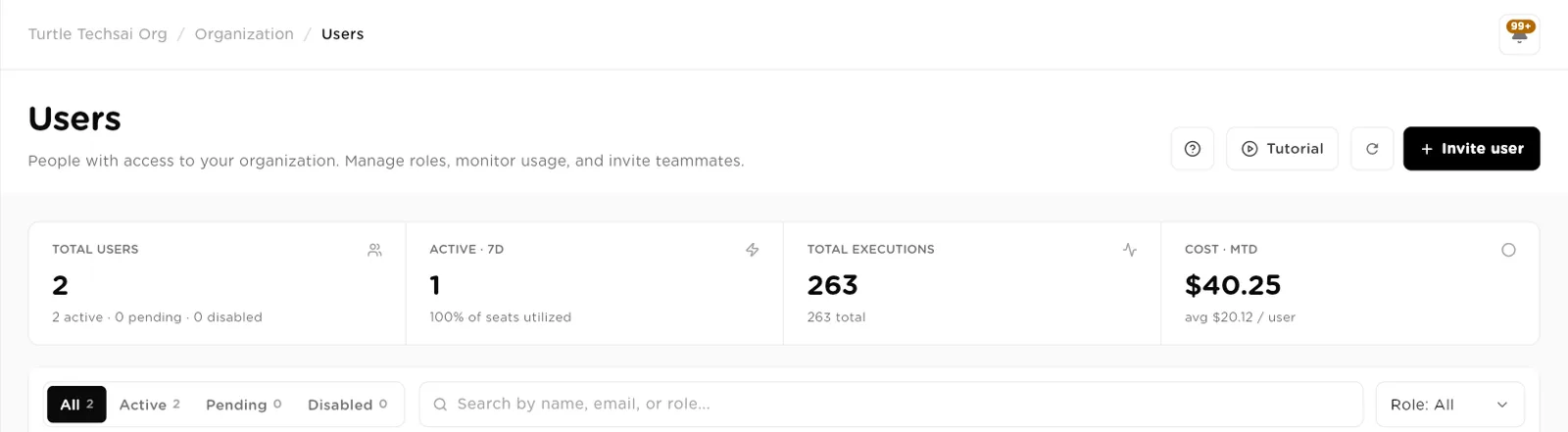
The Users page: usage at a glance, then a filterable list of everyone in the organization.click to enlarge Each row in the list shows the person's Role, Status,Executions, Cost, Success rate and Last activetime. The Actions column holds three buttons: view details, edit role, and remove.
Invite a user
Click Invite user. Enter their Email address and pick aRole. The box under the role lists what that role can and cannot do, so you can check before sending. Click Send invitation. The person gets a magic-link email and joins with the role you chose. The invitation expires in 7 days.
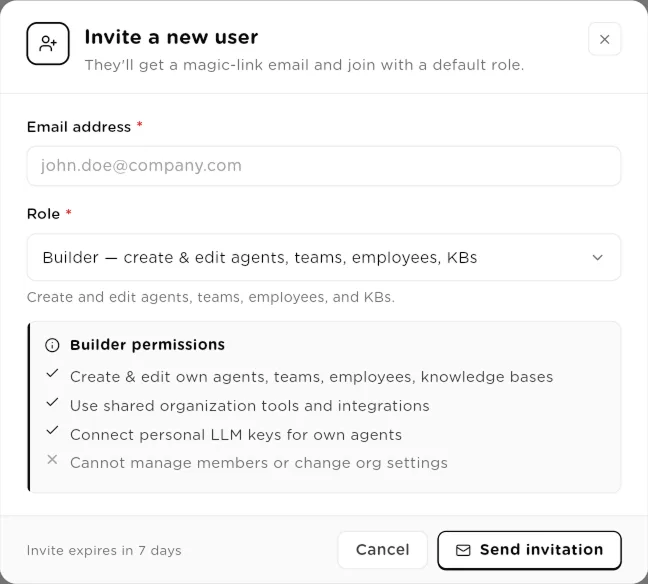
Invite a new user: pick the role, read its permissions, then send the invitation.click to enlarge Manage pending invitations
An invited person appears with a Pending status until they accept. Use the resend button to send the email again, or the remove button to Cancel Invitation.
Change someone's role
Click the pencil in the Actions column to open Change role. The current role is marked Current. Choose Admin, Builder orMember and click Save changes. The change applies straight away. The owner's role cannot be changed here; use Transfer ownership inOrganization settings instead.
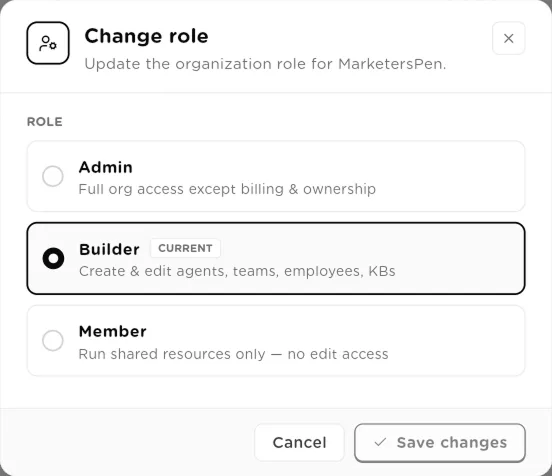
Change role: Admin, Builder or Member, each with a one-line summary.click to enlarge Review one person's activity
Click the eye icon to open a person's detail page. Pick the period at the top, such asLast 30 days. The header shows their role, job title, when they joined, when they were last active and the groups they belong to. Below it you see Cost attributable,Runs triggered, Success rate, Tokens andActive days, then an activity timeline, their sessions and whether they have activated (made their first run).
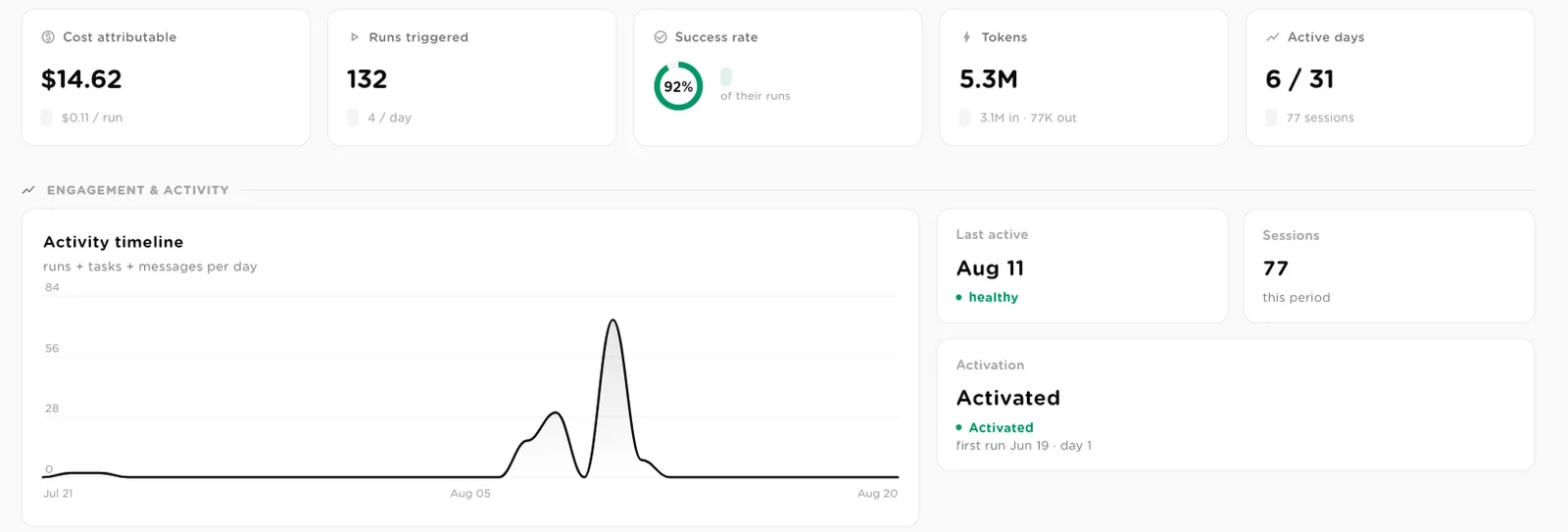
A person's usage for the chosen period, and how active they have been.click to enlarge Further down, What they touch splits their activity across agents, agentic teams and AI employees. Creation footprint counts what they built and flags Dormant assets owned: things they own that have not run in 30 days. Cost & consumption shows daily spend and cost by model, Reliability of their work ranks their most error-prone assets, and Security posture lists their active sessions and whether two-factor authentication is on.
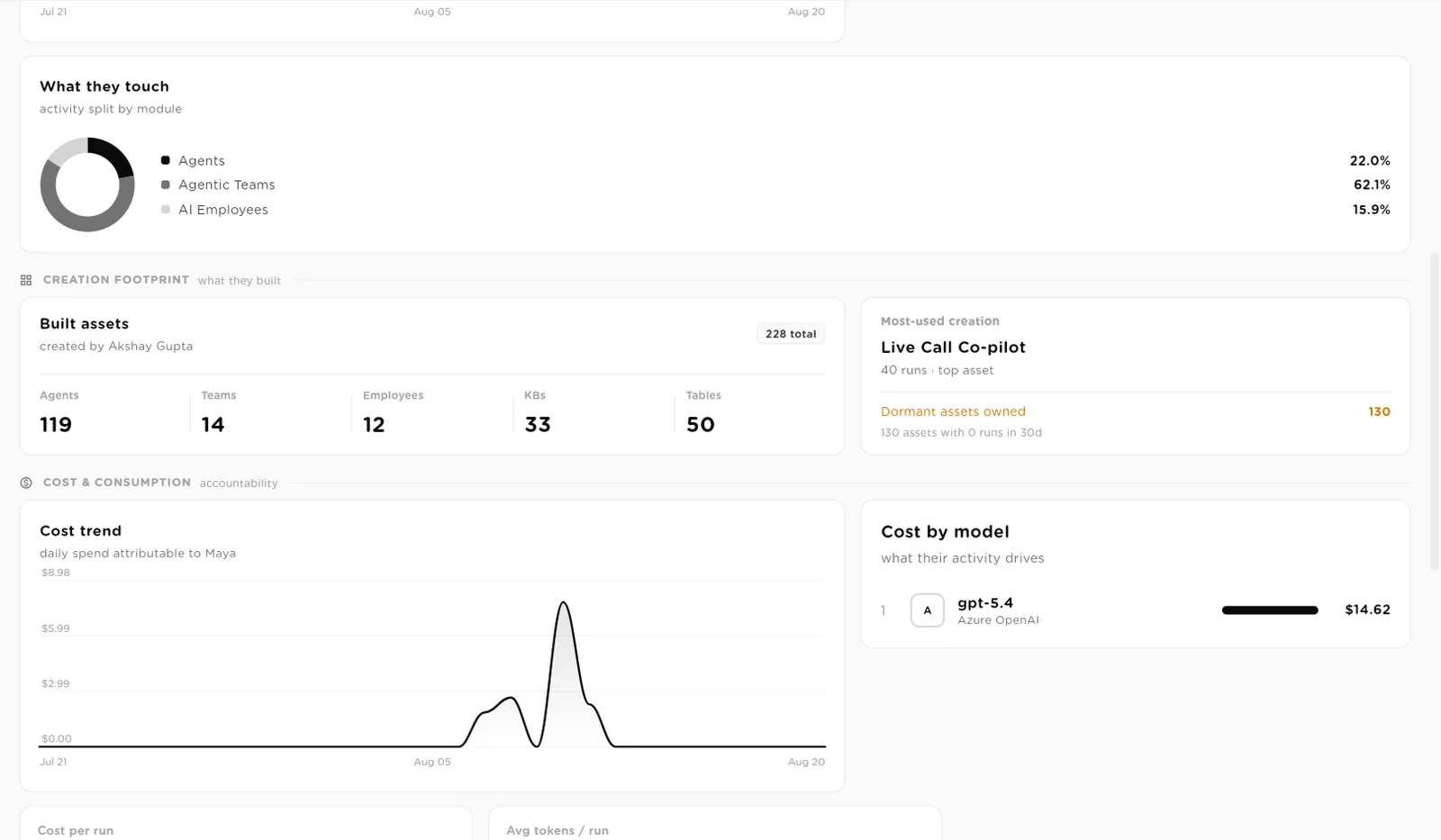
Creation footprint and cost: what a person built, what they use most, and what it costs.click to enlarge Remove a user
Click the red bin icon and confirm Remove. The person loses access to the organization at once. Everything they owned, including agents, teams, AI employees, knowledge bases and tables, is transferred to the organization owner, so nothing stops working when someone leaves. Admins can remove Builders and Members; removing an Admin needs the owner.
What each role can do
The table below comes from the platform's authorization rules. "Own" means resources the person created. "Shared" means resources shared with them directly, through a group, or visible to the whole organization.
| Action | Type | What it does |
|---|---|---|
Change plan, buy credit | Owner | Only the owner. Admins can view billing and usage. |
Transfer ownership, delete org | Owner | Only the owner. |
Edit organization settings | Owner, Admin | Name, logo, AI disclosure, pause, parallel runs. Everyone can view them. |
Invite, remove, change roles | Owner, Admin | Admins can only invite, remove or assign Builders and Members. |
Create and manage groups | Owner, Admin | Builders can add their own resources to an existing group. |
Create and delete workspaces | Owner, Admin | Everyone can see and open the workspaces they belong to. |
Connect organization tools and models | Owner, Admin | The Models page is hidden from Builders and Members. |
Connect personal tools and model keys | Owner, Admin, Builder | For a Builder's own agents. Members cannot. |
Create agents, teams, employees, KBs, tables | Owner, Admin, Builder | Members cannot create. |
Edit or delete a worker, KB or table | Own | Builders edit what they created. Owners and admins can edit anything. |
Run agents, teams, AI employees | Shared | Builders and Members run what they own or what is shared with them. Owners and admins run anything. |
Approve or reject an AI employee task | Shared | Anyone who can see the employee. |
Add, edit, delete table rows | Use share | Builders and Members need a Can use share on someone else's table. |
Share, publish public links, create API keys | Owner, Admin | Builders and Members cannot share workers or publish them outside the organization. |
Build and share interfaces (dashboards) | Owner, Admin | Builders and Members open the interfaces shared with them. |
Install solution packs and templates | Owner, Admin, Builder | Members can browse the gallery but not install. |
Update own profile and security | Everyone | Name, photo, password, two-factor authentication, sessions and notifications. |
Field reference
| Field | Type | What it does |
|---|---|---|
Email address | Required on invite. Where the magic-link invitation is sent. | |
Role | select | Required on invite. Admin, Builder (the default) or Member. |
Status | read only | Accepted once they join, Pending while the invitation is open, or Disabled. |
Executions | count | Runs this person started. |
Cost | currency | Model and run cost attributable to this person. |
Success rate | percent | Share of their runs that completed cleanly. |
Last active | time | When they last did something in the organization. |
Related
- Groups & access: give sets of people access to workers and tables in one step.
- Organizations & workspaces: plans, seats and ownership.
- Settings & security: what each person manages about their own account.
- Audit trail & run traces: what each person's runs actually did.