
Sign in and the workspace home
Create an account, sign in with email or Google, set up your organization and first workspace, and find your way around the dashboard and left navigation.
This page covers your first minutes in Turtle AI Coworker: creating an account, signing in, creating your organization and first workspace, and reading the dashboard. It also explains the left navigation and how to switch between organizations and workspaces.
Read it once when you join. Come back to the last sections when you start working across several workspaces or organizations.
Step by step
Create your account
Go to the sign-in page and choose the Create account tab. Either clickSign up with Google, or fill in Full name, Work emailand a Password of at least 8 characters, then click Create account. You can also tick a box to receive occasional product news; it is off unless you tick it. Creating an account means you agree to the Terms of Service and Privacy Policy linked under the button.
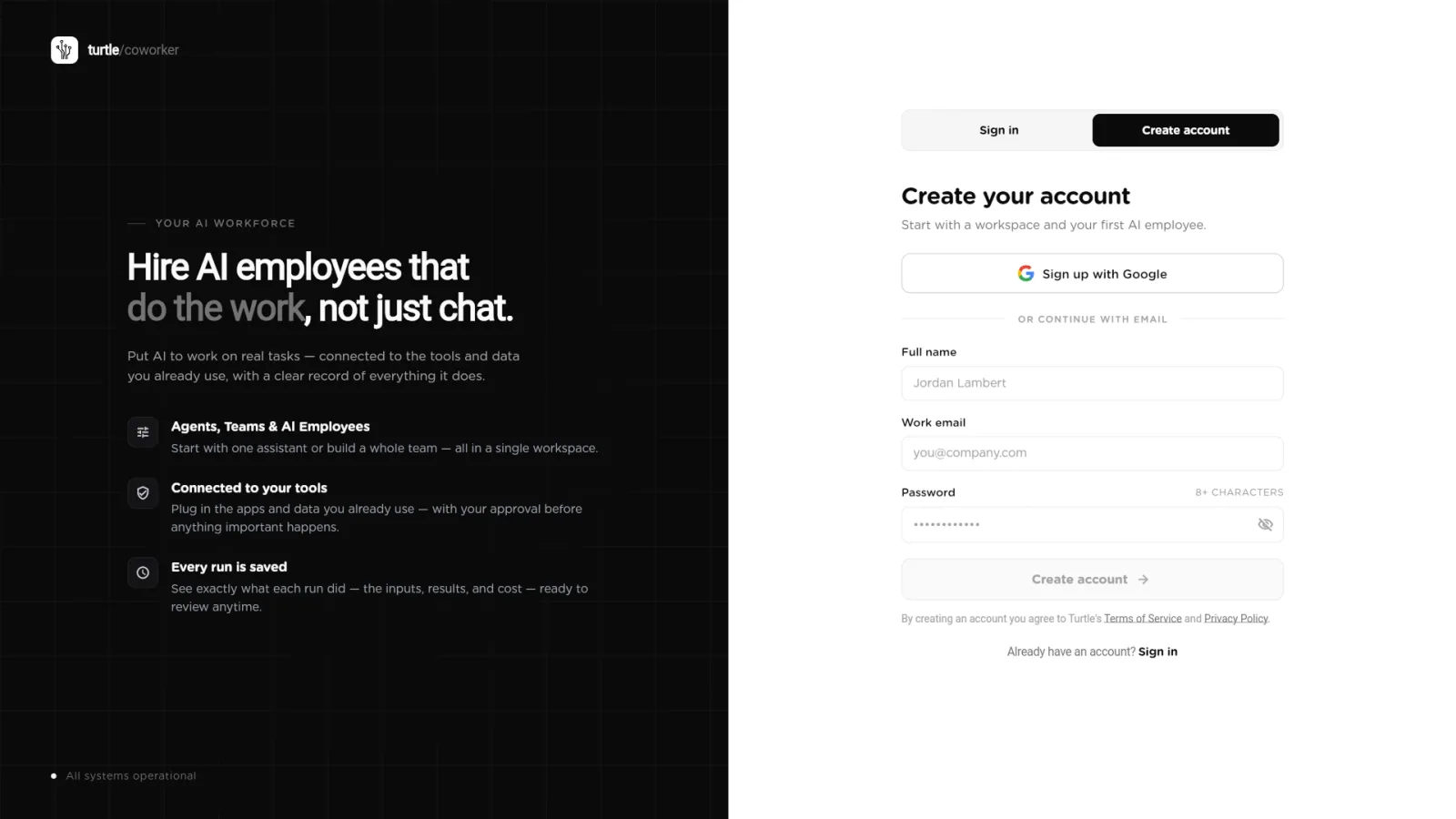
Create account: sign up with Google, or with your name, work email and a password.click to enlarge Confirm your email
If you signed up with email, open the confirmation email and click the link. You must confirm your address before you can sign in. If the link has expired or you cannot find the email, try to sign in: the page offers Send a new link. Use the newest email, because a new link replaces the old one.
Sign in
On the Sign in tab, click Sign in with Google, or enter yourWork email and Password and click Sign in. TickKeep me signed in for 30 days on a device you trust. If your account has two-factor authentication turned on, you are then asked for the 6-digit code from your authenticator app, or one of your backup codes.
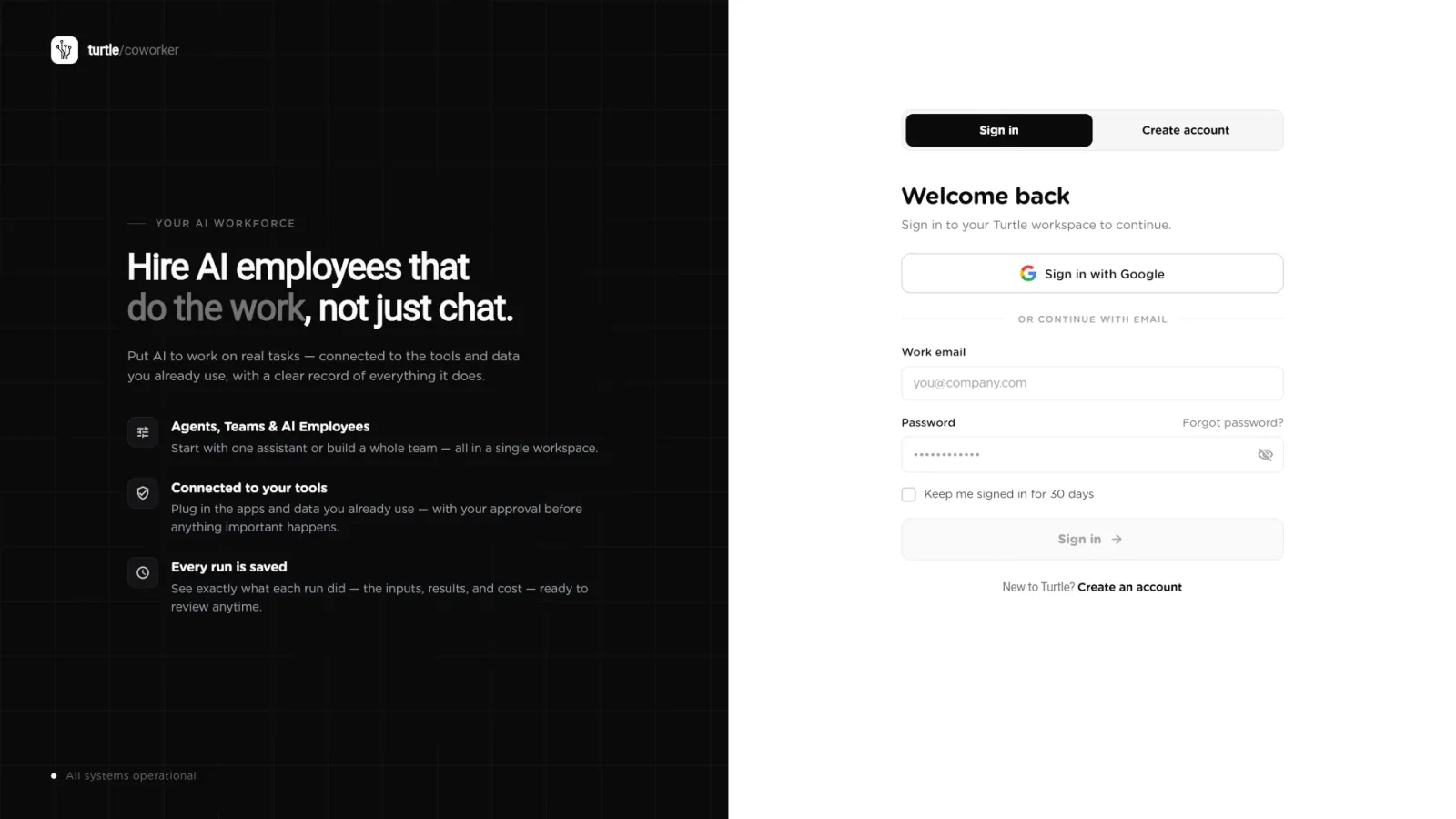
Sign in with Google or with email and password.click to enlarge Reset a forgotten password
Click Forgot password? above the password field. Enter your Emailand click Send Reset Link. You see Check your email; open the email and follow the link to set a new password. Click to resend sends the email again.
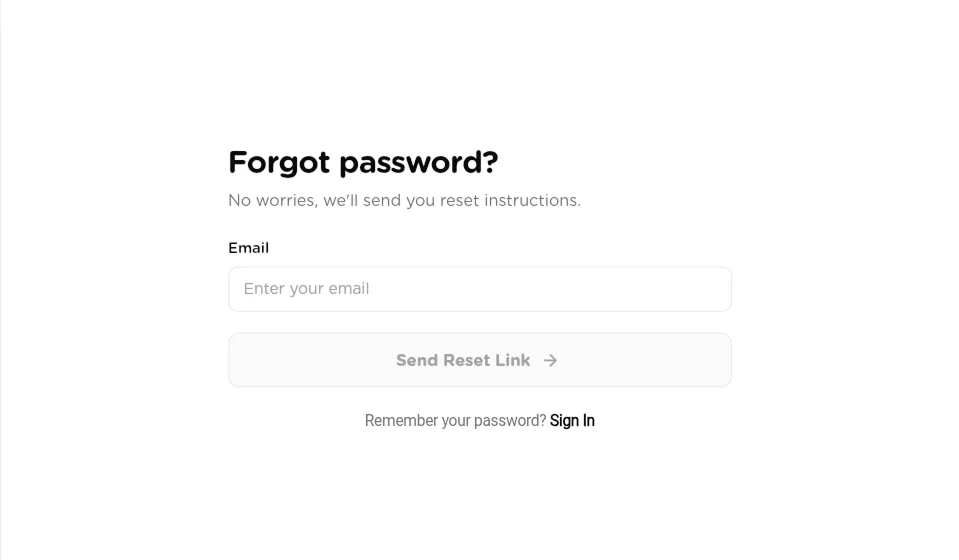
Forgot password: we email you a reset link.click to enlarge Create your organization and first workspace
The first time you sign in without an organization, two short steps follow. Step 1 of 2, Create your organization: type the Organization name(usually your company) and click Create organization. Step 2 of 2,Create your workspace: type a Workspace name, for example the department that will use it, and click Create workspace. You can add more workspaces later. If a colleague invited you, open their invite link instead and you join their organization.
Meet the Assistant
While your workspace loads you see Preparing your workspace. In a new, empty workspace, the Assistant opens on its own the first time, so you can describe your work and have it set things up. You can leave it at any time with the left navigation; it stays under Assistant whenever you want it back.
Use the dashboard in a new workspace
Click Dashboard in the left navigation. While your workspace is empty, the dashboard is a setup guide. Getting started is a row of short tutorial videos. The welcome card offers Browse templates. The 5-step setup list walks you throughConnect your organization, Connect a tool (Connect),Add data (Import), Hire your first AI Employee(Hire) and Run your first task, which shows as Locked until the earlier steps are done. Connect takes you to Tools, Import to Tables andHire to Solution Packs, and each step ticks itself off when it is done. Below the list, Or start from a solution pack shows packs you can install.
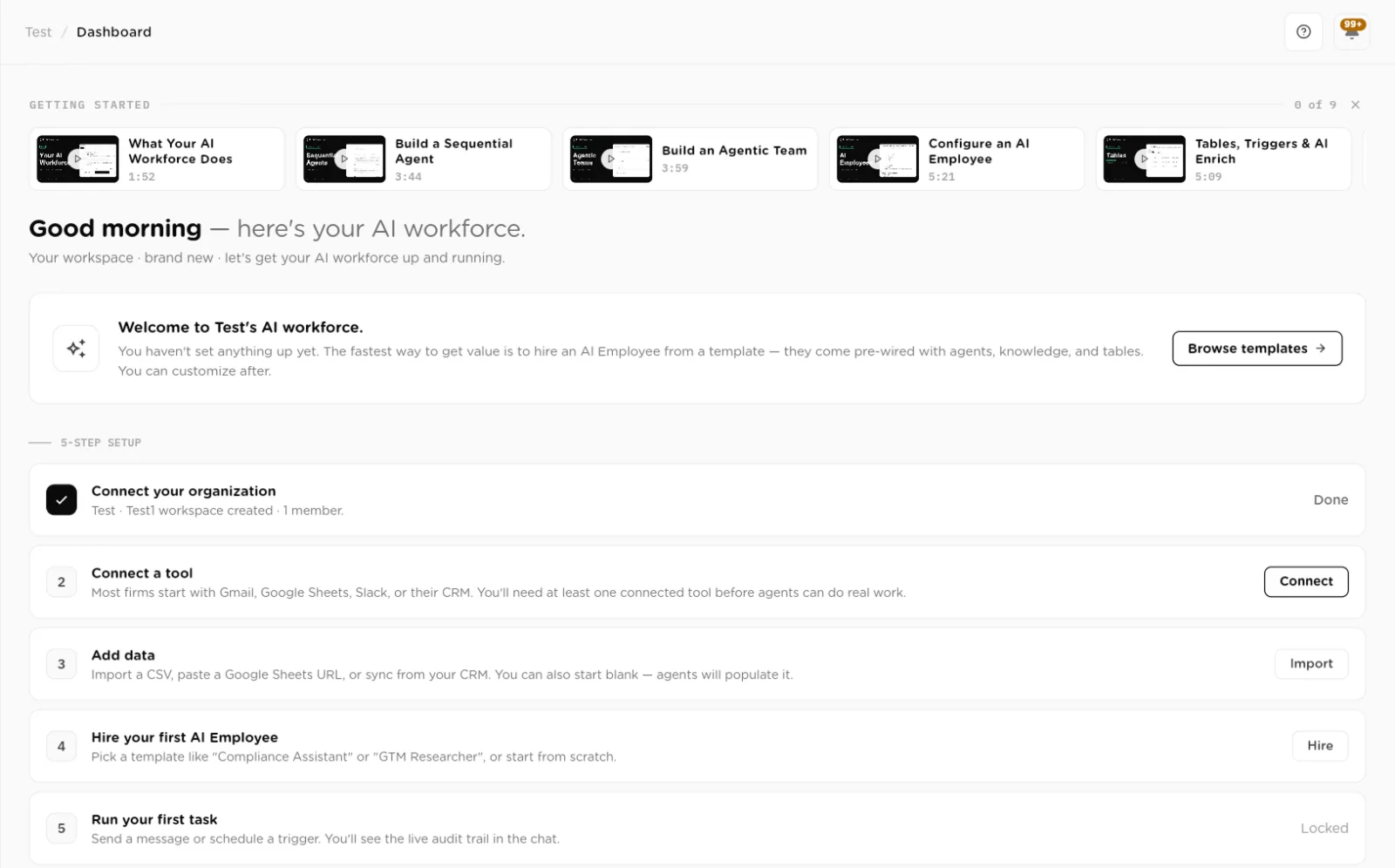
The dashboard of a brand-new workspace: videos, a welcome card and a 5-step setup.click to enlarge 
Or start from a solution pack: open a pack to preview and install it.click to enlarge Read the dashboard once work is running
Once your organization has workers, the dashboard becomes a summary of the whole organization. The top line says how many workspaces and people you have, the outcomes delivered this month and the spend against budget. The strip below shows Active workspaces,Members, Workflows running, Pending approvals,Spend MTD and Failures 24h.
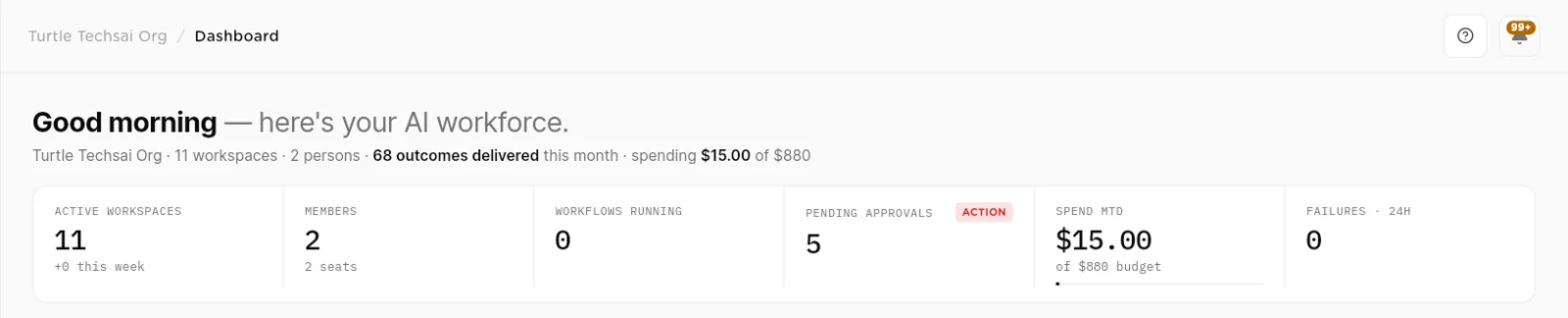
The top of the dashboard: a one-line summary and six numbers.click to enlarge Needs your attention lists things that need a person, such as an expired tool connection (Reconnect) or a circuit breaker event (Acknowledge,Open compliance). You can snooze one item or use Snooze all.Approvals lists tool calls waiting for a decision, each withApprove and Deny. On the right, Spend & budget shows this month's spend, the forecast and each workspace's share, and Conversations shows chat activity and the top topics of the week. Live feed lists recent runs, tasks, sessions and trigger firings, with a Filter.
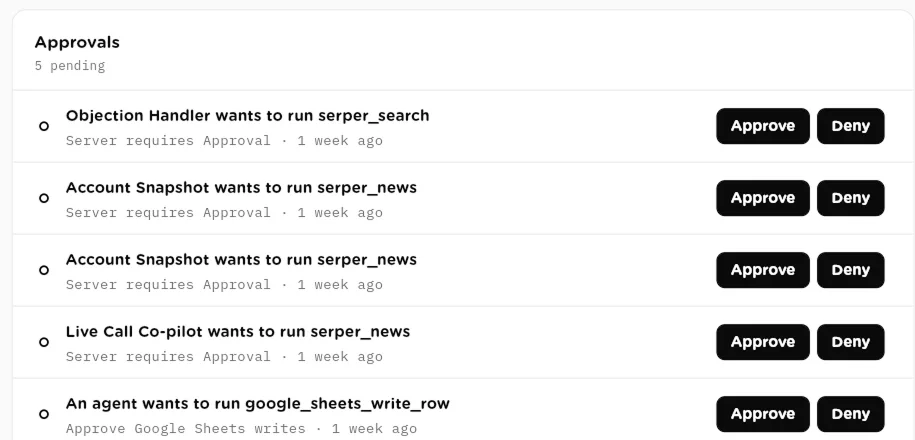
Approvals: each held tool call names the worker and the tool, with Approve and Deny.click to enlarge Workspaces shows one card per workspace, sorted so the ones with anAttention badge come first. Each card shows Outcomes MTD,Pending, Spend against its budget and Errors 7D. TheAdd a workspace card has a New button.
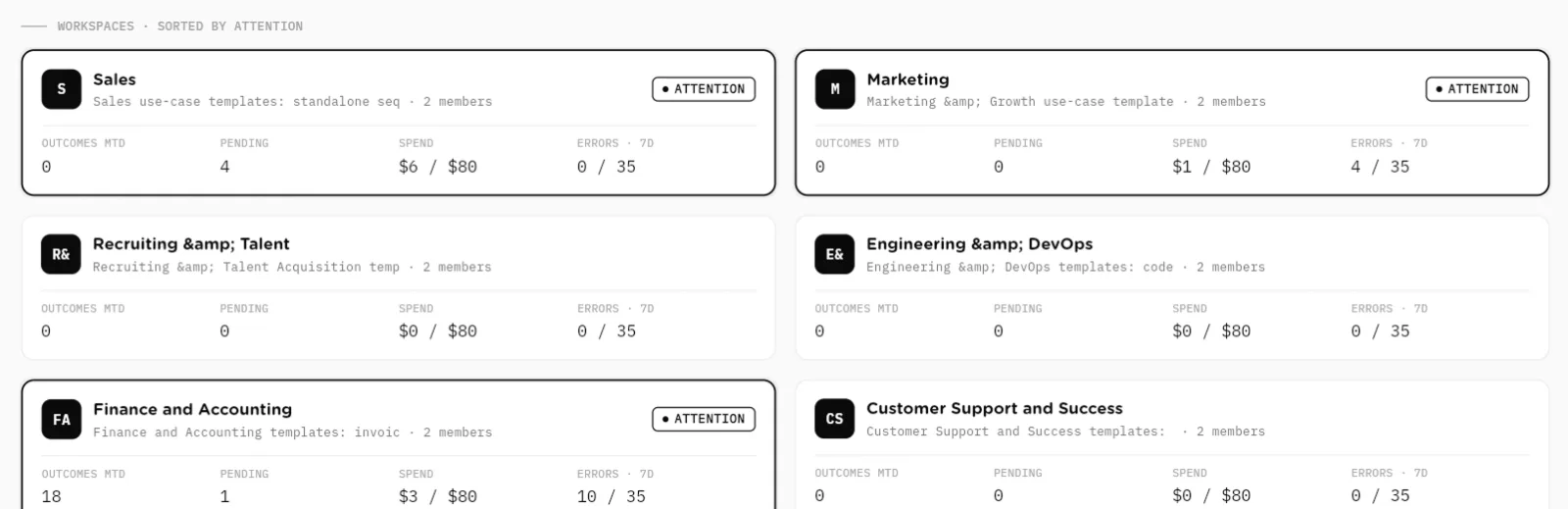
Workspaces sorted by attention: the ones that need you come first.click to enlarge System health & usage ends the page. Resource health lists workers with their run counts and failure rates. Top tool calls shows the most used tool calls of the last 30 days, marked R for reads and W for writes, with their failures.Compliance posture summarizes PII redaction, active policy rules and circuit breaker events, with a workspace filter and Export audit report.
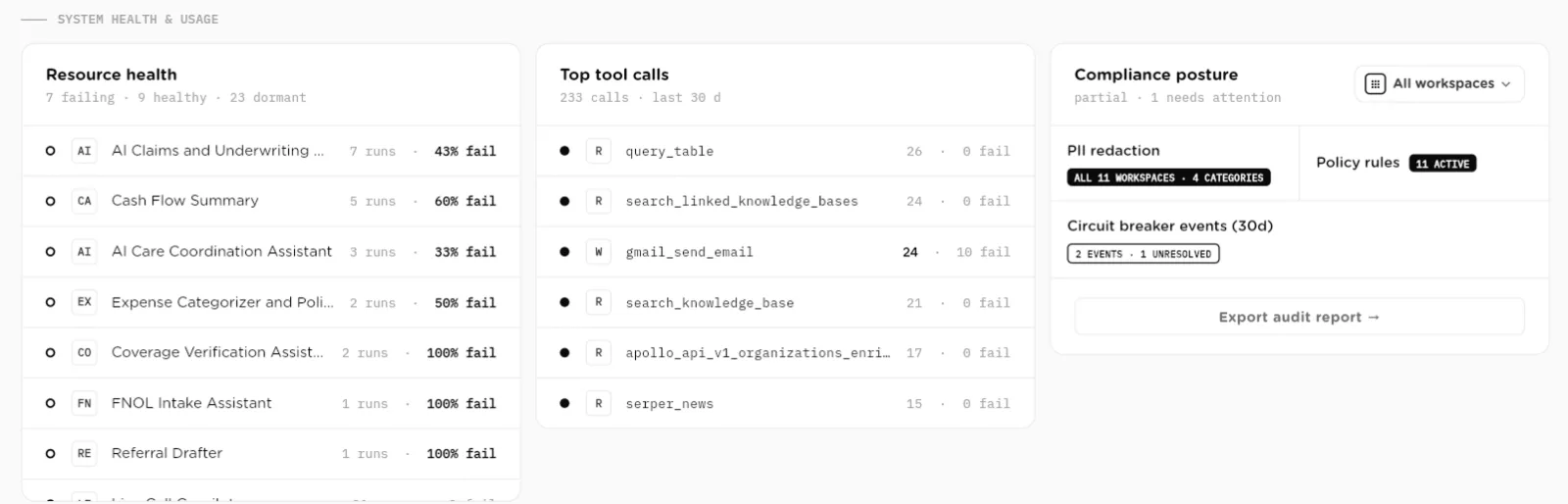
System health & usage: failing workers, busiest tool calls and compliance posture.click to enlarge Find your way with the left navigation
The left navigation is the same on every page. At the top is the organization card with your current workspace under the name. The sections below it are listed in the reference table at the end of this page. At the bottom, owners and admins see the plan card with the runs left this period and anUpgrade link, and everyone sees their own name with a sign-out button. At the top right of each page are the help button and the notifications bell.
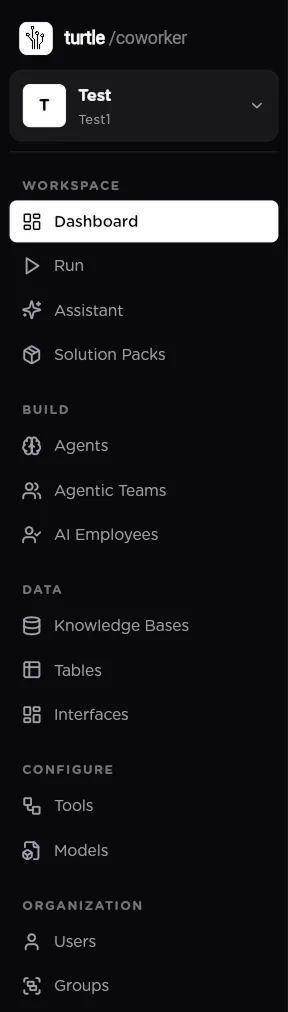
The left navigation. Configure, Users, Groups and Governance appear for owners and admins only.click to enlarge Switch or create an organization
Click the organization card at the top of the left navigation. Under Switch organization, pick another organization you belong to; a check mark shows the current one. Click Create organization, type the Organization Name and clickCreate to add a new one.
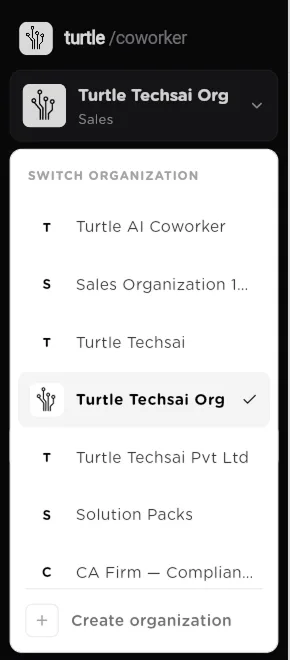
Switch organization, or create a new one.click to enlarge 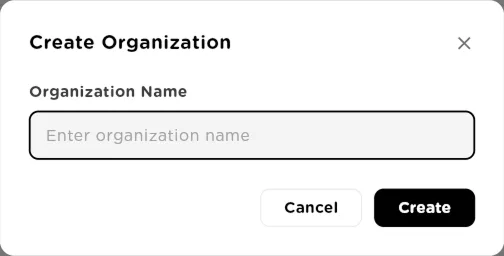
Create Organization.click to enlarge Switch, create and manage workspaces
Pages that work on one workspace, such as Agents, Tables or Solution Packs, have a workspace picker at the top right. Open it and pick a workspace to switch. Create New opensCreate Workspace, where you enter a Name and an optionalDescription and click Create Workspace. Manage opensManage Workspaces: use the three-dot menu next to a workspace to Editor Delete it.
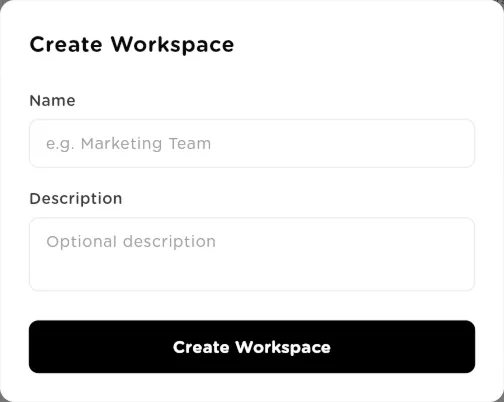
Create Workspace: a name and an optional description.click to enlarge 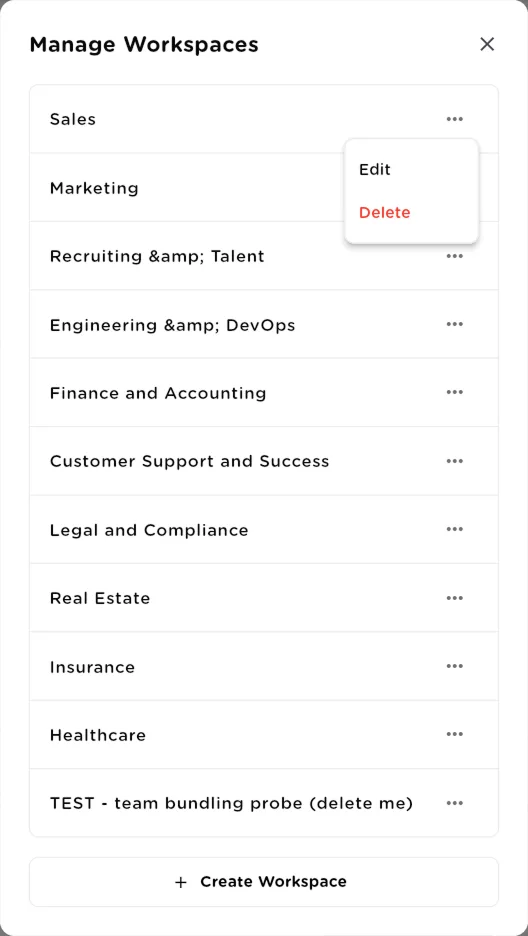
Manage Workspaces: edit or delete a workspace, or create a new one.click to enlarge
Navigation reference
| Item | Type | What it does |
|---|---|---|
Dashboard | Workspace | The home page described above. |
Run | Workspace | Everything you can run in the workspace (agents, teams, AI employees) and your recent runs. |
Assistant | Workspace | The chat that sets up your workspace. See The Assistant. |
Solution Packs | Workspace | Browse, preview and install packs, and see the ones you installed. |
Agents | Build | Sequential agents. |
Agentic Teams | Build | Chat teams of member agents. |
AI Employees | Build | Named coworkers with memory and a task queue. |
Knowledge Bases | Data | Documents and sources workers search. |
Tables | Data | Structured records workers read and write. |
Interfaces | Data | Dashboards built on your tables. Everyone sees the ones shared with them. |
Tools | Configure | Connect integrations for the organization. Owners and admins only. |
Models | Configure | Connect model providers and Azure OpenAI deployments. Owners and admins only. |
Users | Organization | Invite members and set their roles. Owners and admins only. |
Groups | Organization | Groups of members for sharing. Owners and admins only. |
Settings | Organization | Account and organization settings. Shown to every member. |
Compliance | Governance | Policies, approvals, budgets, circuit breakers and the audit trail. Owners and admins only. |