
Approvals & human-in-the-loop
Review tool calls that a policy held for a person, correct their values if needed, and approve once, always allow, or deny, with every decision written to the audit trail.
An approval is a tool call that stopped before it ran because a policy said a person must decide first. The call waits in the Approvals queue with the exact arguments the worker wants to send, the policy that held it, and who or what asked. You approve it, correct it and approve it, or deny it. A denied call never executes.
Use approvals for anything you want a human to see before it leaves the building: emails and messages, CRM and ledger writes, calendar invites, file sends. You decide which calls are held by writing a policy with the Ask for approval action (see Policies, budgets & guard rails). AI Employees also have a second, separate kind of approval: approving the whole plan for a task before it starts.
How a held call works
Step by step
See that something is waiting
Held calls show up in several places. The Pending approvals cell on theRun screen counts them and says how old the oldest is. In a team chat, the worker replies that it needs approval before it can run the step. A Sequential Agent run showsWaiting for approval in its Run History and says it will continue by itself once a reviewer decides. An AI Employee task pauses with an Approval needed card in its chat.

The Pending approvals cell on Run: how many calls wait, and how long the oldest has waited.click to enlarge 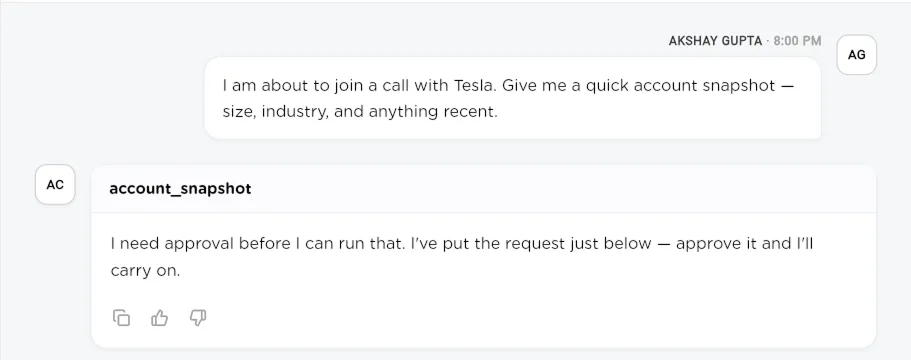
In a team chat, the sub-agent tells you the step is waiting for approval and carries on once it is decided.click to enlarge Open the Approvals queue
Go to Compliance in the sidebar and choose Approvals(Human-in-the-loop). Pick the workspace in the switcher at the top. The heading shows how many calls are pending. Each card shows the tool's name and function key, a
READorWRITEbadge, how long ago it was requested, and chips for the worker type (Sequential Agent, Agentic Team or AI Employee), the worker's name, the integration, the sub-agent, who requested it and the session.Policy names the rule that held it, and the box below shows the exact arguments. ClickRefresh to reload.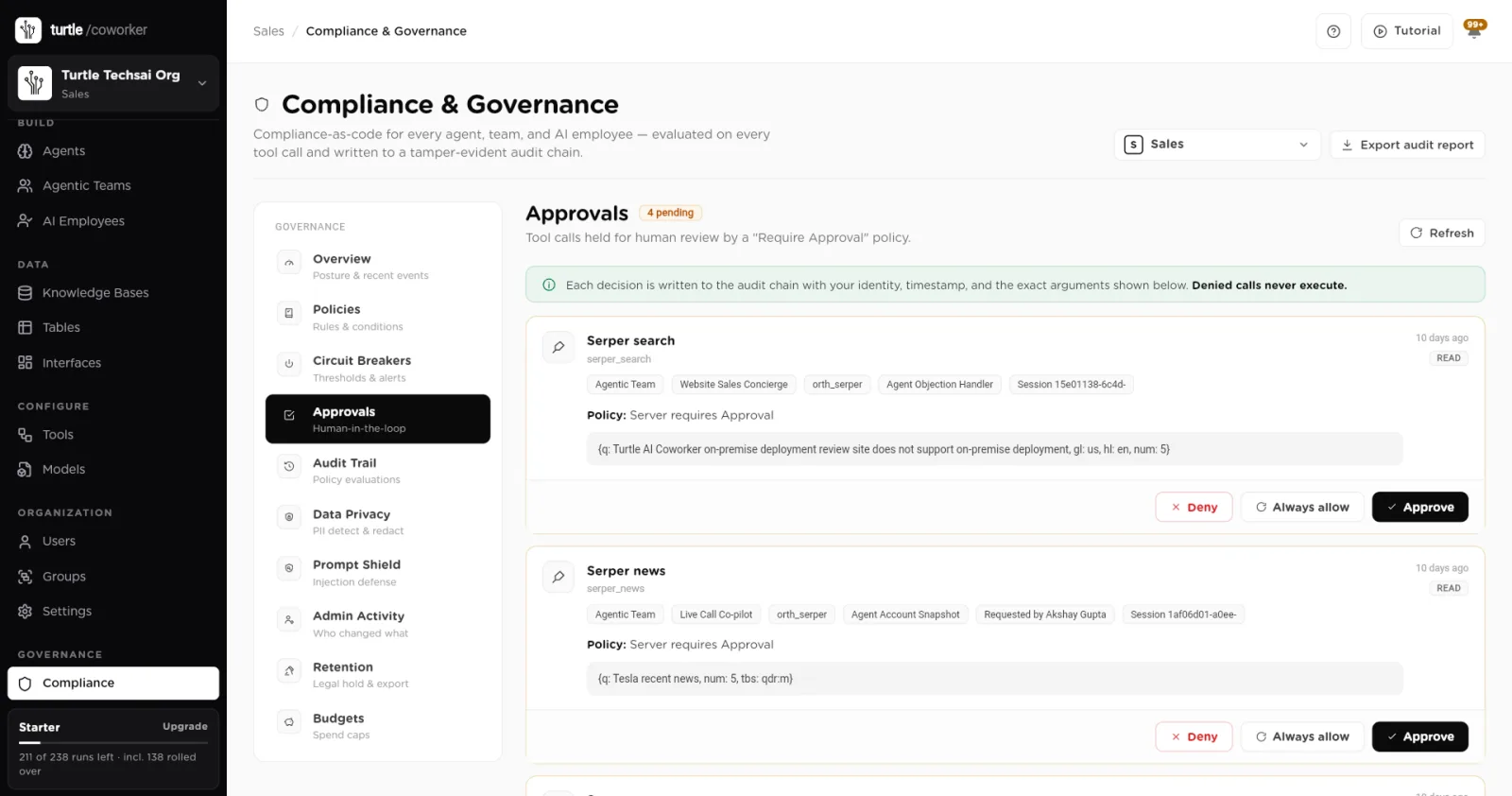
The Approvals queue. Each decision is written to the audit chain with your identity, the time and the exact arguments.click to enlarge Read the call before you decide
Open a card to review the call. The Arguments section is the exact call about to run. If the call carries files, an Attached files block lists each one by its real file name, type and size, with a Preview so you can see which image, PDF, video or spreadsheet is going out. The block only lists files the run could already reach. If a file cannot be found it saysFile unavailable instead of hiding it, so you never approve a send without knowing what is attached.
Correct values if something is wrong
Click Edit values to fix the call before you approve it: a wrong recipient, a typo in a subject, a sentence in the body. There is no separate save step. Your changes are sent when you approve, and whatever you approve is exactly what runs. Changed fields are marked CHANGED with the original beside them. Use Revert on a field or Discard changes to undo. When you have edited anything, the approve button reads Approve & send instead of Approve & run.
An edit corrects the call. It cannot turn it into a different call. The platform refuses an edit that:
- Changes the length of a list. You can fix a recipient in place, but you cannot add or remove recipients or attachments. If an entry should not be there, deny the call.
- Moves or swaps a file reference. Each attached file is pinned to its place. You can see it, but you cannot replace it with another file.
- Empties a required field or adds a field the tool does not have.
- Changes a value's type, for example text where the tool expects a number.
The corrected call is also checked against your policies again before it is accepted, so an edit cannot point a call at something a deny rule blocks.
Approve, always allow, or deny
Each card has three decisions:
- Approve (Approve & run): a single-use grant. The next matching call runs with the arguments you approved, then the grant is spent. The next time the worker makes that call, it asks again. An unused single-use grant expires after 24 hours.
- Always allow: a standing grant for calls of this shape. A dialog titled Always allow this? lists the arguments. Values you tick under Must match exactly (usually the ones that identify the target, such as a channel or recipient) are pinned. Unticked values may differ each run. If nothing is ticked, the grant covers any arguments to that tool. If you edited the call, the grant is pinned to your corrected values. A standing grant expires in 30 days.
- Deny: the call never executes. The decision and your identity go to the audit trail.
After you decide, the run resumes on its own. A Sequential Agent continues from the held step. An AI Employee task picks up where it paused. A team carries on in its chat.
Review recent decisions and standing grants
Below the queue, Recent decisions lists past approvals with the tool, the worker, who decided and the status, such as Approved, Used (the grant was spent on a real call) or Denied. Expand a row to see the original and sent arguments, who decided, and the outcome. Standing grantslists every Always allow grant still in force. Click Revoke to end one early. The next matching call will ask again.
Plan approval for AI Employees
Policy approvals hold one tool call at a time. AI Employees add a second gate: before a task runs, the employee writes a plan, and depending on its autonomy scope the plan waits for a person to approve it in the chat. The two gates are independent. An approved plan does not approve the tool calls inside it, and a policy can still hold a call from an approved plan.
| Autonomy scope | Type | What it does |
|---|---|---|
Scope 1: Human in the Loop | plan | Every task plan needs approval. |
Scope 2: Supervised Autonomy | plan | A plan needs approval when any step writes or deletes something. This is the default. |
Scope 3: Bounded Autonomy | plan | A plan needs approval when any step uses an external integration. Table, knowledge base and agent steps run without asking. |
Scope 4: Full Autonomy | plan | Plans run without approval. Policies still apply to every tool call. |
Anyone chatting with the employee can approve the plan for their own conversation. The task records who approved it and from where. Plans behind a time trigger are approved when you set up the trigger. Set the scope on the employee's configuration, described in AI Employees.
Who can decide, delegation and escalation
- Who decides. Organization owners and admins decide policy approvals.
- Delegation (out of office). An owner or admin can hand their approval authority to a colleague until a set date, with an optional note. The delegate then sees and decides the queue, and each decision records whose behalf it was made on. A delegation only works while the person who gave it is still an owner or admin, and each person has one active delegation at a time. Delegation is set up in the Turtle AI Coworker mobile app.
- Group decisions. The mobile app groups identical requests so you can approve or deny them together.
- Escalation. A request that has waited longer than 4 hours is escalated once: owners and admins get an alert naming it.
Reference
Approval card
| Element | Type | What it does |
|---|---|---|
Tool name | text | The function the worker wants to call, with its key underneath (for example serper_search). |
READ / WRITE | badge | Whether the call reads data or changes something. |
Chips | context | Worker type, worker name, integration, sub-agent, Requested by and the session or task. |
Policy | text | The rule that held the call. |
Arguments | values | The exact call about to run. Editable with Edit values while the request is pending. |
Attached files | list | Each file the call carries, with file name, type, size and a preview. Files cannot be swapped. |
Deny | button | Refuses the call. It never executes. |
Always allow | button | Approves and creates a standing grant for calls of this shape, valid for 30 days. Shown when the platform can describe exactly what the grant would cover. |
Approve & run / Approve & send | button | Approves this call once. Reads Approve & send when you have edited values. |
Always allow dialog
| Element | Type | What it does |
|---|---|---|
Must match exactly | checkboxes | The argument values a future call must match for the grant to cover it. Untick values that change every run, such as a subject or date. |
Expiry | 30 days | The grant ends after 30 days or when you revoke it. Every use is still recorded in the audit trail. |
Request status
| Status | Type | What it does |
|---|---|---|
pending | status | Waiting for a decision. |
approved | status | Approved and not yet used. |
consumed | status | Shown as Used. The grant was spent on a real call. |
denied | status | Refused. The call never ran. |
expired | status | The grant lapsed before it was used. |
revoked | status | A standing grant ended early by a person. |
Related
- Policies, budgets & guard rails: write the rules that hold calls.
- Audit trail & run traces: see decisions in context.
- Running work (Run Control): where pending approvals are counted.
- AI Employees: autonomy scope and plan approval.