
Policies, budgets & guard rails
Set the rules every tool call is checked against, cap spend, trip circuit breakers on runaway runs, redact personal data, shield workers from prompt injection, and keep records for as long as you need.
Compliance & Governance is where you decide what your workers may do. Policy rules are checked before every tool call, for every Sequential Agent, Agentic Team and AI Employee in the workspace. Circuit breakers and budgets stop runs that cost too much or fail too often. Data Privacy and Prompt Shield clean what flows in and out of the model, and Retention decides how long the records are kept.
Set these up once per workspace, before you connect workers to systems that matter. Owners and admins make the changes, and every change is written to the audit chain with who made it. The workspace switcher at the top of the screen decides which workspace you are editing.
How a tool call is checked
Step by step
Open Compliance and read the overview
Click Compliance in the sidebar under Governance. The left panel lists the sections:Overview, Policies, Circuit Breakers,Approvals, Audit Trail, Data Privacy, Prompt Shield, Admin Activity, Retention and Budgets. The overview shows four cards: Active policies (with how many require approval and how many deny), Breaker events in the last 24 hours, Unresolved pause and critical events waiting for review, and PII protection status. Below are the recent circuit breaker events and recent policy evaluations. Tutorial at the top plays a short video of this screen.
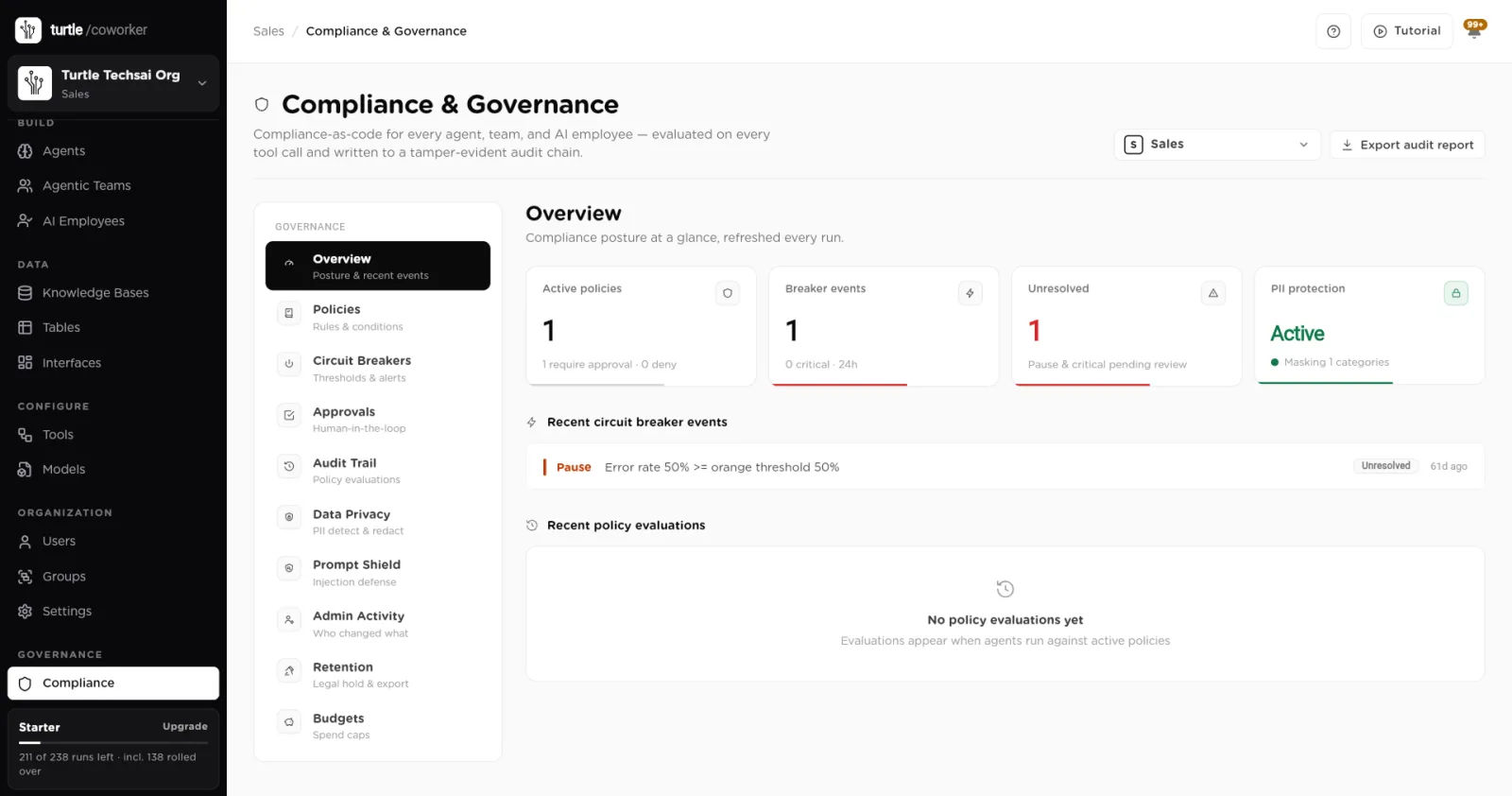
The Compliance overview: posture at a glance for the selected workspace.click to enlarge Review the policy rules
Choose Policies. Each rule shows its name, its action, its description and chips for everything it matches: the functions it covers, the integration, and the surfaces it applies to (for example via all surfaces). Use the switch to turn a rule on or off, and the bin icon to delete it.
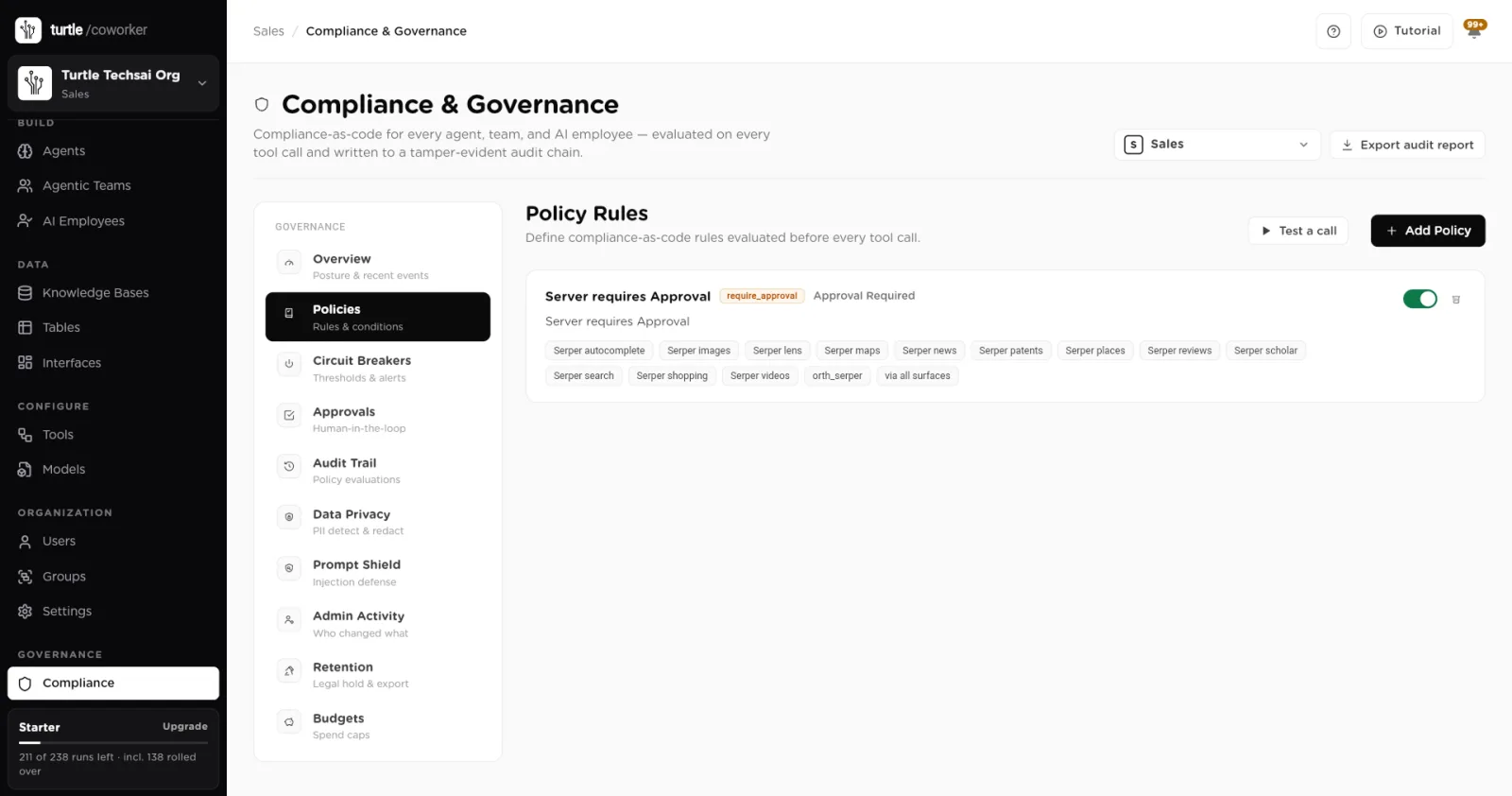
Policy Rules: each rule lists the functions and surfaces it covers, with an on and off switch.click to enlarge Create a policy rule
Click Add Policy. In Create Policy Rule, give the rule aName and a Description, then pick the Action:
- Deny: blocks the call. The worker is told a policy stopped it and carries on with the rest of its work.
- Ask for approval: holds the call until a person approves it. The run pauses rather than failing. See Approvals.
- Allow (exception): carves an exception out of a broader rule. It only wins where it is more specific than the rule it overrides.
- Alert only: never blocks. Records the call and notifies.
- Log only: never blocks. Records the call silently.
Under Conditions, choose the Integration (or leave All integrations). Once you pick an integration, Functions lists every function it offers by a readable name, from the platform's function catalog. Tick the ones this rule covers, or tick none to cover every function. If you tick no functions, Operation lets you narrow the rule to Writes only or Reads only; this keeps covering functions the integration adds later.
Where does this apply? scopes the rule to the surfaces a call came from:Internal chat, Website embed, Public link,Private link, Slack, API, Trigger andScheduled. Leave all off to apply everywhere. For example, block writes from the website embed while allowing them in internal chat.
To stop data leaving for the wrong place, tick Also check the arguments (recipient domain, URL host) and set an Argument constraint (egress): the argument to check (for example
to) and the allowed domains. The call is blocked when that argument targets a domain outside the list. Preview effect shows what the rule would decide before you save. ClickCreate. If the rule has no conditions at all, you are asked to confirm, because it would apply to every tool call in the workspace.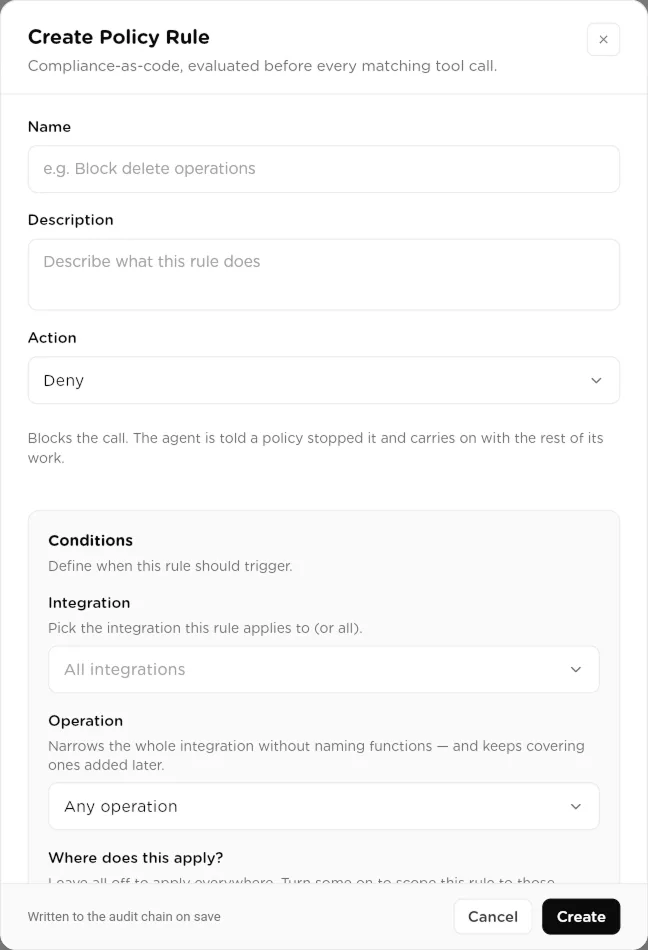
Create Policy Rule. The rule is written to the audit chain when you save it.click to enlarge Test a call against your rules
Click Test a call on the Policies page, pick an integration and a function, and clickTest. The result shows the verdict, which rule decides and why the other matching rules do not. Nothing runs and nothing is recorded.
Set circuit breakers
Choose Circuit Breakers. A configuration has three levels, each with a cost, a tool failure count and an error rate. The first threshold a run crosses decides what happens:
- Yellow: alert only.
- Orange: pause and wait for review.
- Red: halt immediately. While a red event is unresolved the breaker stays open and new runs in that scope are refused.
Max per run and Max per day are hard cost caps: crossing either counts as red. Error rates only count once a run has made at least ten tool calls, so one failed call in a tiny run cannot halt a workspace. Click the pencil to open Edit Circuit Breaker. UnderEvents, each trip shows its level and reason. Click Resolve once you have dealt with it, which also lets runs start again after a red halt.
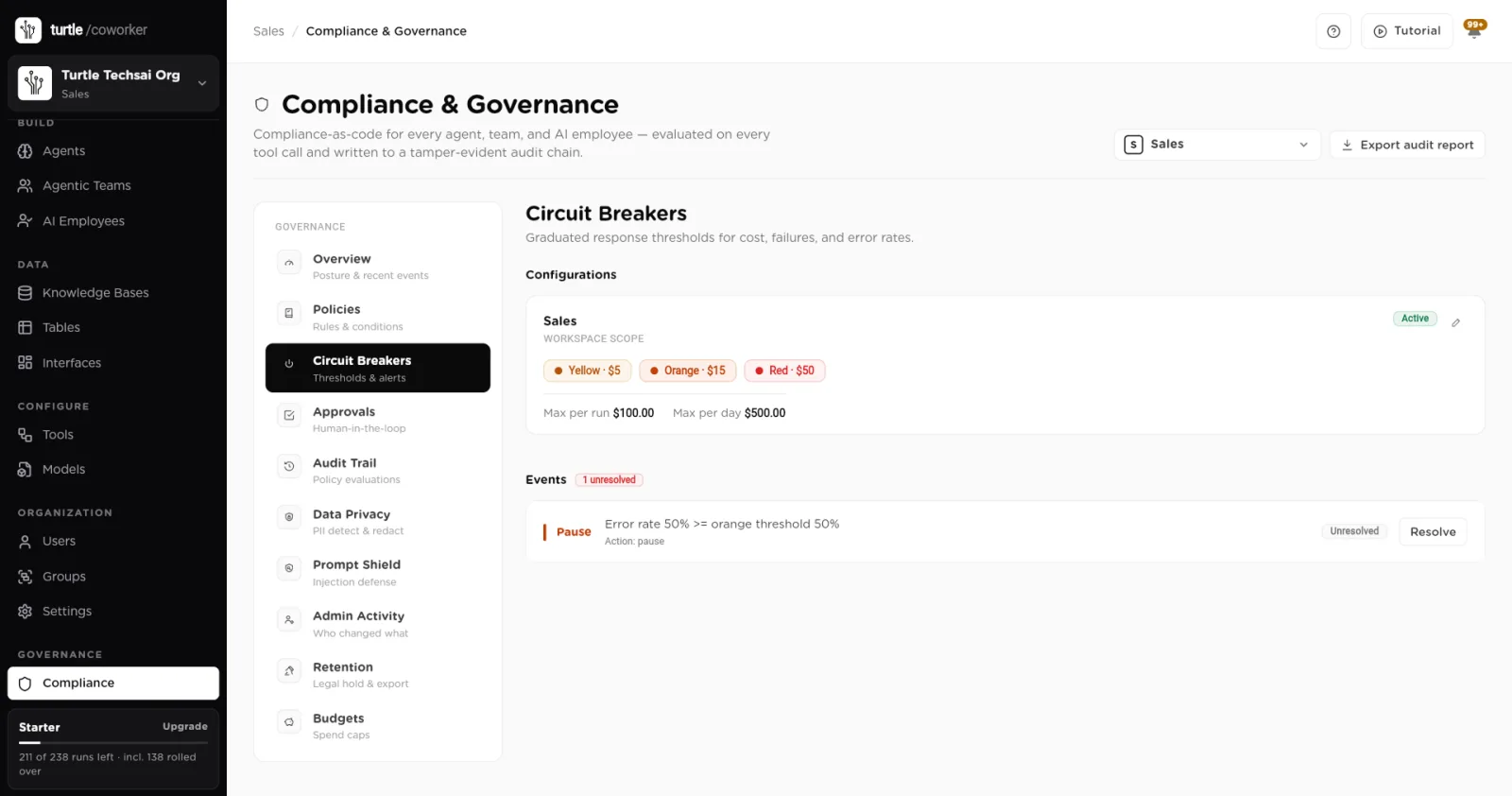
Circuit Breakers: graduated thresholds, hard caps, and the events they raised.click to enlarge Add a budget
Choose Budgets and click Add budget. Pick the Period(Daily or Monthly), set a Hard cap (USD) at which runs are refused, and a Soft cap (USD) that sends an alert without blocking. Turn offEnforce hard cap if you want the hard cap to alert only. Click Save budget. A budget applies to all runs in the workspace. The monthly hard cap also appears in the Spend MTD cell on the Run screen.
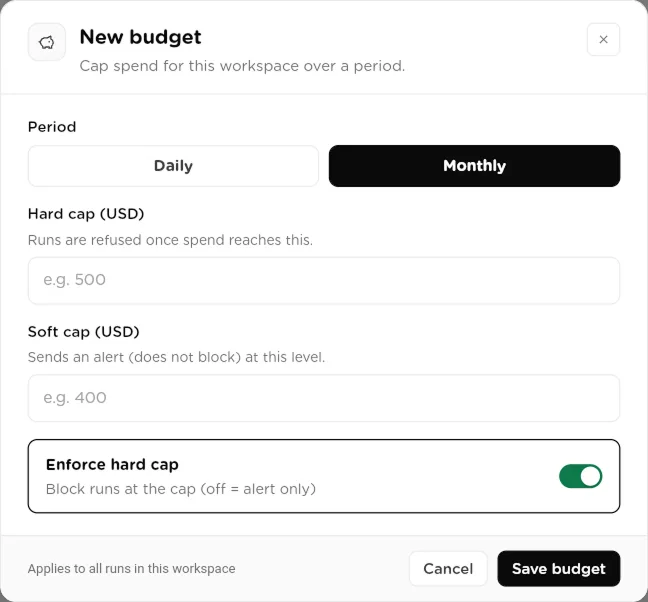
New budget: cap spend for this workspace over a day or a month.click to enlarge Turn on Data Privacy
Choose Data Privacy. Switch on PII Protection to detect and redact personal data in tool inputs and outputs before it reaches the model or a connected tool. UnderPII categories, choose what to detect: email addresses, phone numbers, social security and national identifiers, credit card numbers, physical addresses and personal names (names have a higher false-positive rate). Pick the Redaction mode and click Save changes.
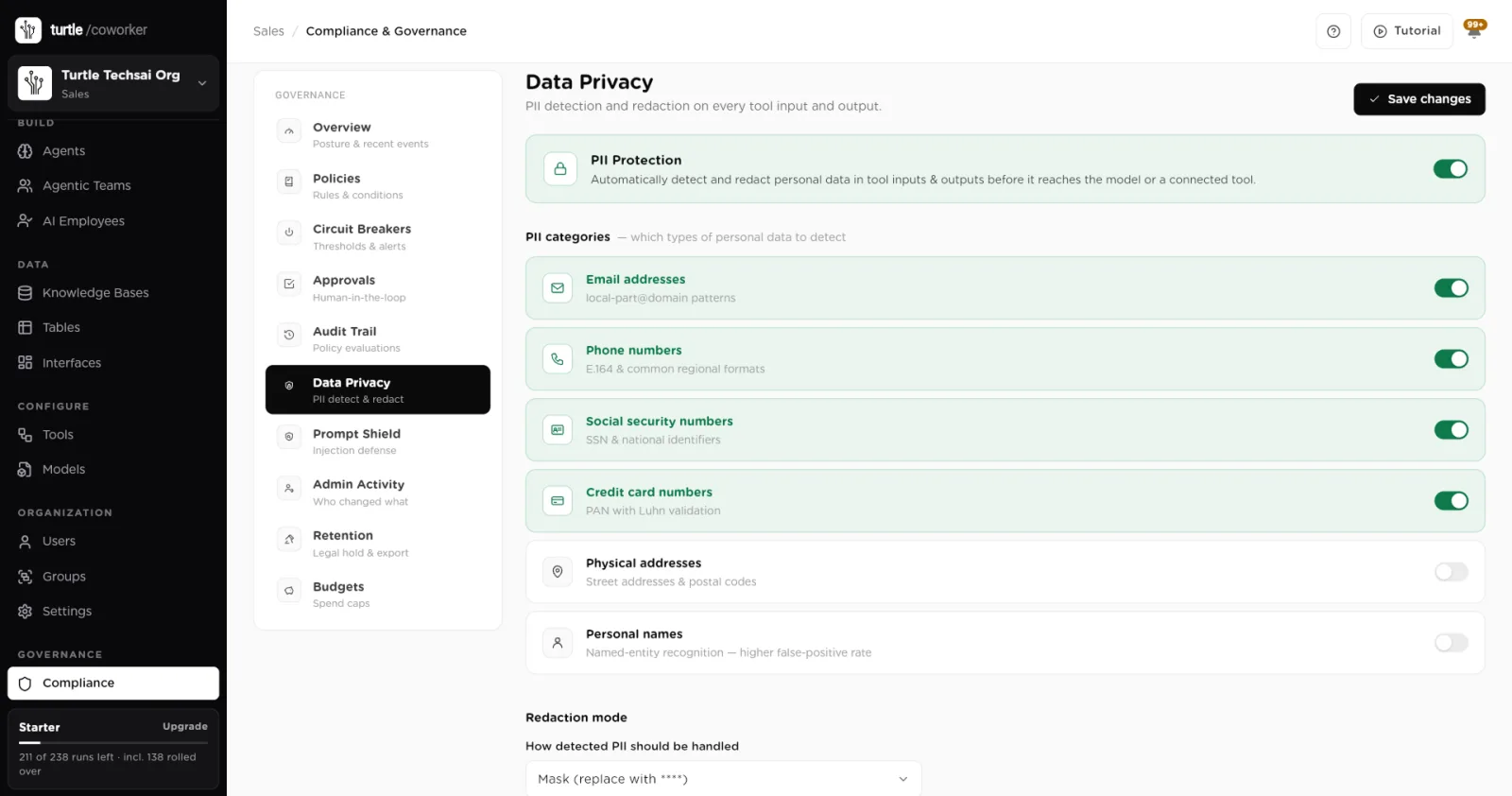
Data Privacy: choose which personal data to detect and how to handle it.click to enlarge Turn on Prompt Shield
Text a worker reads from outside (a web page, an email, a document, a table row) can contain instructions written to hijack it. Choose Prompt Shield and switch it on. Pick aResponse mode: Flag only logs and alerts admins but passes the content through; Wrap (recommended) marks the content as untrusted data so the model does not follow instructions inside it; Block withholds the content from the model and notifies admins. Under Scanned sources, choose what to scan: tool and integration results, knowledge base results, table rows and webhook payloads. Add Custom patterns (regular expressions) for phrases you want treated as injection markers. Detections appear under Admin Activity.
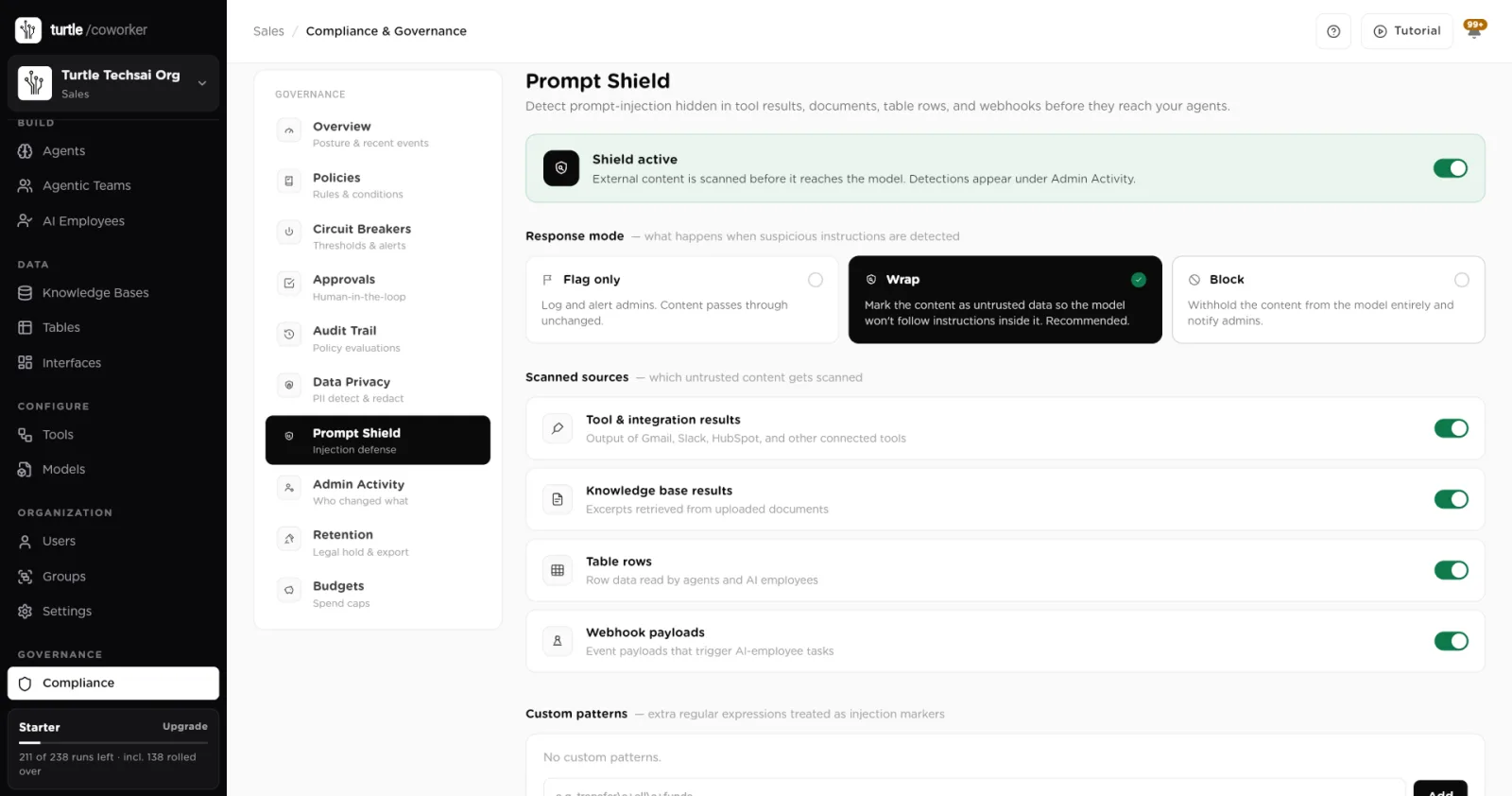
Prompt Shield: scan untrusted content before it reaches the model.click to enlarge Set retention and legal hold
Choose Retention. Under Add retention, enter a Retention period (days) for audit and evaluation records in this workspace and click Save. Records older than that are purged. Switch on Legal Hold to preserve every audit and compliance record during a legal or audit matter. While the hold is on, purging stops for the workspace until you release it.
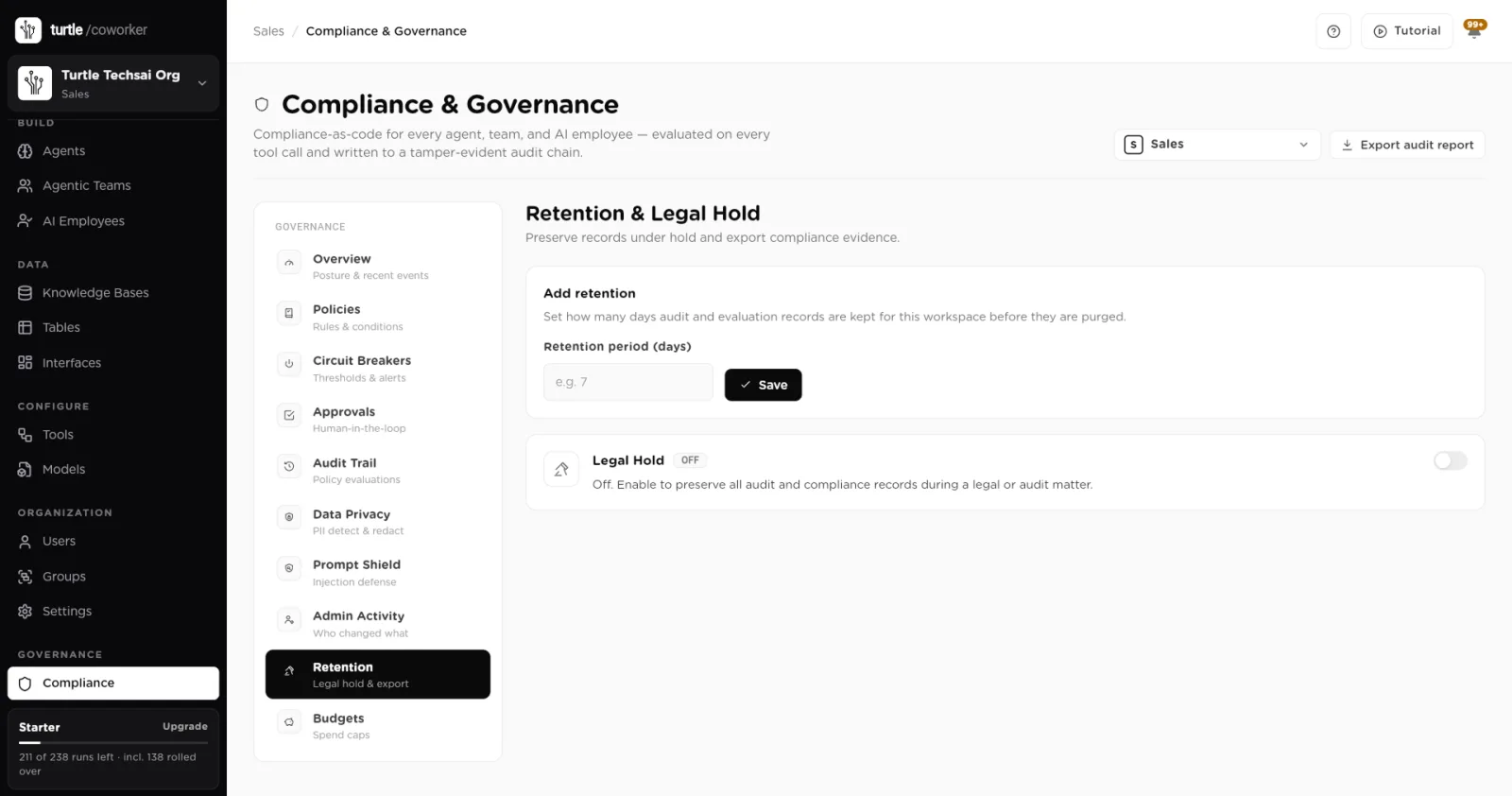
Retention and Legal Hold: how long records are kept, and a hold that stops all purging.click to enlarge Word the AI disclosure for anonymous chats
When someone chats with your worker without signing in (a team public link, private link or website embed, an interface's public page, or an AI employee's private link), they are told they are talking to an AI, as EU AI Act Article 50 requires. The wording is stored as the first message of every such conversation, so the transcript itself shows the disclosure was made. Owners and admins set it underSettings, on the organization page, in AI disclosure. The default names your organization and your owner's email as the contact. You can reword it, for example to use a shared support address, but you cannot leave it empty.
How rules decide when several match
Several rules can match one call. The engine settles it without you having to order them:
- The stricter block wins. Deny beats Ask for approval, however narrowly the approval rule is drawn. A workspace with "block all deletes" and "approve calendar changes" still blocks a calendar delete.
- An exception must be narrower. An Allow rule overrides blocks only when it is more specific than every block it would override. Naming a function is more specific than naming an integration, which is more specific than an operation type or surface. A tie never opens anything up.
- Priority breaks remaining ties. Each rule has a priority number, and a lower number wins.
- No match means the call runs. Alert only and Log only rules record the call but never decide it.
Reference
Policy rule
| Field | Type | What it does |
|---|---|---|
Name | text | What the rule is called in lists and on approval cards. |
Description | text | What the rule does, in plain words. |
Action | choice | Deny, Ask for approval, Allow (exception), Alert only or Log only. |
Integration | select | The connected tool the rule applies to, or All integrations. |
Functions | multi-select | Specific functions from the function catalog. Empty means every function of the integration. |
Operation | choice | Any operation, Writes only or Reads only. Shown when no functions are ticked. |
Where does this apply? | chips | Internal chat, Website embed, Public link, Private link, Slack, API, Trigger, Scheduled. None ticked means everywhere. |
Argument constraint (egress) | arg + domains | Blocks the call when the named argument targets a domain outside the allowlist. |
Priority | number | Tiebreaker between equally specific rules. Lower wins. |
Active | switch | Turns the rule on or off without deleting it. |
Circuit breaker
| Field | Type | What it does |
|---|---|---|
Yellow | cost · failures · error % | Alert. Defaults: $5, 5 failures, 20%. |
Orange | cost · failures · error % | Pause and wait for review. Defaults: $20, 15 failures, 40%. |
Red | cost · failures · error % | Halt. New runs are refused until the event is resolved. Defaults: $50, 30 failures, 60%. |
Max per run | USD | Halts a single run that costs this much. |
Max per day | USD | Halts once the day's spend across runs reaches this. |
Scope | choice | The workspace, or a single team or AI employee. The most specific configuration applies. |
Budget
| Field | Type | What it does |
|---|---|---|
Period | choice | Daily or Monthly. |
Hard cap (USD) | decimal | New runs are refused once spend in the period reaches this. |
Soft cap (USD) | decimal | Sends one alert per period at this level. Never blocks. |
Enforce hard cap | switch | On: block runs at the hard cap. Off: alert only. |
Data Privacy, Prompt Shield and Retention
| Setting | Type | What it does |
|---|---|---|
PII Protection | switch | Detect and redact personal data in tool inputs and outputs. |
PII categories | switches | Email addresses, Phone numbers, Social security numbers, Credit card numbers, Physical addresses, Personal names. |
Redaction mode | choice | Mask (replace with ****), Hash (one-way hash), Remove entirely, or Flag only (no redaction). |
Prompt Shield | switch | Scan untrusted content for injected instructions before it reaches the model. |
Response mode | choice | Flag only, Wrap (recommended) or Block. |
Scanned sources | switches | Tool and integration results, Knowledge base results, Table rows, Webhook payloads. |
Custom patterns | regex list | Extra regular expressions treated as injection markers. |
Retention period (days) | number | How long audit and evaluation records are kept before they are purged. |
Legal Hold | switch | Stops all purging for the workspace until released. |
AI disclosure | text | In Settings. The sentence shown to anonymous visitors in public chats. Can be reworded, never emptied. |
Related
- Approvals & human-in-the-loop: decide the calls your rules hold.
- Audit trail & run traces: evaluations, admin activity and the audit report.
- Running work (Run Control): where spend and failures show day to day.
- Settings & security: the AI disclosure and organization settings.