
Tools & Integrations
Connect the apps your workers act in, once for the whole organization, then grant each tool to the agents, team members and AI employees that need it.
Tools & Integrations is where you connect the outside services your workers can call: email, calendars, CRMs, project trackers, file storage, search and data providers. You connect a service once, with its own sign-in or key, and the connection is then available across your organization.
Use this screen before you build: a worker can only be granted a tool that is already connected. Come back here when a connection expires, when you want to see which workers depend on a tool, or when you need to disconnect a service completely.
How a tool reaches a worker
Connecting and granting are two separate steps. An owner or admin connects the service at the organization level. A builder then grants that connected tool to each worker that should use it. At run time the worker calls the tool, and every call is checked against your policies and written to the audit trail.
Connect and manage tools step by step
Open Tools under Configure in the left sidebar. The page title isTools & Integrations. The tabs at the top switch between Integrations(the catalog of ready-made services), Custom tools (your own REST APIs) andCustom MCP servers (MCP servers your organization runs). This page covers the Integrations tab. The other two are described in Custom Tools & MCP servers.
Browse the catalog
Scroll past the Connected section to reach Available, the services you have not connected yet. The note under the heading says it plainly: connect once, available to your whole organization. Each card shows the service name, its category (for exampleINTEGRATION or DATA & ENRICHMENT), a short description, the authentication method in the bottom left, and a Connect button.
Type in Search integrations… to filter by name or description, or use theCategory filter to narrow the list to one or more categories. The refresh button next to the search box reloads the catalog.
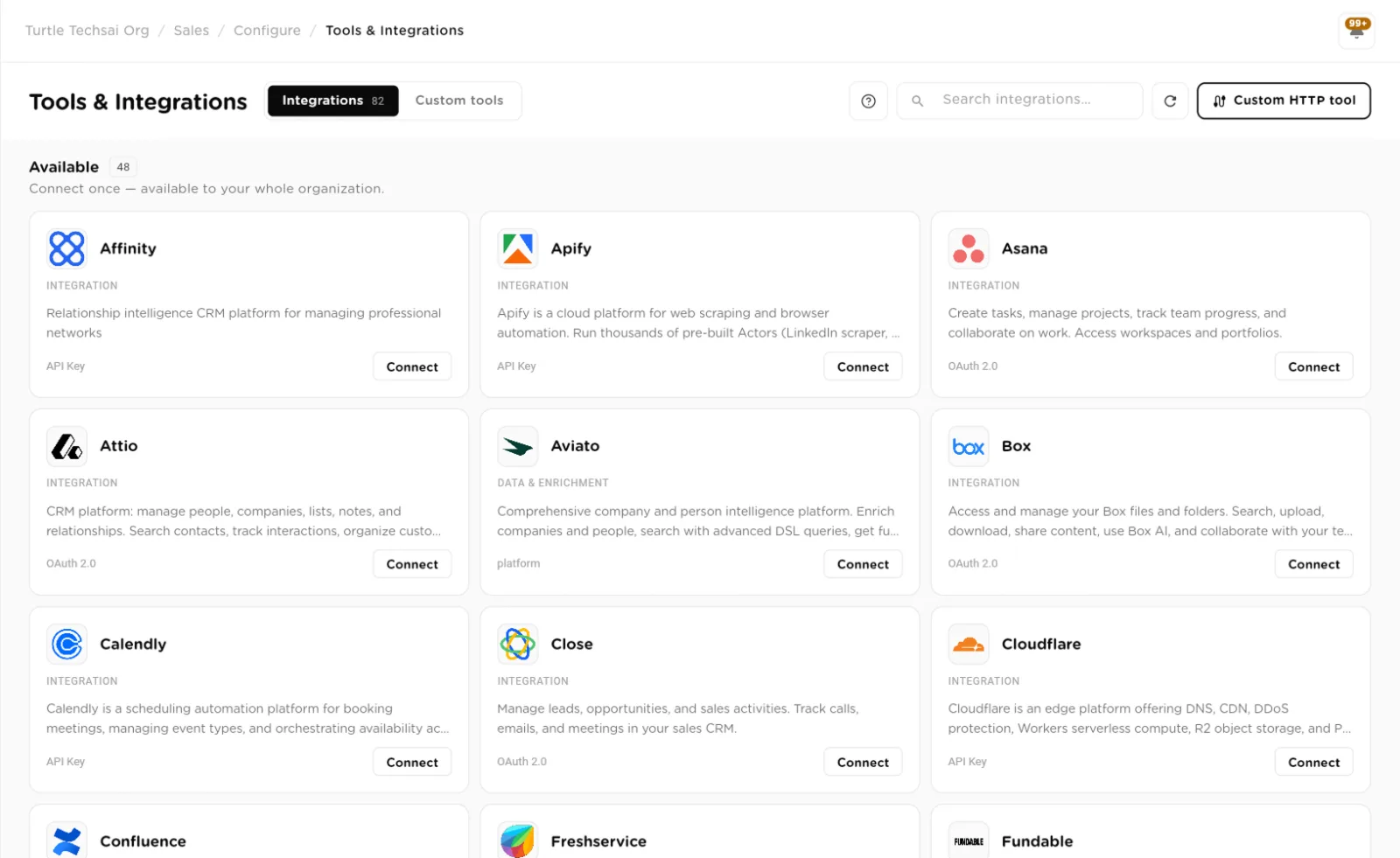
Available: every card names the service, its category, what it does, and how it authenticates.click to enlarge Check the authentication method
The label at the bottom left of each card tells you what Connect will ask for:
- OAuth 2.0: you sign in to the service in a secure popup and approve access. No password or key is typed into Turtle AI Coworker.
- API Key: you paste a key you created in that service's own settings.
- platform: the tool runs on a key the platform provides. There is nothing to enter; Connect switches it on.
- Custom: a built-in tool, such as the PDF tool, that is enabled with one click and needs no credential.
Some services connect through a partner sign-in window from StackOne. For those, Connect opens aSecured by StackOne dialog: a StackOne window opens in a new tab, you sign in to the service and approve access there, then return and finish. StackOne holds the credentials on your behalf.
Connect with OAuth
Click Connect on an OAuth card. A dialog named Connect plus the service name opens, marked OAuth 2.0 authentication, and lists thePermissions requested. Click Authorize. A secure popup opens on the service's own site; sign in with the account the organization should use and approve access. When the popup closes, a confirmation appears and the card moves to Connected.
A few services ask for one more detail before the popup opens, such as your Zendesk subdomain or your Freshservice domain. If nothing happens after Authorize, allow popups for the site and try again.
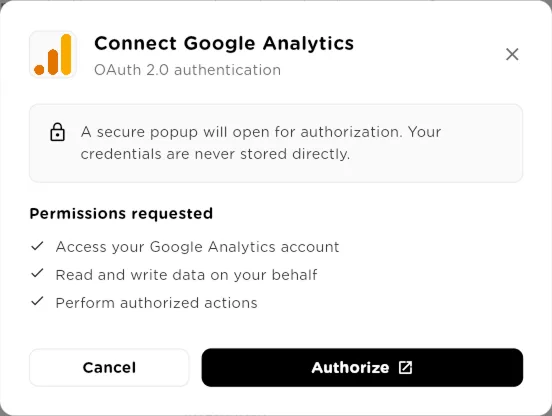
OAuth connect: review the permissions, then Authorize opens the service's own sign-in popup.click to enlarge Connect with an API key or enable a platform tool
For an API Key card, Connect opens a dialog with one field, API Key. Paste the key from the service's account settings and click Connect. The key is encrypted when it is stored and is never shown again.
For a platform or Custom card, Connect does the work straight away and confirms that the tool is enabled or connected. Some everyday tools, such as web search and the web page reader, are already connected when your organization is created, so a new workspace has something to work with before you connect anything yourself.
Some data and enrichment tools run on a shared platform key (a connected card shows(platform key) under the name) and are switched on per organization. If Connect keeps failing on one of them, the tool may not be enabled for your organization yet: contact support.
Read the Connected section
Every connected service appears under Connected, with a count, and the note "Integrations available to your agents." Each card shows:
- the account it is connected as, such as a user name, workspace or account ID;
- a health badge: Healthy, or Expired when the stored sign-in no longer works;
- the authentication method;
- USED BY: how many workers have been granted the tool;
- CALLS · 24H: how many calls workers made through it in the last day.
Connections are organization-wide by default. A connection that belongs to one person only carries aPersonal badge.
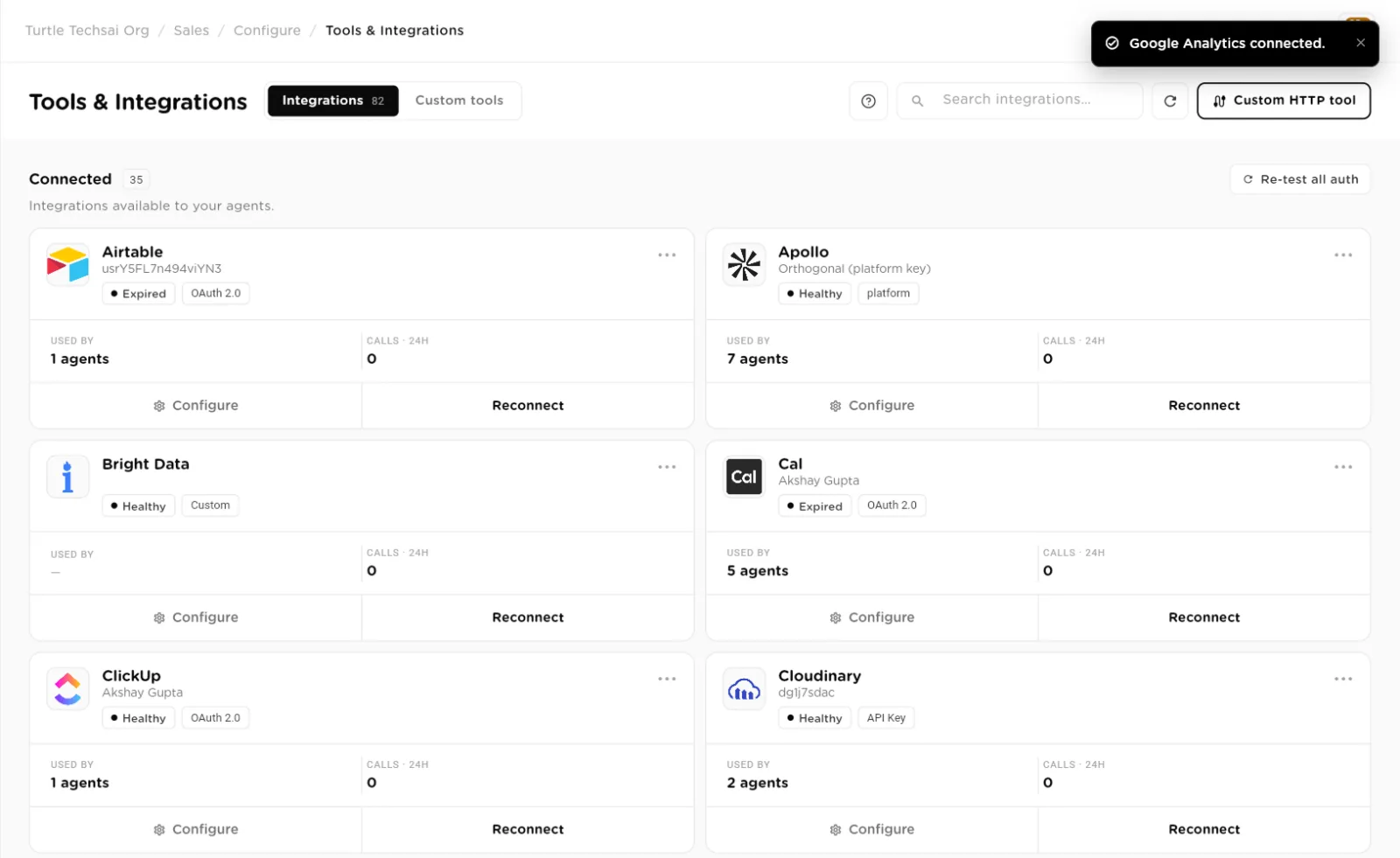
Connected: health, auth method, how many workers use each tool, and recent call volume.click to enlarge Reconnect an expired tool
When a card shows Expired, or a worker reports that a service refused its request, click Reconnect at the bottom right of the card. For OAuth and API key tools the old connection is cleared first, then the normal connect dialog opens, so you sign in or paste a fresh key. Workers that were granted the tool keep their grant; you do not have to add it to them again.
Open a tool's details or disconnect it
Click Configure on a connected card. A details dialog shows the service, aConnected status, what the service does and where to find its key, and the authentication method. Click Close to go back, or Disconnect to remove the connection. Disconnect asks you to confirm, then removes the connection and revokes access. You can connect it again at any time.
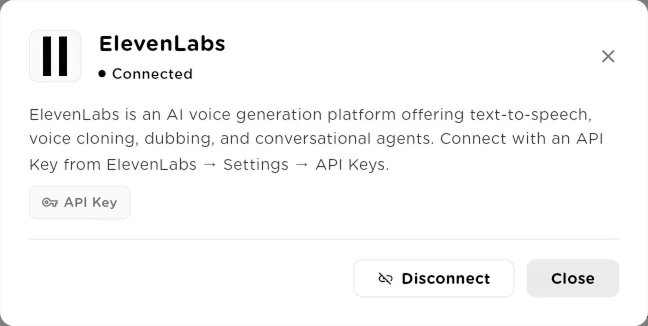
Configure opens the details dialog, where Disconnect removes the organization's connection.click to enlarge Grant the tool to a worker
A connected tool does nothing until you grant it to a worker. Each worker type has its own place for this:
- Sequential agent: open the agent, go to its Tools tab and click Add Tool. The picker has sub-tabs for Integrations, Custom tools and Custom MCP servers.
- Agentic team member: open the team, edit the member, and use the member's tools list with the same three sub-tabs. Tools are granted per member, so the team routes each request to the member that holds the right tool.
- AI employee: open the employee, find the Tools group among its resources, click Add Tool, tick the tools you want and click Add Selected.
Only connected tools can be picked. A worker's grant is independent of every other worker's, so you can give Gmail to one employee and not to another.
Turtle Notify: email people in your organization
Turtle Notify is a platform tool that lets a worker send an internal notification, an email plus an in-app alert, to people in your organization. It sends from Turtle AI Coworker's own address, so there is no mailbox to connect: Connect switches it on. Grant it to a worker like any other tool.
- Members only. Recipients must be accepted members of your organization. A worker can name individual people or a group; a group resolves to its current members when the message is sent. People who have only been invited, and outside addresses, are refused.
- No "everyone" option. To reach the whole organization, build a group that contains everyone. That keeps the recipient list a visible, deliberate choice.
- Limits. One call can reach at most 25 people, and an organization can send up to 200 notifications a day across all its workers.
- Clearly automated. Every email carries a footer saying an automated agent wrote it.
Use Gmail or Outlook when a worker must write to someone outside the organization, or send as a person. Use Turtle Notify when it only needs to tell your own people that something happened.
Reference
Integration card
| Item | Type | What it does |
|---|---|---|
Account | text | The account the connection signed in as, shown under the service name. |
Health | badge | Healthy when the stored connection works, Expired when it needs a Reconnect. |
Auth method | badge | OAuth 2.0, API Key, platform or Custom. |
Personal | badge | Shown only when the connection belongs to one person rather than the organization. |
USED BY | count | How many workers have been granted this tool. |
CALLS · 24H | count | Calls made through this tool in the last 24 hours. |
Configure | action | Opens the details dialog, with Disconnect and Close. |
Connect / Reconnect | action | Starts the connect flow for the card's auth method. On a connected card it clears the old connection and connects again. Owners and admins only for organization tools. |
Who can do what
| Action | Type | What it does |
|---|---|---|
Browse and search | all roles | Every member of the organization can see the catalog and what is connected. |
Connect, reconnect, disconnect | owner · admin | Organization connections are managed by owners and admins. |
Grant to a worker | editors | Anyone who can edit the agent, team or AI employee can grant it a connected tool. |
Related
- Custom Tools & MCP servers: wire in your own REST APIs and MCP servers.
- Models: connect the model providers your workers reason with.
- Sequential Agents, Agentic Teams, AI Employees: where tools are granted.
- Compliance: policies and approvals for tool calls.