
Running work (Run Control)
Launch any agent, team or AI employee from one screen, watch what is running, read each run's trace, and understand the per-organization run queue.
Run is the control panel for everything you can start in a workspace. It lists every Sequential Agent, Agentic Team and AI Employee you are allowed to run, puts four live numbers across the top (spend, runs today, failures and pending approvals), and keeps a rail of recent runs on the right so you can open any run's trace in one click.
Use Run when you want to start work by hand, check on work that triggers started for you, or find out why something failed. Run does not have its own copy of each worker: pressing Run opens the same run form, chat or task view that the Agents, Agentic Teams and AI Employees screens use, so a run started here behaves exactly like one started anywhere else.
How a run moves through the platform
Step by step
Open Run and pick the workspace
Click Run in the left sidebar under Workspace. The header says how manyrunnables are available to you. Use the workspace switcher at the top right to change workspace, the refresh button to reload, and the question mark button for a guided tour of the page.
The strip under the header shows four numbers for the selected workspace:
- Spend MTD: model spend this calendar month, with a straight-line forecast for the month. If the workspace has a monthly budget, the cap and the percentage used appear too.
- Runs today: runs started today, with how many are running now and how many are scheduled.
- Failures · 24h: failed runs in the last 24 hours, with the name of the worker that failed most recently.
- Pending approvals: tool calls waiting for a person to decide, and how long the oldest has waited.
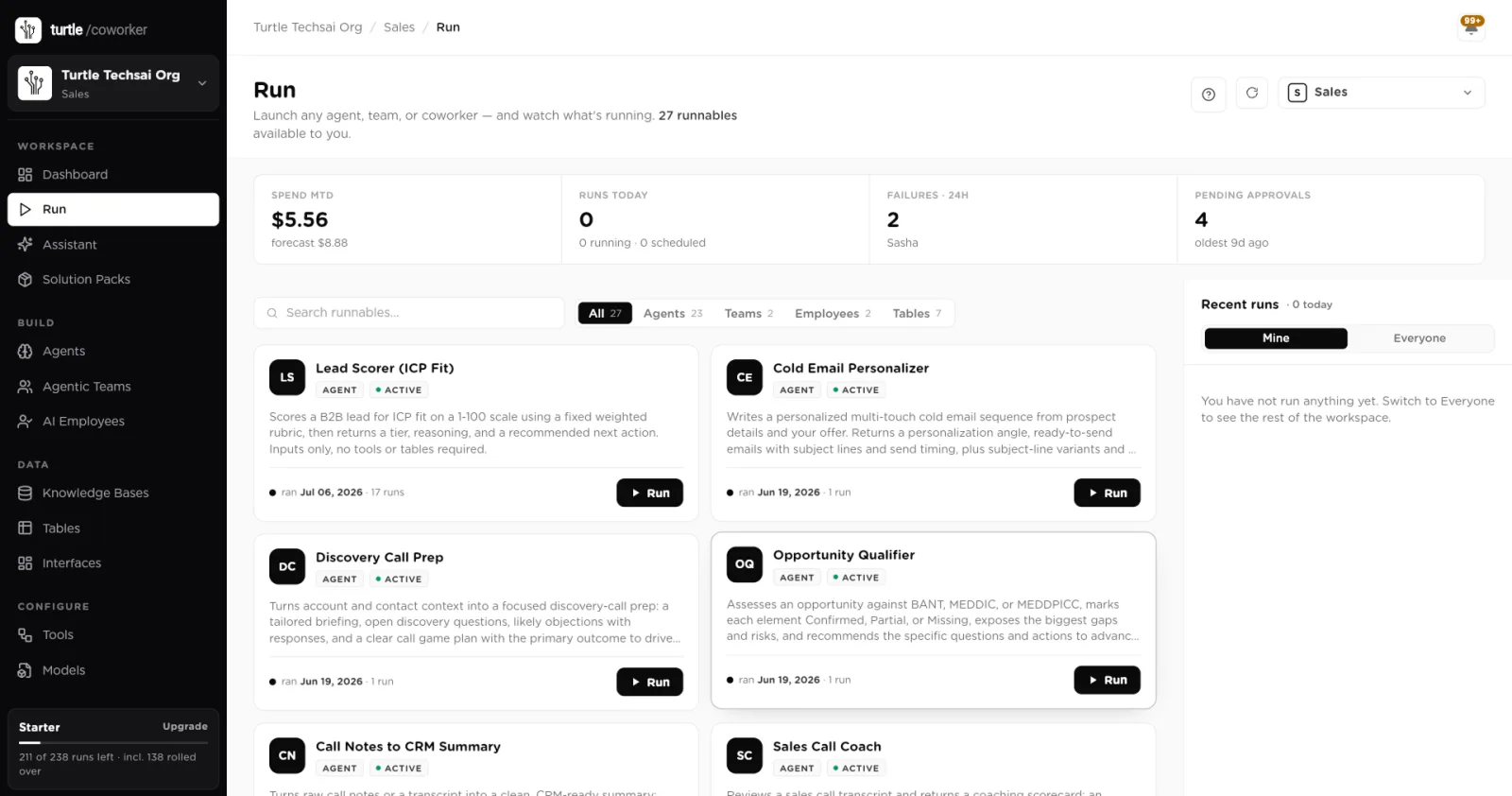
Run: the summary strip on top, every runnable as a card, and your recent runs on the right.click to enlarge Find what you want to run
Type in Search runnables… or use the filter tabs: All,Agents, Teams, Employees and Tables. Each card shows the worker's initials, its type (
AGENT,TEAMorEMPLOYEE), its status (Active, Paused or Inactive), its description and a usage line such as the last run date and run count, queries and chats for a team, or tasks done for an employee. A worker someone shared with you carries a Shared badge. If you do not have permission to run a worker, its button is disabled and says so when you hover it.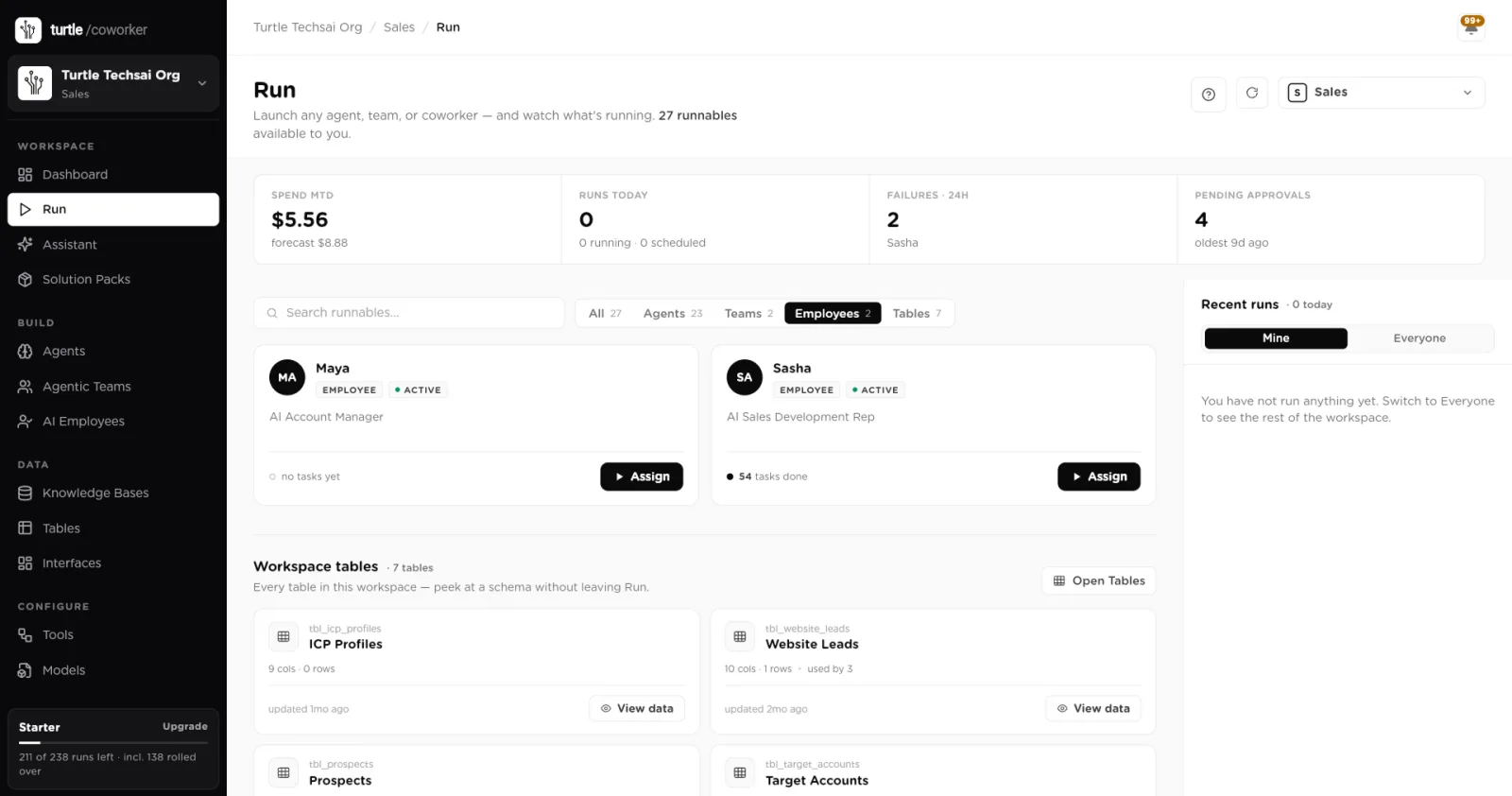
The Employees filter. AI employee cards show tasks done and an Assign button instead of Run.click to enlarge Run a Sequential Agent
Click Run on an agent card. A sheet slides in from the right titled with the agent's name. The top of the sheet shows the Model the agent runs on, its Avg runtime, its Avg cost per run and how many Tools are connected. Under Inputs, fill in each input parameter. Required inputs are marked
REQUIREDand each field shows its type. Click Run Agent to start, orCancel (or press Esc) to close the sheet without running.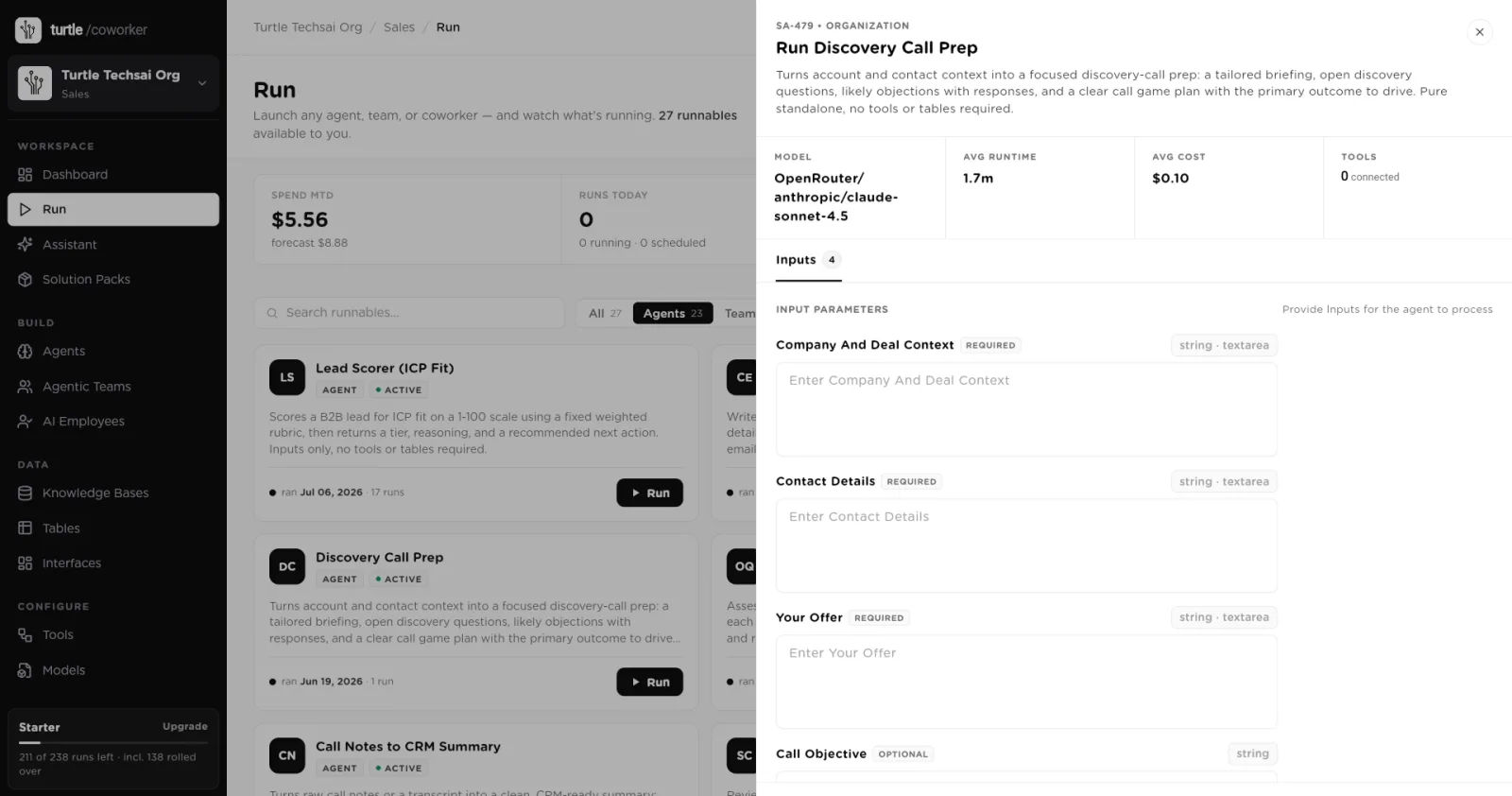
The run sheet for an agent: model and cost facts on top, the input form below, Run Agent at the bottom right.click to enlarge Chat with an Agentic Team
Click Run on a team card to open the team's chat in the same sheet. Type in the box (Ask the team, or @mention a specific agent) and press Enter to send, or Shift and Enter for a new line. The header shows live counters for the session: MSGS, TOKENS,COST and LATENCY. History opens earlier sessions andNew chat starts a fresh one. The Live audit trail panel on the right streams each event, tool call and token count as the team works.
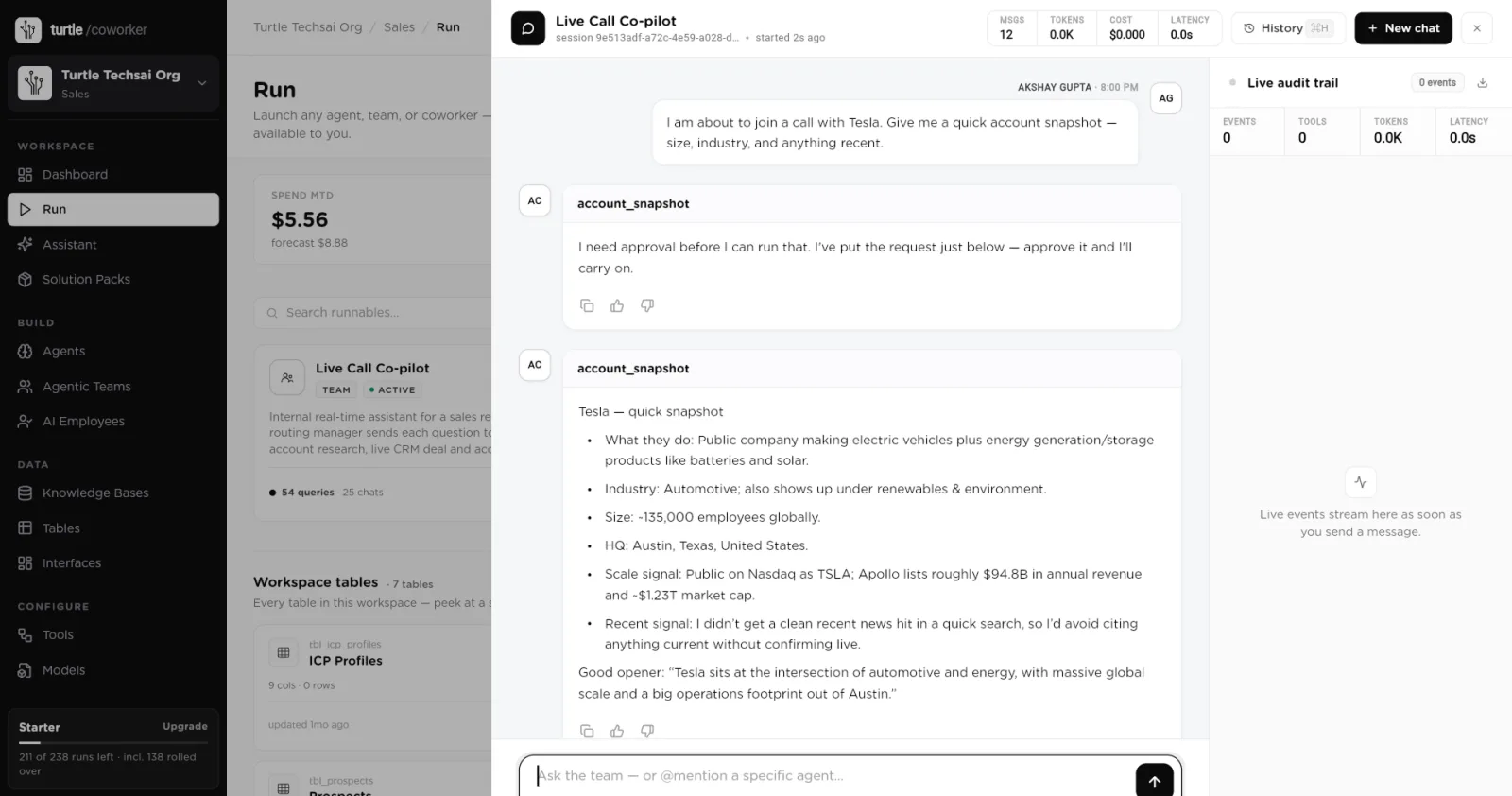
A team session opened from Run. Each reply is labelled with the sub-agent that answered.click to enlarge Assign work to an AI Employee
Click Assign on an employee card. The employee's chat opens with its greeting in the middle and a Tasks panel on the right. Ask a question or describe a task, optionally with a deadline. Turn on Background to send the message as a background task rather than a chat reply, and use Attach to add a file. Longer work appears in the Tasks panel, which you can filter by All, Active, Completed andFailed.
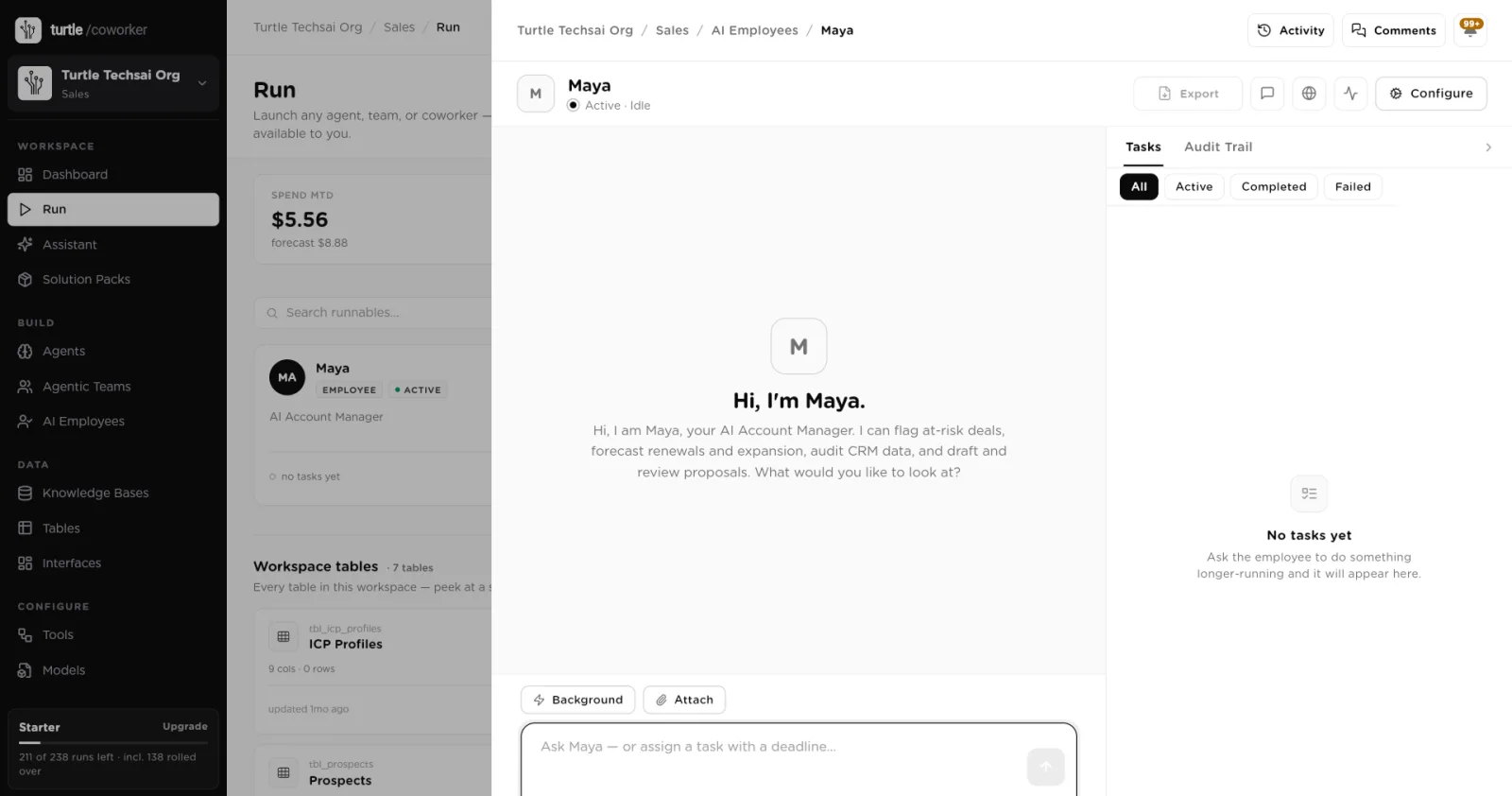
Assign opens the employee's chat. Tasks it takes on appear on the right with their status.click to enlarge Peek at workspace tables
Below the runnables, Workspace tables lists every table in the workspace with its column and row counts, how many workers use it, and when it was last updated. Click View data to open the table without leaving Run, or Open Tables to go to the Tables screen. TheTables filter tab shows only this section.
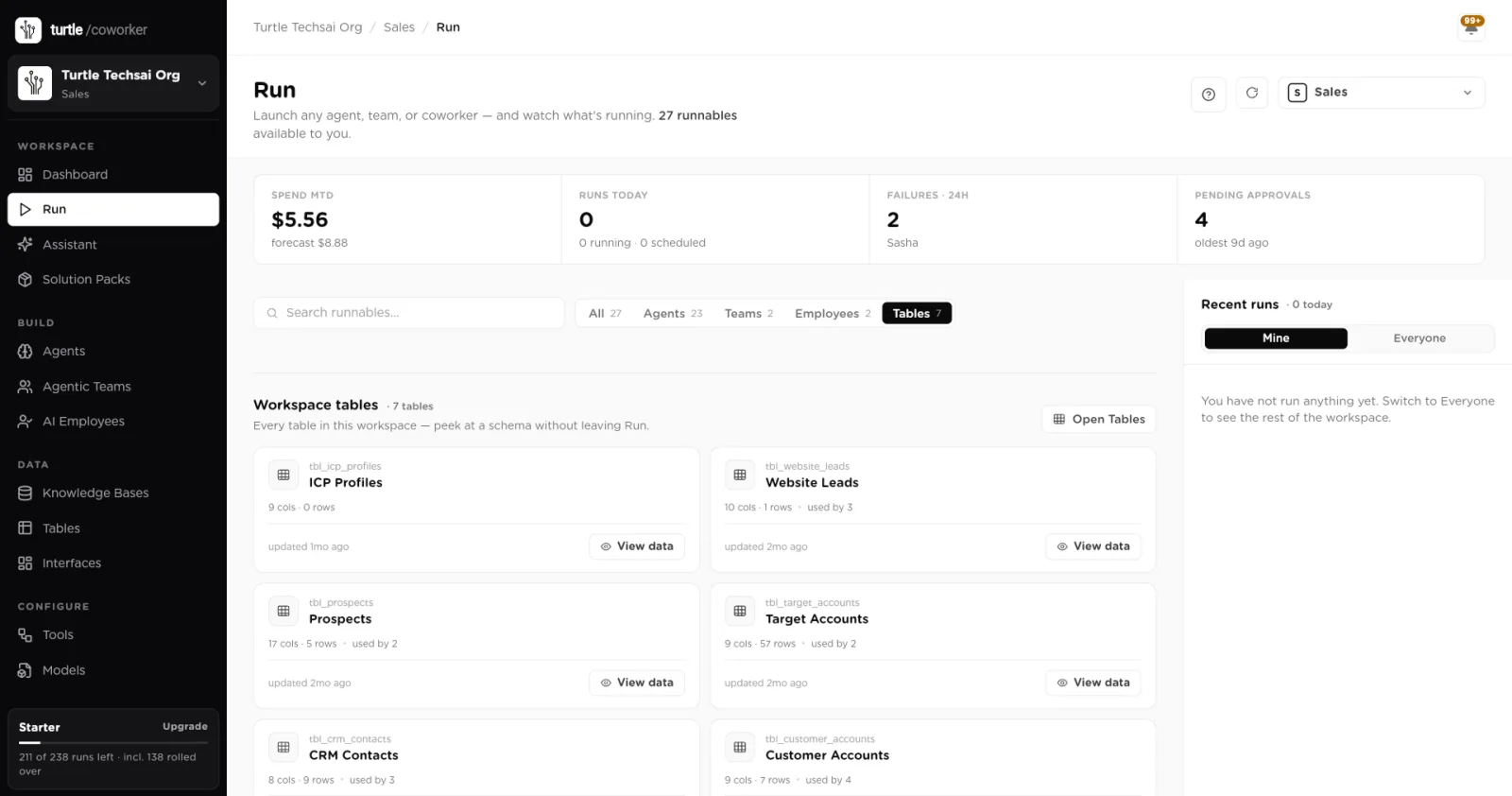
Workspace tables: check the data a run reads or writes without leaving Run.click to enlarge Watch recent runs and open a trace
The Recent runs rail lists runs in this workspace, newest first. Switch betweenMine (runs you started) and Everyone (the rest of the workspace that you can see), and click Load more for older runs. Click any run to open its trace: the run type (agent run, team session, conversation, agent trigger or employee trigger), itsStatus, Duration and Cost, any error, and for trigger runs each attempt. Open history takes you to the owning worker's full history, where the step-by-step log lives. See Audit trail & run traces for how to read it.
Check the queue in an agent's Run History
On an agent, open Run History. Besides the All,Completed, Failed and Running chips there is aQueued chip with a count. It lists runs waiting for a free run slot, in order, with their position, the trigger that started them and the table row they belong to. The panel also states the organization's limit, for example "This organization runs up to 2 agents at a time". A queued run has no run log yet, which is why it only appears here.
Cancel or retry an AI Employee task
In an employee's chat, a task card has Cancel task and Retry taskbuttons. Cancelling asks you to confirm, stops the task if it is running, and closes its audit record so the part of the plan that did run stays readable. A finished task (completed or failed) cannot be cancelled, and cancelling twice is harmless. To stop an agent from starting new runs on its own, pause its trigger on the agent's Triggers tab.
Parallel runs: one at a time by default
Every Sequential Agent run in an organization uses the same model deployments, so a burst of runs (a table trigger firing for many rows, or an AI employee calling an agent for every row) can hit your model provider's rate limit and fail half the runs. To prevent that, Turtle AI Coworker lets only a set number of agent runs execute at the same time across the whole organization. The default is one.
- Any run beyond the limit waits in the queue and starts as soon as a slot frees. A waiting run does not fail and costs nothing while it waits.
- The limit covers every way an agent can start: the Run button, time and table triggers, the API, an approval resume, and an AI employee using an agent as a tool.
- An AI employee's task does not take a slot itself. Only the agent runs it starts do, so an employee can never block the agent it is waiting on.
- Agentic Team chats are interactive and do not take a run slot.
- If a run is killed part way (for example during a restart), its slot frees itself within about ten minutes.
Owners and admins change the limit in Settings, on the organization page, in theParallel runs row. Use the minus and plus buttons to set any value from1 to 10. The row explains the current setting and shows how many runs are executing right now. Other members can see the setting but not change it.
Reference
Run screen
| Element | Type | What it does |
|---|---|---|
Spend MTD | number | Model spend for the workspace this month, with a forecast for the full month. Shows the cap and percent used when a monthly budget exists. |
Runs today | number | Runs started today, with the running and scheduled counts. |
Failures · 24h | number | Failed runs in the last 24 hours and the latest worker that failed. |
Pending approvals | number | Tool calls waiting in the approvals queue and the age of the oldest. See Approvals. |
Search runnables… | text | Filters cards and tables by name. |
All / Agents / Teams / Employees / Tables | tabs | Narrow the page to one kind of runnable. Each tab shows its count. |
Run | button | On agent and team cards. Opens the run form or the team chat in a side sheet. |
Assign | button | On AI employee cards. Opens the employee's chat and task list. |
View data | button | On table cards. Opens the table in a side sheet. |
Recent runs | rail | Runs in this workspace. Mine or Everyone. Click a run to open its trace. |
Agent run sheet
| Element | Type | What it does |
|---|---|---|
Model | info | The model this agent runs on. |
Avg runtime | info | Average duration of the agent's recent runs. |
Avg cost | info | Average model cost per run. |
Tools | info | How many tools are connected to the agent. |
Inputs | form | One field per input parameter, marked REQUIRED or OPTIONAL, with its type. |
Run Agent | button | Starts the run. It may wait in the queue if the organization's run slots are full. |
Cancel | button | Closes the sheet without running. Esc does the same. |
Parallel runs setting
| Setting | Type | What it does |
|---|---|---|
Parallel runs | 1 to 10 | How many Sequential Agent runs may execute at once across the organization. Default 1. Owners and admins can change it in Settings on the organization page. |
Related
- Sequential Agents, Agentic Teams and AI Employees: build what you run here.
- Approvals & human-in-the-loop: decide the calls that runs hold.
- Audit trail & run traces: read what a run did.
- Policies, budgets & guard rails: limits that can stop a run.
- Organizations & workspaces: where the Parallel runs setting lives.
- Analytics: usage and cost across runs.