Software for the everyday work of a small HR team. It answers staff questions from your own handbook, builds onboarding and leaving checklists, checks leave requests against policy and who else is off, watches every document that can expire, writes the letter for every pay or role change, and sends the Monday numbers. A person makes every decision. Nothing is sent or changed without someone clicking Approve.
For HR teams at companies with 50 to 500 people
The pack is built for the people who run HR day to day: the questions, the starters and leavers, the leave, the paperwork. It fits three kinds of team.
One to four people looking after 50 to 500 staff. You get the desk, the staff portal, Maya, and every agent. Most of the questions you answer by email today are answered from your handbook instead.
An HR business partner team or HR operations team serving one region or one business unit of an MNC. The staff portal is where employees ask; the desk is where the team works. The HRIS stays the system of record.
A firm that runs HR for several client companies. One workspace per client; each has its own handbook, staff portal and Maya.
| HR Operations / People Operations | Staff questions, leave, onboarding and offboarding checklists, letters for pay and role changes, the Monday report. |
| HR Business Partners | The desk shows what is waiting for a decision in their business unit; the letters and checklists are ready for them. |
| Compliance / Immigration | Right-to-work, visa, passport and certification expiries, watched every morning with a drafted reminder. |
| Every employee | The staff portal: ask a question, request leave, see their own details and their requests. |
Everything the software produces is a draft or a warning for a person. It never answers a grievance, a health, pay or immigration question, never approves leave, never changes the HR system, and never sends a message without a person approving it first.
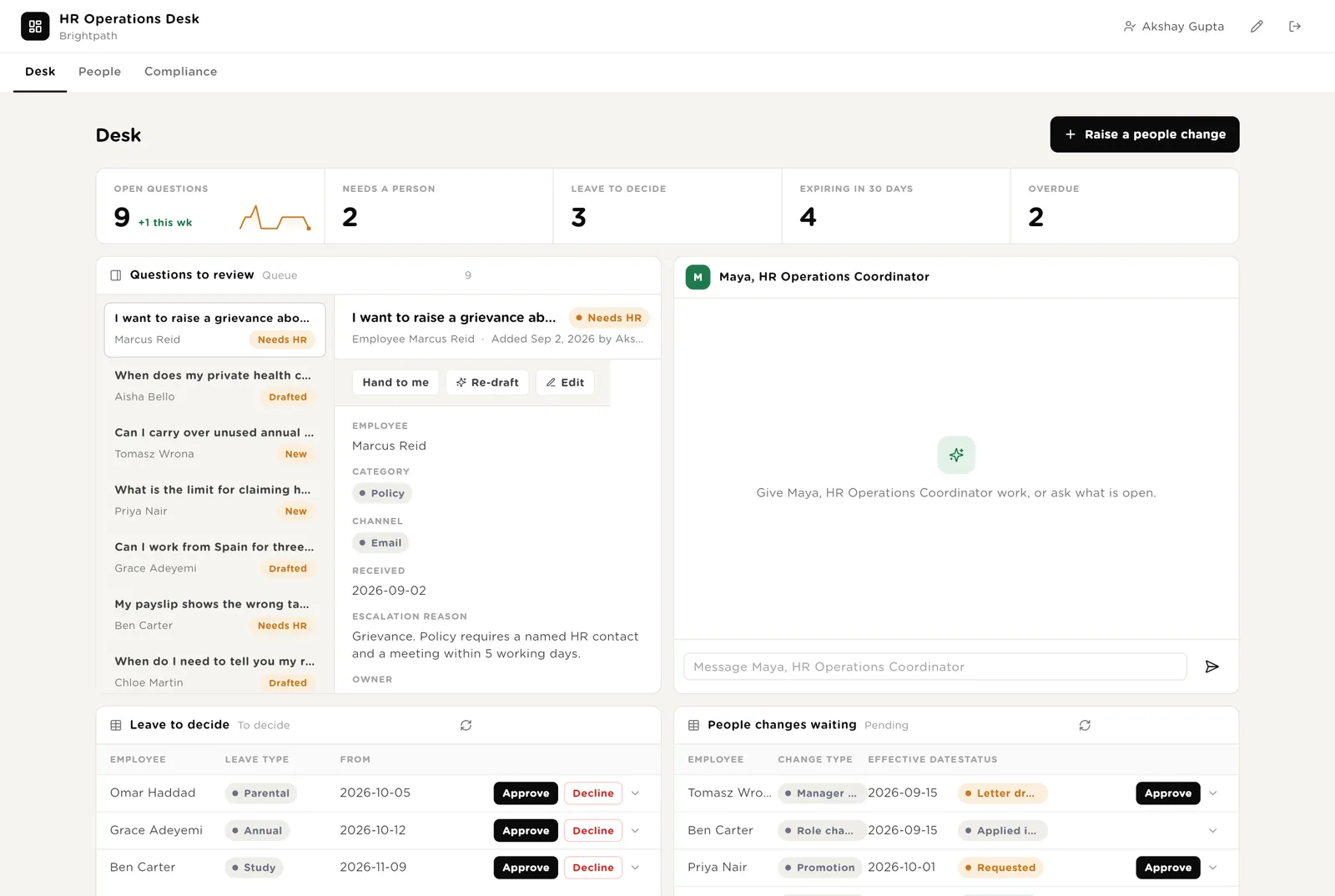
The first screen the HR team opens. The five numbers are live counts. The list on the left is the questions from staff, each with an answer already drafted from the handbook. Maya sits beside it. Below: leave to decide and people changes waiting.
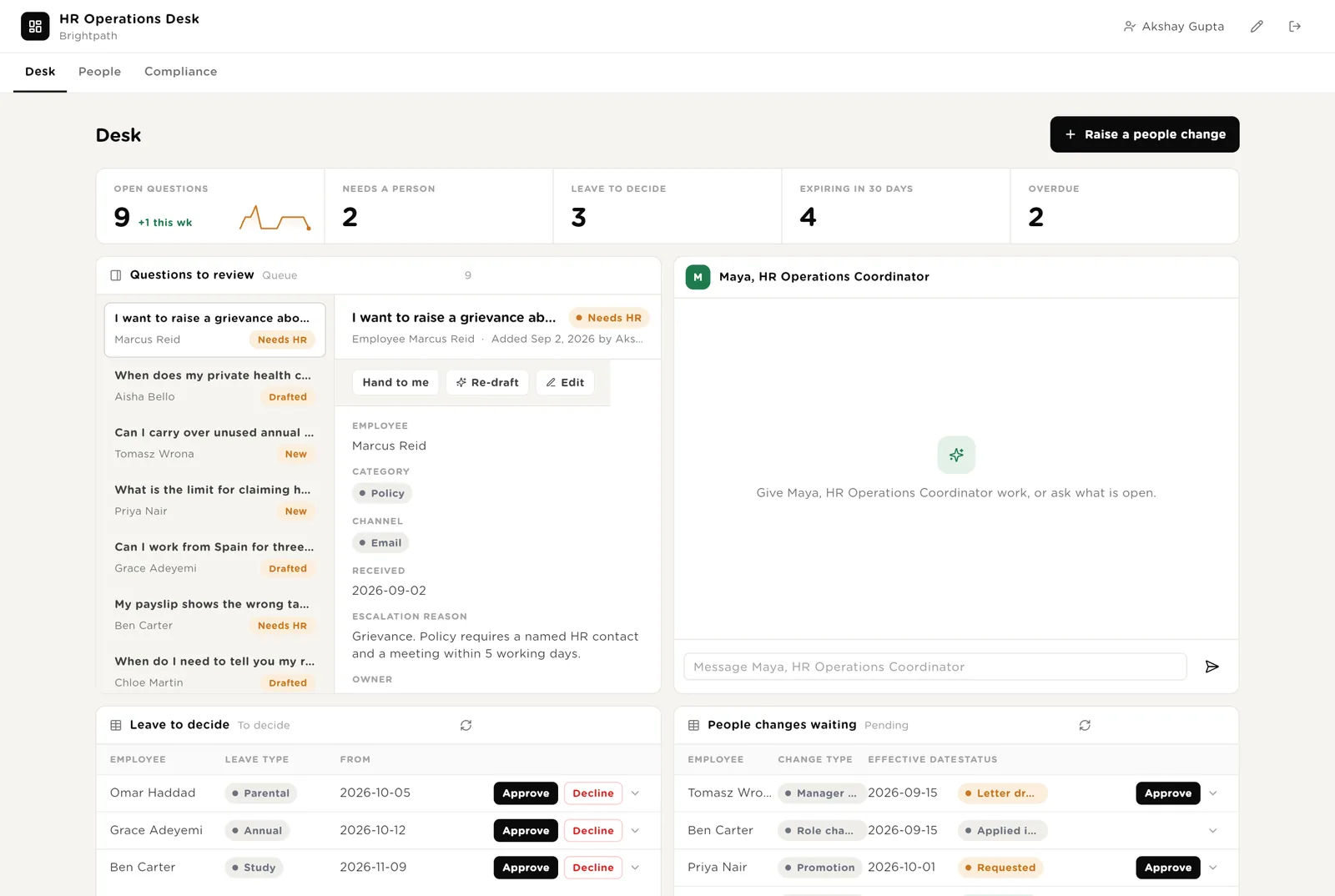
The drafted answer goes to the employee. The question is marked Sent.
For anything the handbook cannot answer, or should not: grievances, health, pay, immigration. It goes to a named HR contact.
Puts your name on the question so nobody else picks it up.
Scroll down for the leave requests with a recommendation already written, the people changes waiting for approval, everything the software wants to send that needs your Approve, and what Maya did this week.
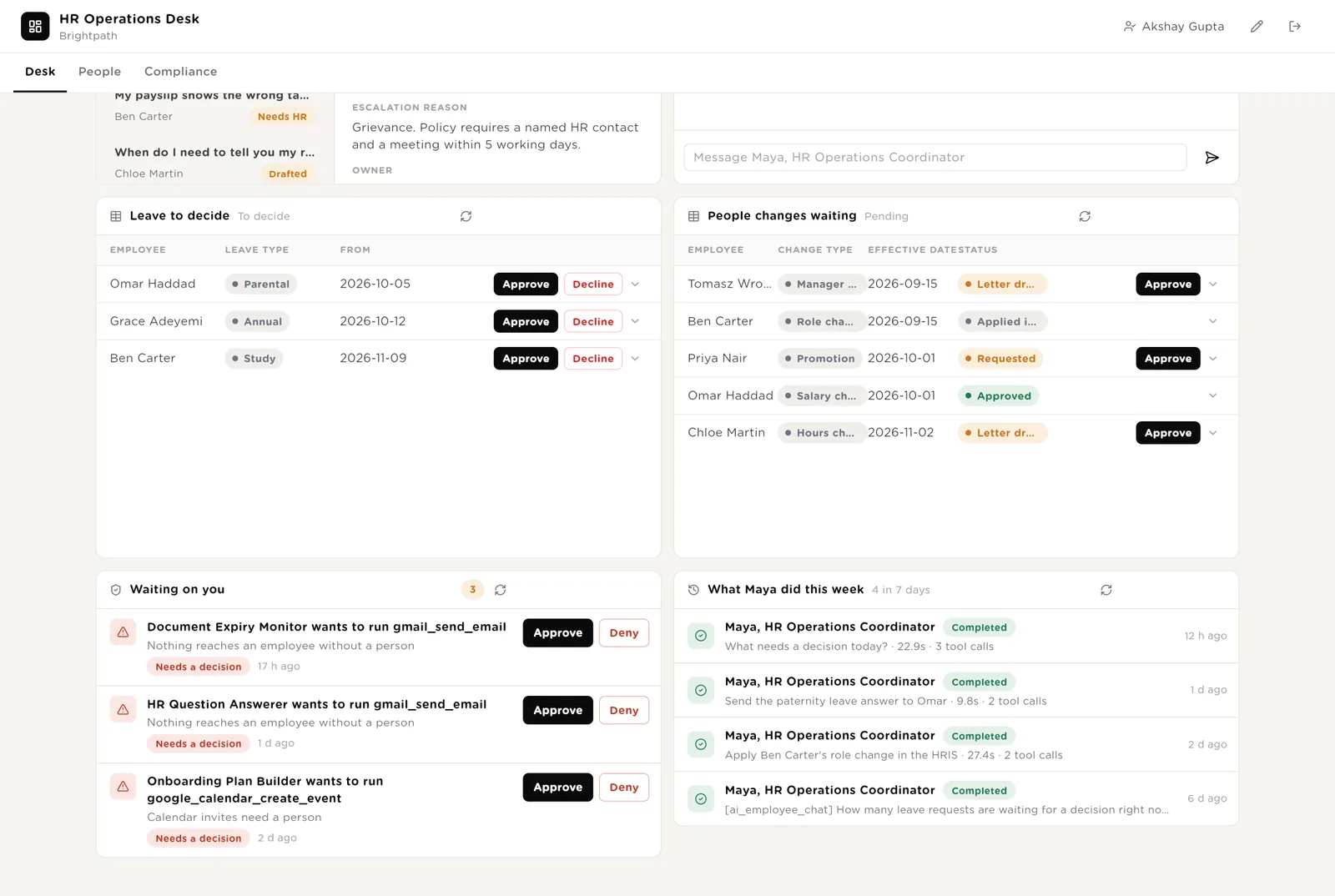
The reviewer already checked the balance, the policy and who else is off. You read its one-line reason and decide.
A promotion, a pay change, a new manager. Save the form and the letter is drafted within a minute.
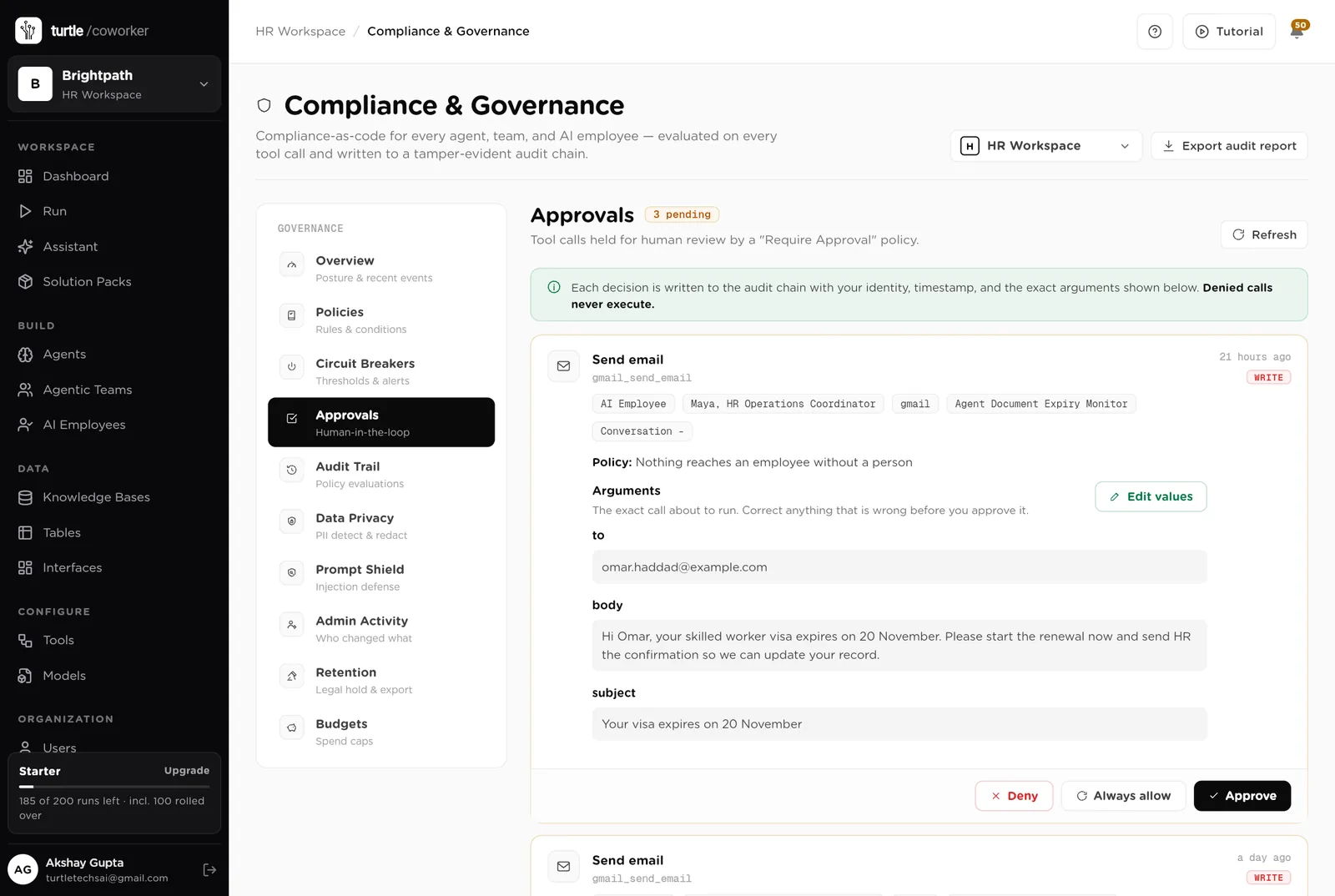
Every email, calendar invite or HR system change the software wants to make. Approve or Deny in place.
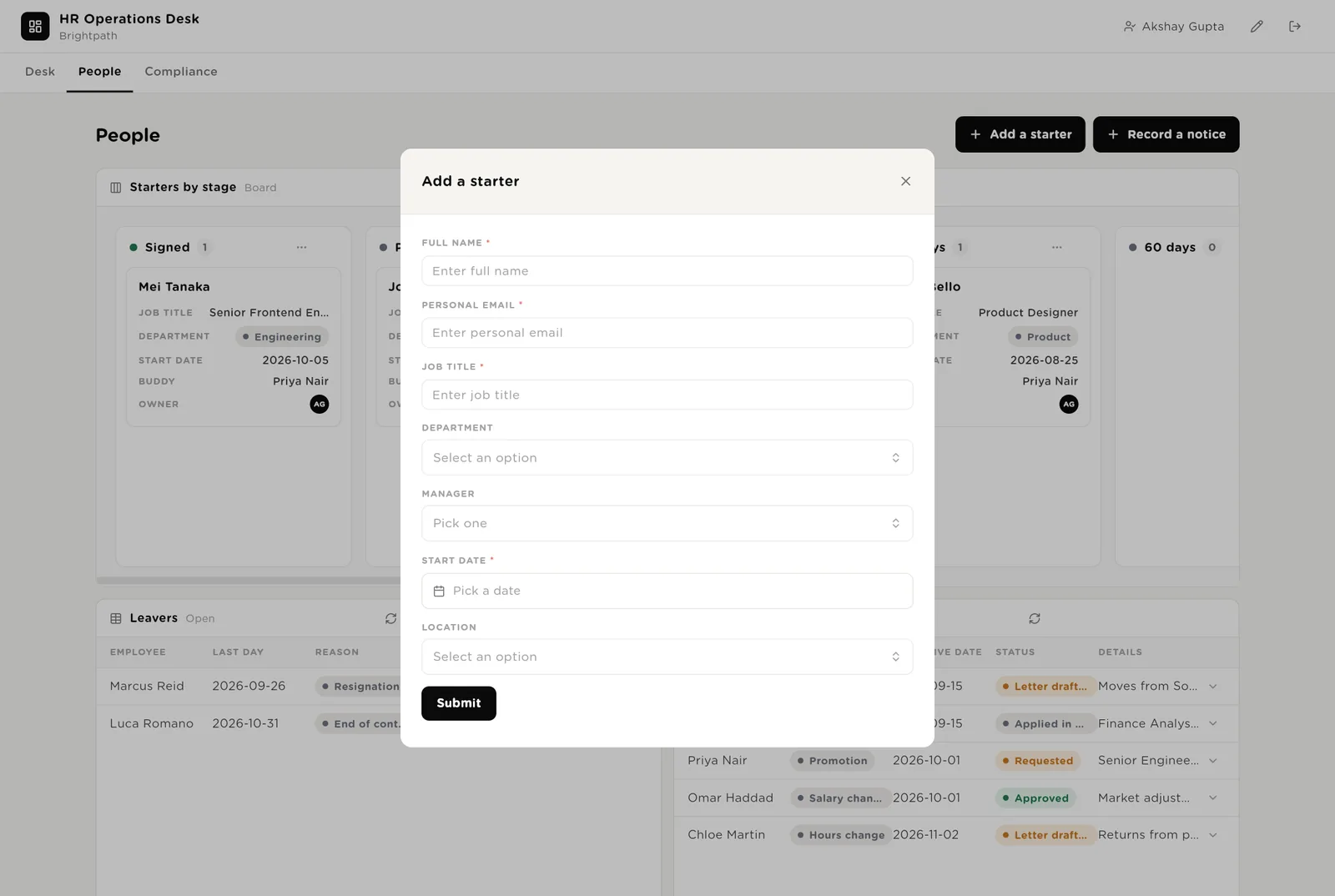
Starters as a board by stage, from Signed to 90 days. Leavers with their checklist. People changes in progress. The directory. Two buttons start the two things HR starts most: a new starter and a notice.
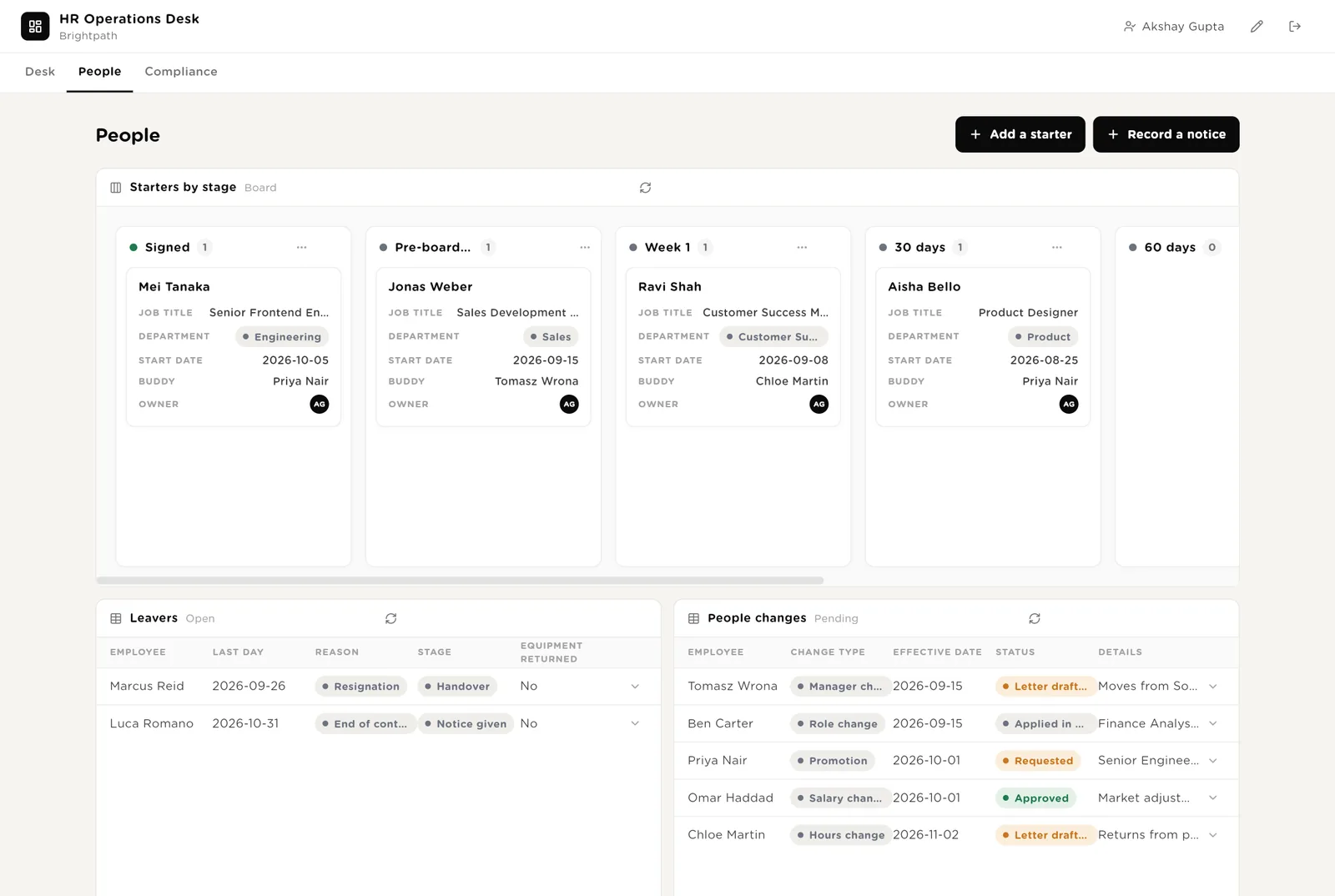
Name, role, manager, start date, location. Save it and the onboarding plan is written: a dated checklist, a day-one schedule, a welcome email draft.
Who, last day, reason. Save it and the leaving checklist is written: access to remove, equipment to collect, final pay notes, and the reference letter unless the reason needs a legal review first.
Move a card from Week 1 to 30 days and the record is updated.
Every document with an expiry date: right to work, visas, passports, background checks, certifications, probation reviews. The four numbers say how urgent it is. The list has the actions; the charts show the shape.
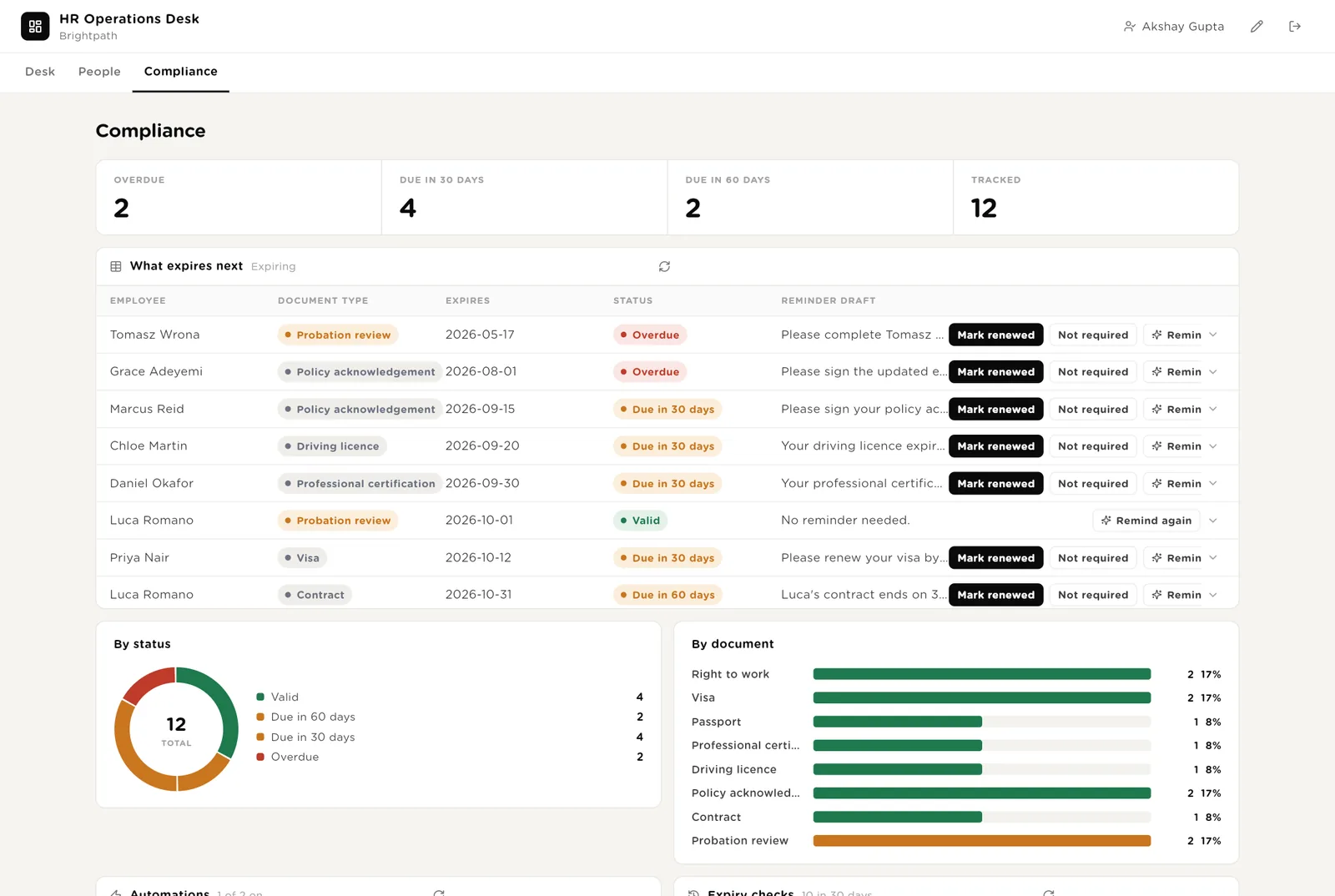
You have seen the new document. The reminder stops.
Sends the drafted reminder once more, after you approve it.
The software never marks a document as valid. Only a person does.
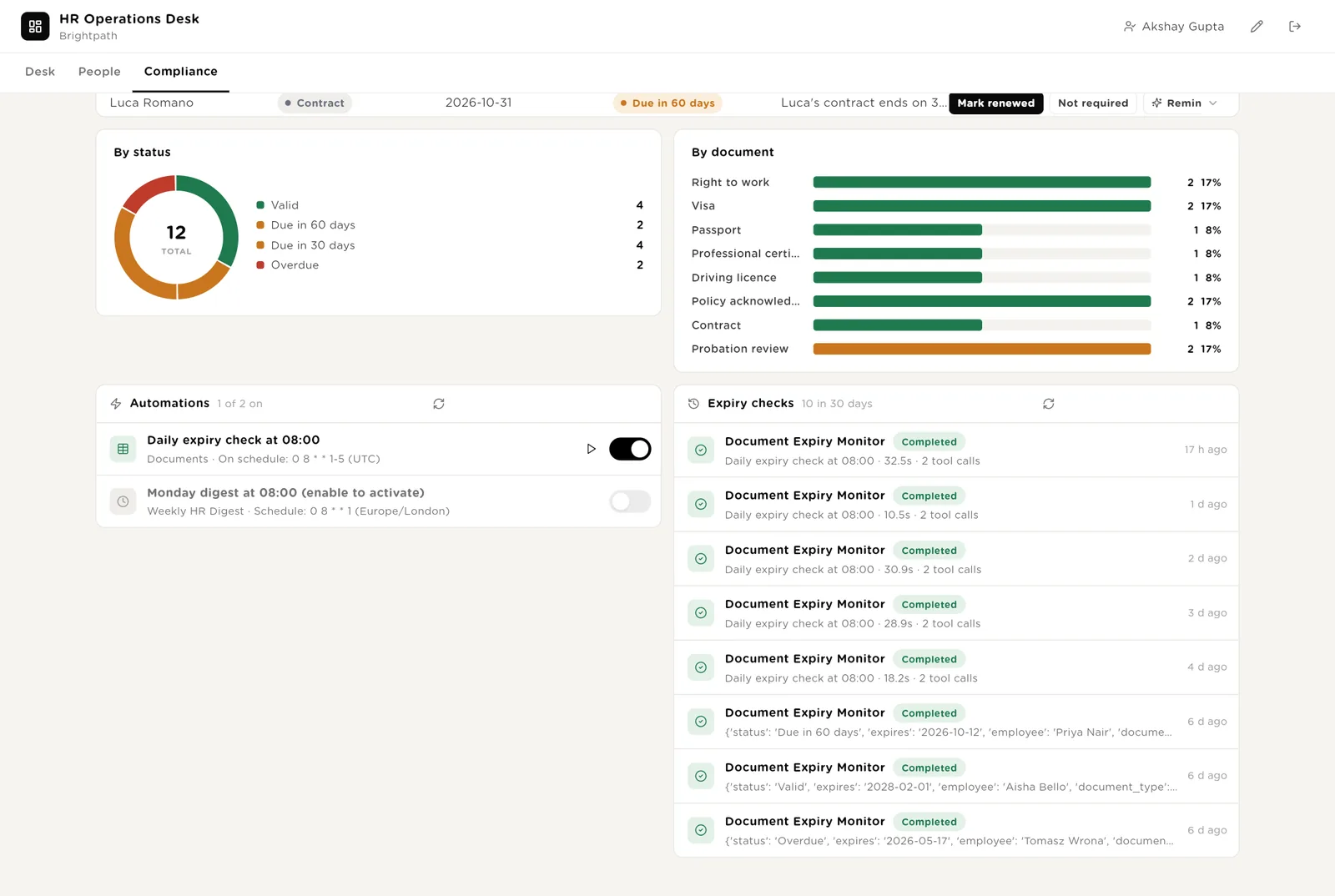
The daily expiry check has its switch here and a history of its runs for the last 30 days, so you can see it ran and what it changed.
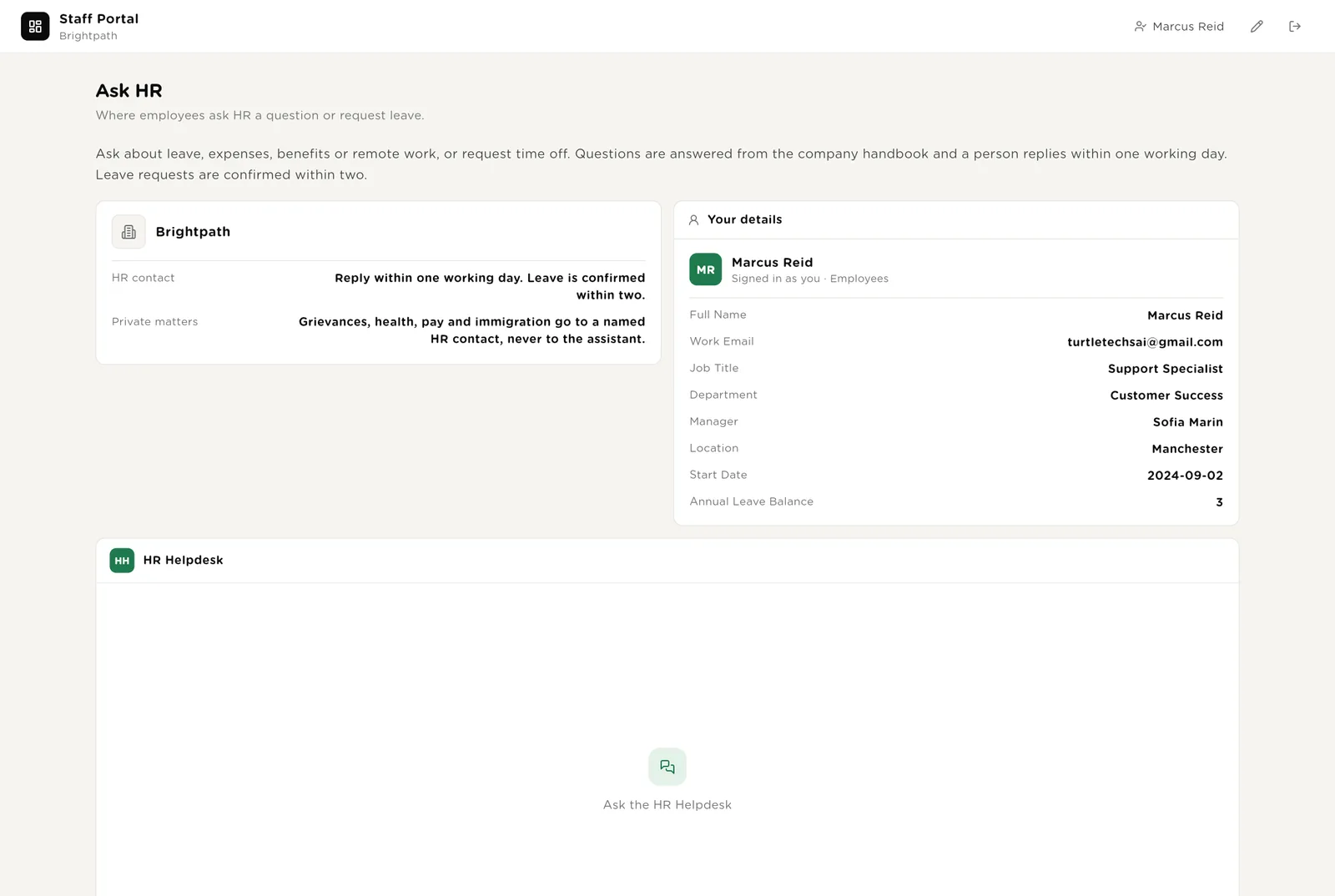
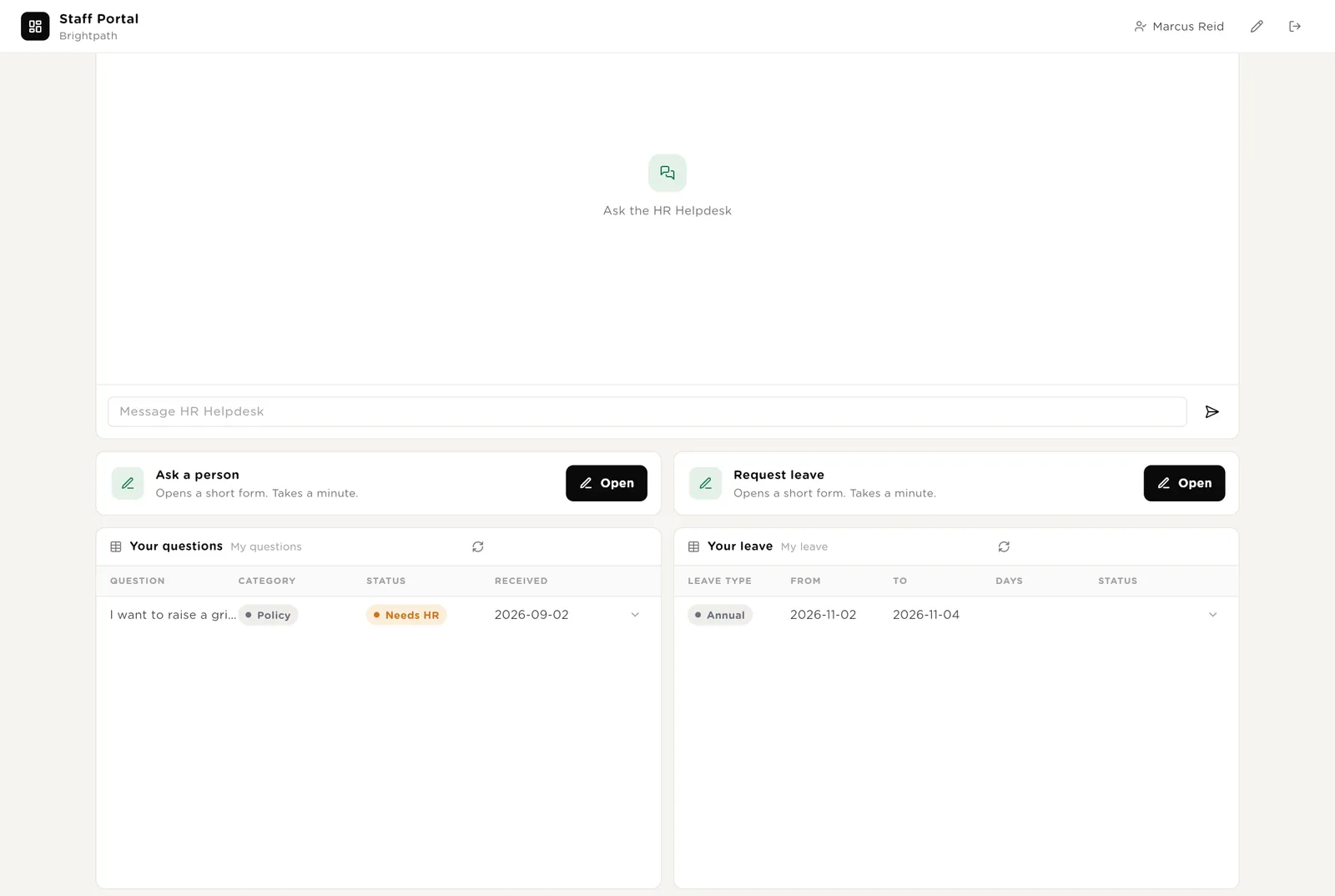
An employee logs in with a normal account and is matched to their own record by work email. They see the company card, their own details and leave balance, a help desk that answers from the handbook, two forms, and their own questions and leave requests. Private matters go to a named person, never to the software.
"How many days of parental leave do I get?" is answered from the handbook with the section named. A grievance is not answered; the helpdesk says who to contact.
Type, dates, note. The employee's name is filled in. The request appears on the desk with a recommendation within a minute.
Other people's requests, salaries, or anything outside their own record.
Every question and leave request the employee raised, with its status, so nobody has to email HR to ask "did you get my request?".
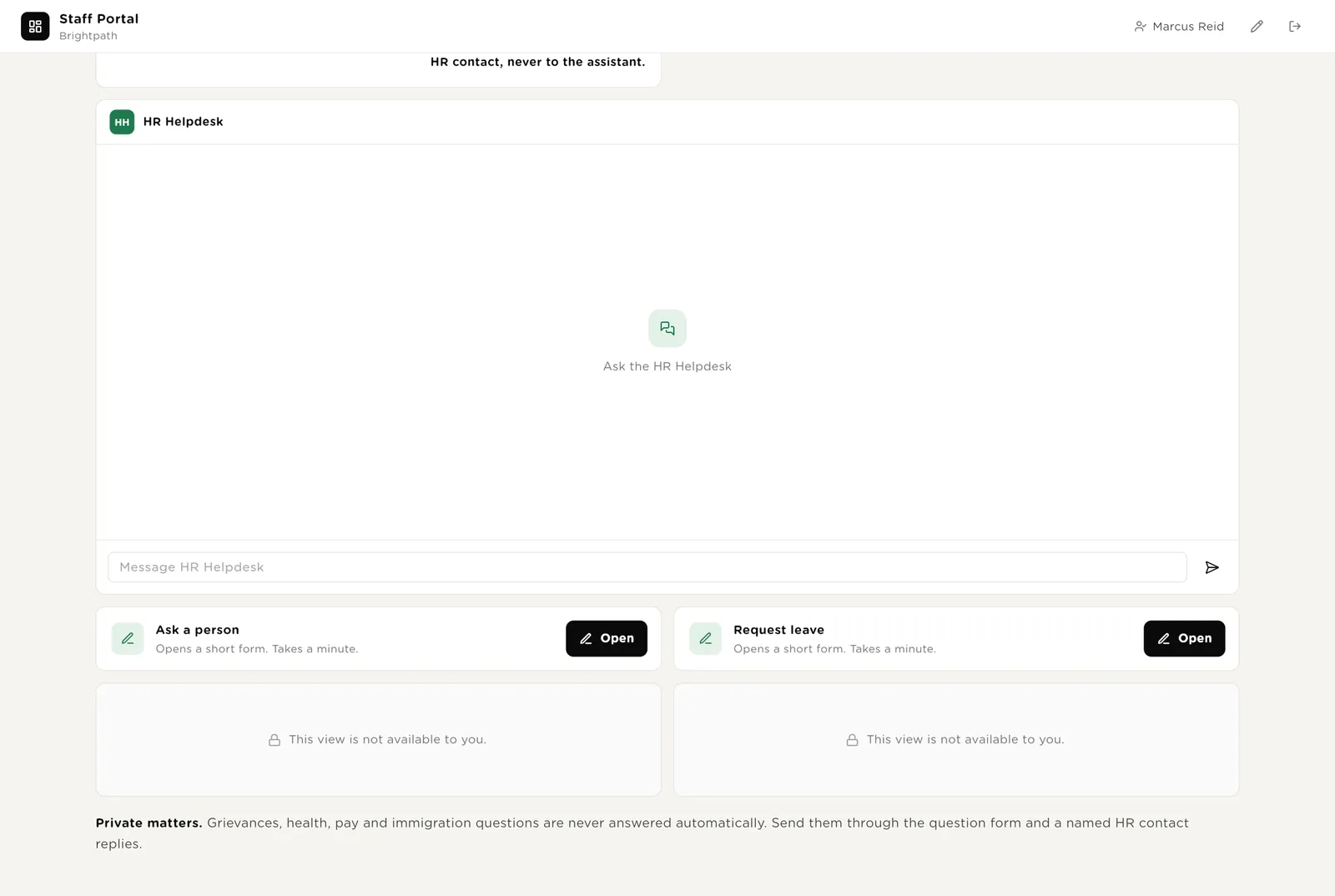
Forms open in a small window. The employee is filled in from whoever is logged in, so nobody can request leave for a colleague. HR's own forms are the same: short, and they start the right agent when saved.
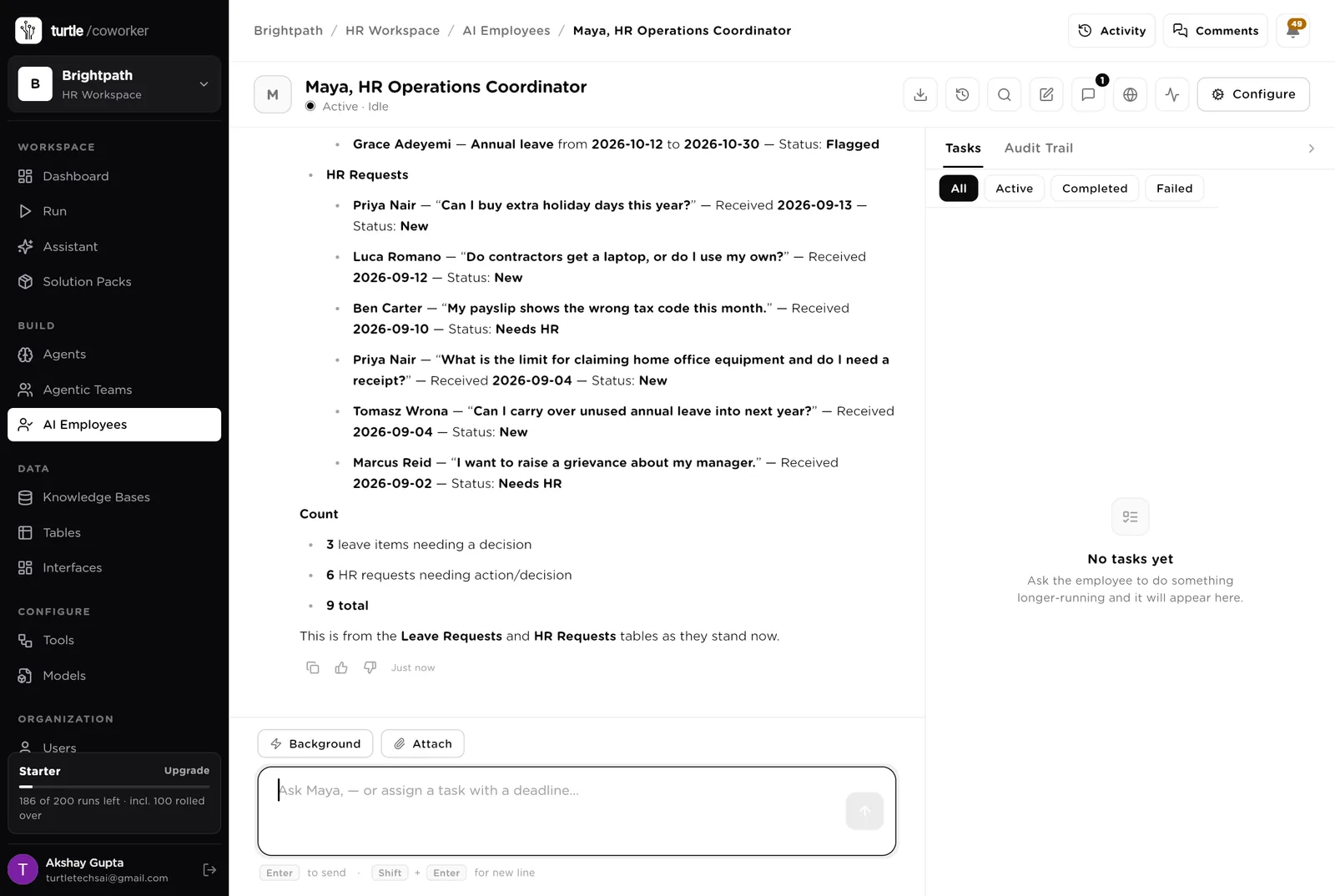
Maya is a software colleague you can chat with. Maya knows which agent to use for what, reads and writes the seven HR tables, keeps the HRIS mirror in step, and turns a sentence into a plan you approve before it runs.
Runs the queue. Makes sure every question got an answer, every starter a plan, every leaver a checklist, every change a letter. Reads the HRIS and, with your approval, updates it. Tools: HRIS (BambooHR through StackOne), Gmail, Google Calendar, Slack, Turtle Notify, PDF, Google Drive.
You typed a question. Maya read the Leave Requests and HR Requests tables and answered in the chat, naming each item. Reading is allowed on its own; anything that sends or changes the HR system stops for your approval.
An agent does one job. It starts when something new arrives, on a schedule, or when Maya asks it. It reads your tables and your handbook, writes its result into the record, and stops. No agent ever sends anything.
Reads a staff question and answers it from the handbook only, naming the section. If the question is about a grievance, health, pay or immigration, it writes "needs a person" and stops.
Reads a leave request, the person's balance, the policy for that leave type, and who else in the team is already off. Recommends Approve or Flag, with one sentence why. It never approves.
Turns a new starter into a dated checklist, a day-one schedule and a welcome email draft, using your own onboarding checklist from the playbook.
Turns a notice into a dated checklist: access to remove, equipment to collect, final pay notes, and a reference letter. If the reason is a dismissal or redundancy, it writes no letters and asks for a legal review.
The jobs that get forgotten when the week is busy: the visa that expires next month, the letter that confirms a pay rise, the numbers the leadership team asks for on Monday.
Every weekday morning it checks every document with an expiry date, moves it into the 60-day or 30-day window, marks overdue ones, and drafts the reminder for each.
Writes the letter that confirms a promotion, a pay change, a new role or a new manager, and lists exactly what to change in the HR system and what to tell payroll.
Every Monday it counts headcount, starters and leavers, open questions, leave waiting, and documents expiring this month, and emails the three decisions the week needs to the HR lead.
The help desk is a chat on the staff portal. It answers policy and leave questions from the handbook and says which section it used. Anything sensitive, it hands to a person.
An HR manager routes the question to a policy specialist or a leave and benefits specialist. Answers come from the handbook only. Grievances, health, pay and immigration are never answered; the desk names the HR contact instead.
Tables are where everything is stored. They look like spreadsheets and your team can open and edit them at any time. The Employees table is a mirror of your HRIS; edit the HRIS and Maya keeps the mirror in step.
| Table | What is in it | Stages |
|---|---|---|
| Employees | One row per current employee: name, work email, title, department, manager, location, start date, leave balance. | Active · On leave · Notice period · Left |
| HR Requests | Every question from staff, with the drafted answer. | New · Drafted · Needs a person · Sent · Closed |
| Leave Requests | Every leave request with the reviewer's recommendation. | Requested · Recommended · Flagged · Approved · Declined · Cancelled |
| Onboarding | One row per starter with the plan and the checklist. | Signed → Pre-boarding → Week 1 → 30 · 60 · 90 days → Complete |
| Offboarding | One row per leaver with the checklist. | Notice given → Handover → Last day → Access revoked → Final pay → Closed |
| People Changes | Promotions, pay, role and manager changes, with the letter. | Requested → Letter drafted → Approved → Applied in HRIS → Closed |
| Documents | Every document with an expiry date and the drafted reminder. | Valid · Due in 60 days · Due in 30 days · Overdue · Renewed · Not required |
The software knows nothing about your company except what the tables and two documents tell it.
Two knowledge bases. The handbook is your policies as written; every answer the desk gives comes from it and names the section. The playbook is your own checklists: onboarding, offboarding, and how letters are written. Replace the starter text in both with your own documents.
The desk uses whichever AI model your company has already connected. You do not choose or manage a model for each agent.
Everything that runs on arrival is on from day one. The two schedules are off until you switch them on from the desk.
| Automation | Agent | When | Ships |
|---|---|---|---|
| Answer a question | Question Answerer | The moment a question arrives | On |
| Review a leave request | Leave Reviewer | The moment a request arrives | On |
| Build the onboarding plan | Onboarding Planner | The moment a starter is added | On |
| Build the leaving checklist | Leaving Checklist Builder | The moment a notice is recorded | On |
| Draft the change letter | Change Letter Writer | The moment a change is raised | On |
| Check document expiries | Document Expiry Watcher | Weekdays 08:00 | Off until you switch it on |
| Monday report | Monday Report | Monday 08:00 | Off until you switch it on |
Buttons on the desk run agents too. "Re-draft" runs the question answerer again; "Remind again" runs the expiry watcher for one document.
Three things always need a person. The software stops and waits at each one.
Send reply, Approve or Decline leave, Approve a people change, Mark renewed. These are the decisions and only a person can press them. The software can draft a reply; it cannot send it. It can recommend leave; it cannot approve it.
When an agent or Maya wants to send an email, a calendar invite, or change a record in the HR system, it stops. The exact message or change appears in Approvals. You read it, fix anything wrong, and click Approve or Deny.
When you give Maya a task, Maya writes a plan and shows it first. Approve and run, change it, or cancel.
A rule is checked before every single thing the software tries to do. The pack installs six rules of its own on top of the standard ones every workspace starts with. You can see them, switch them off, or add your own.
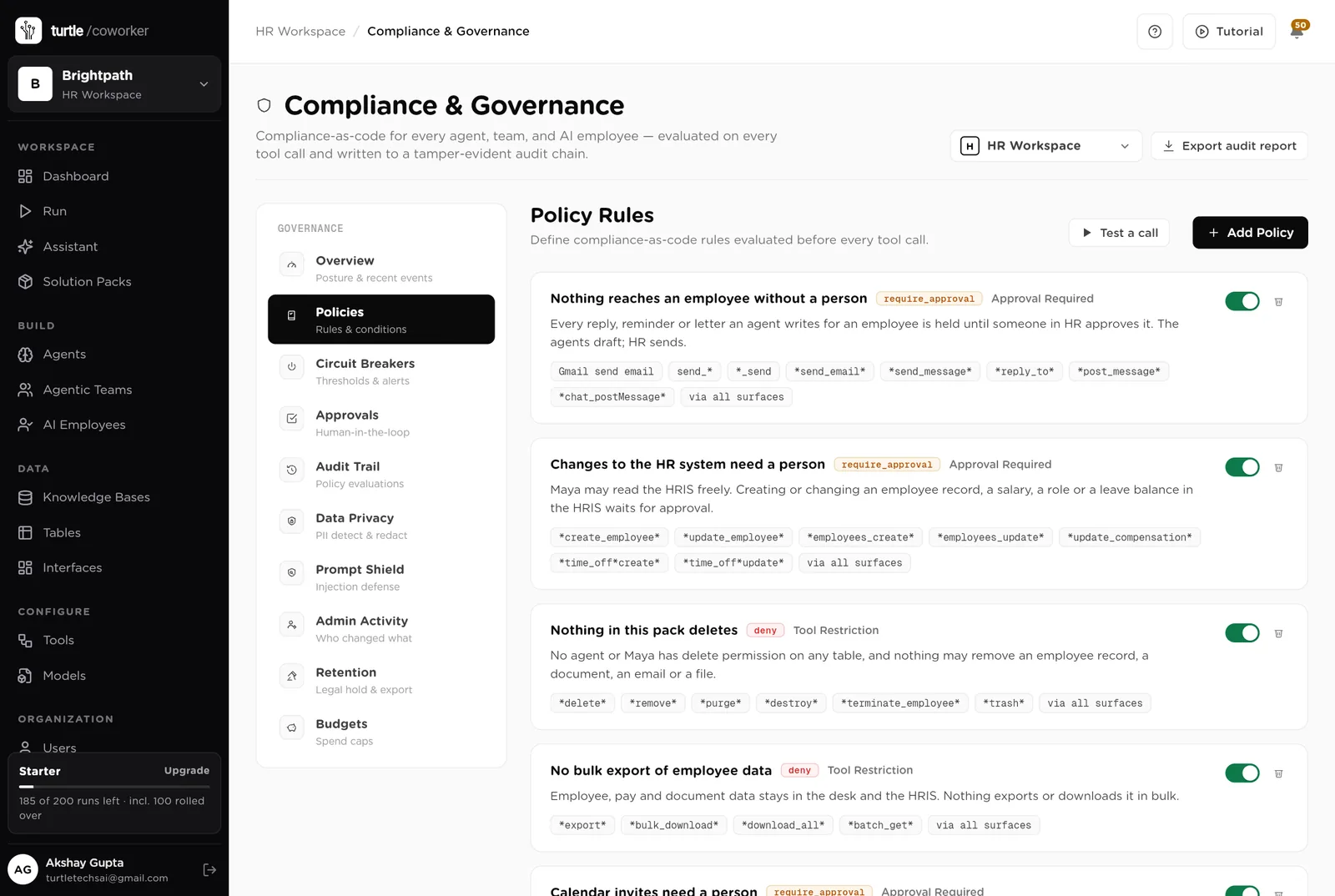
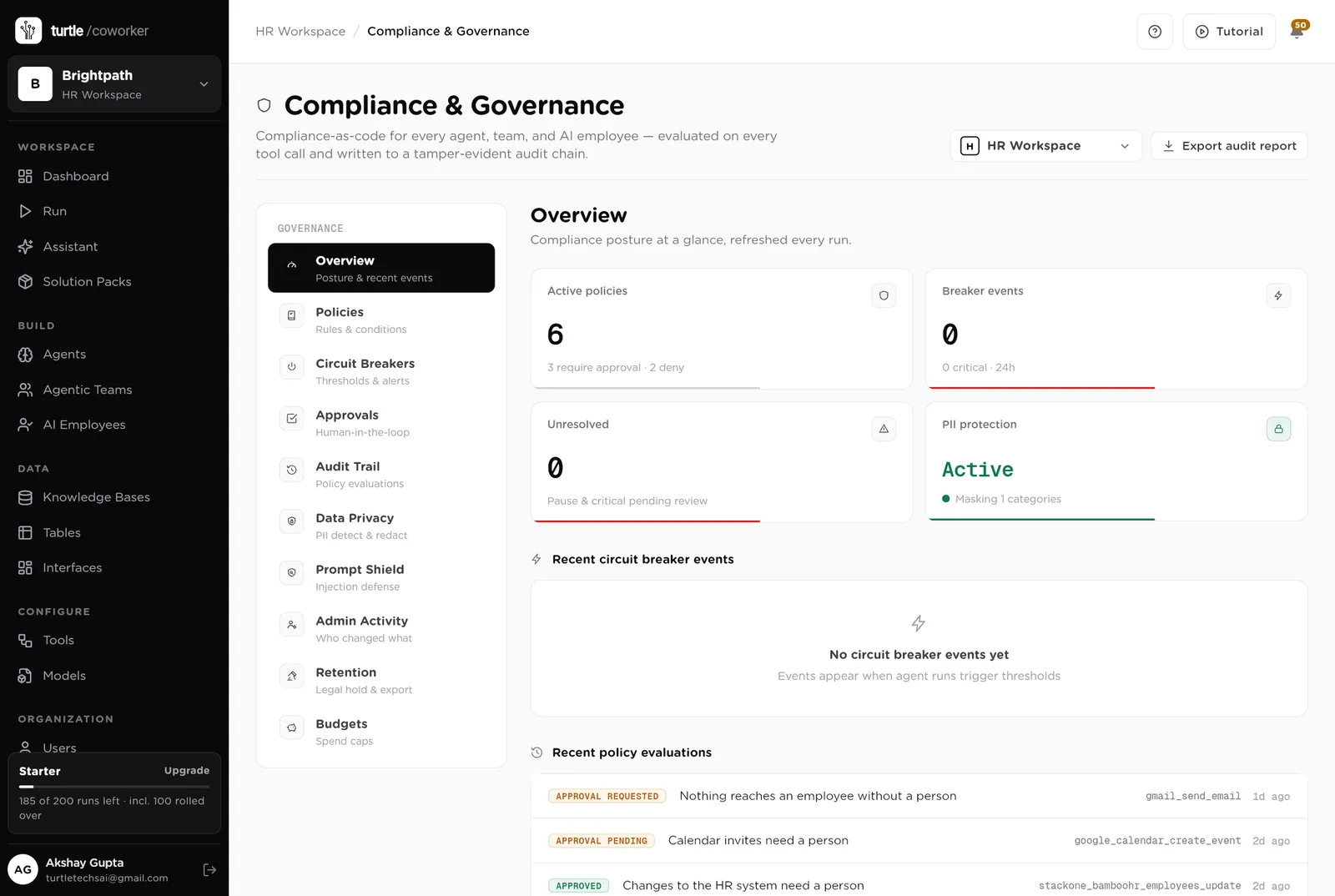
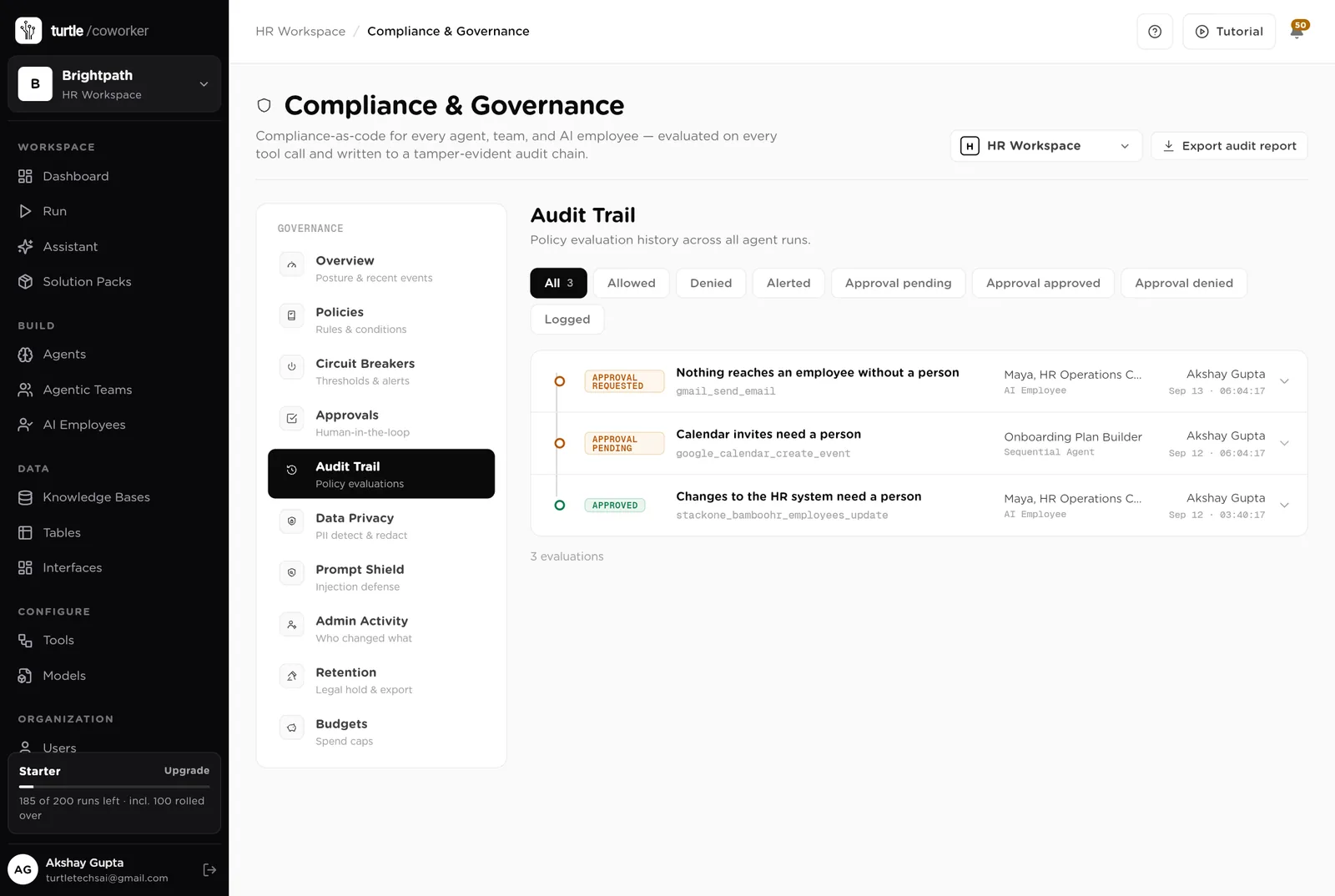
For every run you can see which agent ran, why it ran, every step it took, and every rule that checked it. Passwords and card numbers are blanked out before anything is stored.
A monthly budget with a warning level and a hard stop. An agent that starts failing or costing more than usual is paused until someone looks.
Personal details are masked in what the software reads and writes. Hidden instructions in emails and documents are neutralised. Every password and key is encrypted.
Grievances, disciplinary matters, harassment, health, pay and immigration are never answered by the software. They are routed to a named HR contact, every time.
The HR team sees the desk. Each employee sees only their own portal and their own records. Only owners and admins can change the layout.
These estimates assume a company of 150 staff with two people in HR: about 30 questions a week, 10 leave requests, 2 starters and 1 leaver a month, and 60 documents with expiry dates. "Before" is the time by hand; "after" is the reading and deciding that is left. Your numbers will differ. These are estimates, not measurements; after a month the audit trail gives you real figures.
| Job | Assumption | Hours before | Hours after | What changes |
|---|---|---|---|---|
| Answering staff questions | 12 min each, 30 a week | 6.0 | 1.5 | The answer is drafted from the handbook. You read and send. |
| Reviewing leave requests | 10 min each, 10 a week | 1.7 | 0.5 | Balance, policy and team cover already checked. |
| Onboarding plans and day-one schedules | 3 h per starter, 2 a month | 1.5 | 0.4 | Checklist, schedule and welcome email written for you. |
| Leaving checklists and reference letters | 2.5 h per leaver, 1 a month | 0.6 | 0.2 | Checklist and letter drafted on the day notice is recorded. |
| Letters for pay and role changes | 45 min each, 4 a month | 0.8 | 0.2 | Letter and HRIS update list written for you. |
| Document expiry tracking | 2 h a week | 2.0 | 0.3 | Checked every morning with the reminder drafted. |
| The Monday report | 1.5 h a week | 1.5 | 0.2 | Written every Monday. |
| Total per week | 14.1 | 3.3 | About 11 hours a week back. More than a full day for a two-person team. |
Staff get a correct answer the same day, with the handbook section named, instead of waiting for the HR inbox.
A visa that lapses is a legal problem. The daily check leads with those.
Every promotion and pay change letter reads the same way, from the same template, with the HRIS update listed.
Estimates, not measurements. After a month the audit trail gives you real figures.
Installing takes one click. The real work is putting your handbook in and switching schedules on.
Install the pack from the Solution Packs page. Connect your HRIS, Gmail and Google Calendar when asked.
Replace the starter text with your handbook and your onboarding and offboarding checklists. This is what makes the answers yours.
Let Maya pull the employee list from the HRIS, or paste it in. Check work emails: they are how staff are matched to their record.
Share the staff portal with the organisation. Every employee can now ask a question or request leave.
Work from the Desk page. Switch on the document check first. Approve replies from the desk.
Switch on the Monday report and let the help desk take the questions that used to be emails.
You pay for the platform, not per desk. The plan sets how many agents, employees and workspaces you can run; every desk is included, and runs are billed on your own model key at cost. 7 agents in this desk count against the plan's agent limit.
See plansWe use analytics cookies to see which pages help and which don’t. Nothing loads until you choose. Cookie Policy

Hello there.
AI agent. It can make mistakes, and a human reviews anything that matters.