
Settings & security
Your profile, the organization's identity and AI disclosure, password and two-factor authentication, signed-in sessions, email preferences, billing and usage, and network allowlisting.
Settings is where you manage your own account and, if you are an owner or admin, the organization around it. Open it from Settings in the sidebar. A menu on the left splits it into six parts: Account, Organization, Security,Notifications, Billing and IP Allowlisting.
Come here when you join, to set your name and turn on two-factor authentication. Owners and admins come back to reword the AI disclosure, check usage against the plan, top up credit, and lock sign-in to approved networks.
What lives where
Step by step
Set up your account
Open Account. Under Profile picture, click Upload new to add a PNG or JPG up to 2 MB (200 × 200 px works best), or Remove to fall back to your initials. Fill in your Full name and Job title. YourEmail address is used for sign-in and account notifications, and changing it requires re-verification. Add a short Bio if you like, then click Save changes.
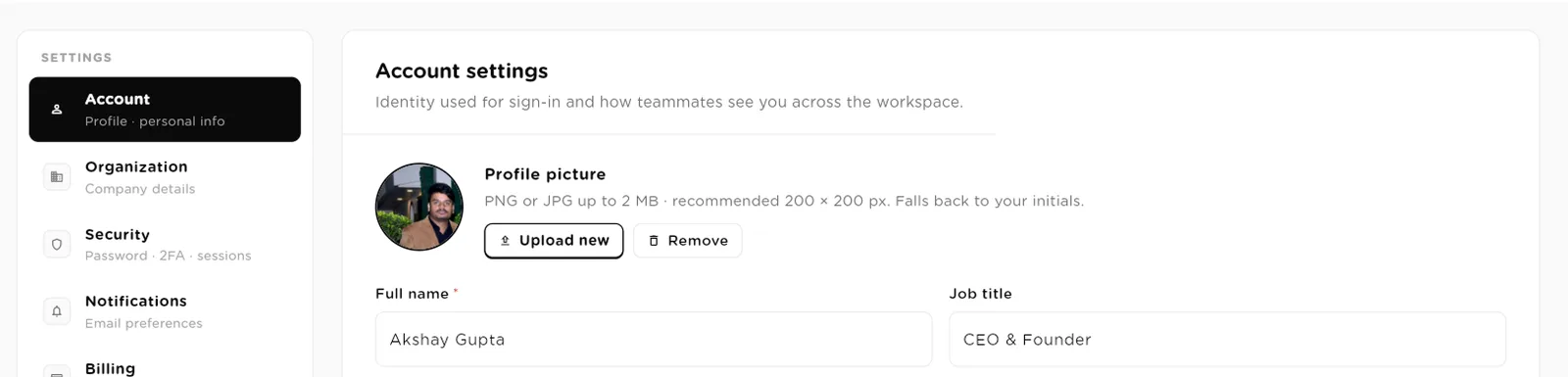
Account: how teammates see you across the workspace.click to enlarge Set the organization's identity and AI disclosure
Open Organization to change the organization logo, name, industry, company size and website, set Parallel runs, pause the organization or transfer ownership. These are covered step by step in Organizations & workspaces.
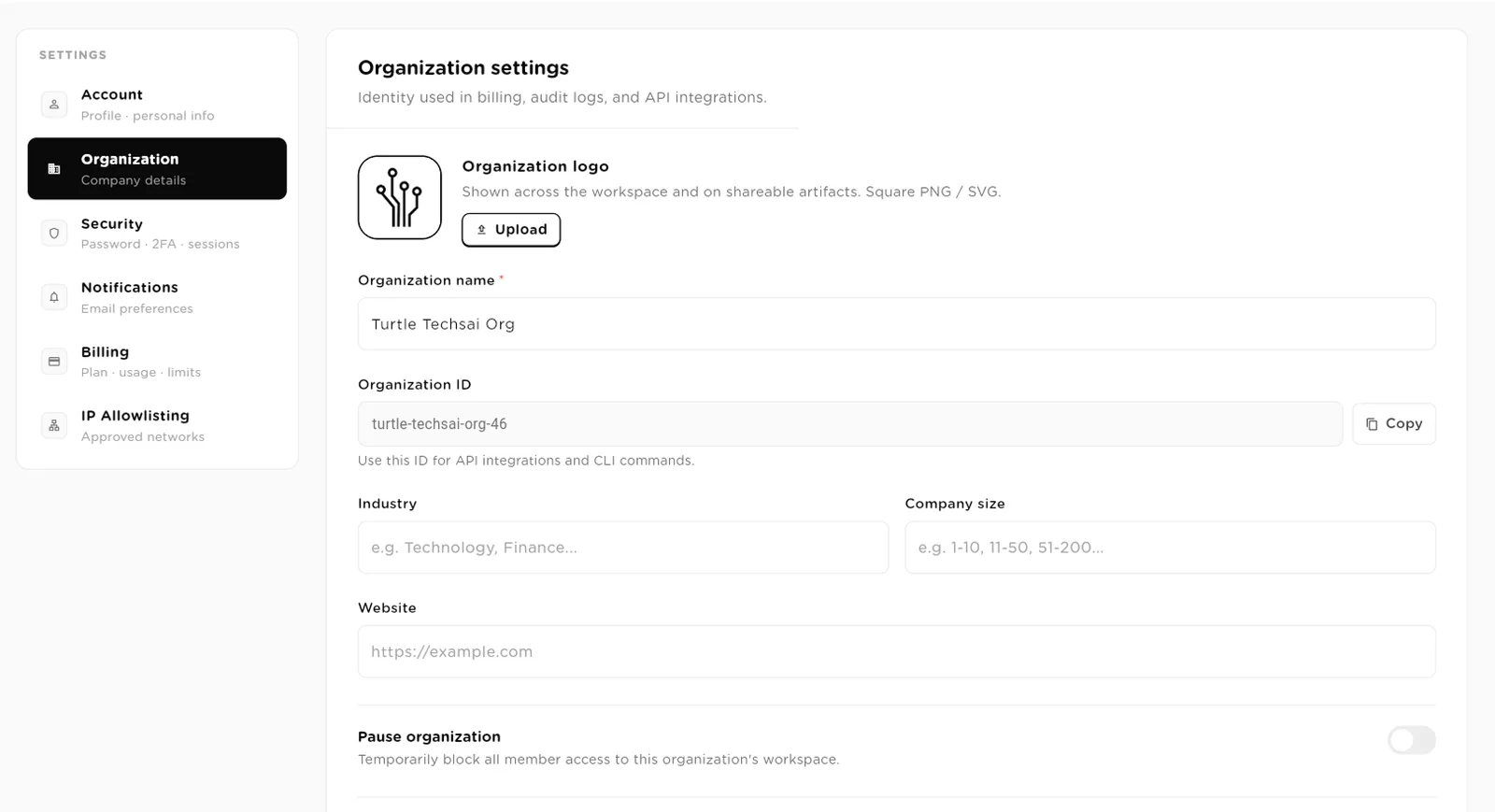
Organization: the identity used in billing, audit logs and API integrations.click to enlarge The same page holds the AI disclosure. This is the sentence shown to anyone who chats with your agents on a public link, an embed or a shared page, telling them they are talking to an AI, as EU AI Act Article 50 requires. Until you change it, the default reads: "You are chatting with an AI assistant operated by [your organization]. A person can be reached at [the owner's email]." You can reword it, but you cannot leave it empty. Each external conversation also stores the disclosure as its first message, so a transcript shows it was given.
Change your password
Open Security. Under Change password, enter your Current password, then the New password twice, and click Update password. Use 12 or more characters with a mix of letters, numbers and symbols. The new password must be different from the current one.
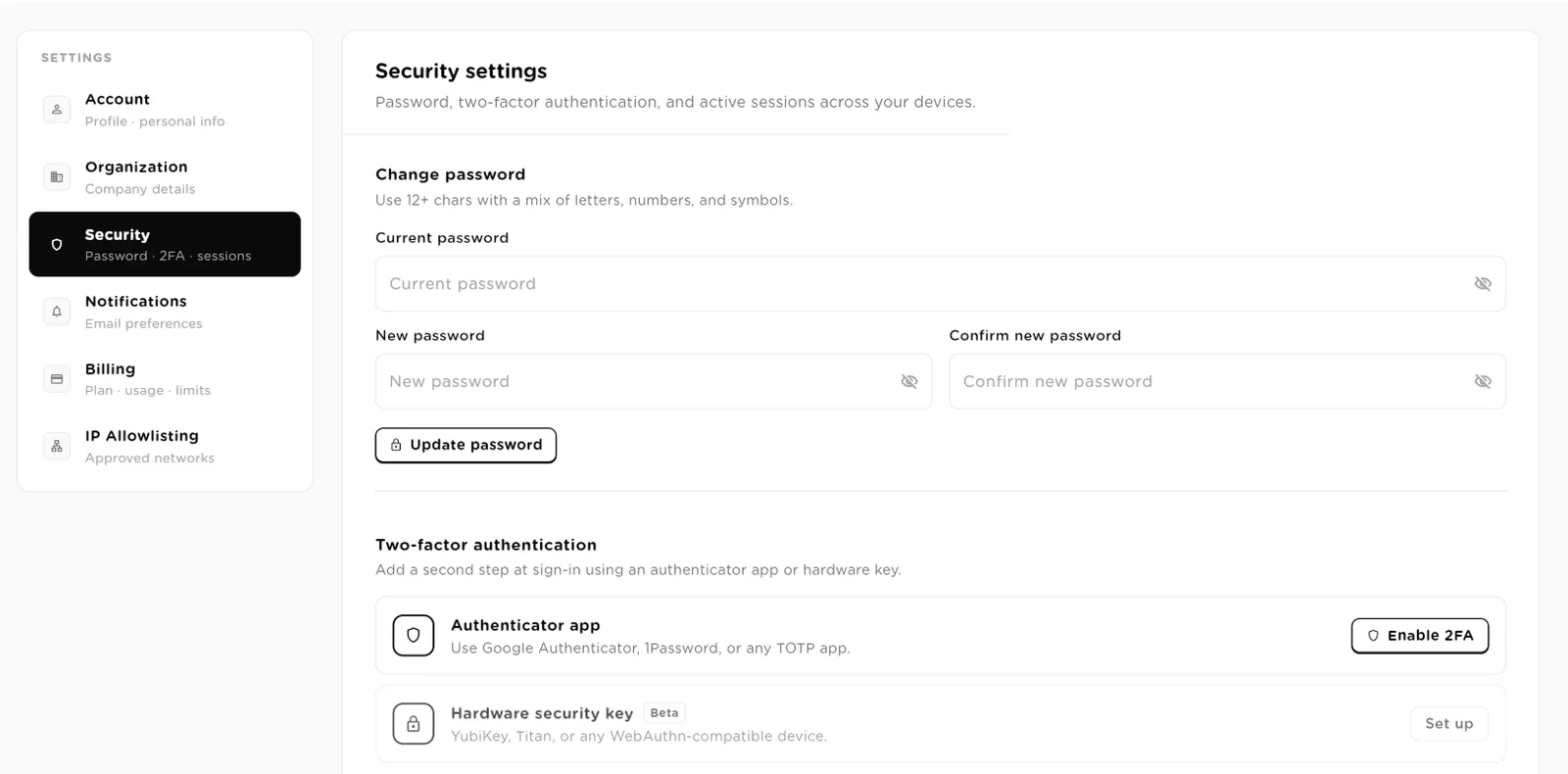
Security: change your password and turn on two-factor authentication.click to enlarge Turn on two-factor authentication
Under Two-factor authentication, next to Authenticator app, clickEnable 2FA. Then:
- Scan the QR code with an authenticator app such as Google Authenticator, Authy or 1Password. If you cannot scan, type the manual entry key shown under it. Click Continue.
- Enter the 6-digit Verification Code from the app and click Verify.
- Save your Backup Codes with Copy All Codes. Each code works once, to sign in if you lose your phone. They are not shown again. Click Done.
From then on, sign-in asks for a code from the app. To turn it off, click Disable 2FA and confirm with your password. The Hardware security key option is marked Beta.
Review your signed-in sessions
Lower down, Active sessions lists every device signed in to your account, with the browser, the approximate location and when it was last used. Your current device is markedCurrent. Click Sign out on any session you do not recognise, orSign out all other sessions to end every session except the one you are using. An account can hold up to four sessions at a time.
Choose your notifications
Open Notifications. At the top, Browser notifications withTurn on alerts you even when the tab is closed; it applies only to the browser you turn it on in, so repeat it on each browser you use. Below it, each switch controls one kind of email:
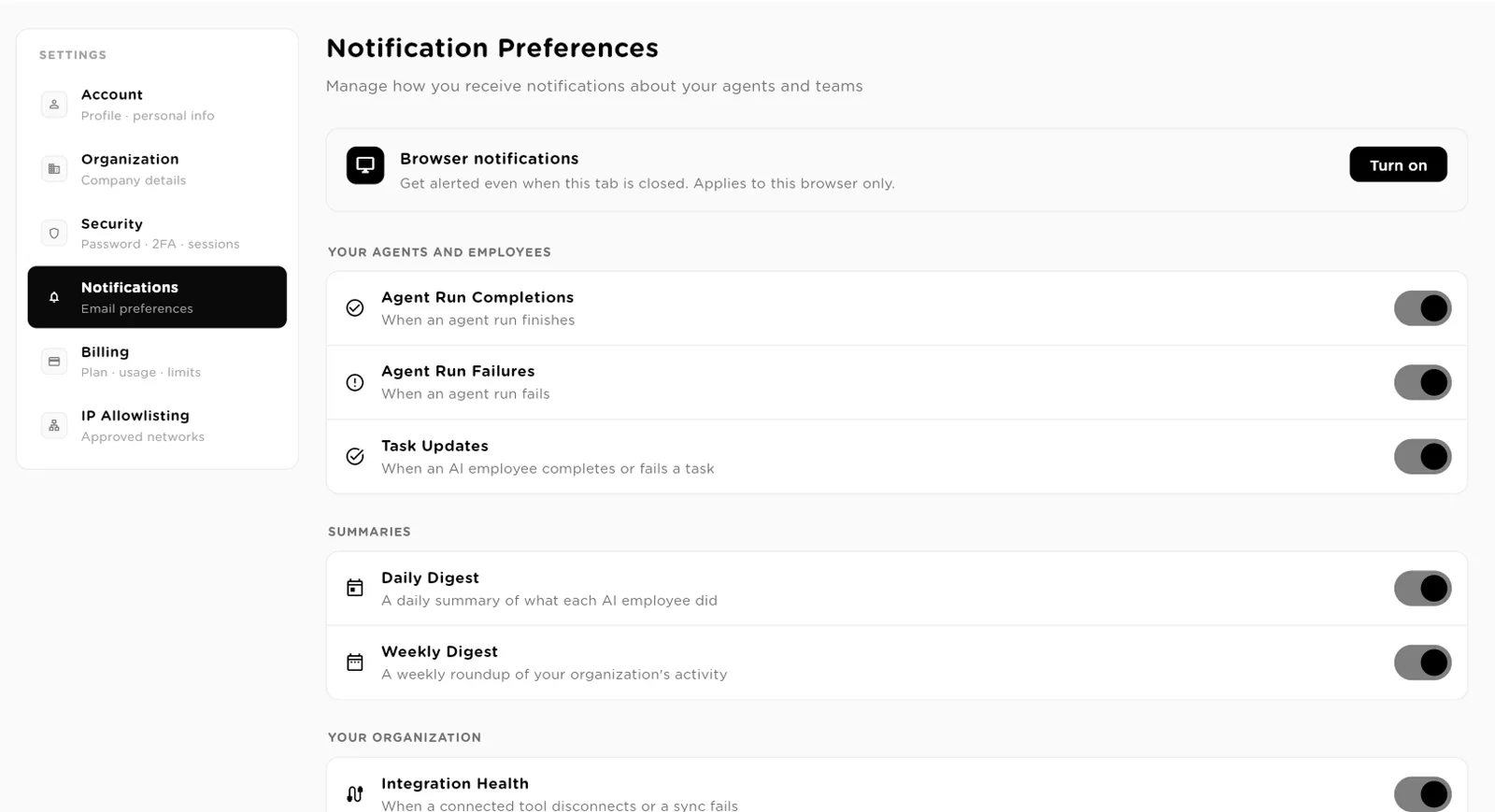
Notification Preferences: browser alerts, then one switch per kind of email.click to enlarge - Your agents and employees: Agent Run Completions, Agent Run Failures and Task Updates (when an AI employee completes or fails a task).
- Summaries: Daily Digest (what each AI employee did) and Weekly Digest (your organization's activity).
- Your organization: Integration Health (a tool disconnects or a sync fails), Team Invitations and Usage Alerts (you are approaching your limits).
- From Turtle: Getting-started tips, Product Updates and Marketing Emails.
Click Save Preferences when you are done.
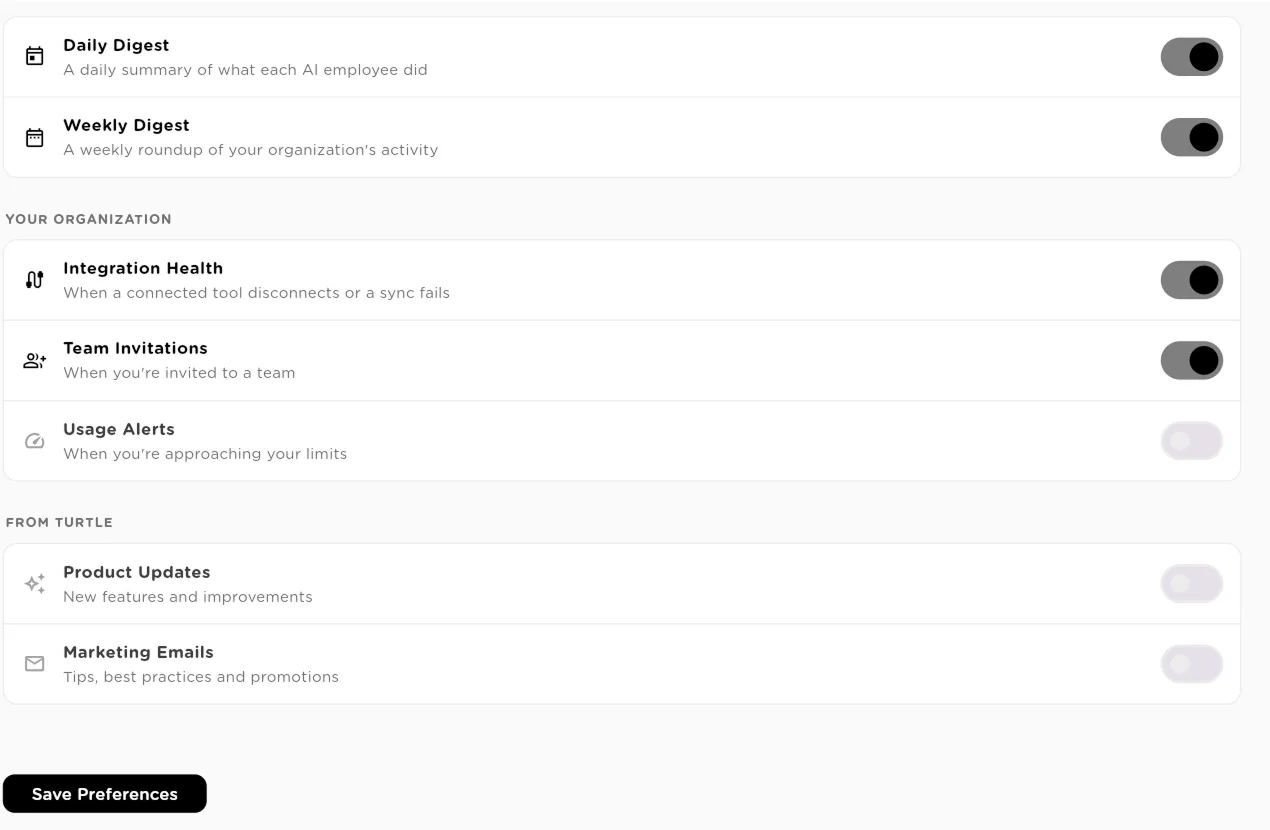
Organization alerts and mail from Turtle AI Coworker, then Save Preferences.click to enlarge Check billing and usage
Open Billing (owners and admins). The header shows your plan and the billing period, with an Upgrade button. Your plan says which plan you are on.Tasks this period shows how many runs you have used out of the allowance, how many are left, whether you are on track, and your Run rate, Projected total andPeriod elapsed, with a daily chart. One task is one completed piece of delegated work.
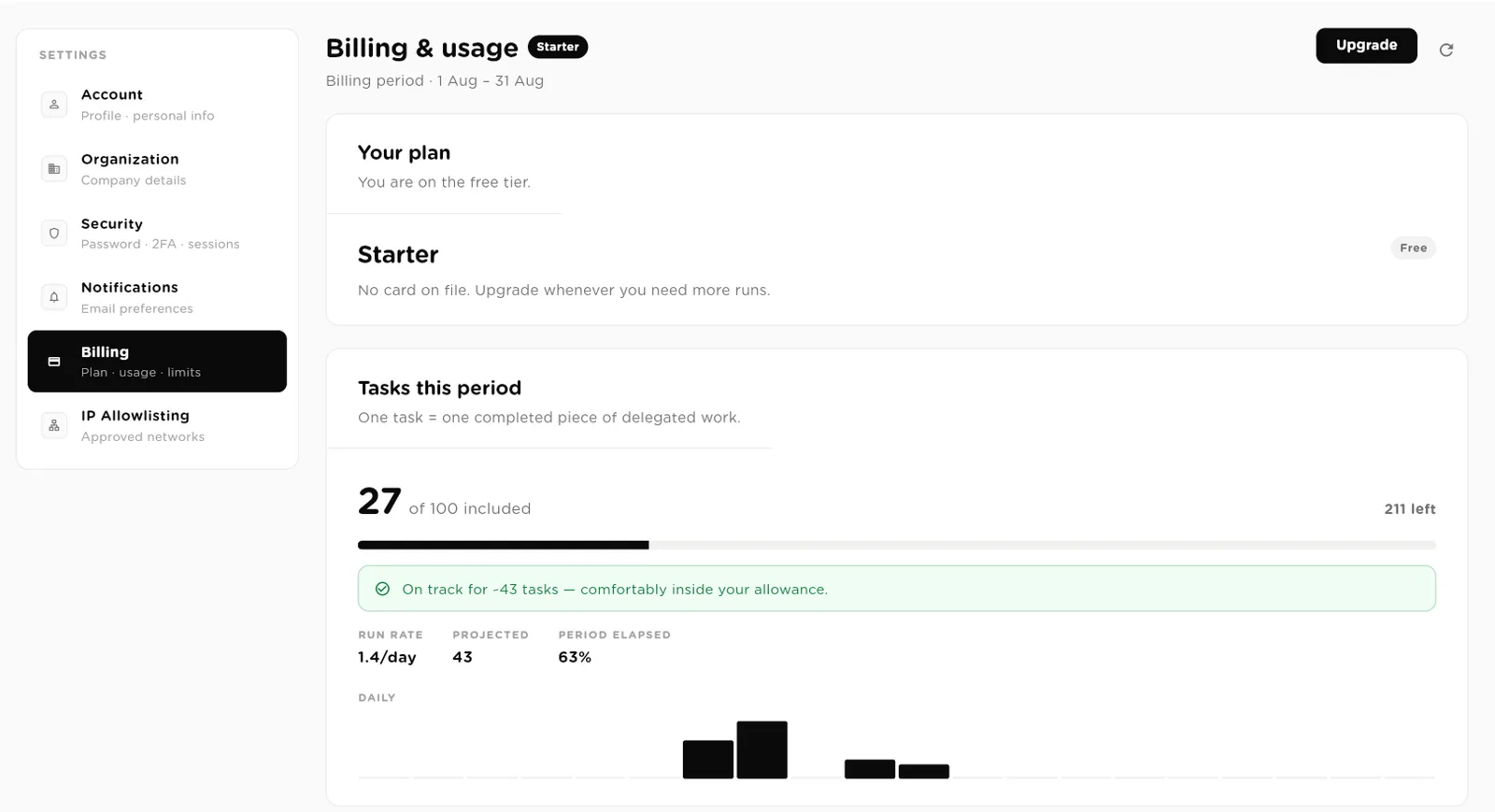
Billing & usage: your plan, runs used this period, and where the month is heading.click to enlarge Further down, Where tasks went splits runs by the kind of work (AI employee work, automation runs, external conversations), Who used them lists your busiest workers, andWhat's included shows live counts against every limit of your plan.
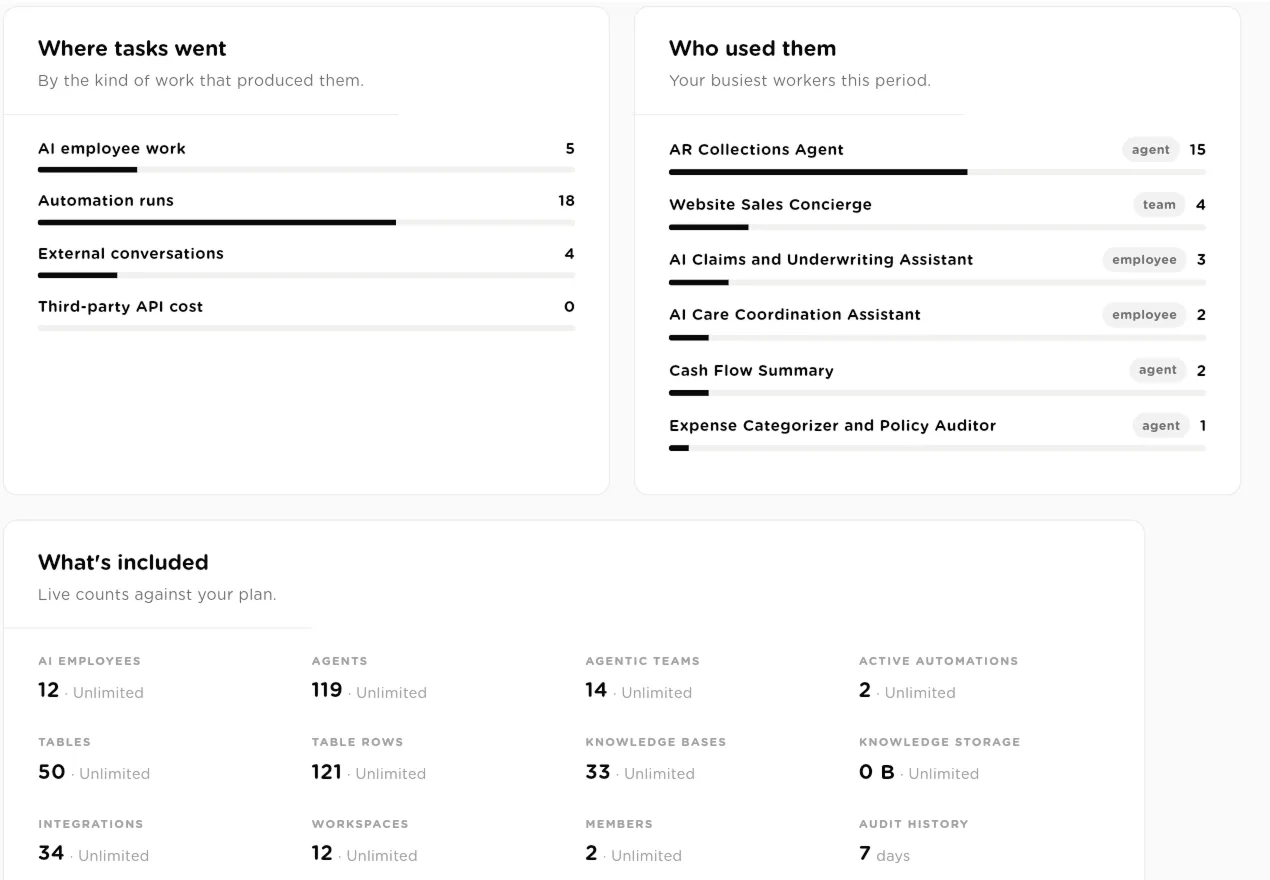
Where your runs went, which workers used them, and how close you are to each plan limit.click to enlarge Add credit and read the ledger
Pay-as-you-go credit covers runs beyond your allowance. Click Add credit, pick an amount ($25, $50, $100 or $250), see about how many runs it buys, and click Continue to payment. Credit never expires. Only the owner can buy credit or change the plan.Invoices lists your billing history.
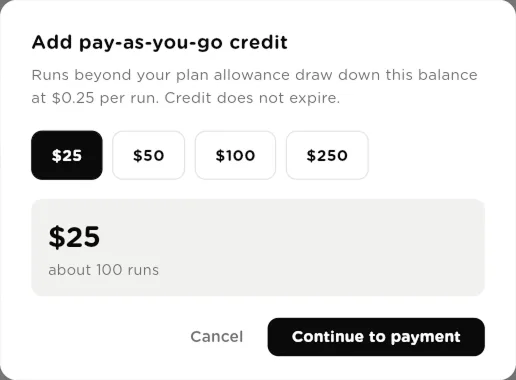
Add credit: choose an amount and continue to payment.click to enlarge Task ledger itemises every charge. Click Open ledger to see each entry with the worker that produced it and when. Turn on Show internal steps to also see work that ran inside a task; it is recorded for transparency and never charged.
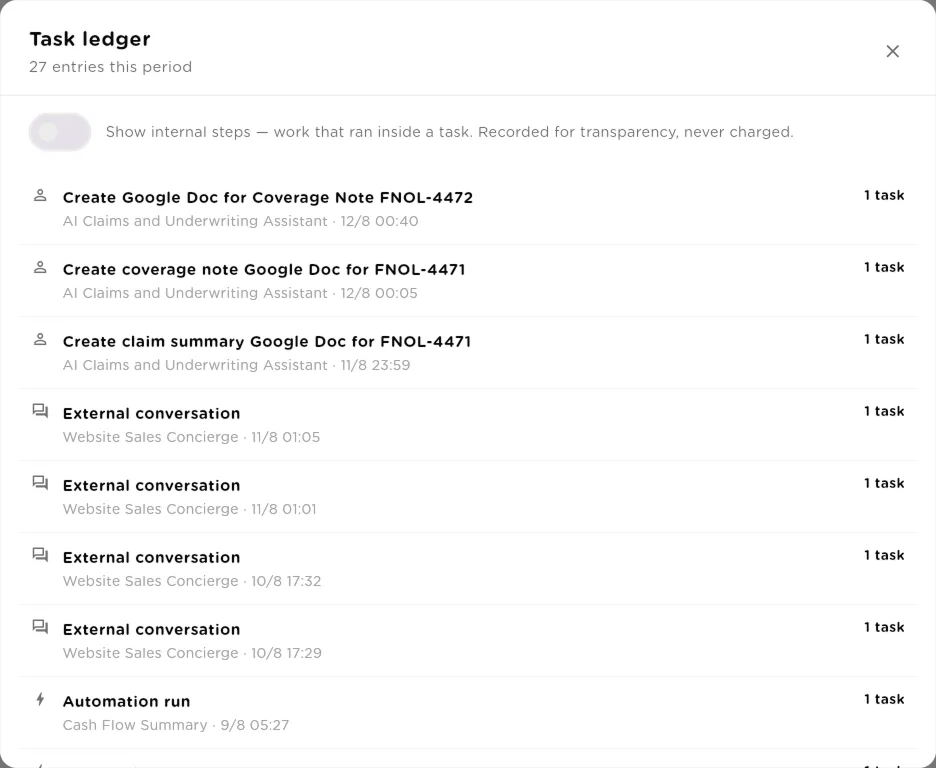
Task ledger: every charged run, itemised.click to enlarge Restrict access to approved networks
Open IP Allowlisting to restrict sign-in and API access to approved networks, such as your office internet or company VPN. Only the organization owner can change it. Click Set up, then in Add a network enter the Address (an address or range) and aName such as Office or VPN. Use Add another to add several at once. Then choose a mode:
- Off: no restriction.
- Monitor: records every request that would have been refused, but refuses nothing.
- Enforce: requests from outside your networks are refused.
For security, a change may ask you to confirm with a six-digit code sent to your email. If you try to enforce without your own current address on the list, the app asks you to add it first so you do not lock yourself out.
Field reference
| Setting | Type | What it does |
|---|---|---|
Profile picture | image | PNG or JPG up to 2 MB. Falls back to your initials. |
Full name | text | Required. How teammates see you. |
Job title | text | Optional. Shown on your user profile. |
Email address | Required. Used for sign-in and notifications. Changing it requires re-verification. | |
Bio | text | Optional short description. |
AI disclosure | text | Required, cannot be empty. Shown to visitors on public links, embeds and shared pages, and stored as the first message of each external conversation. Owner or admin. |
Change password | form | Current password, New password, Confirm new password. |
Authenticator app | 2FA | Time-based codes from any TOTP app, with single-use backup codes. |
Active sessions | list | Signed-in devices with a Sign out button each, and Sign out all other sessions. |
Browser notifications | per browser | Alerts while the tab is closed. Turn on separately in each browser. |
Email notifications | switches | Run completions and failures, task updates, daily and weekly digests, integration health, team invitations, usage alerts, getting-started tips, product updates, marketing emails. |
Pay-as-you-go credit | prepaid | Pays for runs beyond the allowance. Never expires. Owner only. |
Task ledger | list | Every charged run, with an option to show uncharged internal steps. |
IP allowlisting | Off / Monitor / Enforce | Approved networks (address or range, plus a name) for sign-in and API access. Owner only, confirmed by an emailed code. |
Related
- Organizations & workspaces: plans, parallel runs, pausing and ownership.
- Users & roles: who can change which settings.
- Policies, budgets & guard rails: spend caps and rules on what workers may do.
- Audit trail & run traces: the record behind every run you are billed for.