
Knowledge Bases
Give your agents your own documents, pages and notes to search at run time, so they answer from your material instead of guessing.
A Knowledge Base is a searchable collection of your own reference material: playbooks, policies, product docs, price lists, help pages. When you add a source, Turtle AI Coworker splits it into small pieces called chunks, turns each chunk into an embedding, and stores it so an agent can find the right passage by meaning, not only by exact words.
Use a knowledge base when an agent needs to read and reason over text: answer from your policy, follow your brand voice, quote your pricing. Agents only read a knowledge base; they never write to it. For records that agents create and update, use a Table instead.
How a knowledge base works
You add sources, the platform indexes them in the background, and any agent, team member or AI Employee you attach the knowledge base to gets a search tool for it.
Step by step
Open the Knowledge Bases page
Go to Data then Knowledge Bases. The top strip shows the number ofKnowledge Bases, Total Documents, Indexed Chunks andStorage Used. Search by name or document, sort by Last Sync,Name, Date Created or No of Documents, and switch between cards and a list.
Each card shows the knowledge base's ID and scope, its description, its Documents,Chunks and Size, when it last synced, the vector store it uses, andUsed by: the agents, teams and employees it is attached to. A card readsaction needed instead of healthy when it has not synced for more than 14 days. Manage opens it, and the ... menu hasEdit and Delete.
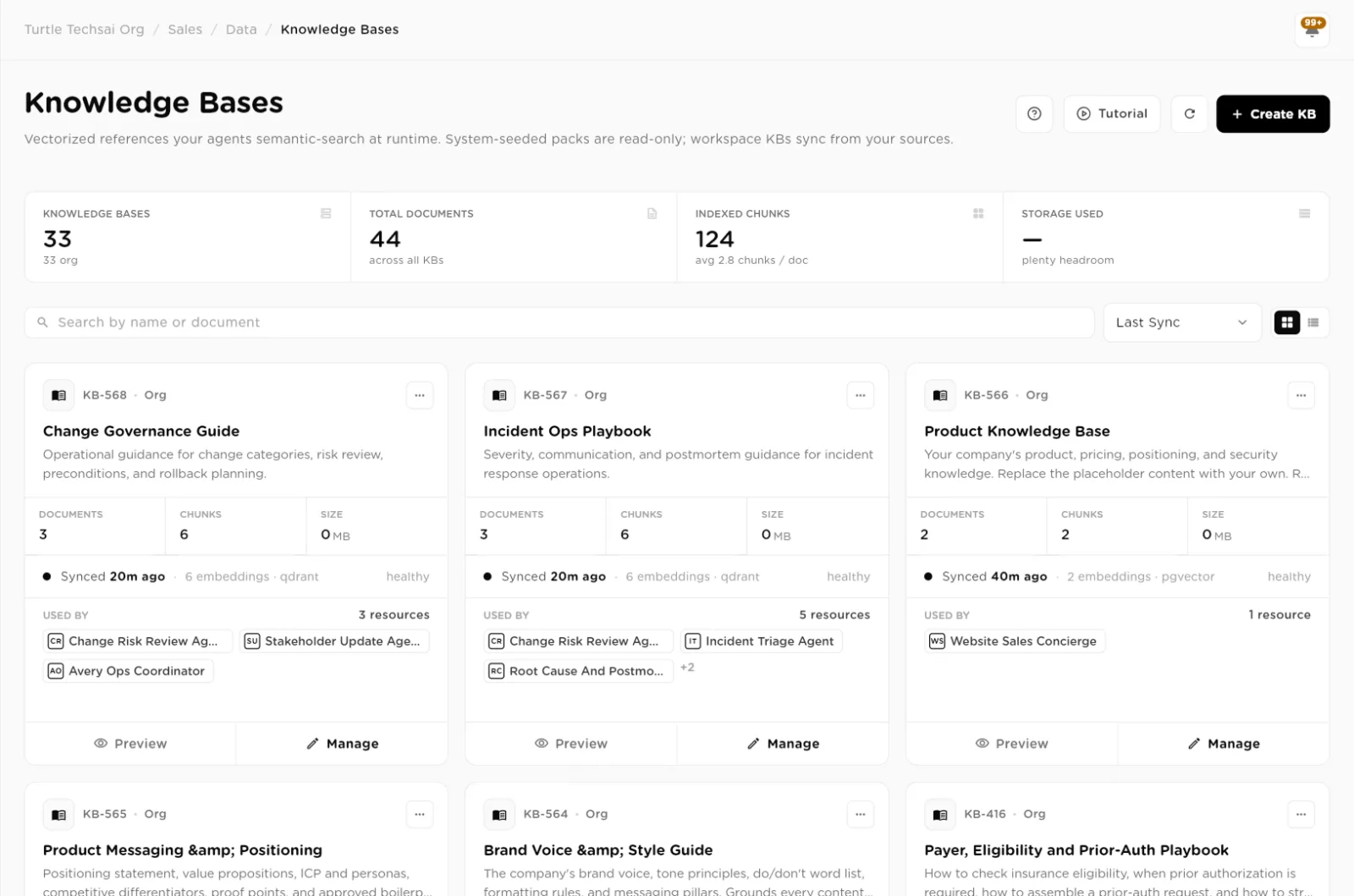
The Knowledge Bases page: every knowledge base, its size, sync state, and who uses it.click to enlarge Create a knowledge base
Click Create KB. Enter a Name (required, up to 80 characters) and aDescription. The description matters: agents read it to decide when to search this knowledge base, so say what is in it and what it is for.
Under Visibility, choose who can access it:
- Everyone in the organization: all members with knowledge base access can read and search it.
- Specific groups: only members of the groups you pick.
- Specific users: only the users you pick, plus the creator and organization owners and admins.
Open Advanced: vector store & embedding model if you want to change theVector Store (pgvector by default) or the Embedding Model(text-embedding-3-small by default). Click Create & index.
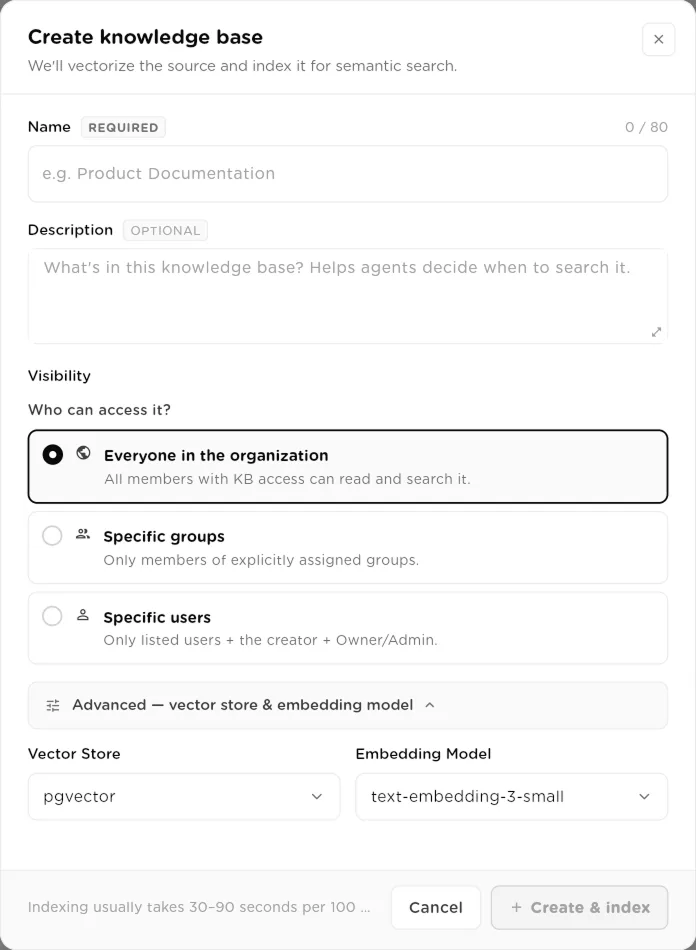
Create knowledge base: name, description, who can access it, and the advanced storage settings.click to enlarge Open the knowledge base
Click Manage on a card. The header shows the number of items andchunks, the embedding model, and the Last sync time. Below it is every source you have added. Use the search box to find a source by name, and the tabsAll, Text, Website, File andExternal to filter by source type.
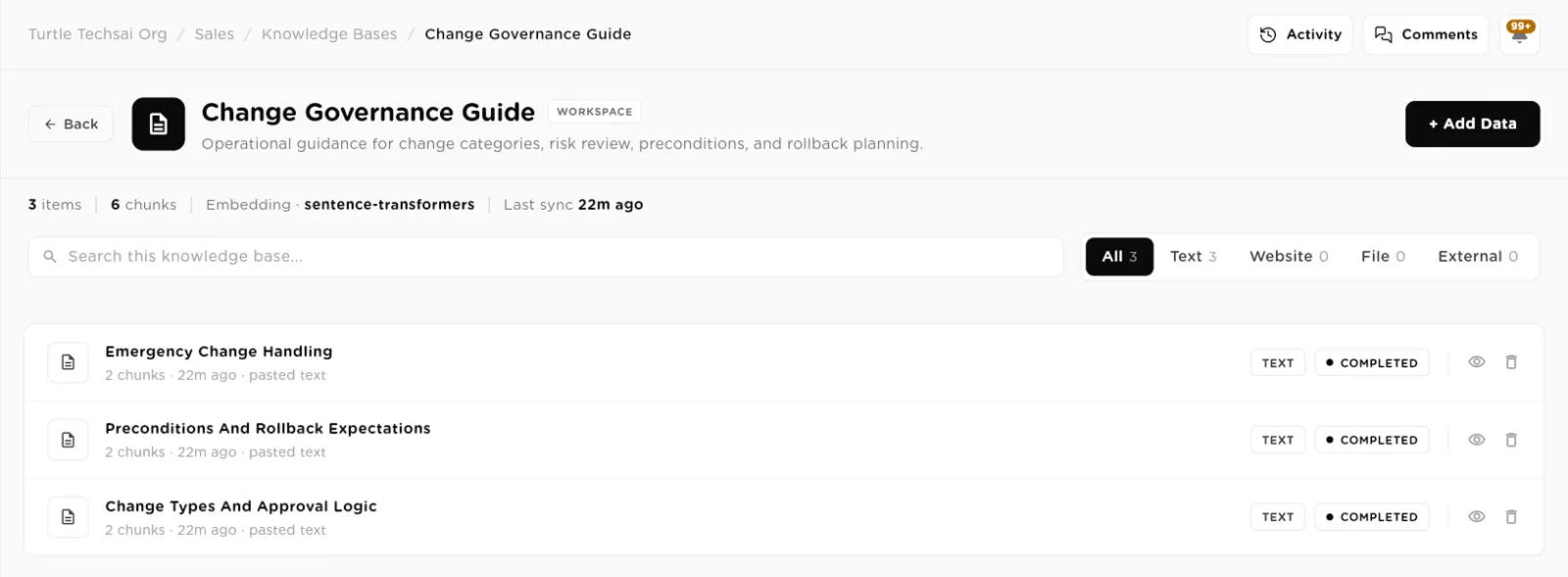
A knowledge base: its sources, their chunk counts, type and processing status.click to enlarge Add sources
Click Add Data and choose a source type.
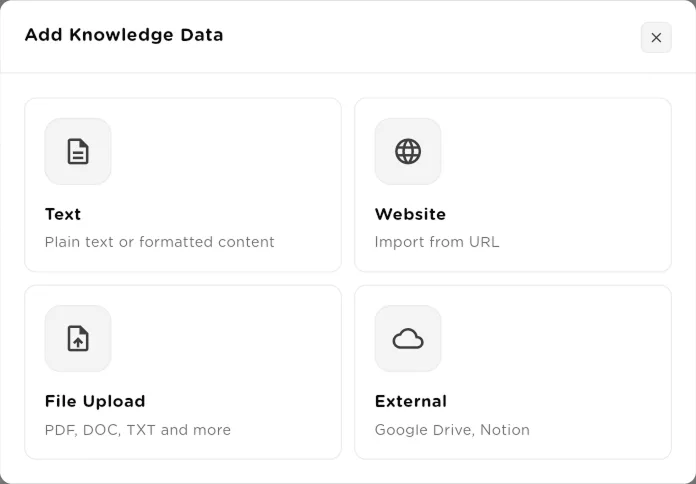
Add Knowledge Data: four ways to bring content in.click to enlarge Text: give it a Name and paste the Text content. The text must be at least 200 characters. Use this for short policies, FAQs and rules you write by hand.
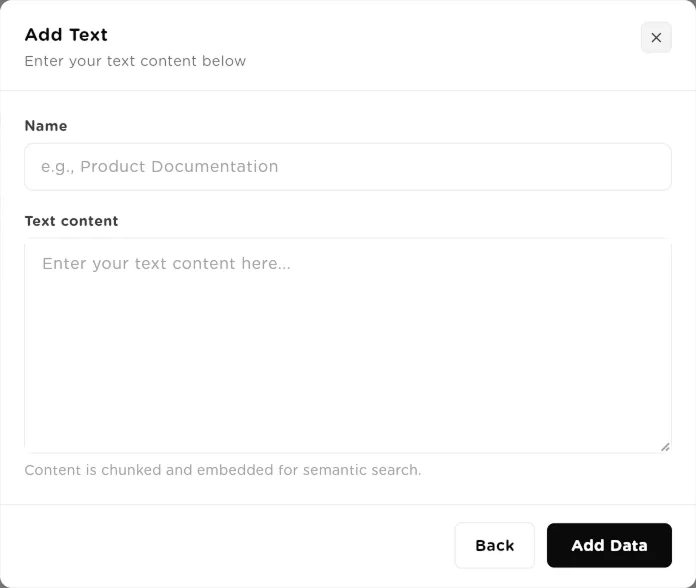
Add Text: paste content and it is chunked and embedded for search.click to enlarge Website: give it a Name and a Website URL. The page is crawled and indexed automatically, following links from it to pick up a few related pages.
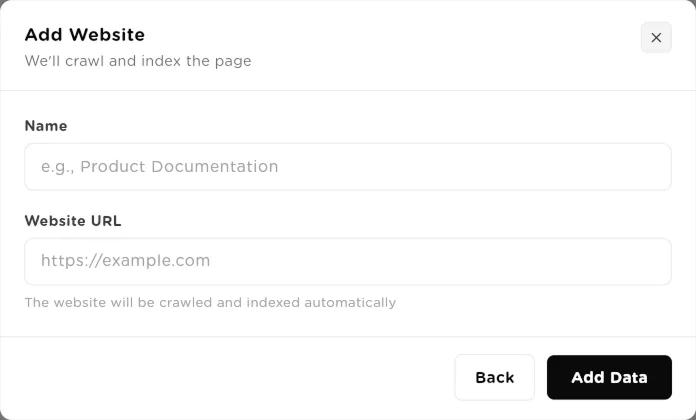
Add Website: enter a URL and it is crawled and indexed.click to enlarge File Upload: click to upload or drag and drop up to 10 files at a time. Accepted types are PDF, DOC, DOCX, TXT, MD, PPTX, XLSX, CSV, HTML, JPG, PNG, and common video formats (MP4, MOV, WEBM, MKV, M4V, AVI).
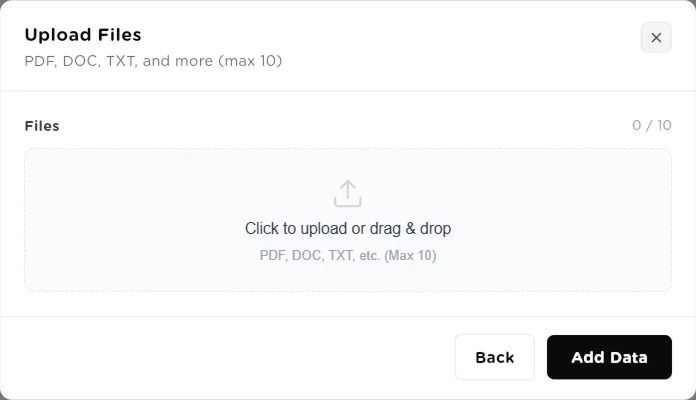
Upload Files: up to 10 files per upload.click to enlarge External: pick Google Drive or Notion, then choose the files or pages to sync. The source must be connected first on theTools page; an unconnected source shows Not connected.
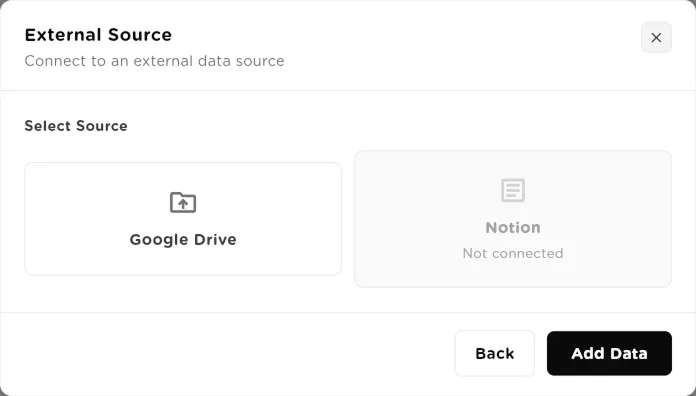
External Source: sync files from Google Drive or pages from Notion.click to enlarge Watch processing and check the content
Each source shows a status badge: Processing while it is being indexed,Completed when it is searchable, or Failed if it could not be read. Text starts processing as soon as you add it; websites, files and external sources are queued first. Indexing runs in the background, so you can keep working. Each completed source shows how many chunks it produced.
Click the eye icon to preview a source. Text sources open as text you can edit withEdit text; saving re-indexes it. Files offer Download andOpen in new tab. The bin icon deletes a source and removes its chunks from search.
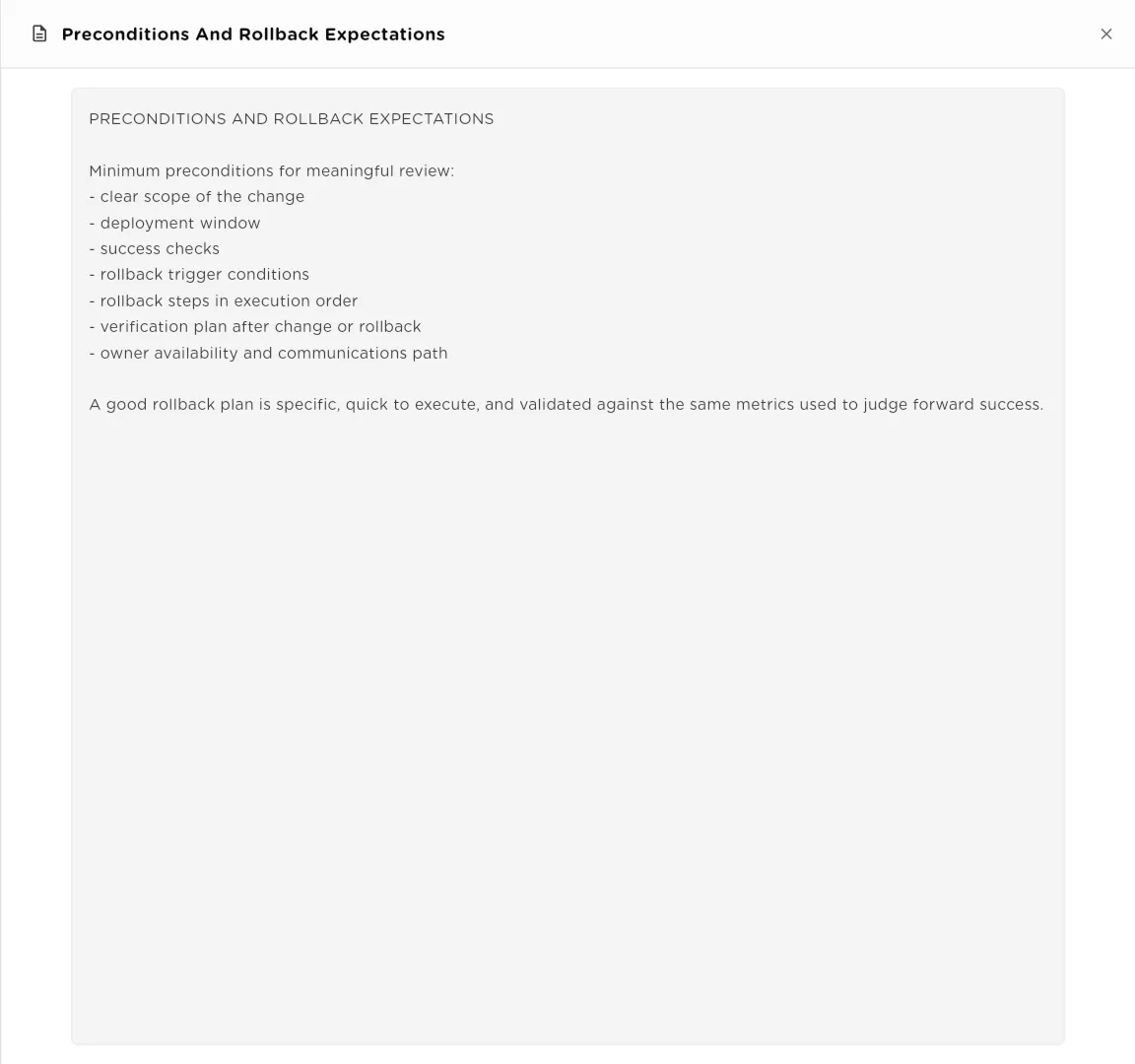
Preview a source to check exactly what your agents will search.click to enlarge Attach the knowledge base to your workers
A knowledge base does nothing until a worker can search it. Attach it from the worker:
- Sequential Agents: the Knowledge Base tab in the agent editor. See Sequential Agents.
- Agentic Teams: the knowledge bases of each team member. See Agentic Teams.
- AI Employees: the Knowledge Bases list in the employee's resources. See AI Employees.
- AI Enrich columns: a table's AI column can search knowledge bases while it fills a cell. See Tables.
Once attached, the worker appears under Used by on the knowledge base's card.
How retrieval works
Each attached knowledge base becomes a search tool the worker can call during a run. The worker decides when to search, using the knowledge base's name and description, and writes its own search query from the task at hand.
- The query is matched against the chunks by meaning, so a question can find a passage that uses different words.
- On the pgvector store, keyword search runs alongside it and the two result lists are combined, so exact names, codes and product terms are found too.
- The best matching passages come back to the worker, five by default, and it answers from them.
- Search results are screened for prompt injection before the worker reads them, because document text is content, not instructions.
Field reference
| Field | Type | What it does |
|---|---|---|
Name | text | Required, up to 80 characters. Shown on cards and to agents. |
Description | text | Optional but recommended. Agents read it to decide when to search this knowledge base. |
Visibility | choice | Everyone in the organization, Specific groups, or Specific users (plus the creator and owners and admins). |
Vector Store | select | Where the embeddings are stored: pgvector (default), qdrant, weaviate or pinecone. |
Embedding Model | select | The model that turns text into embeddings: text-embedding-3-small (default), text-embedding-3-large or text-embedding-ada-002. |
Text source | name + text | Pasted content, at least 200 characters. |
Website source | name + URL | A page that is crawled and indexed automatically. |
File Upload | files | Up to 10 files per upload: documents, spreadsheets, slides, images and video. |
External source | connected app | Files from Google Drive or pages from Notion, once the app is connected. |
Status | badge | Processing, Completed or Failed for each source. |
Related
- Tables: structured records your agents read and write.
- Sequential Agents: attach a knowledge base on the Knowledge Base tab.
- AI Employees: give an employee reference material to work from.
- Tools & Integrations: connect Google Drive or Notion before syncing from them.
- Groups & access: the groups you can limit a knowledge base to.