
Interfaces and dashboards
Build dashboards, portals and internal tools on top of your tables, then share them with your team, with signed-in members, or on a public link.
An Interface is a small app built from your tables: a desk for the team that runs a process, a dashboard for a manager, or a portal where each employee sees only their own records. It is made of pages, and each page is a grid of blocks: KPIs, charts, table views, forms, chats with your AI workers, approvals and automations.
Use an interface when people need to see and act on the work without opening the raw tables. The interface decides exactly which data its blocks show. Opening it never gives someone access to any other table or view.
How an interface works
Blocks read from saved table views, so you shape the data on the table first and lay it out here. Then you share the interface, and viewers act through it.
Step by step
Open the Interfaces page
Go to Data then Interfaces. When the workspace has none yet you seeNo interfaces yet and a Create your first interface button. Once you have some, use the Published and Drafts tabs and the filter box to find one. Each card has Share, Open and Publish (orUnpublish); delete an interface from its menu.
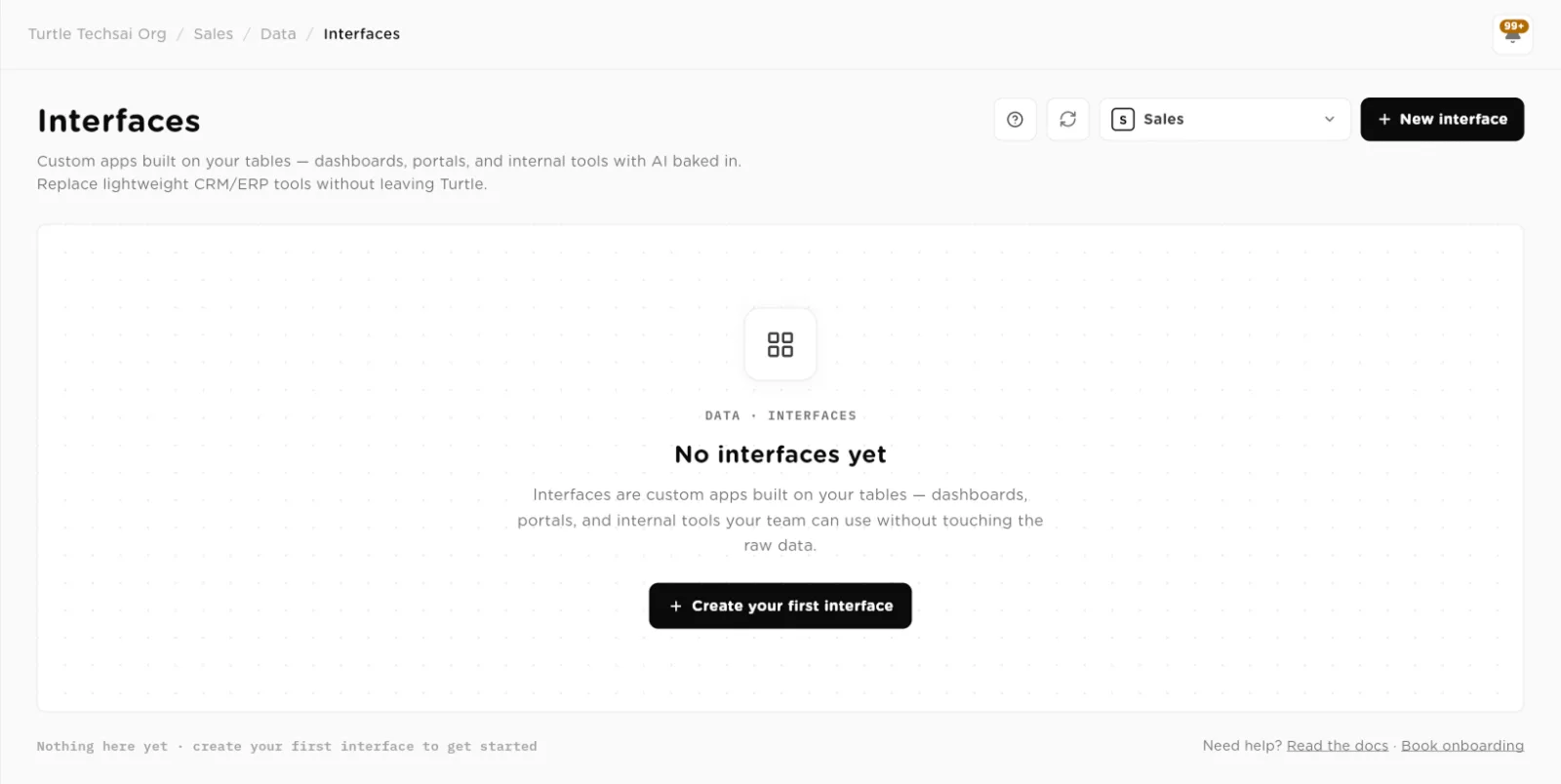
The Interfaces page before your first interface.click to enlarge Name your interface
Click New interface. Enter an Interface name your team will recognise, pick an Icon, and add an optional Description that says what the app is for, who uses it and what to look at first. Click Next. The interface opens with one page called Overview.
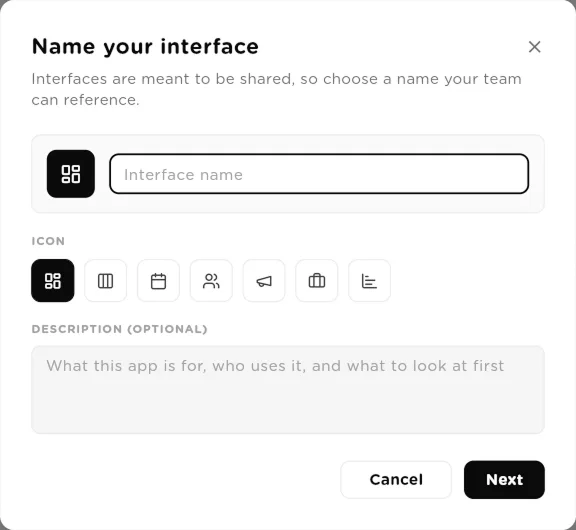
Name your interface: a name, an icon and a short description.click to enlarge Add pages
The Pages list holds the interface's pages. Use New page or Add page to add one, and the page menu to delete it. A typical desk has a page for today's work, one per stage of the process, and one for automations. Switch between Edit and Preview to see the page as a viewer will.
Add and arrange blocks
Click Add block, pick a block type, fill in its settings, and click Save block. Every block has an optional Title shown above it. Select a block on the page to change its Block width: Full, ½,⅓, or Rail, which pins it into a narrow column on the right for things like a chat or a list of recent runs. Edit data source changes what it reads andRemove block deletes it. A page holds up to 30 blocks.
Data blocks can add their own Filters and Sort on top of the saved view's, so one view can feed several blocks.
Show numbers: metrics, charts and progress
A Metric block shows KPI tiles. Each tile picks a view and aFunction: Count of rows, Sum,Average, Minimum or Maximum of a number column, with a Label. Use Add another to put up to six tiles in one block. A count tile also shows how many rows arrived this week and a 14-day trend line once the rows span a few days.
A Chart block picks a Chart type: Bar,Donut or Heatmap. Group by must be a Select or Boolean column. A heatmap also needs Split by, a second Select column, and shades each cell by how many rows fall into it. Highlight series picks one bar to stand out. Status labels are coloured by meaning: done words in green, waiting words in amber, problem words in red.
A Progress block compares a value from a view (a count, sum, average, minimum or maximum) against a Target number.
Show records and add row actions
A View block embeds a saved view (grid, kanban, calendar, gallery or grouped list). ARecord review block splits the page into a list of records on the left and the full record on the right, which suits queues where someone reviews one item at a time.
Both can carry Row actions: buttons on each record. Click Add action, give it a Button label such as "Approve", and choose what it does:
- Set a column: write a value, such as setting Status to Approved. A User column is set to whoever clicks the button. A Date column left blank is set to today.
- Run a trigger: run one of the table's triggers on this record, so a person can start the agent.
- Open record: open the record's full detail.
Pick a Style (Primary, Secondary orDanger) and turn on Ask first for anything that should be confirmed. A block holds up to six actions. Actions run as the person who clicks them, so the change is attributed to them, and they work for viewers who have no direct access to the table.
On a view block that shows a kanban view, turn on Drag between lanes to let viewers move cards. Moving a card writes the lane's value into the record.
Collect input with forms
A Form block adds rows to a table. Under Show as, chooseCard with an Open button or Bare button. Either way the form opens in a popup, so a long form never stretches the page. A bare button is handy for page actions such as "Raise a request".
Signed-in person goes in lets the form fill a link-to-people column with the viewer's own record and lock it, so a staff member cannot submit on someone else's behalf. Leave it on the interface default to use the interface's people table (see the identity step below).
Add chats with your AI workers
An AI employee block is a chat with one AI Employee. Each viewer gets their own conversation, and members need the employee shared with them. ATeam chat block is a chat with an Agentic Team; on a public link it runs through the team's website embed.
Supervise the work
These blocks let a manager run the process from the interface:
- Approvals: held tool calls and AI Employee plans waiting for a decision, for the Whole workspace, one AI Employee, or one team. Approve and Deny appear for owners and admins, and follow the same rules as Approvals.
- Automations: every trigger and schedule on up to six sources (tables, agents or AI Employees), each with an on and off switch and Run now. Owners, admins and builders see the controls; other viewers see On or Off.
- Recent runs: runs of one agent, AI Employee or team from the audit trail, over a Window of 7, 30 or 90 days. Members see their own runs unless they may see all.
- Guard rails: the governance rules in force in the workspace and the spend cap. Nothing to configure. See Policies, budgets & guard rails.
Know who is viewing: people and identity
A portal often needs to know which person is looking. Open Share and, underPeople, pick the interface's people table, for example Employees. It must have an email column. A signed-in member is matched to the row whose email is their work email. Then:
- Forms that link to that table fill in and lock the person field to the viewer.
- A saved view filtered with
@meas the value shows only the viewer's rows, for example "My leave requests". - On a link to the people table,
@my_reportsmatches everyone whose Manager column names the viewer, so a manager sees their team. - The Your details block shows the viewer's own row, read-only.
The Company block shows your organization's name and logo, plus details you add one per line as "Label: value", such as an HR contact or office address. A member whose email is not in the people table sees a note on forms and cannot submit them until their row is added.
Share the interface
Click Share. There are two ways in.
The Signed-in link opens the interface full screen at
/i/<interface id>with the viewer's normal login. Turn on the switch under it to share with the organization, so every member can open it; otherwise only owners, admins and people it is shared with can. A signed-out visitor is sent to sign in and then straight back to the interface.The Public link works without signing in. Turn it on to get a link to copy and anEmbed in website code. Add Password protection (at least 4 characters) to restrict it, and use Regenerate link to cancel the current link for everyone. Public viewers are read-only.
Block reference
Every block type an interface page can hold, and whether it shows on a public link.
| Block | Type | What it does |
|---|---|---|
View | public | Embeds a saved table view. Can carry row actions, and on kanban views, drag between lanes. |
Metric | public | KPI tiles: count, sum, average, minimum or maximum, up to six per block, with a weekly trend on counts. |
Chart | public | Bar, donut or heatmap, grouped by a Select or Boolean column. Heatmaps add a Split by column. |
Progress | public | A calculated value from a view against a target number. |
Record review | signed in | List of records beside the full record, with row actions. |
Form | public | Adds a row to a table in a popup, from a card or a bare button. Can lock the person field to the viewer. |
Text | public | A heading or note written in Markdown. |
Button | signed in | A button that opens a URL. |
Divider | public | A section break; its title renders as a section heading. |
Image | public | A picture from a URL. Not in the Add block list; it appears in pack dashboards. |
AI employee | signed in | A chat with one AI Employee. Each viewer has their own conversation. |
Team chat | public | A chat with an Agentic Team. On a public link it runs through the team's website embed. |
Approvals | signed in | Pending approvals for the workspace, one employee or one team, with Approve and Deny for owners and admins. |
Automations | signed in | Triggers and schedules on up to six sources, with switches and Run now. |
Recent runs | signed in | Runs of one agent, employee or team over 7, 30 or 90 days. |
Guard rails | signed in | The workspace's active policies and spend cap. |
Your details | signed in | The viewer's own row in the people table. |
Company | public | Organization name, logo and up to 12 label and value details. |
Interface settings
| Setting | Type | What it does |
|---|---|---|
Interface name | text | What your team calls the app. Required. |
Icon | choice | Shown on the card and in the header. |
Description | text | Optional. What the app is for and who uses it. |
Block width | choice | Full, ½, ⅓ or Rail (a right-hand column). |
People | table | The people table used to recognise signed-in members by work email. Needs an email column. |
Signed-in link | link | Opens the interface full screen for members with access. Sharing with the organization lets every member in. |
Public link | link | A read-only link and embed code, with optional password protection and regeneration. |
Related
- Tables: the data and saved views every interface is built on.
- AI Employees: the workers behind AI employee chat blocks.
- Agentic Teams: the teams behind team chat blocks.
- Approvals & human-in-the-loop: what the Approvals block decides.
- Solution Packs & templates: packs that install ready-made dashboards and portals.