
The Assistant
Set up your workspace by chat: the Assistant researches your company, proposes a pack or a custom design, connects models and tools from cards, installs, and proposes triggers and setup plans.
The Assistant is a chat inside Turtle AI Coworker that sets up your workspace for you. You describe the work your team does, or hand it a document that describes a process, and it proposes what to build: a Solution Pack that fits, or a custom set of agents, tables and an AI employee. It helps you connect a model and tools from cards in the chat, installs what you agree to, and proposes triggers so the work runs on its own.
Use it on your first day to get from an empty workspace to working automation, and later whenever you want to add something new, check how a worker is set up, or ask what is in the workspace.
How it works
Answers come as text plus cards: small panels with buttons, such as a pack proposal, a connect card or a trigger to confirm. When you press a button, the card updates to show what happened, so the chat keeps a record of every decision. Short suggested replies appear under the Assistant's last message; clicking one is the same as typing it.
Step by step
Open the Assistant
Click Assistant in the left navigation. In a new, empty workspace it opens on its own the first time you arrive. The header shows the workspace it is working in; change it with the workspace picker. New chat starts a fresh conversation, and the header also has search, export as PDF and clear conversation. Clearing only removes the chat history; everything the Assistant built stays.
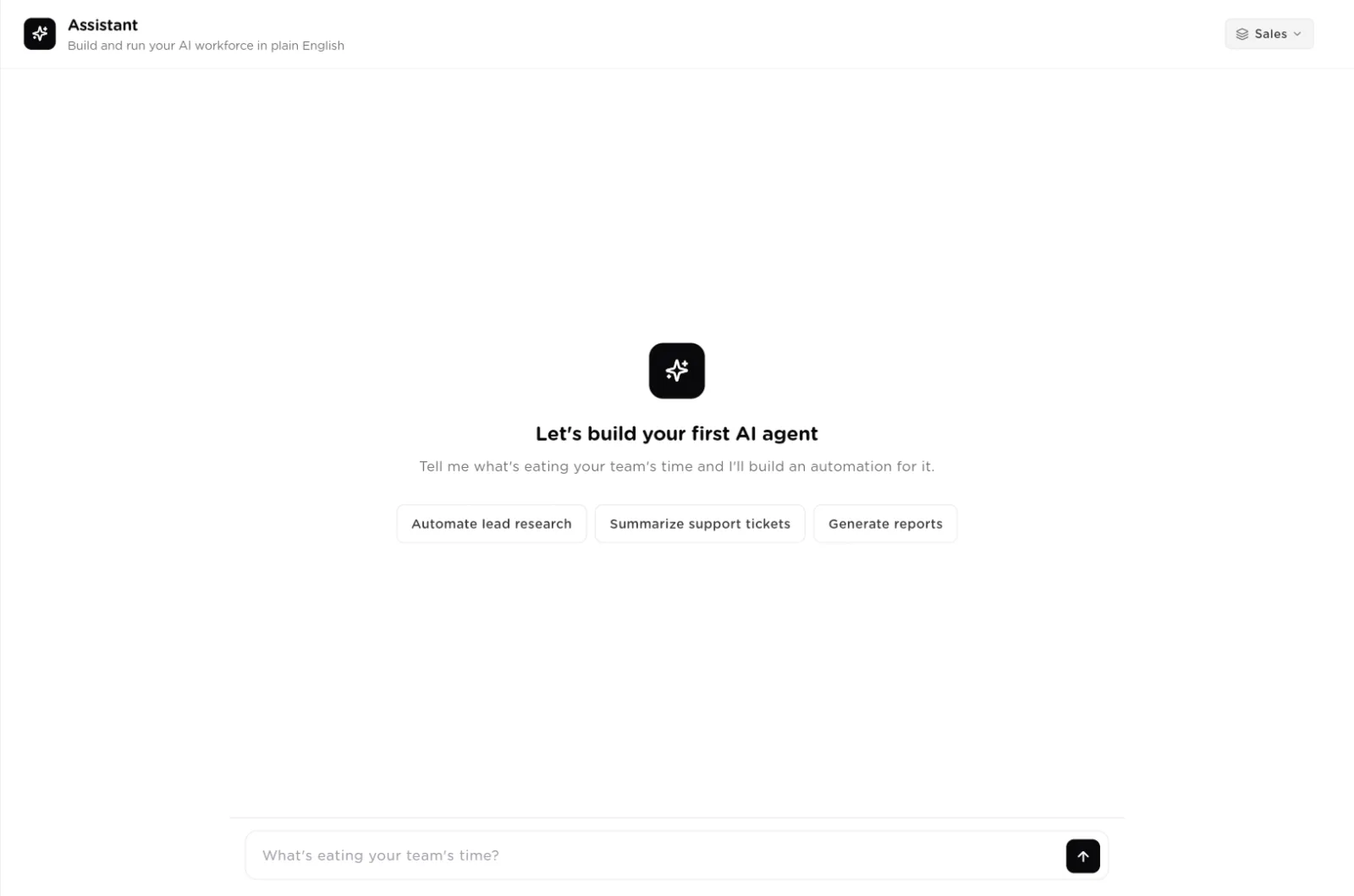
An empty conversation: pick a suggestion or describe the work that is eating your team's time.click to enlarge Let it research your company
If you signed up with a company email, the Assistant reads your company website in the background and opens with what it found: what the company does, its services and who it serves. Confirm withThat's us, correct it with Not quite, or choose I'm here for something else. If there is no research yet, it asks What's your company's website? and shows a card while it reads the site. If you have no website, chooseWe don't have a website and pick the kind of work you want help with, such as finding clients and leads, invoices and getting paid, keeping records tidy, answering customers, or hiring and screening.
Review the proposal
From what it learned, the Assistant works out the recurring back-office work your team likely does and looks for a Solution Pack that covers it. A pack proposal card names the pack, what it installs and why it fits, with Preview, Install pack andBuild something custom instead. Preview lists every table, agent, team, employee and knowledge base, the tools it needs and the model it will use. If no pack fits, the Assistant says so and designs a custom solution for your business instead, shows you what it would create, and installs it only when you agree.
Connect a model from the card
Workers need a model to run on. If your organization has none, the Assistant shows aconnect model card with Azure OpenAI and API key (OpenAI, Anthropic, ...). Each opens the same connect dialog as the Models page, without leaving the chat. When you are done, press Done, try again. If you connected an Azure resource with no model deployment yet, the card offers Add a deployment instead.
Connect the tools it needs
A connect tools card lists each tool the design uses that your organization has not connected, with the workers that use it and a button that matches how the tool connects, such asConnect for a sign-in, Add API key, or Enable. If your company uses a different vendor for the same job, pick it from the alternatives under the tool (for example another email or CRM tool) and the install is wired to that one instead. When you are done, press I've connected them, try again, or Install without themto install now and connect later.
Install and open what was built
When you press Install pack or say yes, the Assistant installs everything into the workspace in one step and shows an installed card listing each table, agent, team, employee, knowledge base and dashboard it created. Click any item to open its page. If some tools were left out, the card offers Connect the missing tools.
Ask about your workspace
You can ask what is in the workspace, how an agent is set up, or what is missing, at any time. When the answer is about one agent, team, employee, table or knowledge base, it appears as a card withOpen and Ask about it.
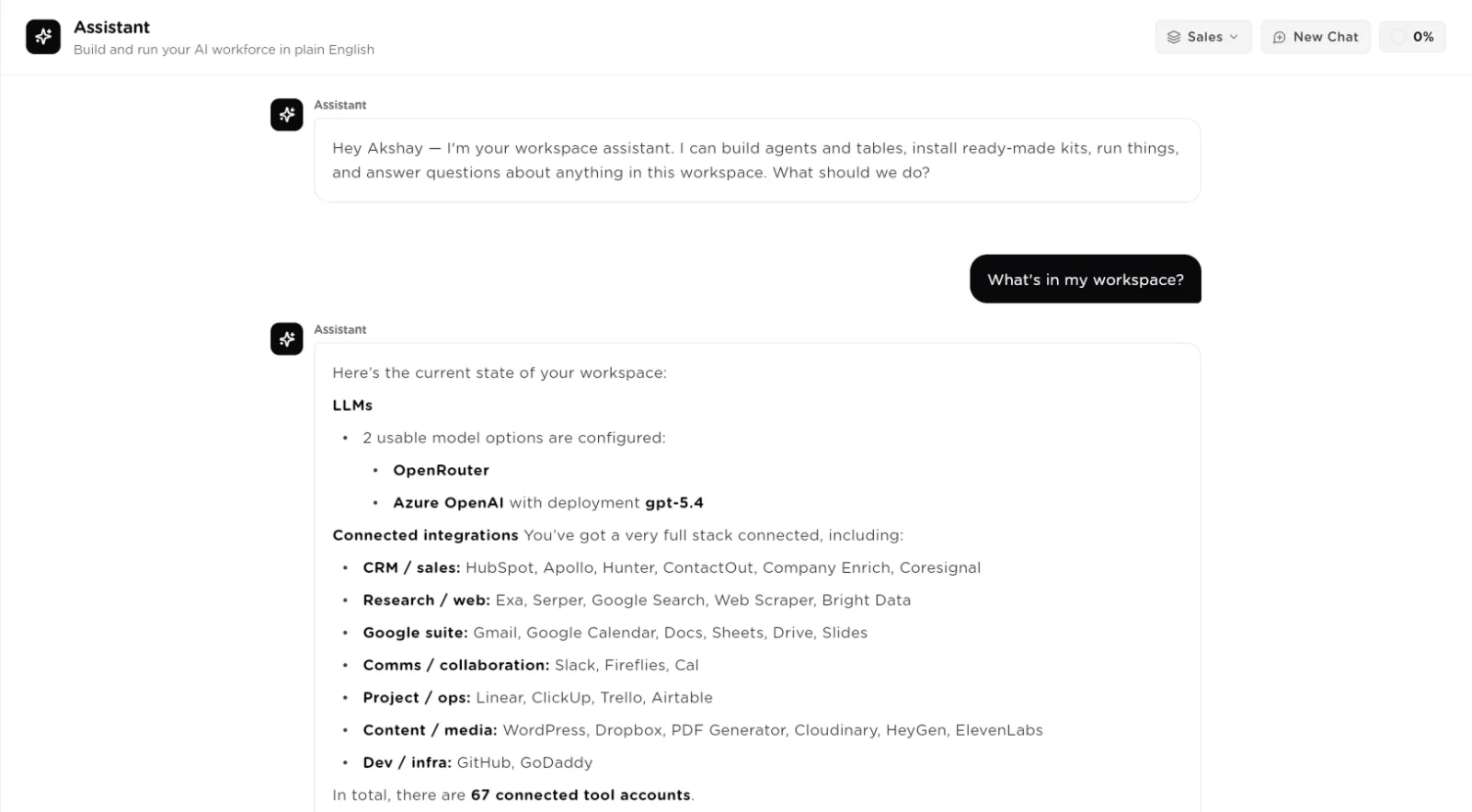
Asking what is in the workspace: the Assistant reads the real configuration before it answers.click to enlarge Set up triggers
Ask for something like "run the lead scorer every weekday at 8" or "when a new row is added to Invoices, check it". The Assistant proposes one trigger on a card that says in plain words what will fire, when, and which worker it starts, with Create trigger,Change something and Cancel. Nothing is created until you pressCreate trigger. It can propose schedules and integration events for agents, table triggers (a row created, a row updated, a field changing, or a schedule), and schedules and events for AI employees. If the trigger needs a tool that is not connected, the card says which one and has no Create button until it is connected.
Turn a process document into a setup plan
Attach a document that describes how your team works, such as an SOP, with the paperclip button or by dropping it on the page. The Assistant reads it and can propose a setup plan: a numbered list of steps such as connect a model, connect a tool, install a pack or a custom design, add a table column, create a trigger, or a manual step for you. The card shows each step's state (pending, ready, running, waiting on you, done or skipped). Press Run next step to do the next step, or Skip this step. Steps that wait on you, such as connecting a tool, complete on their own once you have done them. The Assistant also tells you which parts of the document it did not build.
Reference
Cards
| Card | Type | What it does |
|---|---|---|
Website | research | Shows your company's site while the Assistant reads it, then what it found. |
Pack proposal | proposal | A pack that fits, with the reason. Preview, Install pack, Build something custom instead. |
Pack preview | proposal | Every component, the tools needed and the model to be used. Install pack, Build something custom instead, Not now. |
Connect model | setup | Azure OpenAI or API key (OpenAI, Anthropic, ...), then Done, try again. |
Connect tools | setup | One row per missing tool with its connect button and alternatives. I've connected them, try again or Install without them. |
Installed | result | Everything that was created, each item openable. Connect the missing tools when some were left out. |
Entity | answer | One agent, team, employee, table or knowledge base. Open or Ask about it. Never Run. |
Trigger proposal | automation | One trigger in plain words. Create trigger, Change something, Cancel. |
Trigger created | result | What was created and when it next fires, with Open. |
Setup plan | plan | Numbered steps with their state. Run next step, Skip this step. |
Confirm | safety | Holds a delete or other destructive change. Yes, go ahead or Cancel. |
Attachments
| Limit | Type | What it does |
|---|---|---|
File types | list | PDF, PNG, JPG, JPEG, GIF, WEBP, TXT, MD, CSV, JSON, YAML, YML, HTML and XML. |
Files per message | number | Up to 5. |
File size | number | Up to 10 MB per file. |
Documents kept | number | The Assistant keeps the most recent 3 documents from a conversation in mind for later turns. |