
Custom Tools & MCP servers
Give your workers tools the catalog does not have: your own REST endpoints grouped into collections, or an MCP server your organization already runs.
The integrations catalog covers common services. When a worker needs something it does not have, such as your internal API or a vendor's API that is not in the catalog, you add it yourself. Turtle AI Coworker gives you two ways to do that, both on the Tools page under Configure.
Custom tools turn REST endpoints into tools: you describe each endpoint once, group endpoints into a collection, and link one stored credential to the collection. Custom MCP servers connect a server that already speaks the Model Context Protocol: you give its URL and credential, and its tools are read from the server itself. Use custom tools for a plain HTTP API; use a custom MCP server when the API already has an MCP server in front of it.
How it works
Part 1: Custom tools (your REST APIs)
A collection is a group of related endpoints, for example "Stripe Payments" or "CRM Tools". Each endpoint in it becomes one tool a worker can call. The collection has one linked credential, so every endpoint in it authenticates the same way and you connect the credential once, not per endpoint.
Open the Custom tools tab
On Tools & Integrations, click the Custom tools tab, or theCustom HTTP tool button in the header. The tab is shown to owners and admins. At the top you see four counters: CUSTOM TOOLS, VAULT CREDENTIALS,CALLS · 24H and COLLECTIONS. Below them are the ways to add a tool, the TOOL REGISTRY of everything you have added, and the CREDENTIALS VAULT.
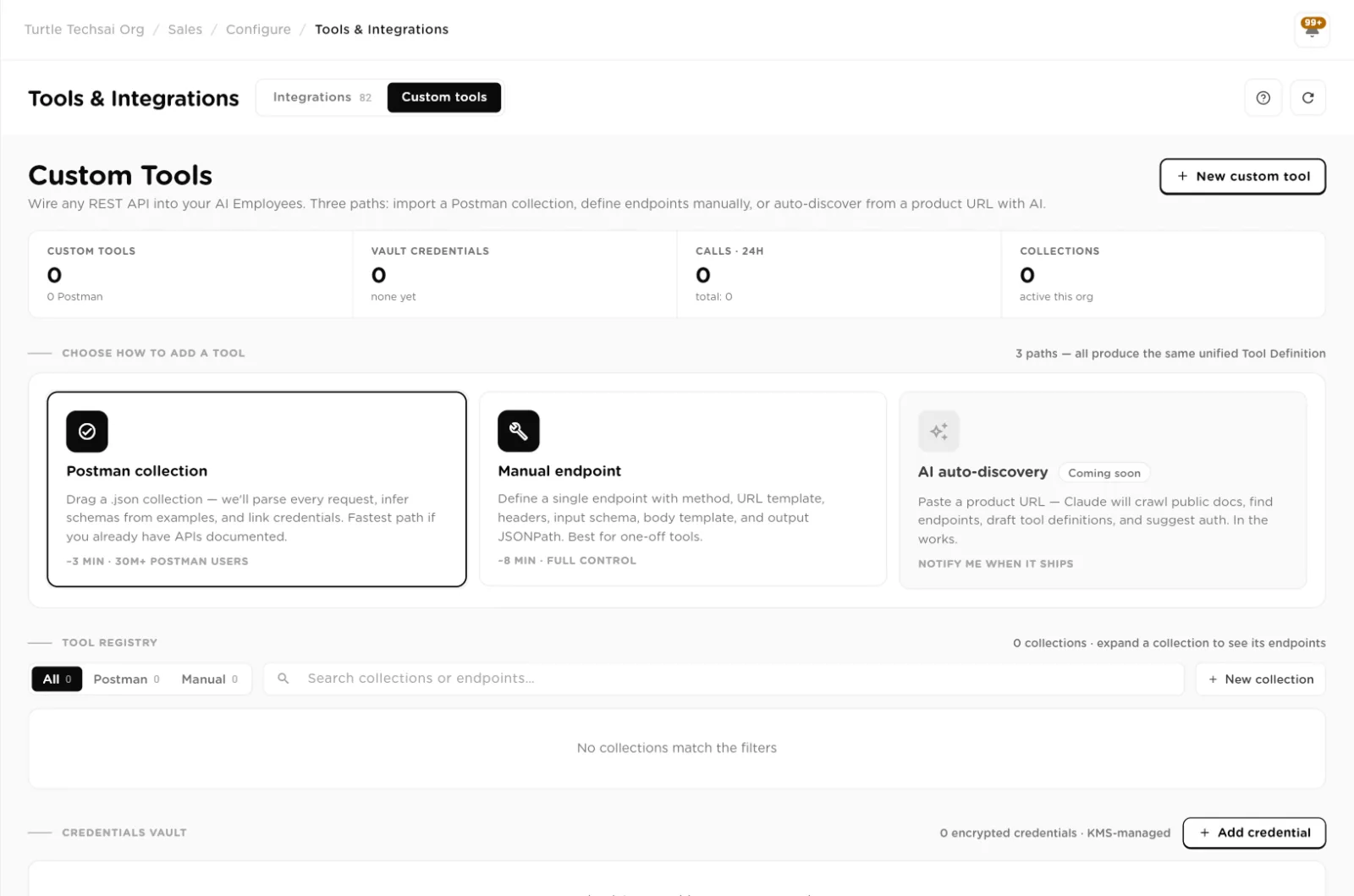
Custom tools: counters, the ways to add a tool, the registry of collections, and the credentials vault.click to enlarge Store a credential in the vault
If the API needs authentication, add its credential first. Next to CREDENTIALS VAULT, click Add credential. Give it a Credential name, pick anAuth type, fill in the fields for that type, add optional Notes, and click Save credential.
- None: requests are sent as they are. Use it for public APIs.
- API Key: choose Send key as Request header or Query parameter, then give the Header name (for example
X-Api-Key) and the API key. - Bearer: paste the Token. It is sent as
Authorization: Bearer. - Basic: enter Username and Password. They are sent as a Basic authorization header.
- Custom header: give any Header name and Header value pair, for example
X-RapidAPI-Key.
Credentials are stored encrypted and decrypted only when a request is sent. The worker never sees the secret, and it does not appear in logs.
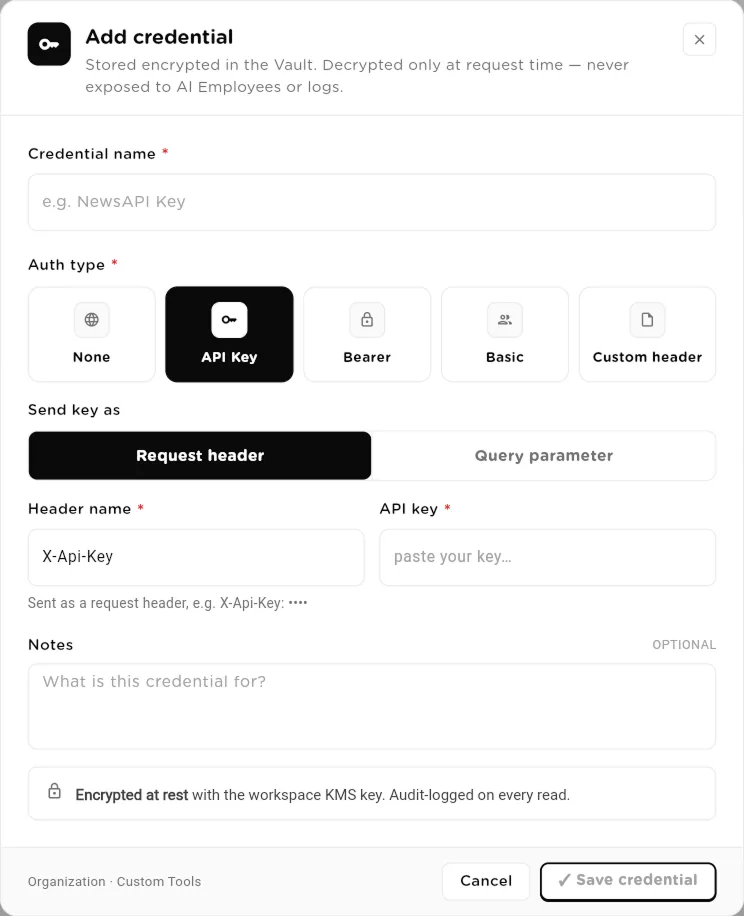
Add credential: pick the auth type, and only that type's fields appear.click to enlarge 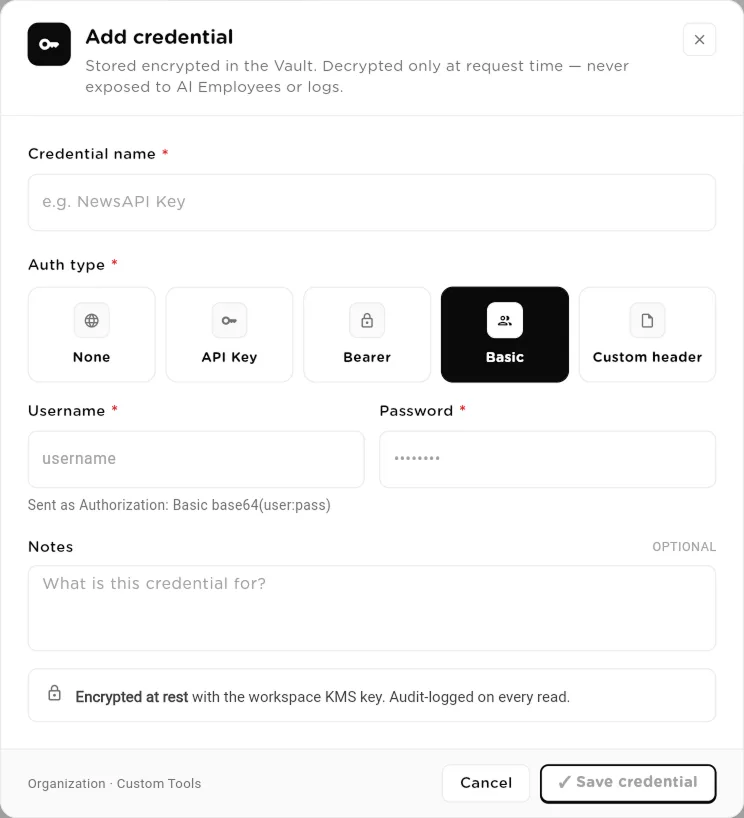
Basic auth takes a username and password; the header is built for you.click to enlarge Choose how to add the tool
Click New custom tool. The Add a custom tool dialog offers two paths:Import Postman collection and Manual endpoint. Both produce the same kind of tool, so pick whichever matches what you already have. The page also shows a third card,AI auto-discovery, marked Coming soon.
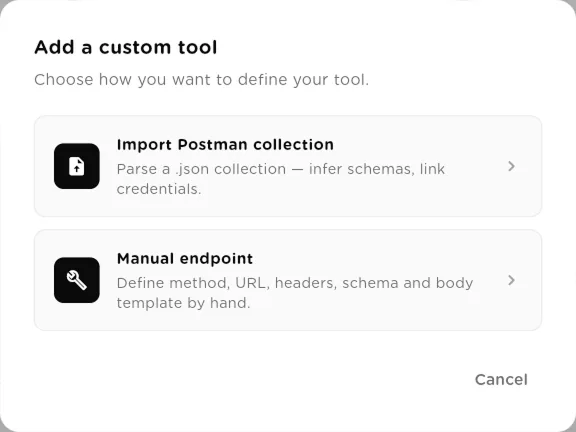
Two ways in: import a Postman collection, or define endpoints by hand.click to enlarge Path A: import a Postman collection
Import Postman collection opens a four-step wizard: Upload,Select, Preview & Edit and Credentials. Drop a Postman v2.1 JSON file, up to 10 MB, on Collection file and clickContinue. Auth headers in the file are detected automatically. Pick the requests you want as tools, review and edit each one, link a credential, and finish with the import button.
The wizard checks four IMPORT RULES and blocks the import if the file breaks one:
- one uploaded collection targets only one API host;
- it uses only one auth type;
- it uses only one credential scope;
- the variables for the base URL and auth are present.
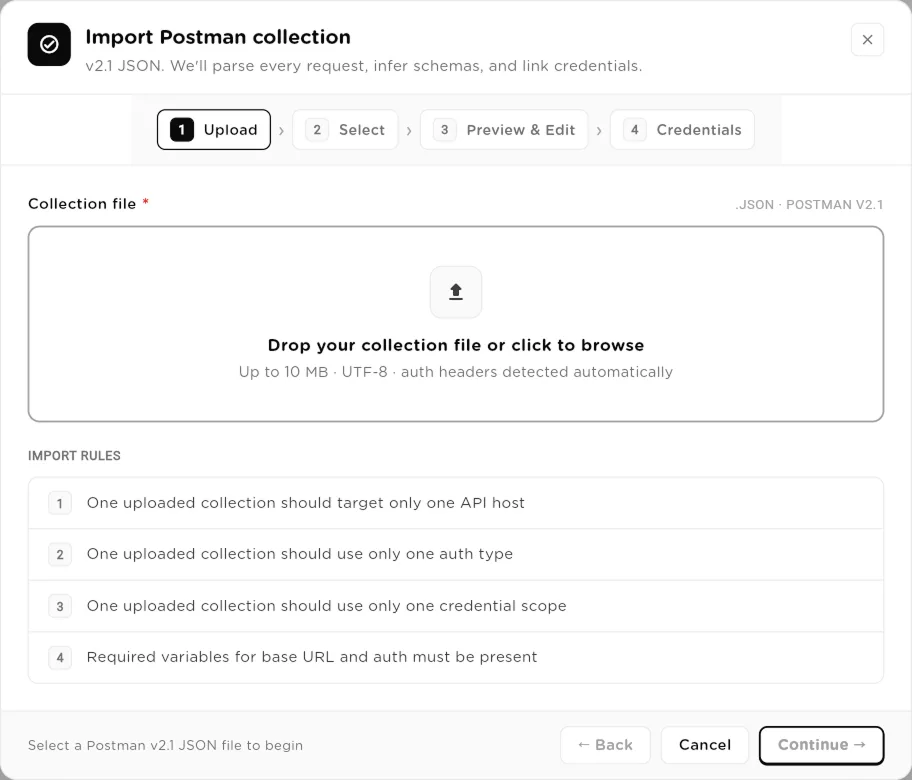
Postman import: upload, select requests, preview and edit, then link a credential.click to enlarge Path B: define endpoints by hand
Manual endpoint opens New manual collection. In step 1, enter aCollection name and an optional Description, then clickSave & add endpoints. You can also start here from New collectionin the tool registry.
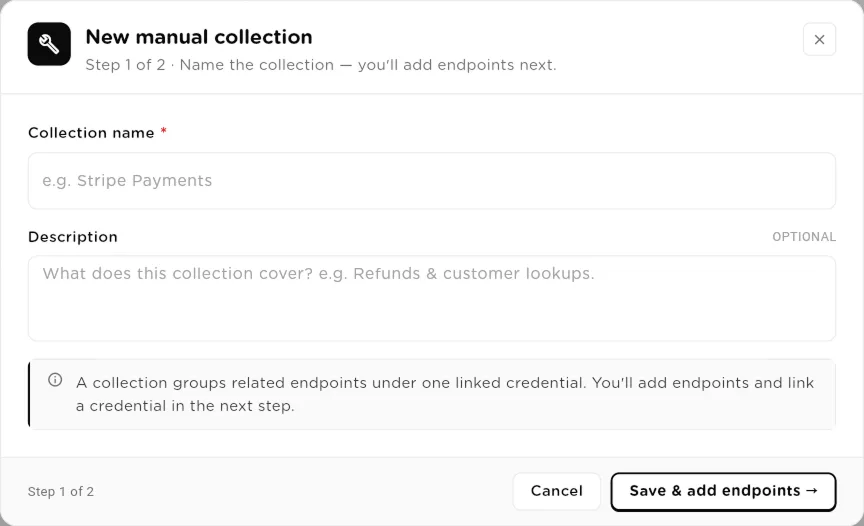
Step 1: name the collection. Endpoints and the credential come next.click to enlarge In step 2, click Add endpoint for each API call. For each one, set theMethod, Base URL and Path, an Endpoint name and a Tool name, and an AI Hint that tells the worker in plain language when to use it. Under INPUT SCHEMA, add the fields the worker must supply, each with a name, type and description. Under REQUEST, add Headers,Query params and a JSON Body; refer to an input field with
{{input.field}}. Under OUTPUT MAPPING, you can pick the parts of the response to return using JSONPath, for example{ "temperature": "$.current_weather.temperature" }.Use Link credential to attach a credential from the vault to the collection, or choose No credential. Switch each endpoint Enabled when it is ready, and mark endpoints that delete or overwrite data as Destructive. ClickSave collection.
Test an endpoint
Select an endpoint in the editor and click Test endpoint. The Test tool dialog sends a request with Sample input, using the linked credential from the vault, and shows the RESOLVED REQUEST and the RESPONSE, so you can check the URL, headers and output mapping before a worker relies on them.
Attach the collection to a worker
A collection is attached as a whole: the worker gets every enabled endpoint in it.
- Sequential agent: on the agent's Tools tab, open the Custom tools sub-tab.
- Agentic team member: in the member editor, open the Custom tools sub-tab.
- AI employee: in the Custom Tool Collections group, click Add Collection.
The Add Custom Tool Collections dialog lists your collections. Tick the ones this worker may call and click Done. A collection with no connected credential shows asInactive until you link one in Tools.
Part 2: Custom MCP servers
If your organization runs an MCP server, you can connect it by URL, the same way you would add one to an MCP client on your desktop. You do not describe its tools by hand: Turtle AI Coworker asks the server what tools it has. The server's own tool descriptions are what the worker reads.
Open Custom MCP servers
On Tools & Integrations, click the Custom MCP servers tab. Every member can see the list, so builders know what they can attach. Adding, editing and deleting servers is limited to owners and admins, because a server holds a live credential and an outbound address. The counters show Servers, Tools available, Last check passed and Needs attention, and you can filter by All,Active, Off or Needs attention, or search servers and tools.
Add a server
Click Add server. In Add MCP server, enter a Name, an optional Description, and the Server URL, for example
https://mcp.example.com/mcp. Then choose the Authentication:- None: an open server.
- Bearer token: the token is sent as an Authorization bearer header.
- Custom header: the token is sent in a header you name, for example
X-API-Key. - Basic auth: a Username and Password. You type them as they are; the encoding is done for you.
The token or password is stored encrypted and never shown again. When you edit a server later, leave the field empty to keep the stored one.
Test before saving
Click Test connection. Turtle AI Coworker connects to the server, performs the MCP handshake and lists the tools it publishes, for example "Found 3 tools". Read the list to confirm it is the server you meant. Saving is enabled once you have tested. If the test fails you can stillSave anyway and fix it later. Click Add server to save.
Manage a server
Each server card shows its status (for example the number of tools found, Check failedor Never checked), when it was last checked, and the tools from that check. UseTest again to re-check it with its stored credential, View all to search its tools and their parameters, and the edit and delete icons to change or remove it. Deleting a server removes it from your organization and detaches it from every worker using it.
Attach the server to a worker
- Sequential agent: on the agent's Tools tab, open the Custom MCP servers sub-tab and click Add Server. Save a new agent first.
- Agentic team member: in the member editor, open the Custom MCP servers sub-tab. The member must exist first. Servers attach per member, not per team.
- AI employee: in the Custom MCP Servers group, click Add Server. The group shows how many of the allowed servers are active.
In Add Custom MCP Servers, pick the servers and click Done. Each worker can have at most 2 active custom MCP servers. When a worker reaches the limit, the remaining servers are greyed out; remove one first. The limit exists because every tool a server publishes is sent to the model on each call, and one server can publish dozens of tools.
What happens at run time
- Tools are discovered from the server. The worker reads the server's tool list when it runs, so a tool added on your server becomes available without any change or release on the Turtle AI Coworker side.
- Same governance. Calls to a custom MCP server go through the same policy checks, approvals and audit trail as any other tool. Each server is recorded under its own name, so a server you call "gmail" never inherits the rules written for the Gmail integration.
- Outages do not fail the run. If a server is down, the worker skips it, keeps its other tools, and the skip is recorded. A tool error comes back to the worker as a readable message so it can correct its input.
- Public addresses only. The URL is checked on every request, and private or internal network addresses are refused.
Reference
Custom tool credential
| Field | Type | What it does |
|---|---|---|
Credential name | text | A name you recognise, for example NewsAPI Key. Required. |
Auth type | choice | None, API Key, Bearer, Basic or Custom header. Required. |
Send key as | choice | API Key only: Request header or Query parameter. |
Header name | text | API Key and Custom header: the header the secret goes in. |
API key / Token / Header value | secret | The secret itself. Stored encrypted. |
Username / Password | secret | Basic only. |
Notes | text | Optional note on what the credential is for. |
Custom tool endpoint
| Field | Type | What it does |
|---|---|---|
Endpoint name | text | Display name shown in the registry. |
Tool name | text | The name the worker calls, in lower case with underscores, for example get_current_weather. |
Method | choice | GET, POST, PUT, PATCH or DELETE. |
Base URL | url | The API host, for example https://api.example.com. |
Path | text | The path after the base URL. Leave empty if the base URL is the full address. |
AI Hint | text | Plain-language guidance on when the worker should use this endpoint. |
INPUT SCHEMA | fields | The inputs the worker must supply: name, type (string, number, integer, boolean, object, array) and description. |
REQUEST | templates | Headers, Query params and a JSON Body. Use {{input.field}} to insert an input. |
OUTPUT MAPPING | JSONPath | Optional. Picks the parts of the response to return to the worker. |
Enabled | toggle | Only enabled endpoints are offered to workers. |
Destructive | toggle | Marks an endpoint that deletes or overwrites data. |
Link credential | select | The vault credential the whole collection uses, or No credential. |
Custom MCP server
| Field | Type | What it does |
|---|---|---|
Name | text | How the server appears in lists and in the audit trail. Required. |
Description | text | Optional note on what the server is for. |
Server URL | url | The server's MCP endpoint on a public address. Required. |
Authentication | choice | None, Bearer token, Custom header or Basic auth. |
Header name | text | Custom header only: the header the token is sent in. |
Username | text | Basic auth only. |
Token / Password | secret | Stored encrypted and never shown again. Switching to None deletes the stored credential. |
Related
- Tools & Integrations: connect services from the catalog.
- Sequential Agents, Agentic Teams, AI Employees: where tools are attached.
- Compliance: policies and approvals that apply to tool calls.