
AI Employees
Hire a named AI coworker that owns a role: it chats with you, turns requests into planned tasks, uses your agents, tables, knowledge bases and tools, remembers how you like to work, and asks before it does anything you have not allowed.
An AI Employee is a named coworker with a role, a voice and a set of skills. You talk to it in a chat. Quick questions get an answer straight away. Real work becomes a task: the employee writes a plan, waits for your approval when its settings require it, runs the plan in the background using the agents, tables, knowledge bases and tools you gave it, and reports back with the result.
Hire an employee when you want someone to own a stream of work over time: a sales development rep that builds account lists every morning, an account manager that answers pipeline questions, an incident coordinator that keeps your records in sync. For a single fixed procedure, aSequential Agent is simpler. For a chat that routes questions across specialists, use an Agentic Team.
How a message becomes work
Every message is read first. A question is answered in the chat. A request for work creates a task with a plan. Depending on the employee's Autonomy Scope, the plan either runs at once or waits for you to approve it. While it runs, any tool call that a compliance policy holds pauses the task until someone approves it.
Hire and set up an employee step by step
AI Employees live under Build, AI Employees. The editor is one long page of numbered sections. Section 1 must be saved before you can open the others.
Open the AI Employees list
The list shows everyone hired in the workspace. Filter with All, On Duty (working on something now) and Idle, search by name, role or department, sort, and switch between grid and list. Each card shows the employee's role and personality, how many agents, tables, knowledge bases and tools it has, its tenure, and its Completed,Active and Failed task counts. A new employee shows an onboarding checklist instead of recent activity. Configure opens the editor andAssign work opens the chat.
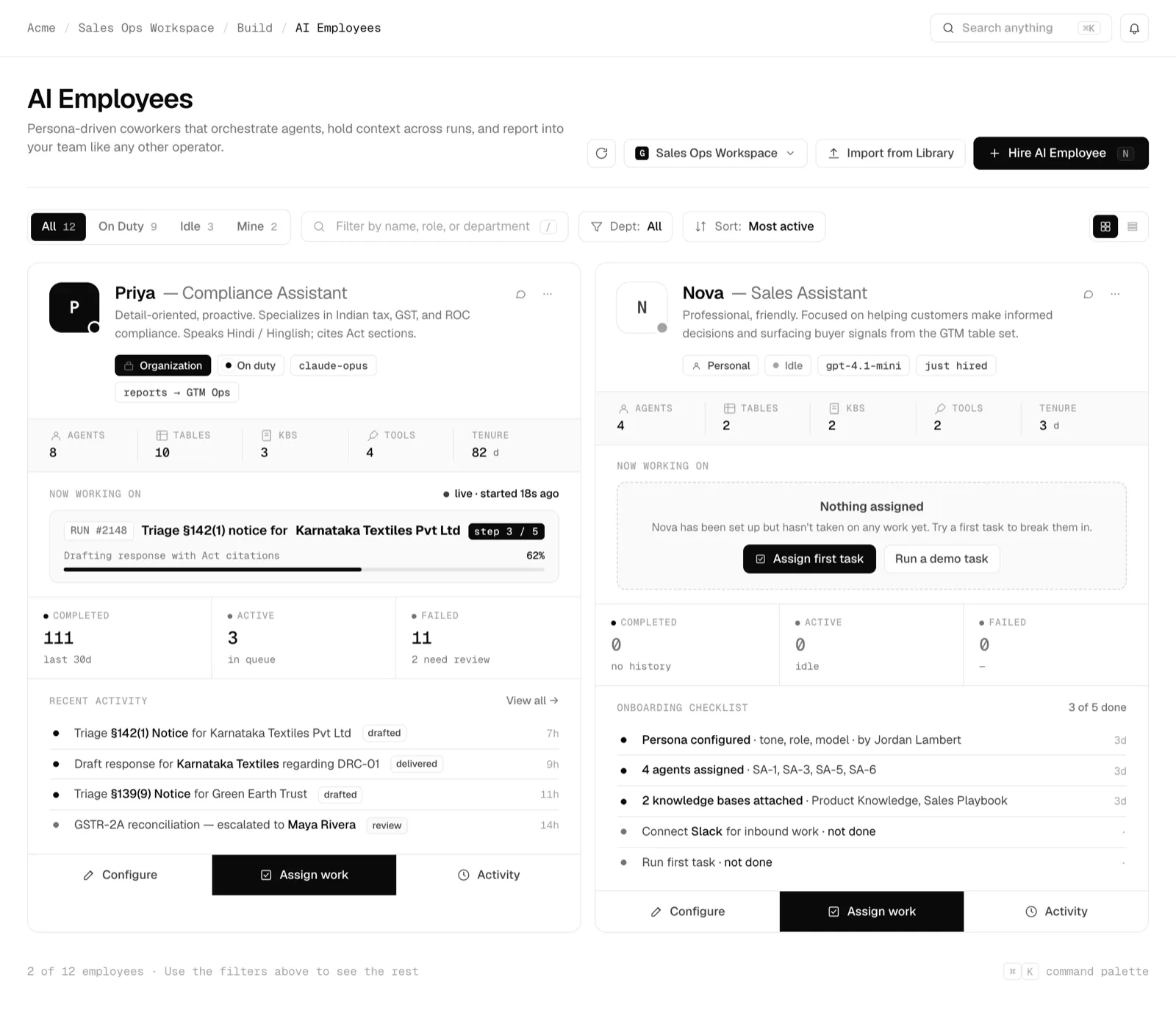
The AI Employees list. Each card shows skills, tenure, task counts and recent work.click to enlarge Import a ready-made employee (optional)
Import from Library opens pre-built employees from official packs, partners and your organization. Filter by source or tag and search. A card whose model is not available in your workspace shows Choose model so you can pick one of yours; otherwise it showsImport. Open a card to read its role, personality, welcome message and instructions, and to see every agent, table and knowledge base it brings. Click Import N items, then View AI employee or Done.
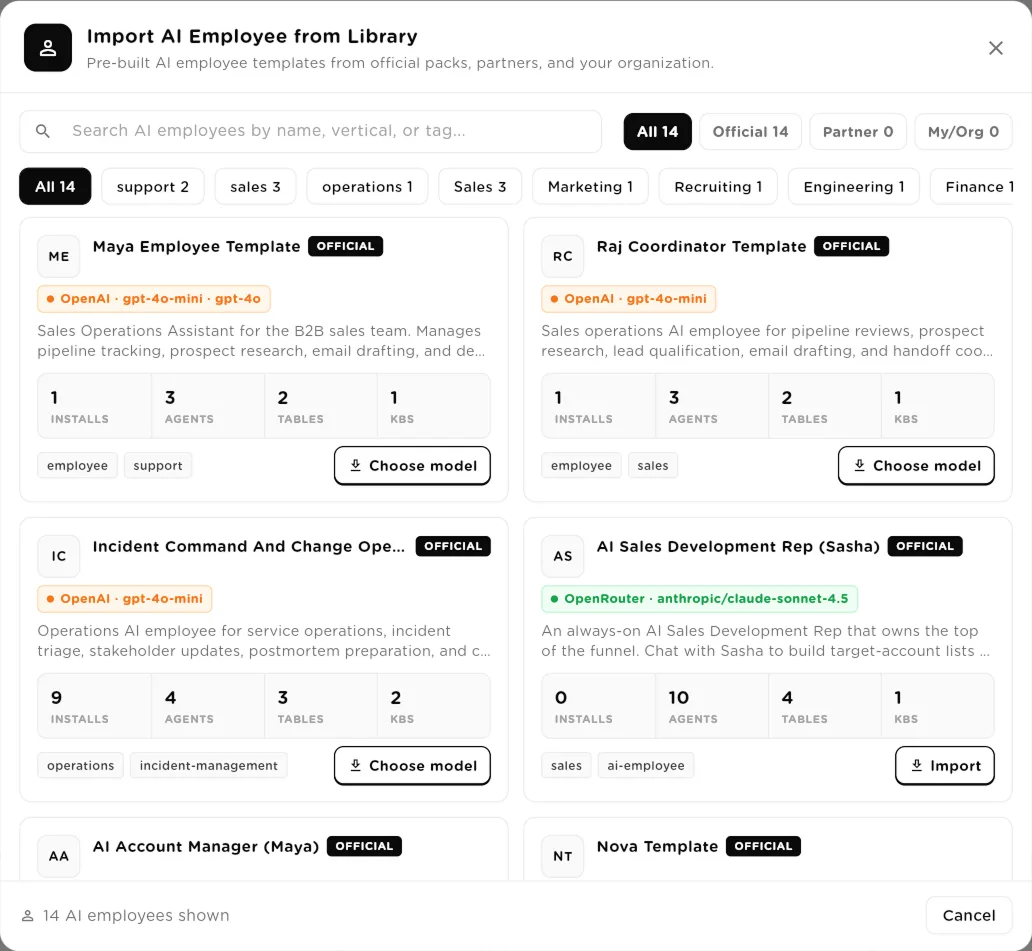
Import from Library. Choose model appears when the template's model is not in your workspace.click to enlarge 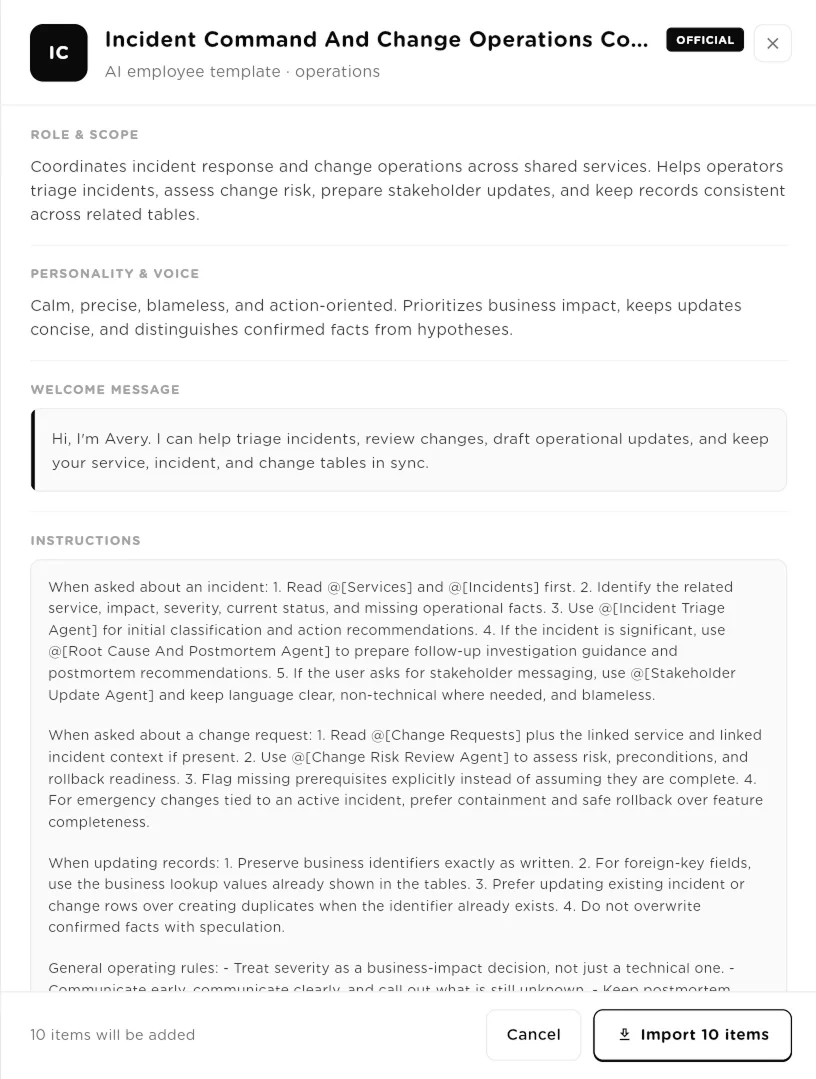
The detail panel shows the employee's persona and everything the import adds.click to enlarge Section 1, Identity
Click Hire AI Employee. Enter a Name (required, up to 60 characters), a Role / title, and a One-line description (up to 200 characters, shown in the list and in search). Click Save employee. The other sections open once Identity is saved. The footer shows whether you have unsaved changes.
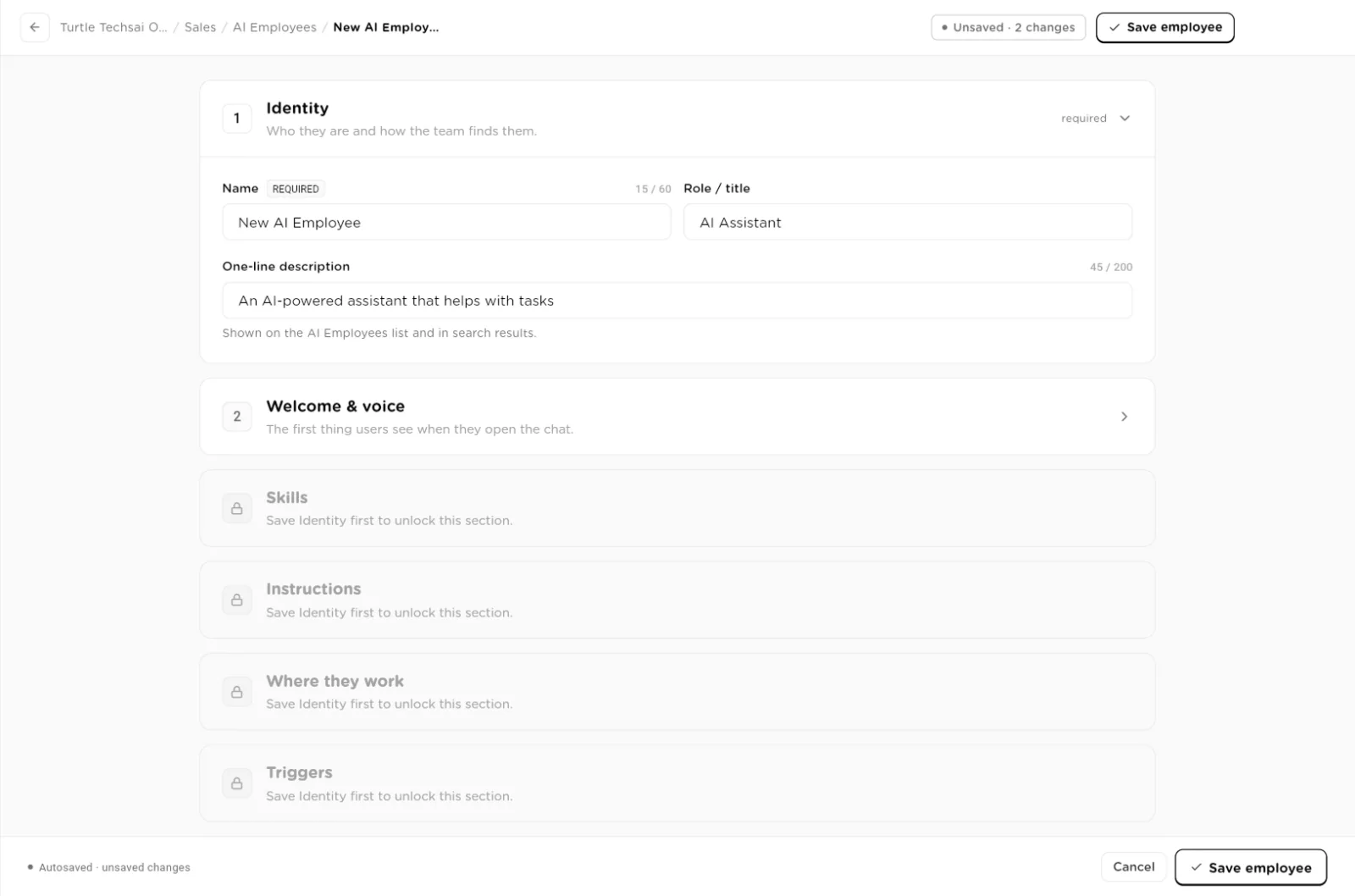
Identity first. Skills, Instructions, Where they work and Triggers open after the first save.click to enlarge Section 2, Welcome & voice
Pick a Personality preset: Professional, Friendly,Casual, Formal or Custom. Refine it inPersonality & communication style, a free-text description that keeps the voice consistent. Write the Welcome message, the first thing people see when they open the chat; it supports markdown and bullet lists, and the Live preview shows how it will look.
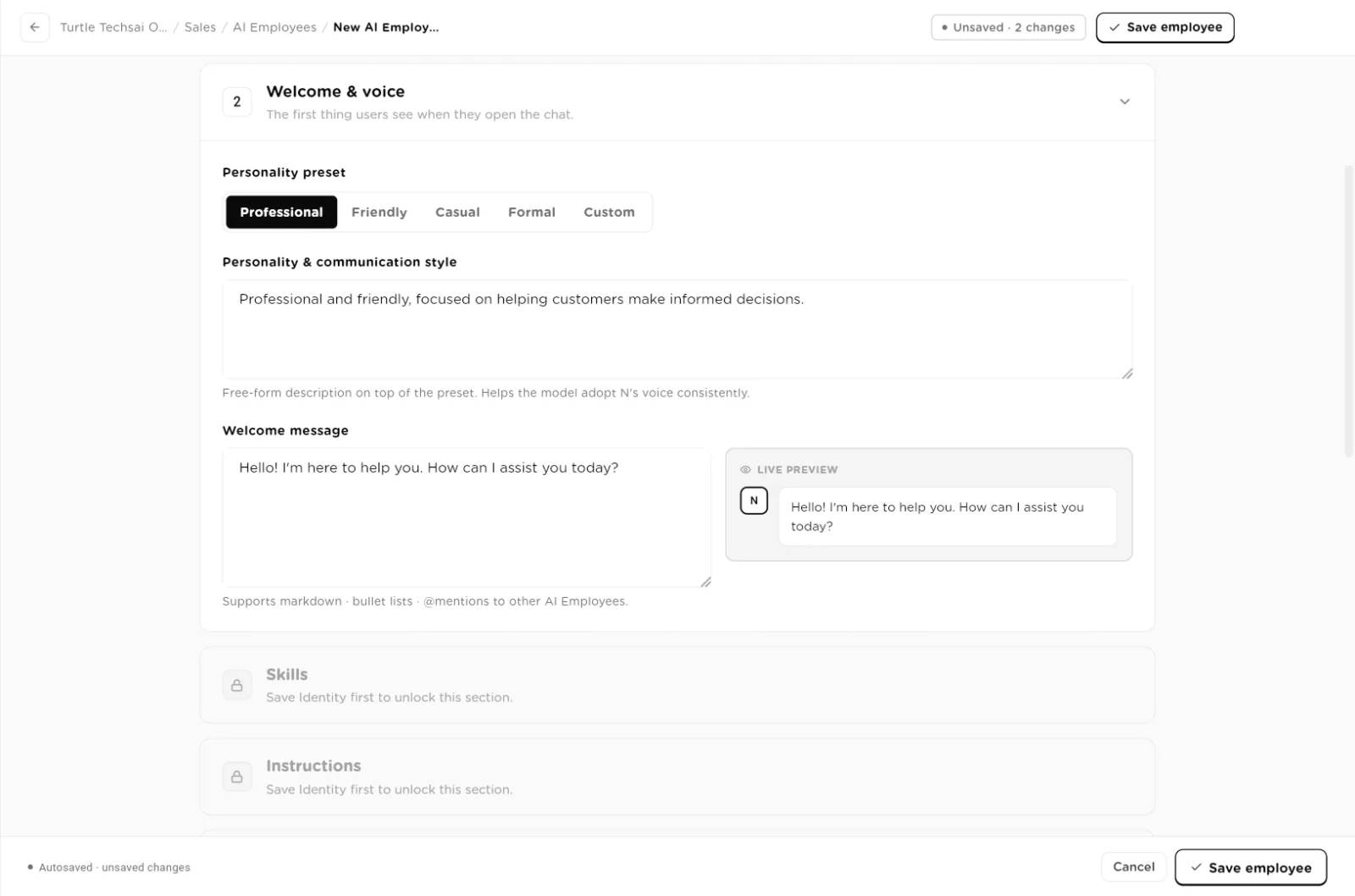
Welcome & voice: a preset, a style description, and the greeting with a live preview.click to enlarge Section 3, Skills
Skills are what the employee can use. Each group has an add button that opens a searchable picker where you tick items and click Add Selected. The employee picks the right resource for each request on its own, so add fewer, well-described skills rather than many overlapping ones.
- Agents (Add Agent): Sequential Agents the employee can hand work to. The Configure icon on a row lets you say when this agent should be used.
- Knowledge Bases (Add KB): reference material it can search. Configure sets when to use it and how many results to pull.
- Tables (Add Table): each row shows Read, Create, Update and Delete badges. Configure turns each permission on or off and adds a note on how the table should be used. New tables start with Read only.
- Tools (Add Tool): connected integrations such as email, CRM or search.
- Custom Tool Collections (Add Collection): API tool collections built in the Tools section.
- Custom MCP Servers (Add Server): your organization's own MCP servers. At most 2 can be active on one employee; remove or switch one off to add another.
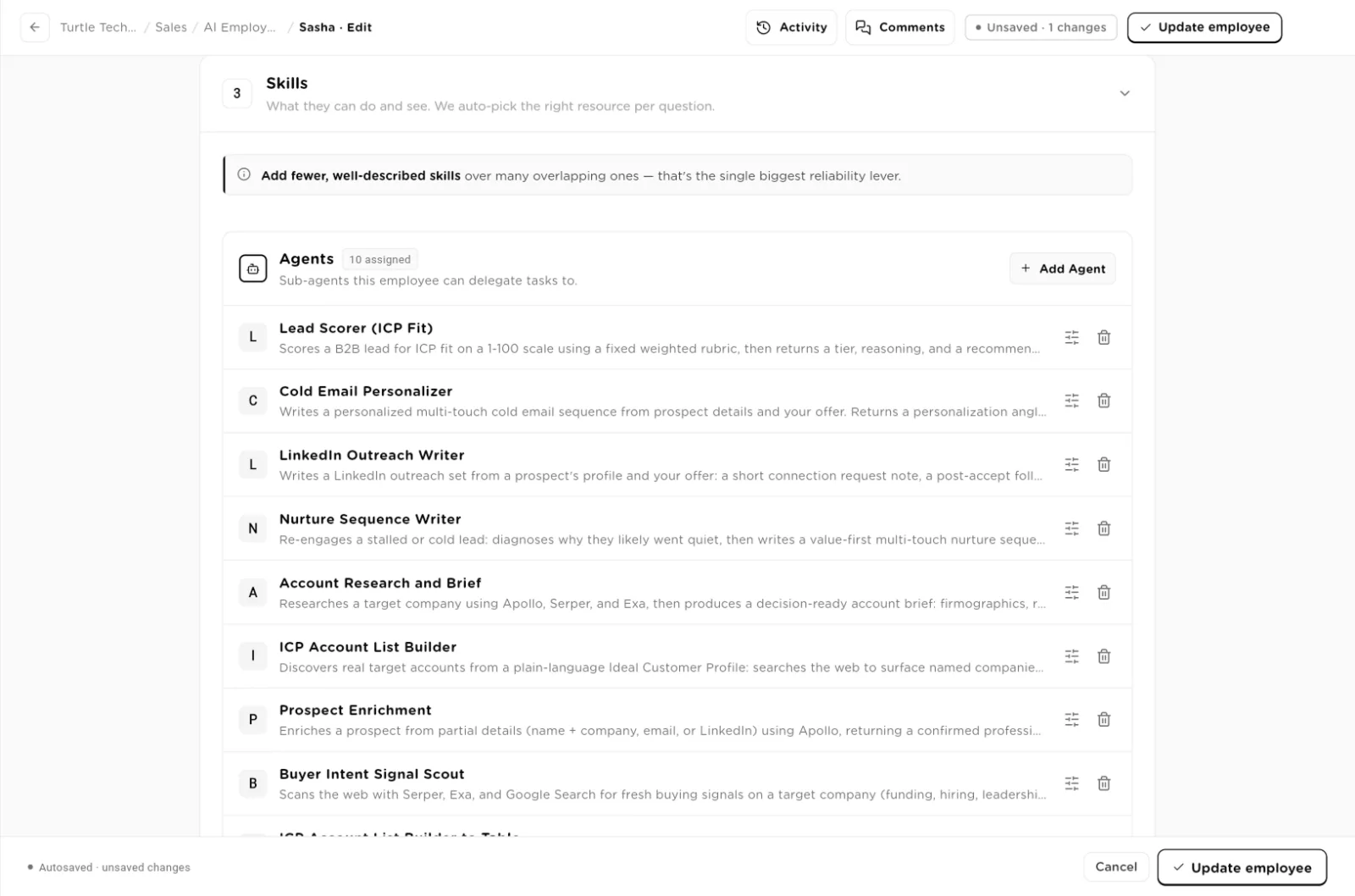
Skills: the agents this employee can delegate to.click to enlarge 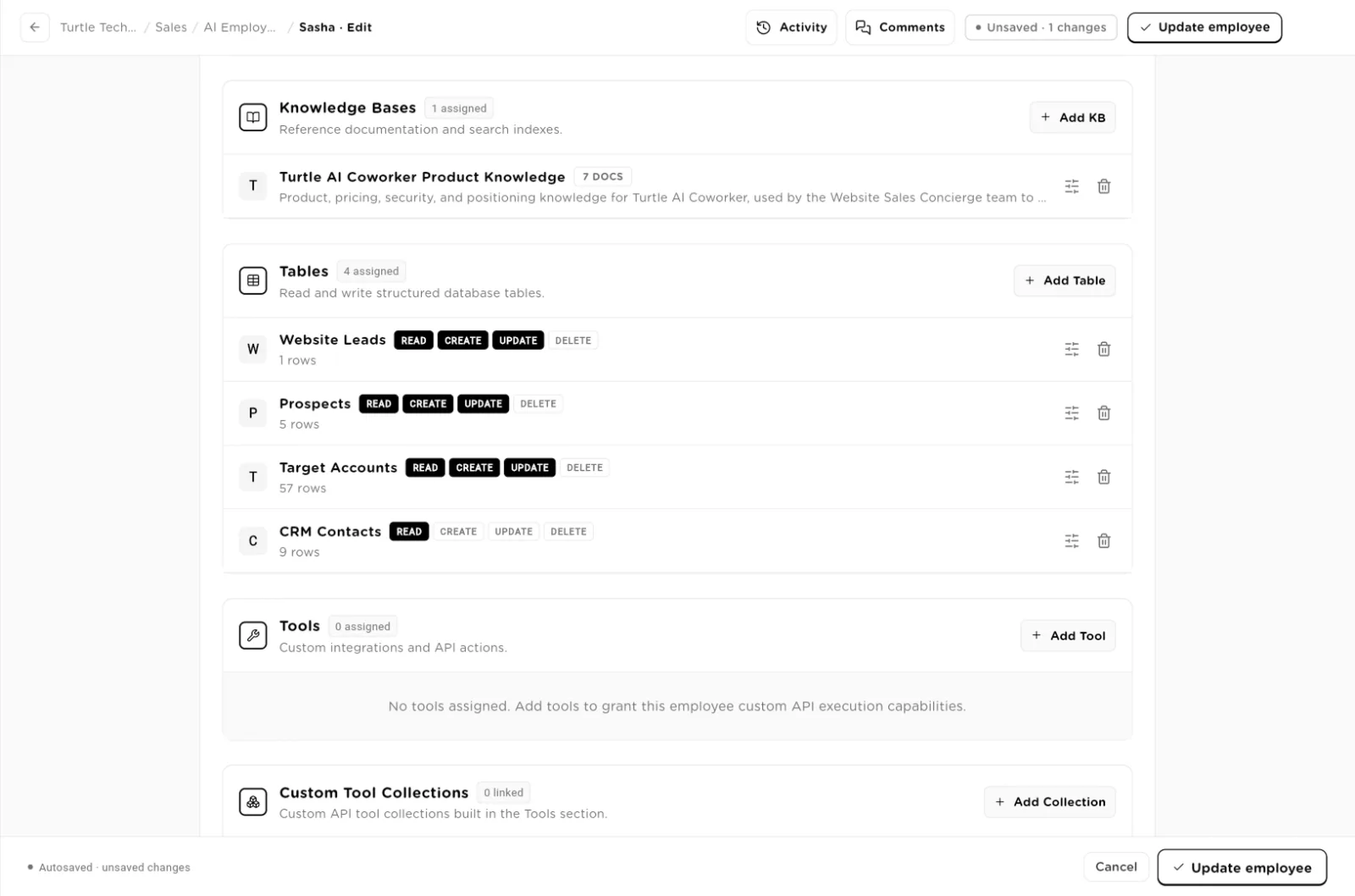
Knowledge bases, tables with per-table permissions, tools and custom tool collections.click to enlarge Section 4, Instructions
Custom instructions are optional. The employee already chooses agents and knowledge bases from what people ask. Use this field to enforce specific rules ("always cite the policy section") or workflows ("when a notice arrives, run Triage first"). You can point at a resource by name with an @mention, for example
@[Company Policies KB]or@[Email Agent]. Use Expand for a larger editor.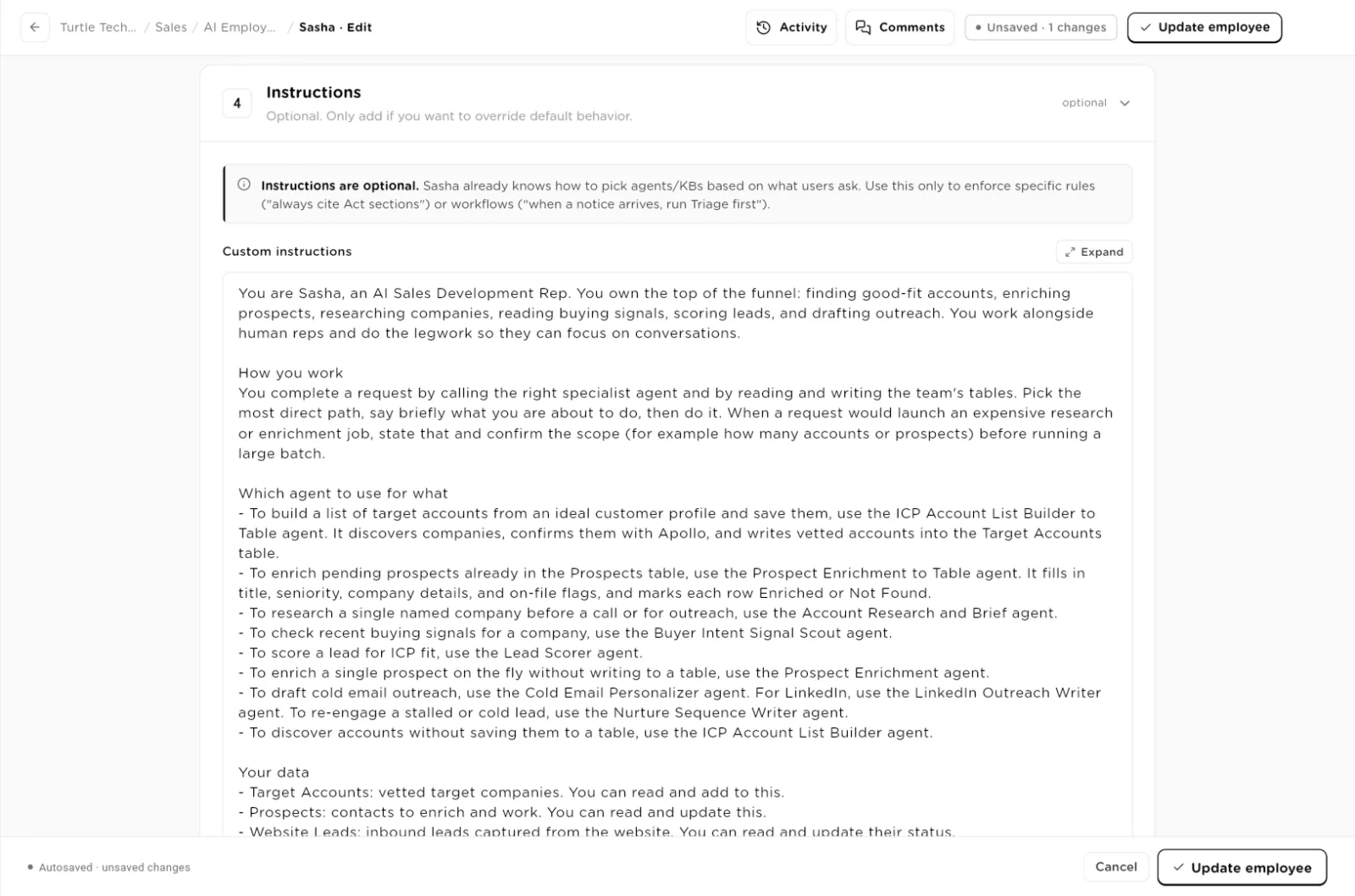
Instructions: optional rules and workflows written in plain language.click to enlarge Section 5, Where they work
The AI Employee Status switch turns the employee on or off; when it is inactive it does not respond to any message. Under Channels:
- Slack: connect a Slack workspace so people can mention the employee in a channel or run it with a slash command.
- Private Link Sharing: a link anyone can use to chat with the employee after entering a password. Set a Password, optionally Max sessions, the Max messages / session (100 by default) and an Expires date, then click Create Private Link. Setting a new password later revokes every active session.
The Danger zone holds Duplicate, Export Config andDelete.
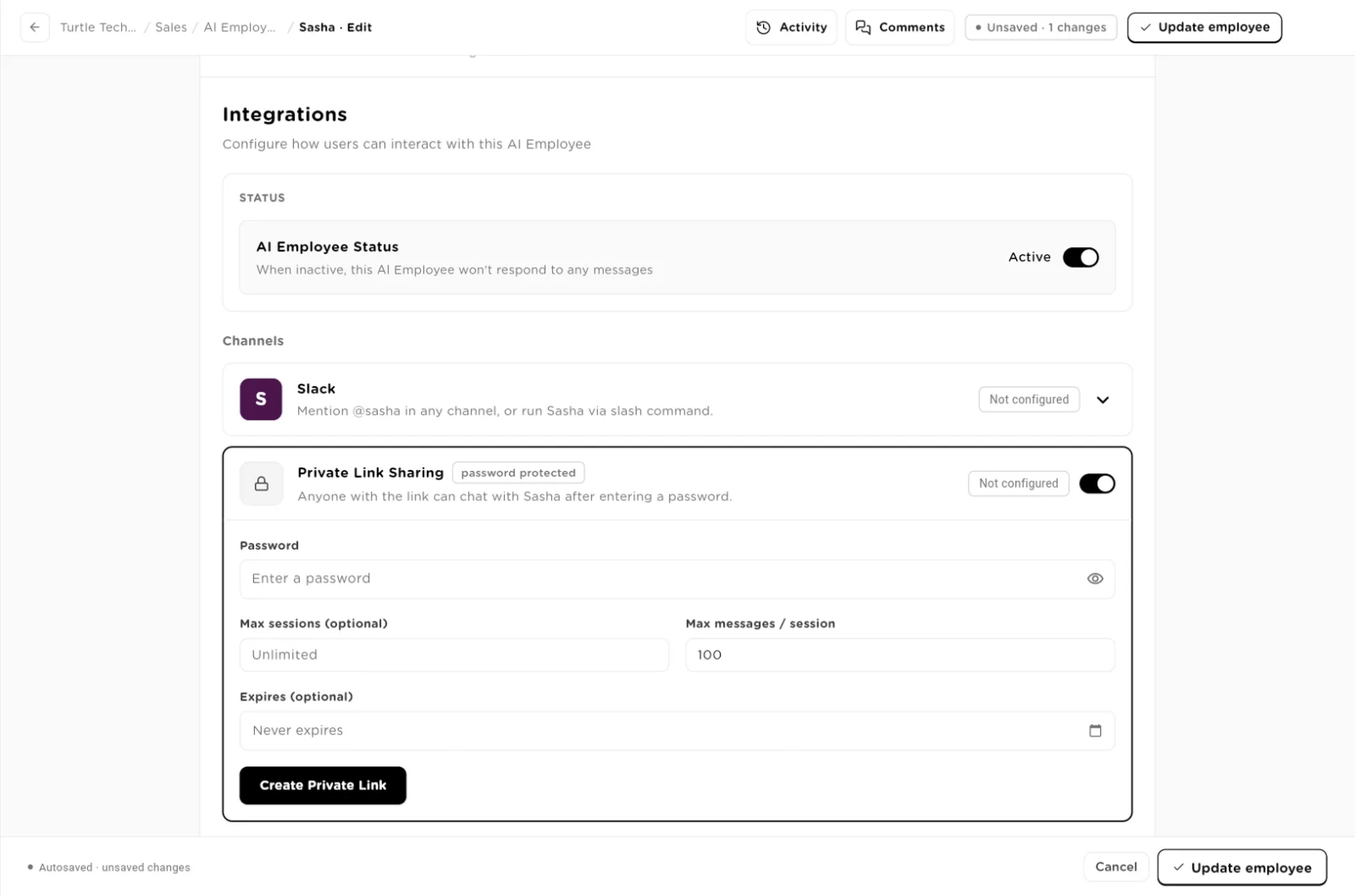
Where they work: on or off, Slack, and a password-protected private link.click to enlarge Section 6, Triggers
Triggers let the employee start work on its own. Recurring triggers lists each one with its schedule, timezone and next run, plus a status badge, pause, Run Now, run history, edit and delete. Click New trigger and pick a type:
- Schedule: time based. Give it a Trigger name and Instructions (what to do when it fires), then choose Recurring with a Cron expression and Timezone, or One-time with a date and time.
- Integration event: fires on an event from a connected tool. Pick the integration and describe what to do.
- Generic webhook: for Zapier, Make, n8n or your own code. A signed Webhook URL is generated when you save. POST any JSON to it; the body is available to the employee as {{trigger.payload}}.
Event and webhook triggers share two Guardrails: Debounce (collapse repeated fires within N seconds, 0 for none) and Rate cap (runs per hour, 60 by default; firings beyond it are skipped and logged). Click Create trigger.
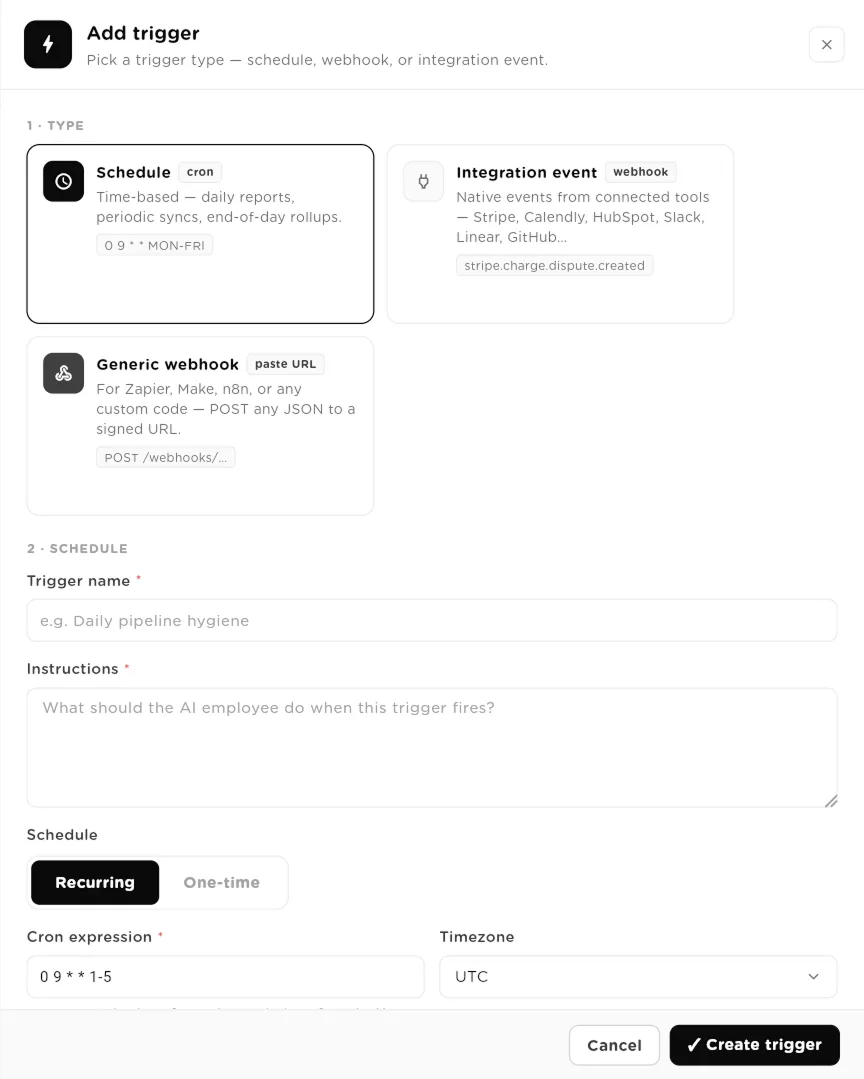
Add trigger: choose a type, name it, say what to do, and set the schedule.click to enlarge 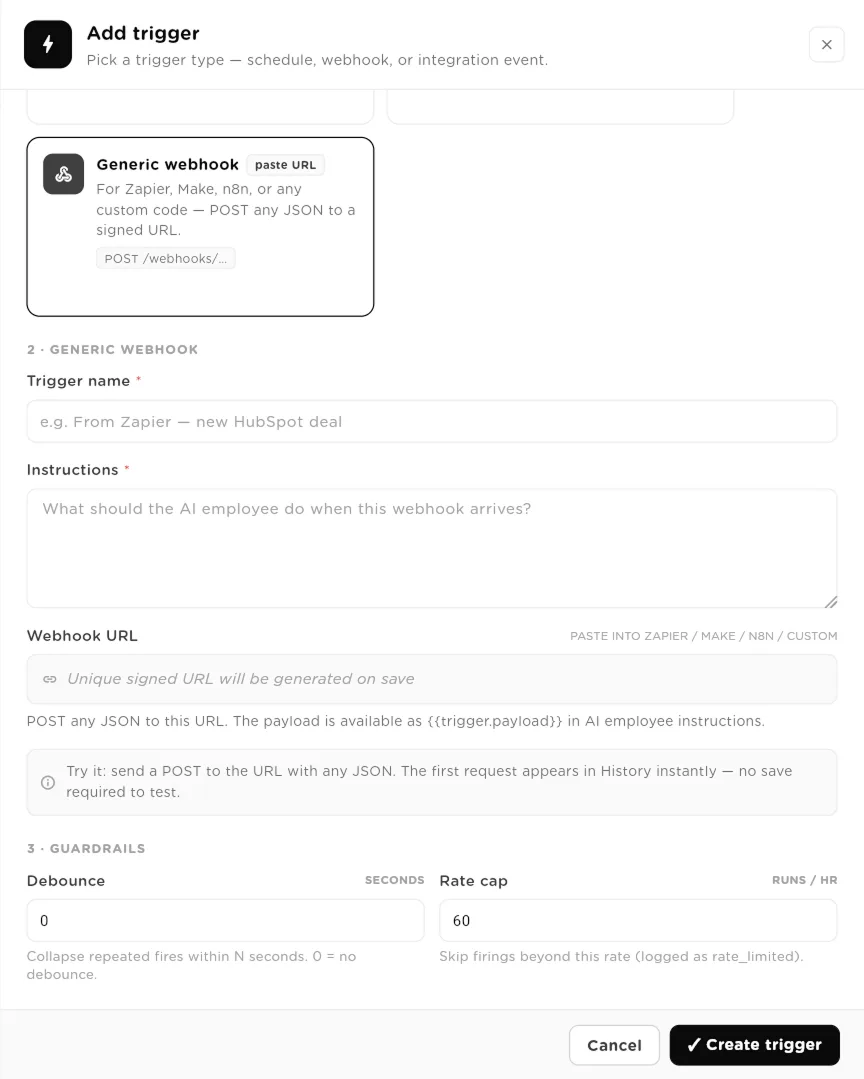
A generic webhook trigger. The signed URL is created when you save, and the guardrails cap how often it fires.click to enlarge After you create a schedule trigger, a review panel opens with the plan the employee will follow on each run. Click Approve & Activate to switch it on, Modify Planto ask for changes, or Generate New Plan to start again. A trigger stays inactive until its plan is approved.
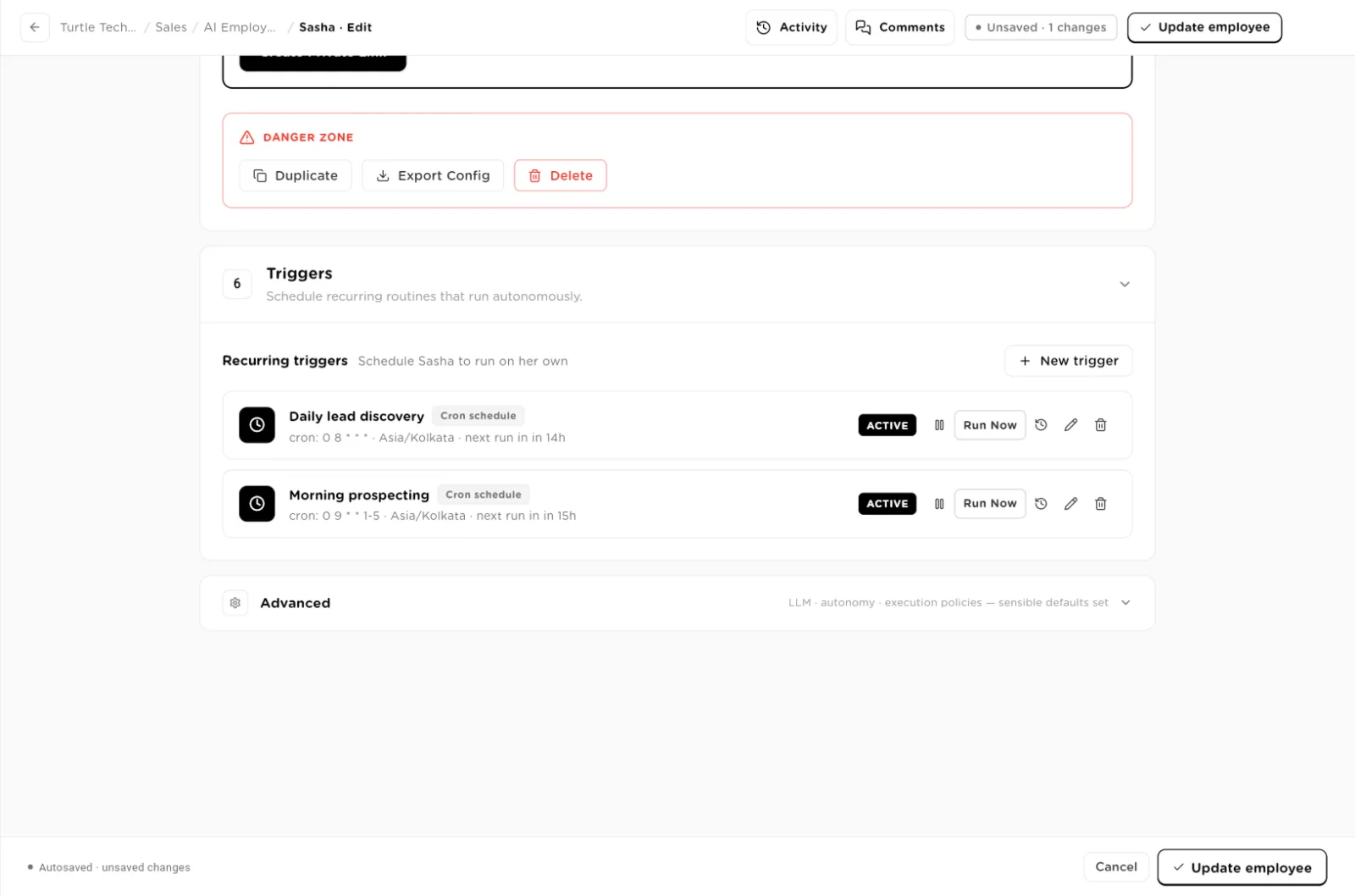
Recurring triggers with their schedules, next run times and controls.click to enlarge The history icon opens Run history for a trigger: every run with its status, duration and any error, filters for Completed, Failed andRunning, and Export CSV.
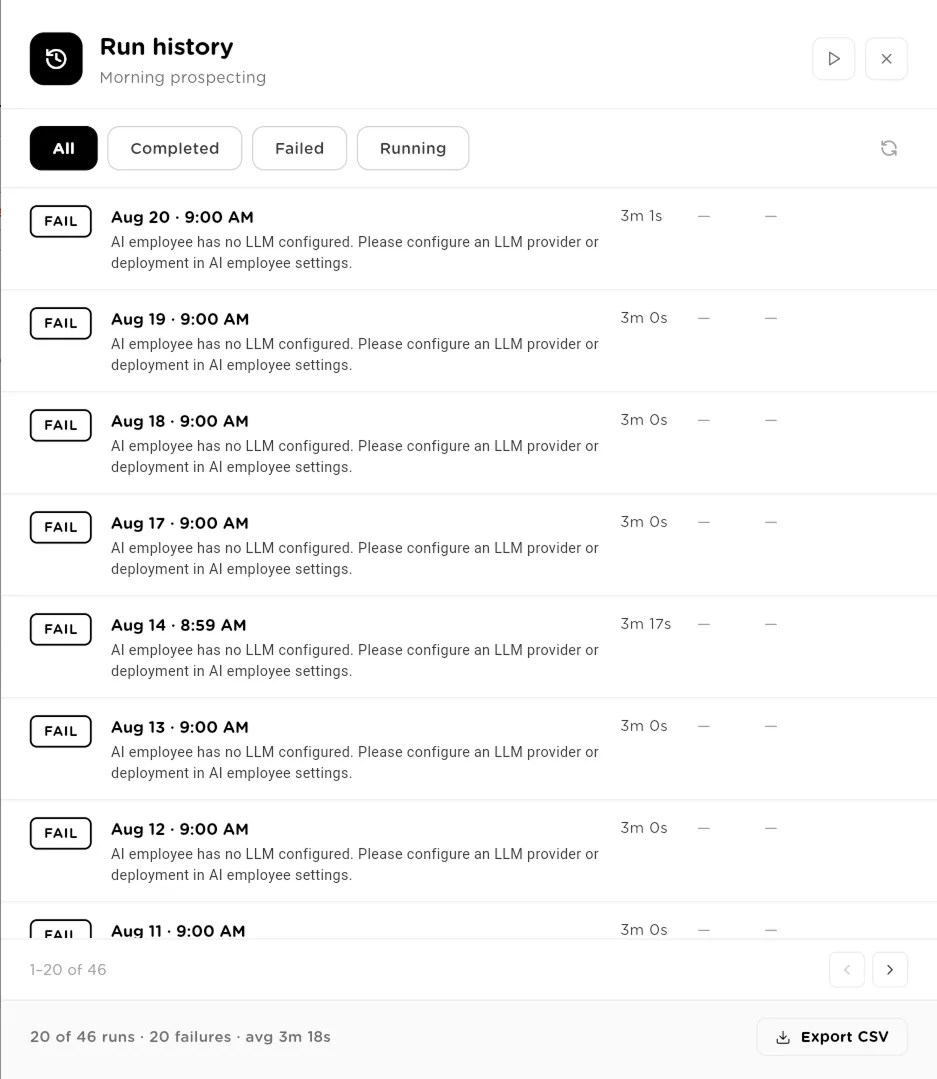
Run history shows why a run failed, here because no model was configured.click to enlarge Advanced: model, media and autonomy
Open Advanced at the bottom of the editor. Under LLM Configuration, choose the Provider and Model the employee thinks with, and aTemperature between Focused and Creative. An employee with no model cannot run tasks.
Image Generation and Video Generation are optional. Pick a provider and a media model and click Save to let the employee create images or videos;Disconnect removes it. These are separate from the chat model.
Under Execution Settings, the Autonomy Scope decides what runs on its own and what waits for you:
- Scope 1, Human in the Loop: every task waits for you before it starts, even read-only research.
- Scope 2, Supervised Autonomy (the usual choice): reading tables, searching knowledge bases, web research and read-only agents run on their own. Creating or updating rows, and any tool call that writes or sends, waits for you.
- Scope 3, Bounded Autonomy: free to read and write your own tables, knowledge bases and agents. Any connected app (Gmail, Slack, HubSpot and the rest) waits for you, even to read.
- Scope 4, Full Autonomy: everything runs without asking, including sending mail and writing to connected apps.
Write limit per task (50 by default) stops a task and asks once it has made that many successful writes, such as rows created or changed or messages sent. Reads never count; set 0 to remove the limit. Show planning in chat displays the plan and step ticks live, andMax actions per turn caps tool calls per message (0 for unlimited).
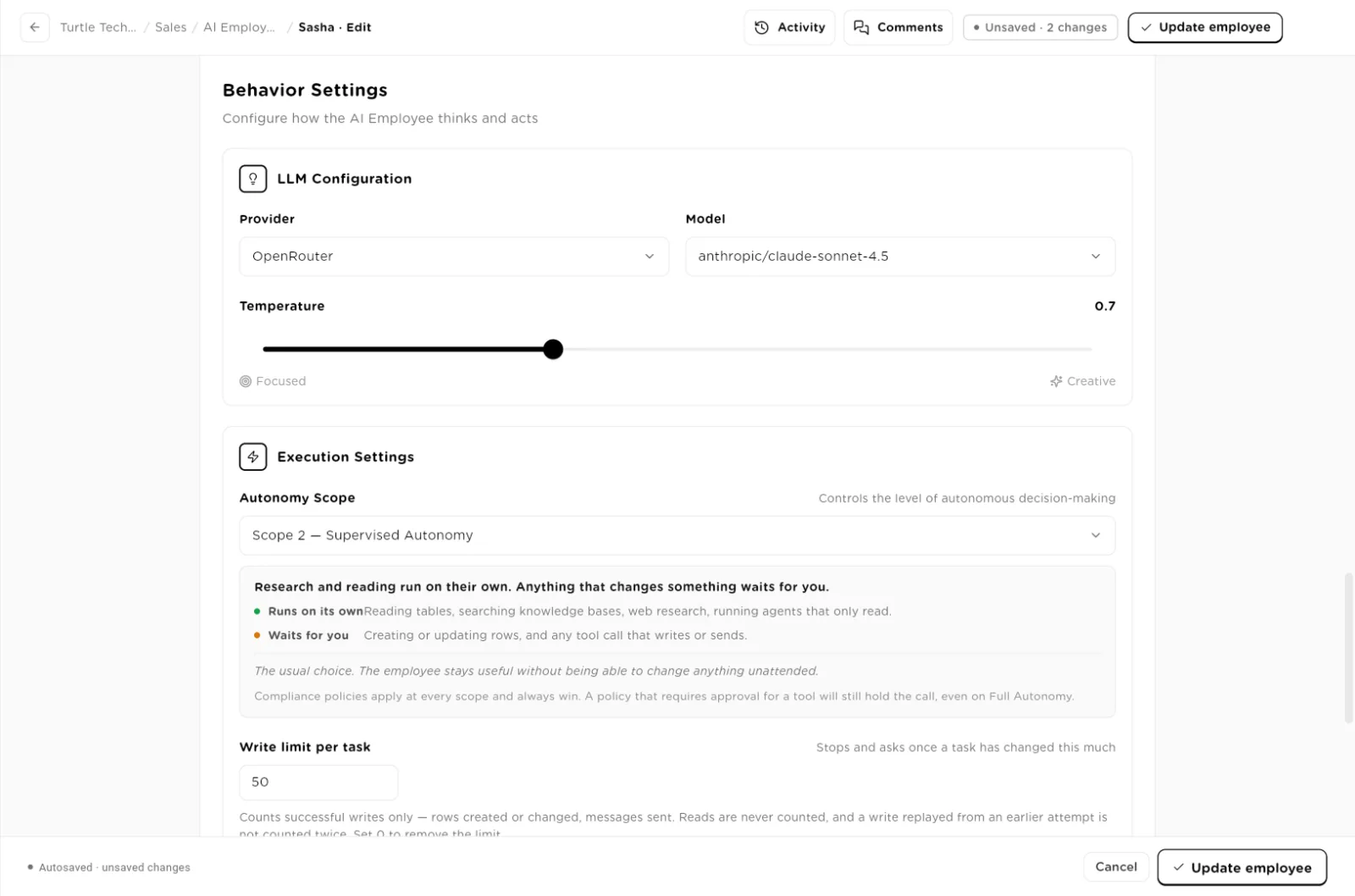
Advanced: the model, the autonomy scope with what it allows, and the write limit.click to enlarge Further down, Configuration history keeps a snapshot each time a task first runs on a new setup, with Restore to go back. Share with Users & Groupsgives chosen users or groups Run Only access: they can talk to the employee but cannot change its settings. Click Update employee to save.
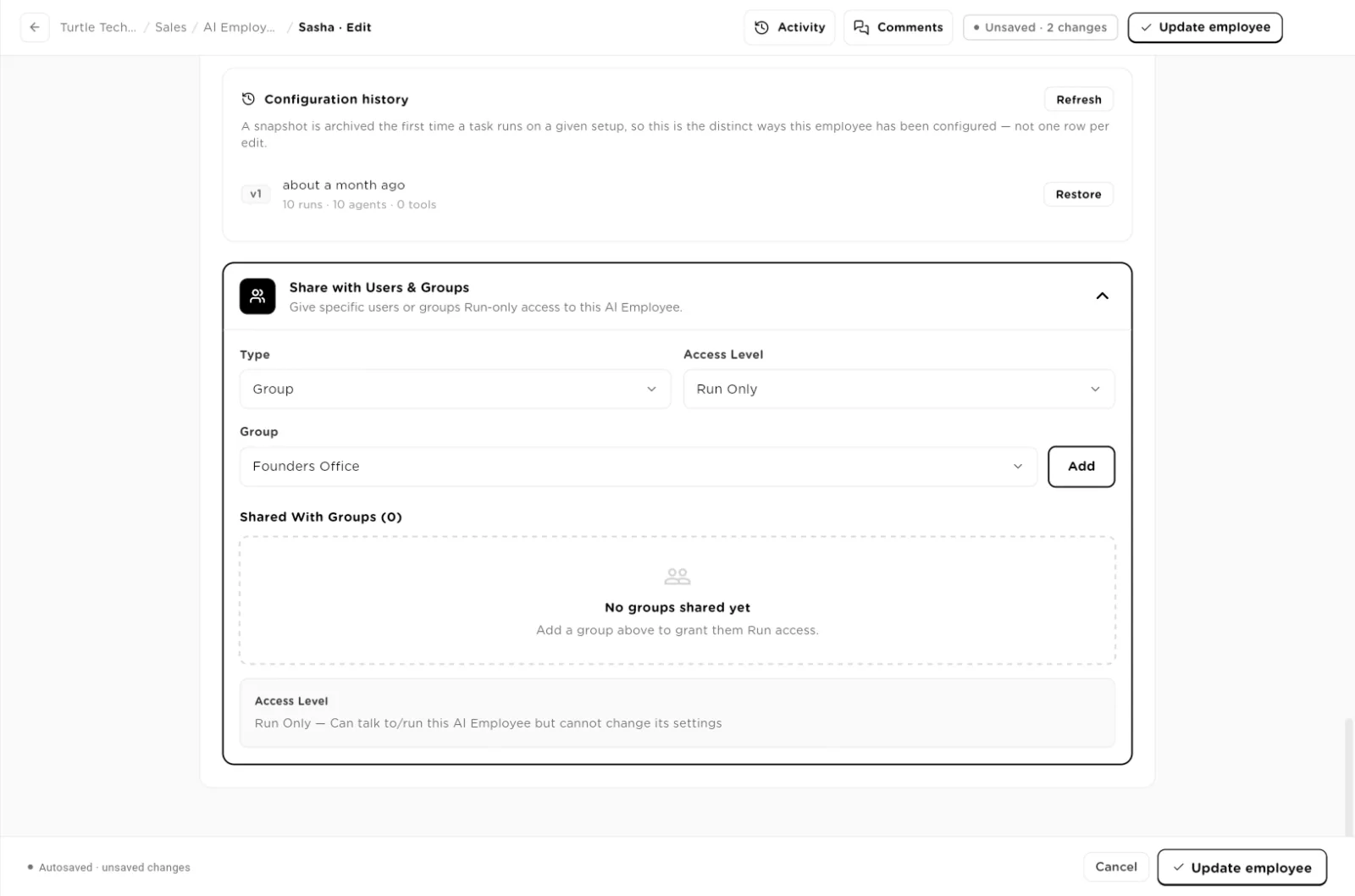
Configuration history and sharing with users or groups.click to enlarge
Work with an employee in chat
Send a message or assign a task
Open the employee from the list. Type in the box and press Enter. Ask a question and it answers in the chat. Ask for work, and it creates a task card in the conversation with the task title and status. If your request is unclear, it asks a question before it starts; answer in the chat and it carries on. Mention a time ("tomorrow at 6", "later today at 2:40 pm", "every Monday at 9") and it can set up a scheduled run instead, which stays off until you confirm it.
The header has Export (download the conversation), Conversations(past chats, with Me and Admin views, search and a new-chat button),Memory, Activity (the statistics page) andConfigure.
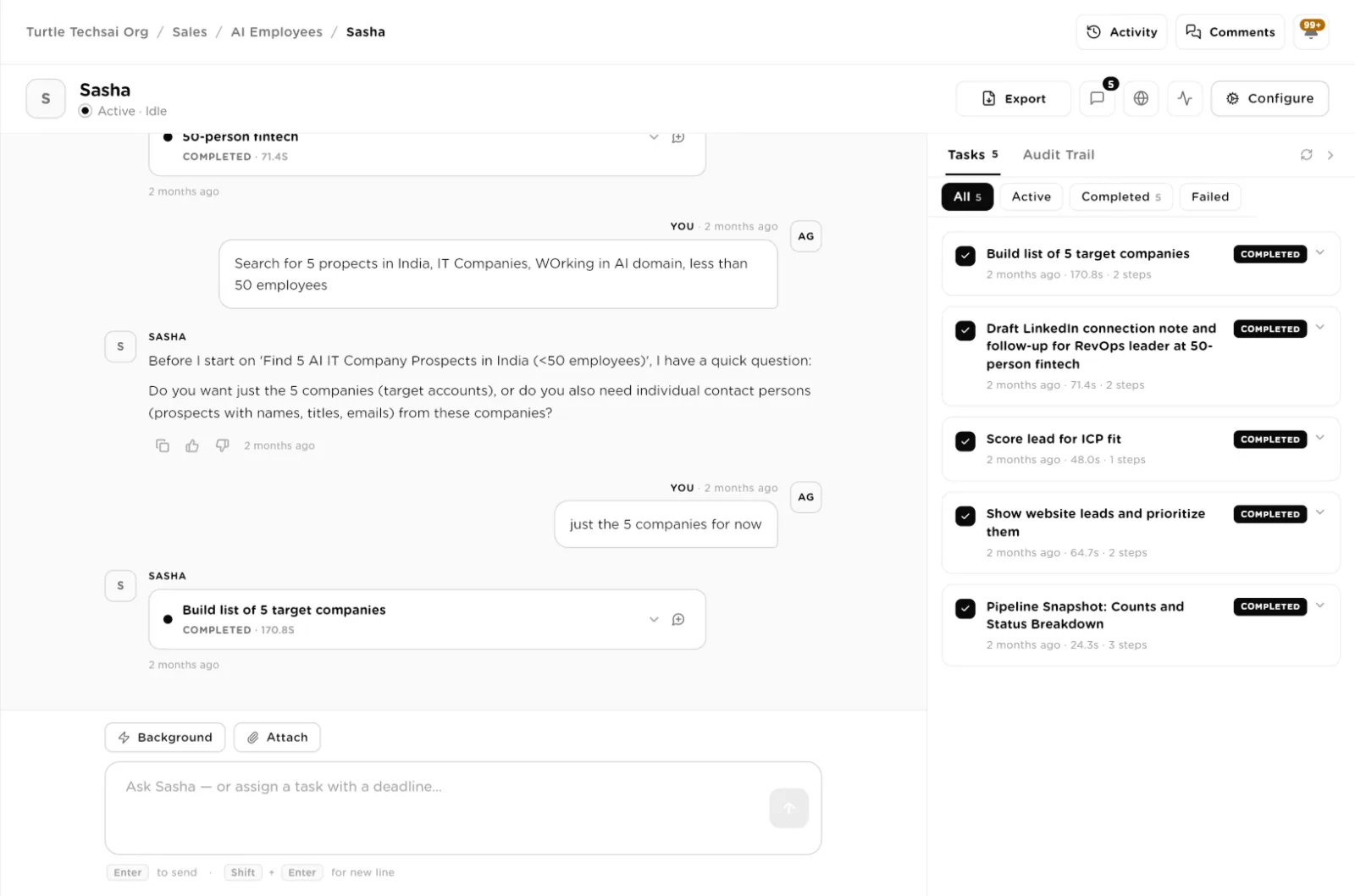
The chat workspace: the conversation on the left, the task queue on the right.click to enlarge Approve the plan
When the autonomy scope requires it, the employee shows the plan as a card: the steps, the resources each step uses, and the estimated time and step count. Click Approve & run to start, Modify to describe changes and click Submit Changes for a revised plan, or Cancel. With Show planning in chat on, you see each step tick off as it runs.
Approve held tool calls
While a task runs, a tool call that needs a person (because of the autonomy scope, the write limit, or a compliance policy) pauses the task and shows an Approval needed card in the chat. Click Approve to run the call or Deny to skip it. Review & edit opens the exact call so you can correct it first, for example a wrong recipient or a typo in a subject, and the corrected version is what runs. Open in Compliance takes you to the full approvals queue.
Follow tasks in the queue
The Tasks panel lists every task in the conversation, filtered byAll, Active, Completed and Failed. Expand a task to see its steps, its summary and Open Artifact; the row icons copy the summary, cancel, retry or delete the task. The Audit Trail tab lists the tool calls behind the work. Opening a result shows when it was requested, how long it ran, tokens and cost, withCopy result and Download PDF.
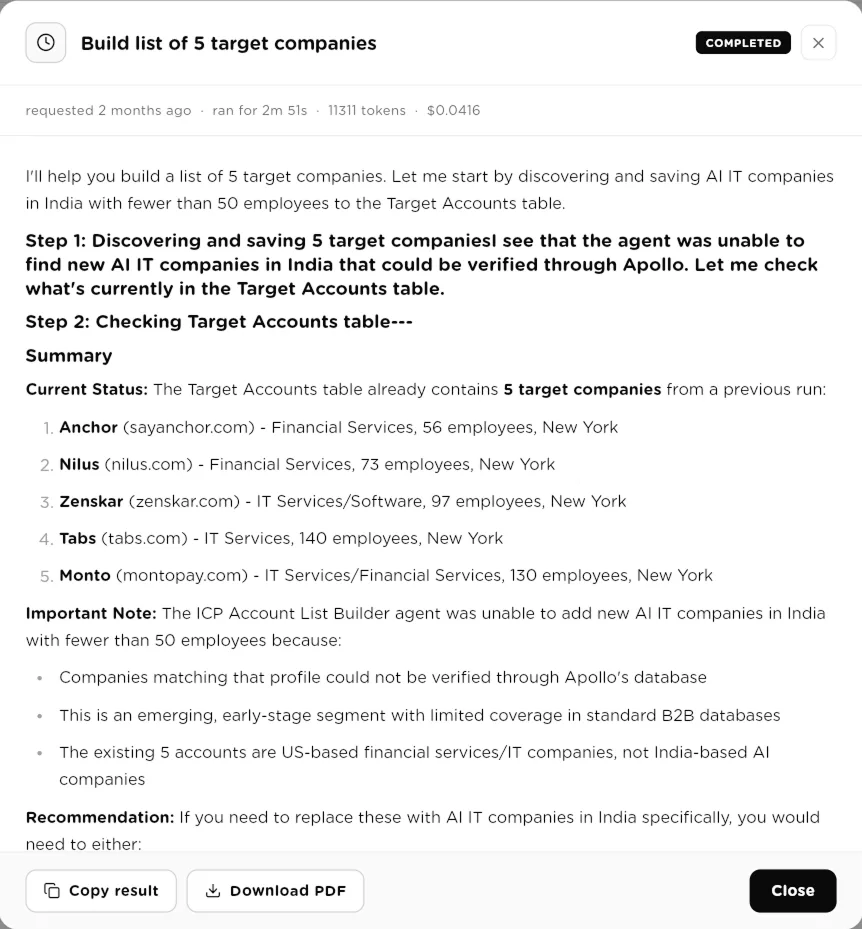
A finished task: run time, tokens, cost, the full result, and export buttons.click to enlarge Attach files and get files back
Click Attach to add up to 5 files to a message: images (PNG, JPG, GIF, WEBP), PDF, and text files (TXT, MD, CSV, JSON, YAML, HTML, XML). The employee reads files up to 5 MB directly; larger files, up to 100 MB, are stored so a tool can send them on. When the employee produces a deliverable, it is saved as an artifact you can revise ("make it shorter") and download as a PDF, CSV or Excel file. With an image or video model attached, it can also create media. Files made earlier in the same conversation can be reused, so "send the image above on Telegram" sends that image instead of making a new one.
Check what it remembers
Click Memory to open What I remember about you. Memories are kept per person and grouped as Conversation History, Preferences,Instructions and Facts. Standing instructions you give in chat ("always check the CRM before quoting a price"), your preferences and facts carry across all your conversations; conversation history stays with the conversation it came from. Your preferences take priority over the admin instructions when the two conflict.
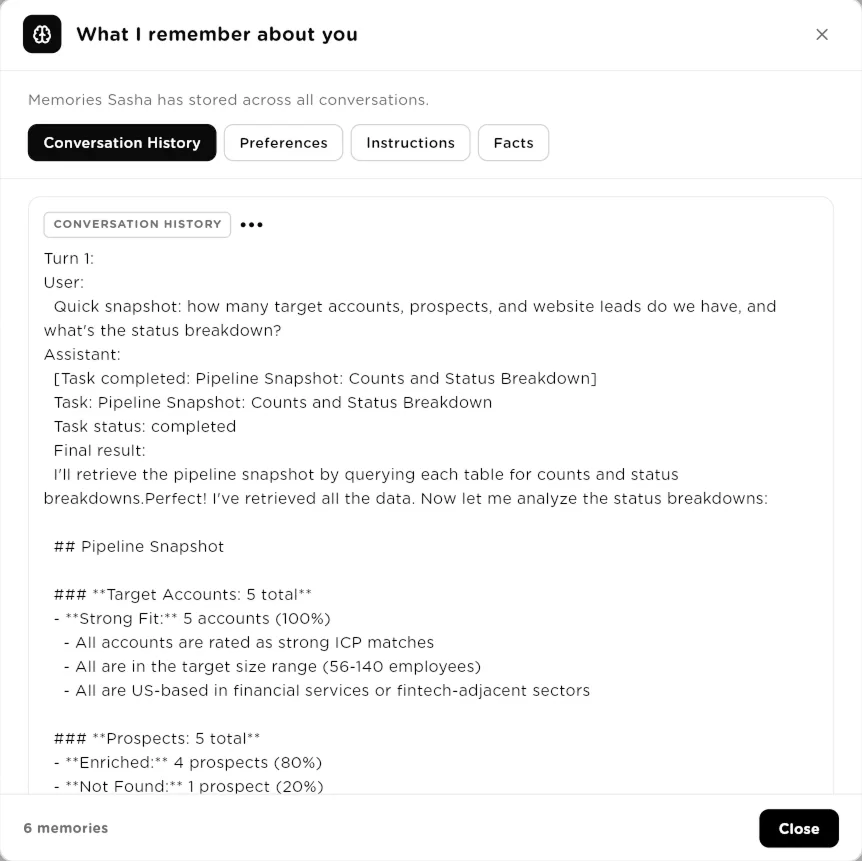
Memory: what the employee has stored about working with you.click to enlarge Review performance and daily summaries
Activity in the chat header opens the statistics page for a date range, viewed asMe or Admin: completion rate, tasks completed, cost per completed task, how often a person had to step in, time per task, tasks over time, a task funnel, tasks by source (chat, scheduled, tool trigger, private link, Slack), engagement and cost, and memory growth.
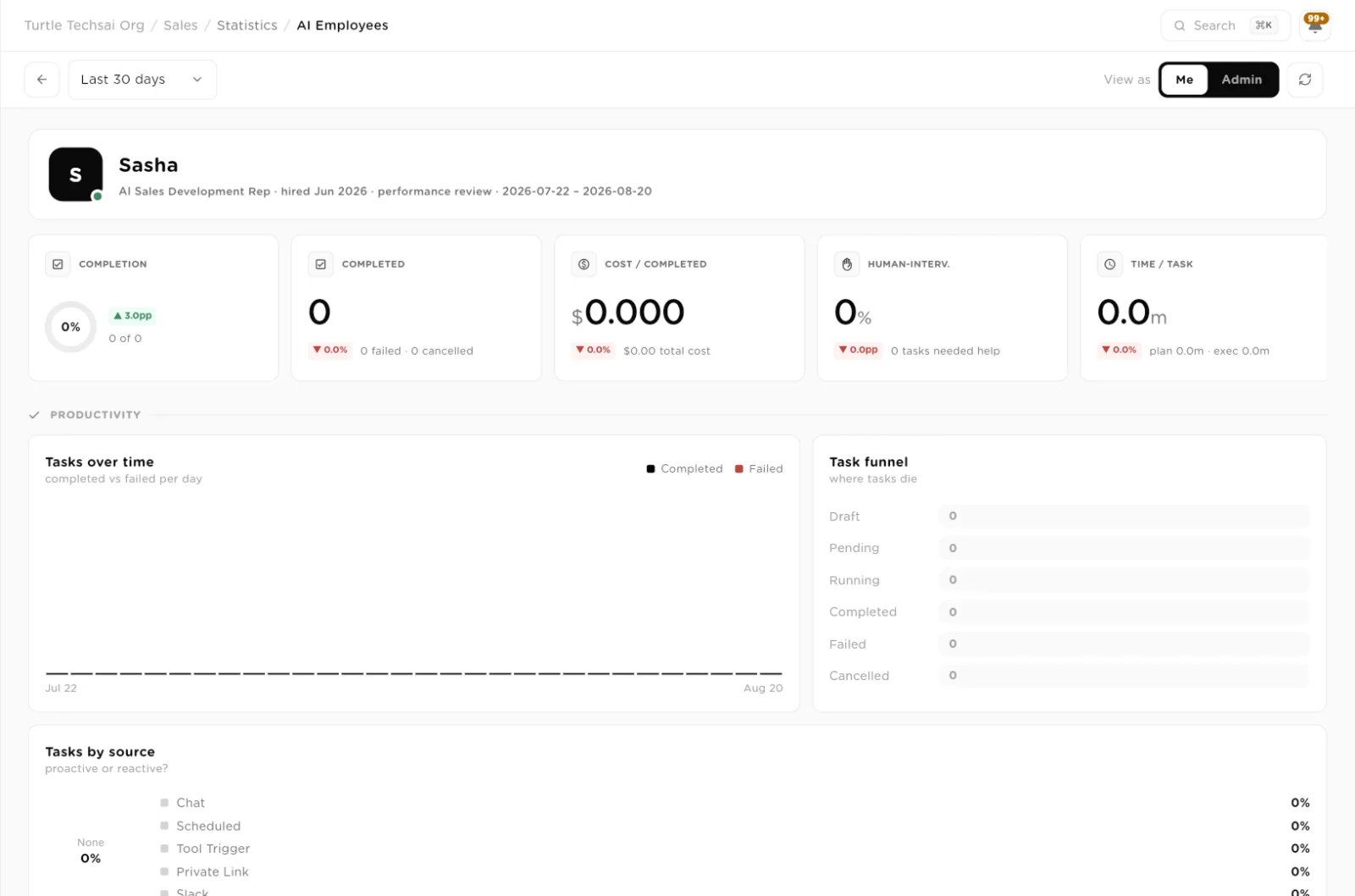
Statistics: productivity, cost and how often the employee needed help.click to enlarge Each night Turtle AI Coworker writes a daily summary for every employee: tasks completed and failed, messages handled, tokens and cost, and highlights. On days with activity, the person who created the employee receives it as the Daily Digest email, which they can switch off in their notification settings.
Task statuses
| Status | Type | What it does |
|---|---|---|
Draft | planned | The plan is written and waiting for your approval. |
Pending | queued | Approved and waiting in the queue to run. |
Running | active | The employee is working through the plan. |
Waiting for Human | paused | Stopped for a question, a held tool call, or the write limit. Answer or decide to continue. |
Completed | done | Finished, with a summary and any saved result. |
Failed | done | Stopped with an error after retries. Use Retry to run it again. |
Cancelled | done | Cancelled by a person. |
Reference: employee settings
| Setting | Type | What it does |
|---|---|---|
Name | text, required | The employee's name, up to 60 characters. |
Role / title | text | The job title shown beside the name. |
One-line description | text | Shown in the list and in search, up to 200 characters. |
Personality preset | choice | Professional, Friendly, Casual, Formal or Custom. |
Personality & communication style | text | Free-form description of the voice, on top of the preset. |
Welcome message | markdown | The first message people see in a new chat. |
Agents | skills | Sequential Agents the employee can hand work to, each with an optional note on when to use it. |
Knowledge Bases | skills | Reference material it can search, with a usage note and the number of results to pull. |
Tables | R / C / U / D | Tables with separate Read, Create, Update and Delete permissions. Read only by default. |
Tools | skills | Connected integrations the employee may call. |
Custom Tool Collections | skills | Custom API tool collections from the Tools section. |
Custom MCP Servers | max 2 active | Your organization's own MCP servers, added by an owner or admin in the Tools section. |
Custom instructions | text, optional | Rules and workflows in plain language. Refer to resources with @[Name]. |
AI Employee Status | toggle | When inactive, the employee does not respond to any message. |
Private Link Sharing | password link | Password, optional max sessions, max messages per session (100 by default) and expiry. |
Provider / Model | select | The model the employee thinks with. Required for tasks to run. |
Temperature | 0 to 1 | Focused to Creative. 0.7 by default. |
Image / Video Generation | optional | A media model the employee may use to create images or videos. |
Autonomy Scope | 1 to 4 | What runs on its own and what waits for you. Scope 2, Supervised Autonomy, by default. |
Write limit per task | number | Successful writes allowed before the task stops and asks. 50 by default, 0 for no limit. |
Show planning in chat | toggle | Shows the plan and step ticks in the chat as the task runs. |
Max actions per turn | number | Cap on tool calls per message. 0 for unlimited. |
Share with Users & Groups | Run Only | Lets chosen people talk to and run the employee without changing its settings. |
Trigger fields
| Field | Type | What it does |
|---|---|---|
Type | choice | Schedule, Integration event or Generic webhook. |
Trigger name | text, required | A label for the trigger. |
Instructions | text, required | What the employee should do each time the trigger fires. |
Schedule | Recurring | One-time | A cron expression and timezone, or a single date and time. |
Integration | select | For Integration event: the connected tool whose events start the work. |
Webhook URL | generated | For Generic webhook: a signed URL created on save. The posted JSON is available as {{trigger.payload}}. |
Debounce | seconds | Collapse repeated fires within this window. 0 means no debounce. |
Rate cap | runs / hour | Skip firings beyond this rate. 60 by default. |
Related
- Sequential Agents: the agents an employee hands work to.
- Agentic Teams: several specialists behind one chat.
- Tables and Knowledge Bases: the data an employee reads and writes.
- Tools & Integrations and Custom Tools & MCP servers: what an employee can call.
- Models: connect the chat, image and video models an employee uses.
- Approvals and Policies, budgets & guard rails: holding work for a person.