
Models
Connect the model providers your workers think with, using your own keys, pick a model per worker, and see what each provider costs.
The Models page is where you connect the large language model providers that power every run: OpenAI, Anthropic, Google, OpenRouter, Azure OpenAI and others. You bring your own key (BYOK), so model usage is billed by the provider to your own account, and the page shows what each provider is costing you.
Connect at least one provider before you build a worker: every agent, team and AI employee needs a model to run. Come back here to rotate a key, add Azure deployments, give an AI employee an image or video model, or find out which model and which part of the product is driving your spend.
How models reach a worker
Connect and manage models step by step
Open Models under Configure in the left sidebar. The Models page is shown to organization owners and admins, who are the only roles that can connect or disconnect an organization's providers.
Read the overview
The top of the page summarises model usage for the period you pick with 24h,7d, 30d or QTD (quarter to date):TOTAL COST with the daily average, TOTAL TOKENS, AVG LATENCY with its p95, and PROVIDERS CONNECTED. Below it, Connected providers shows one card per provider you have connected, and Available providers lists the ones you have not. Use Search providers… and the type filter to narrow the list.
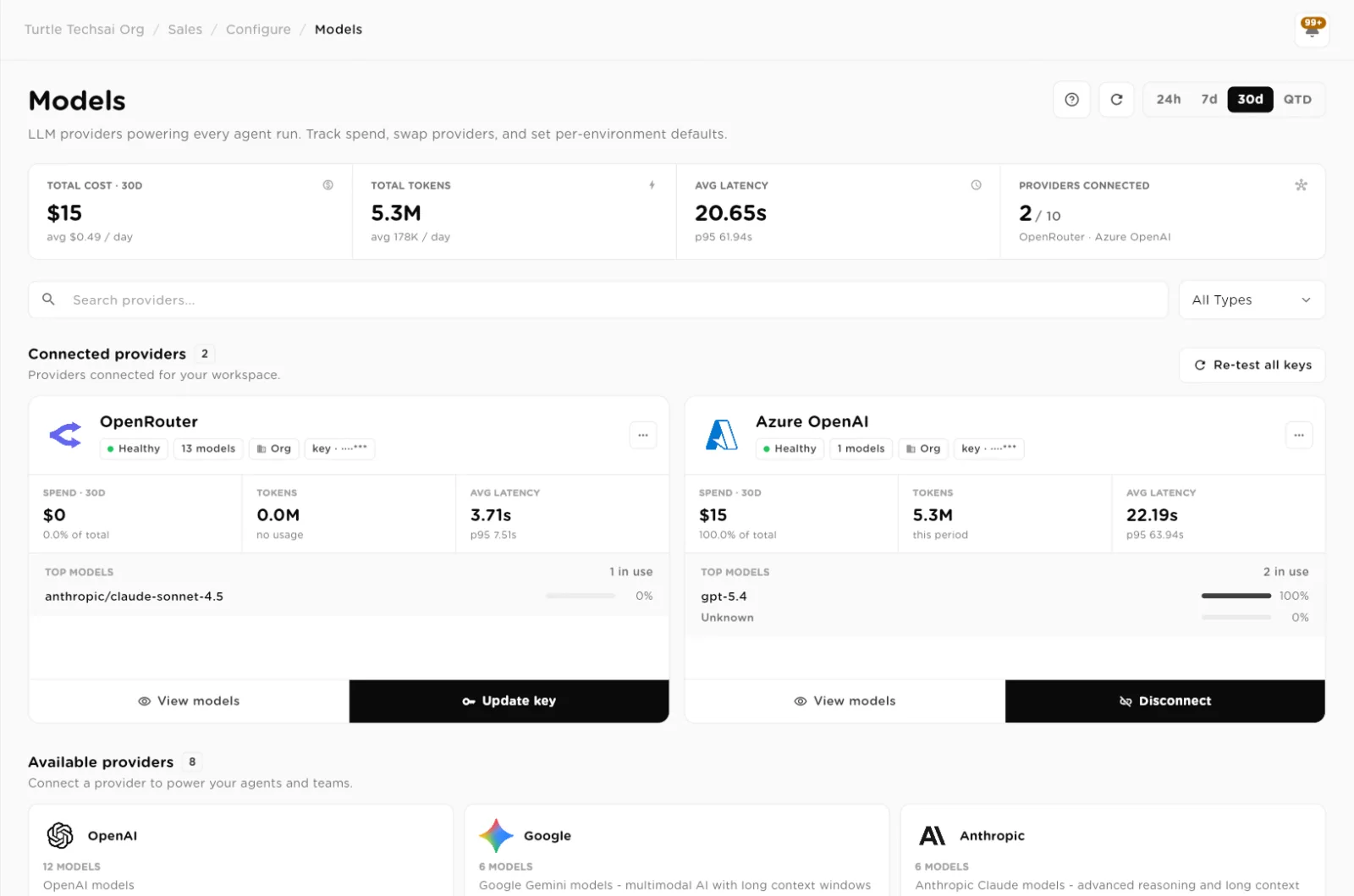
Models: totals for the period, then a card per connected provider with its spend, tokens, latency and top models.click to enlarge Connect a provider with your own key
Under Available providers, each card shows how many models the provider offers, a short description, and how it connects (API key for most). ClickConnect.
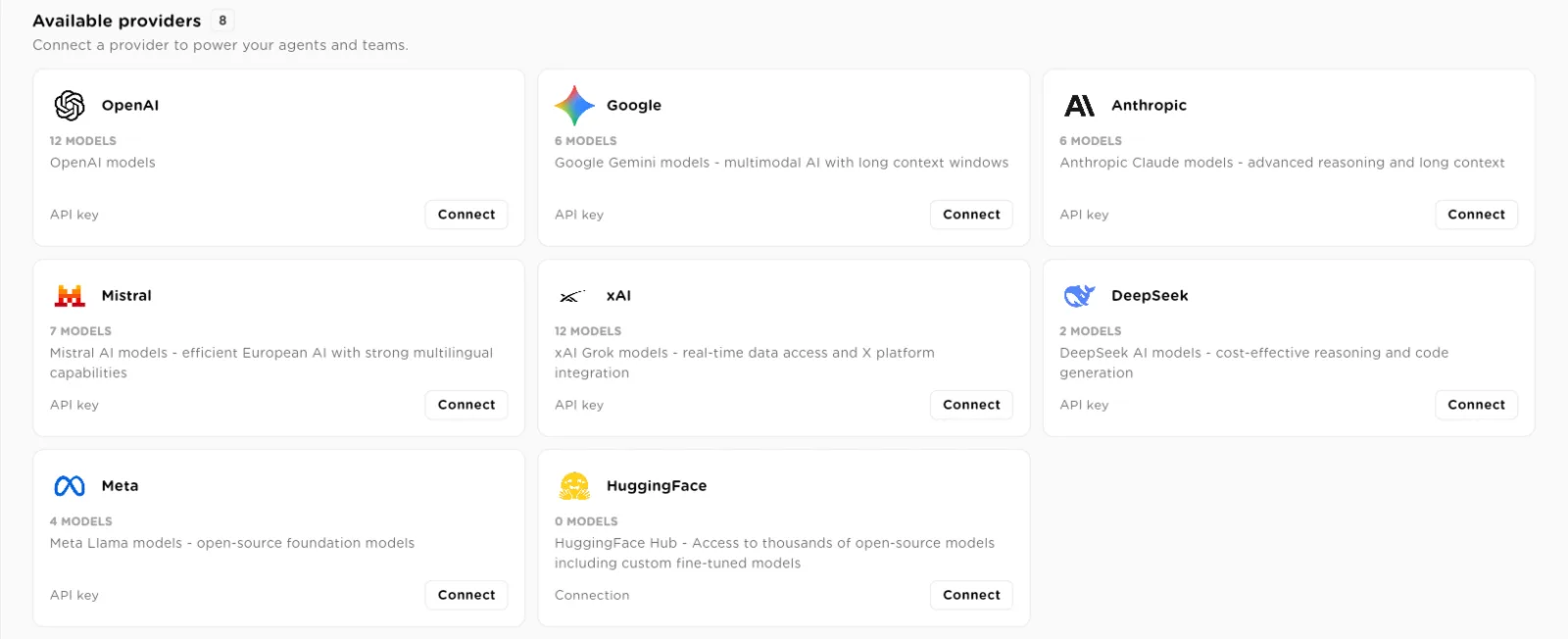
Available providers: each card shows its model count and a Connect button.click to enlarge In the Connect dialog, paste the key into API key. TheGet your … API key link opens the provider's own key page if you need to create one. A checklist below it shows what the connection gives you: the provider's models across your agents and teams, token usage and per-model costs, latency and error monitoring. ClickUpdate API Key to save. The key is encrypted at rest and in transit and is never written to logs.
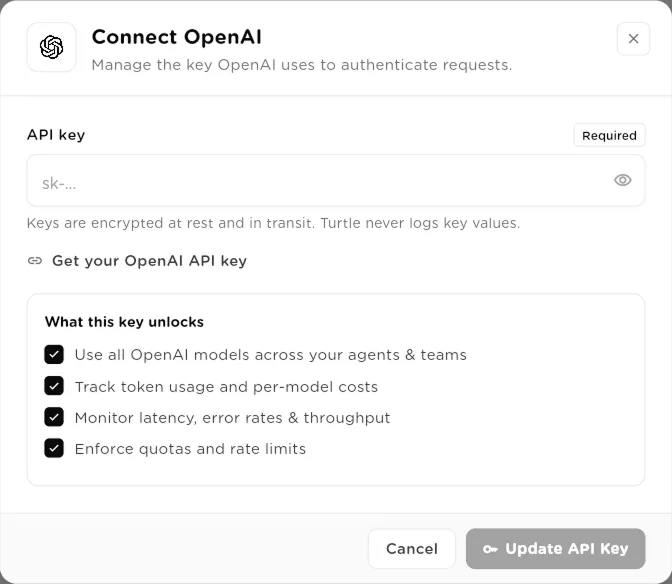
Connect a provider: paste your key and save. It is encrypted and never shown again in full.click to enlarge Rotate or remove a key
On a connected provider's card, click Update key (also in the card's… menu as Update Key). The dialog shows the active key masked, for example
sk-...****. Paste the new key and click Update API Key: every request uses the new key straight away. To remove the provider, click Disconnect in the same dialog or in the … menu.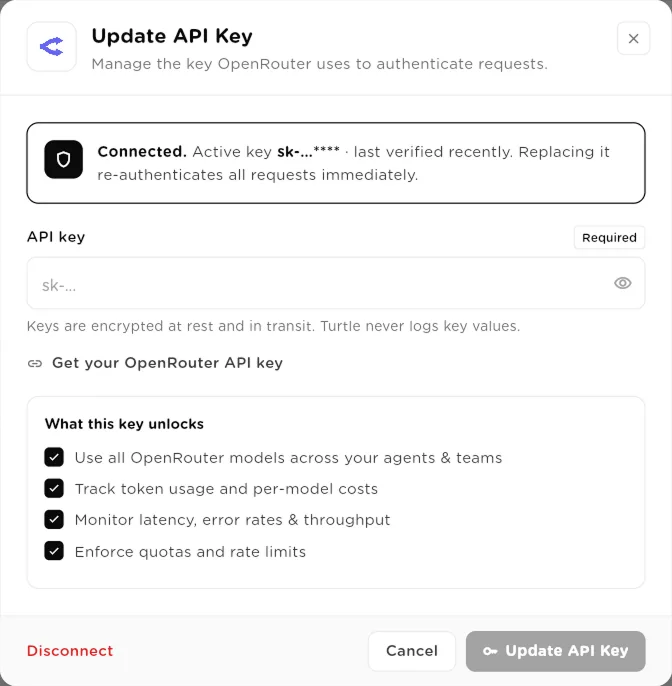
Update API Key: replacing the key re-authenticates every request immediately.click to enlarge Connect Azure OpenAI
Azure OpenAI works differently, because on Azure you create the models yourself, as deployments in your own Azure resource. Click Connect on Azure OpenAI and fill in the Azure endpoint (for example
https://your-resource.openai.azure.com/), the API version and the API key, then click Connect.The Add your first model dialog opens straight after. For each deployment, enter theDeployment name exactly as it appears in Azure, and the Base model name it was created from, such as
gpt-5.4orgpt-image-2. UseAdd another model for more, then click Deploy models. You can also choose Skip for now and add deployments later.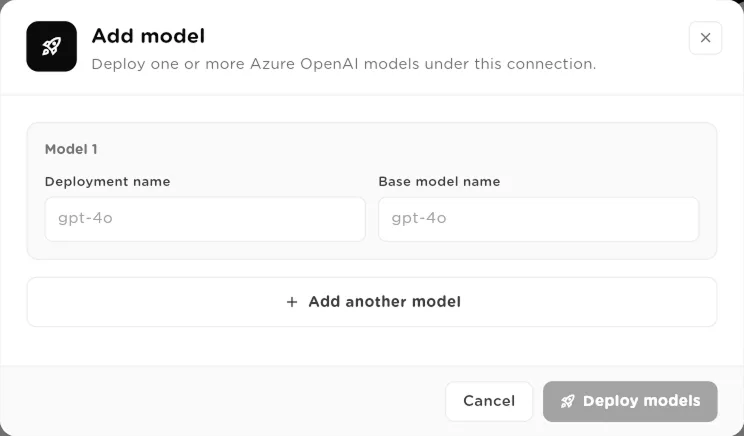
Add model: one row per Azure deployment, with the deployment name and its base model.click to enlarge Understand how an Azure deployment is classified
The base model name decides what a deployment is, never the deployment name you chose. A deployment of an image or video base model is treated as a media model; every other base model is a chat model that workers can reason with. So you never have to say which kind it is, and renaming a deployment does not change it.
- Image models:
gpt-image-1,gpt-image-1-mini,gpt-image-1.5,gpt-image-2,dall-e-2,dall-e-3. - Video models:
sora-2,sora-2-pro,sora-2-pro-high-res.
A dated snapshot name, such as
gpt-image-1.5-2025-12-16, is recognised as its base model. Each deployment is checked with Azure when you add it. A chat deployment gets a short test call, including a tool call, because workers drive their tools through tool calls. An image or video deployment is not given a test render, which Azure would bill you for: it is checked against the list of deployments on your resource instead.- Image models:
Open a provider's usage view
Click View models on a connected card. The provider page has a period selector (Last 7 days, Last 2 weeks, Last month, Last 3 months, Last 6 months) and shows:
- TOTAL SPEND, REQUESTS, TOKENS (input and output), SUCCESS rate and AVG LATENCY, each with the change against the previous period;
- CONNECTION (who connected it and whether it is org-wide), MODELS AVAILABLE and SHARE OF TOTAL LLM SPEND;
- Spend trend by day and Cost-share by model.
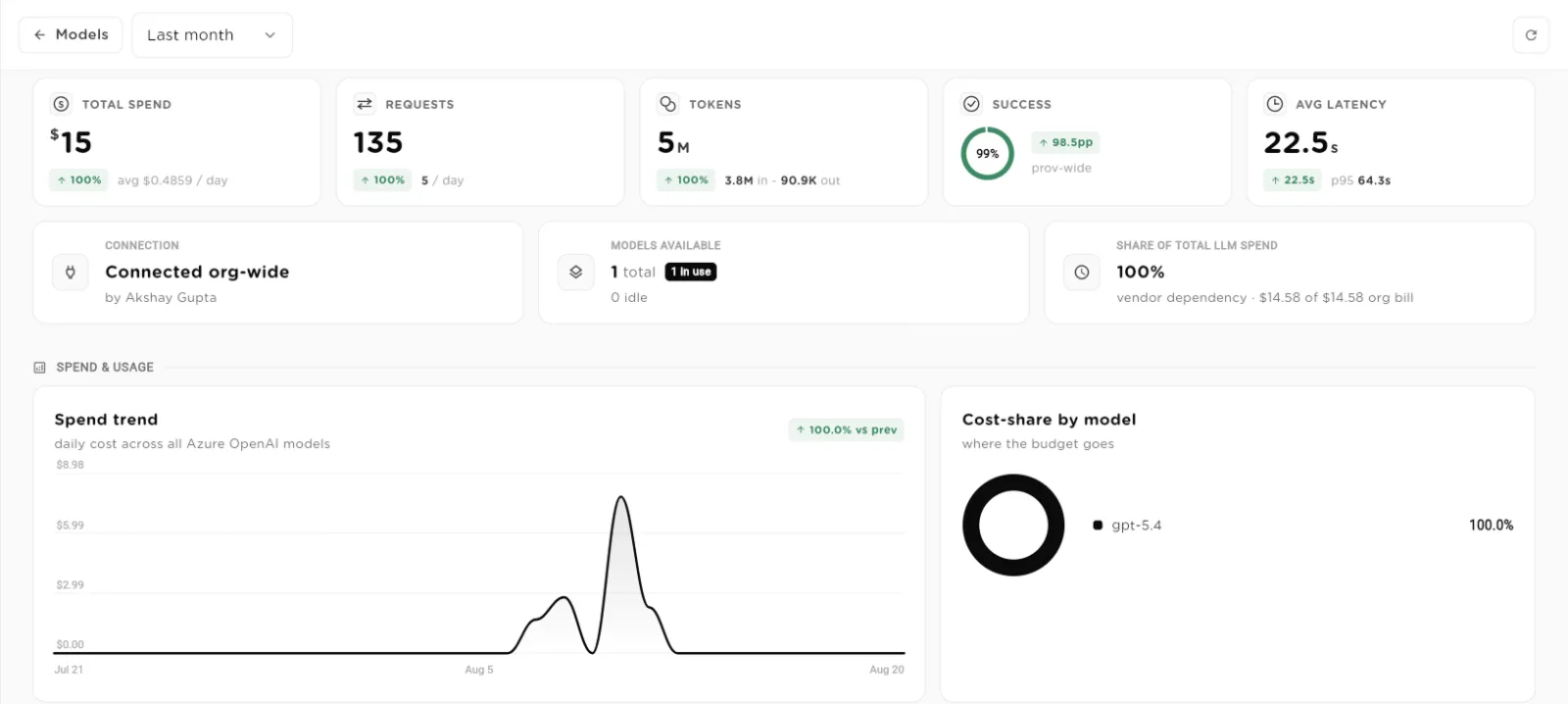
A provider's usage page: spend, volume, reliability and where the budget goes.click to enlarge Further down, Usage by module splits spend between teams, AI employees and agents, andEffective blended rate gives the cost per 1K tokens with the cheapest and priciest model. The MODELS table lists each model with its requests, tokens, cost, cost per 1K tokens, success rate, latency, when it was last used, and its TOP DRIVER, the worker that used it most. Click a column to sort. For Azure OpenAI, Add model here opens the same deployment dialog as in the previous step.
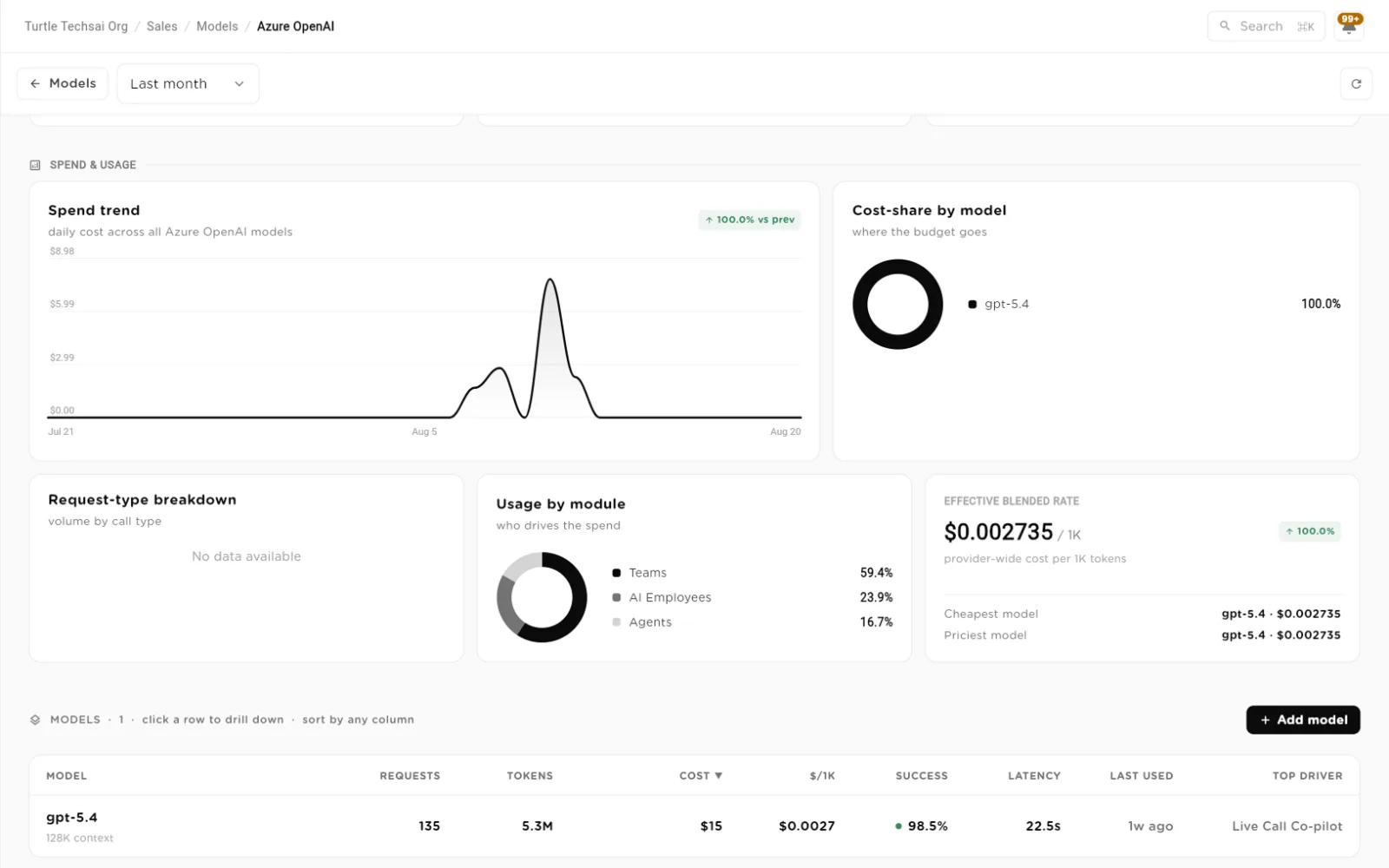
Usage by module, blended rate, and the per-model table with each model's top driver.click to enlarge Image and video renders count toward the provider that produced them, with the model named after its deployment on Azure. They are billed per render rather than per token, so they appear in spend and cost share even when their token count is zero.
Choose a model for each worker
Each worker runs on the model you set on it, from any provider you have connected:
- Sequential agent: in the agent's settings, pick the LLM Provider and then the LLM Model.
- Agentic team: in the team settings, pick the LLM Provider and LLM Model. The team runs on the model you set here.
- AI employee: in Behavior Settings, use LLM Configuration to pick the provider and model.
Only chat models appear in these pickers. If none appear, no provider is connected yet: an owner or admin needs to connect one on the Models page first.
Give an AI employee image and video generation
An AI employee can make images and videos as part of its work. In the employee's Behavior Settings, the Image Generation and Video Generation sections each have a Provider and a Model picker. Pick a model and clickSave; the section then confirms that the employee can generate images or videos. Both are optional, and Disconnect removes the model again.
Only connected providers that offer image or video models are listed, including Azure deployments of the image and video base models above. Save a new employee first; the media sections become usable once it exists.
Reference
Provider connection
| Field | Type | What it does |
|---|---|---|
API key | secret | Your key for the provider. Required. Encrypted when stored and shown only masked afterwards. |
Azure endpoint | url | Azure OpenAI only: your resource's endpoint, for example https://your-resource.openai.azure.com/. |
API version | text | Azure OpenAI only: the Azure OpenAI API version to call, for example 2024-02-15-preview. |
Deployment name | text | Azure OpenAI only: the name you gave the deployment in Azure. This is what calls are sent to. |
Base model name | text | Azure OpenAI only: the model the deployment was created from. Decides whether it is a chat, image or video model, and how it is priced. |
Connected provider card
| Item | Type | What it does |
|---|---|---|
Health | badge | Healthy when the connection is working. |
Models | count | How many models the connection offers. |
Org | badge | The connection is shared across the organization. |
key | masked | The stored key, masked. The full key is never shown. |
SPEND | money | Spend in the selected period and its share of your total. |
TOKENS · AVG LATENCY | metrics | Tokens used, and average and p95 response time. |
TOP MODELS | list | The provider's models in use, ranked by cost. |
View models | action | Opens the provider's usage page. |
Update key / Disconnect | action | Rotate the key, or remove the provider. Azure OpenAI has Disconnect only, and disconnecting it also deletes every deployment you added under it. |
Where each worker's model is set
| Worker | Type | What it does |
|---|---|---|
Sequential agent | per agent | LLM Provider and LLM Model in the agent's settings. |
Agentic team | per team | LLM Provider and LLM Model in the team settings: the model the team runs on. |
AI employee | per employee | LLM Configuration, Image Generation and Video Generation in Behavior Settings. |
Related
- Tools & Integrations: connect the services workers act in.
- Custom Tools & MCP servers: add your own APIs and MCP servers.
- Sequential Agents, Agentic Teams, AI Employees: where each worker's model is chosen.