
Organizations & workspaces
How an organization holds your people, workspaces and billing, how workspaces keep work apart, and how to switch, pause, choose a plan and set how many runs execute at once.
An organization is the top container in Turtle AI Coworker. It holds your team members, your workspaces, your connected tools and models, your plan and your billing. Everything you build belongs to one organization, and the name and logo you set there appear across the app and on anything you share.
A workspace sits inside an organization and keeps one area of work apart from another: for example Sales, Marketing or Finance. Agents, teams, AI employees, tables and knowledge bases live in a workspace. You create the organization once, add workspaces as your use grows, and switch between them from the top of the app.
How it fits together
Step by step
Create your organization
When you sign up, Turtle AI Coworker asks you to Create your organization (step 1 of 2) with an Organization name, then to Create your workspace (step 2 of 2) with a Workspace name. You can add more organizations later: open the organization card at the top of the left sidebar and choose Create organization. Enter theOrganization Name and click Create. You become its owner.
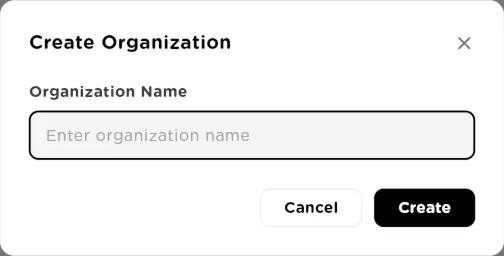
Create Organization: one name, and you are the owner of the new organization.click to enlarge Switch between organizations
If you belong to more than one organization, click the organization card at the top of the sidebar. TheSwitch organization menu lists every organization you are a member of, with a check mark on the active one. Pick another to switch. Everything you see after that, including tools, models, members and billing, belongs to the organization you picked.
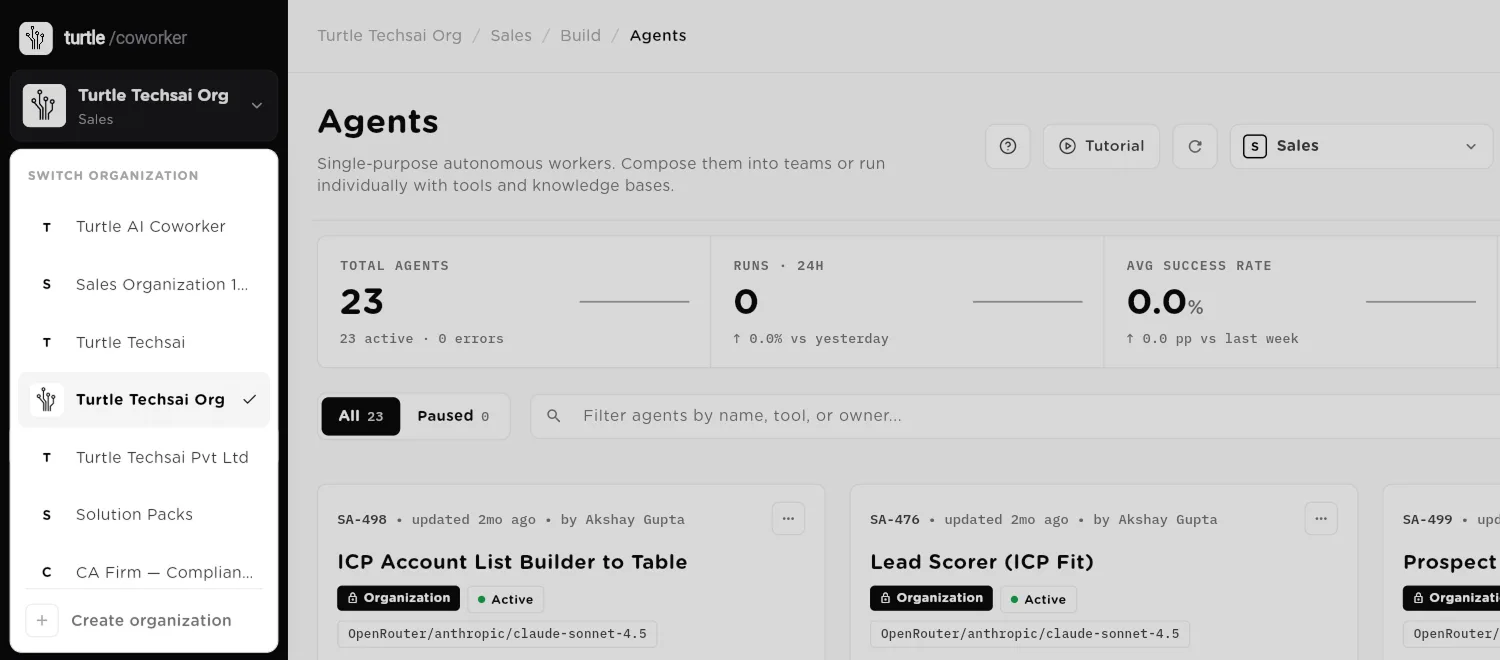
The organization card opens the switcher. The workspace picker sits at the top right of each module page.click to enlarge Create and switch workspaces
Module pages such as Agents, Tables and Solution Packs have a workspace picker in the header. Open it to switch workspace. Owners and admins also see Create New and Manage at the bottom of the list. Create New opens Create Workspace: give it aName and an optional Description, then clickCreate Workspace. Manage lists every workspace, where the menu on each row lets you edit or delete it.
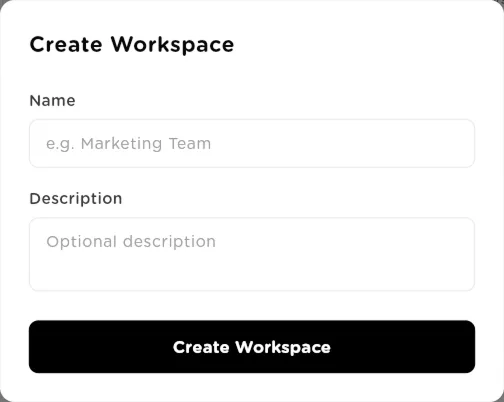
Create Workspace: a name such as Marketing Team, and an optional description.click to enlarge Edit the organization's details
Go to Settings and open Organization. Here you upload theOrganization logo (a square PNG or SVG, shown across the workspace and on shareable artifacts), change the Organization name, copy the Organization ID, and fill in Industry, Company size and Website. ClickSave changes at the bottom. Owners and admins can edit these fields; everyone else sees them read only.
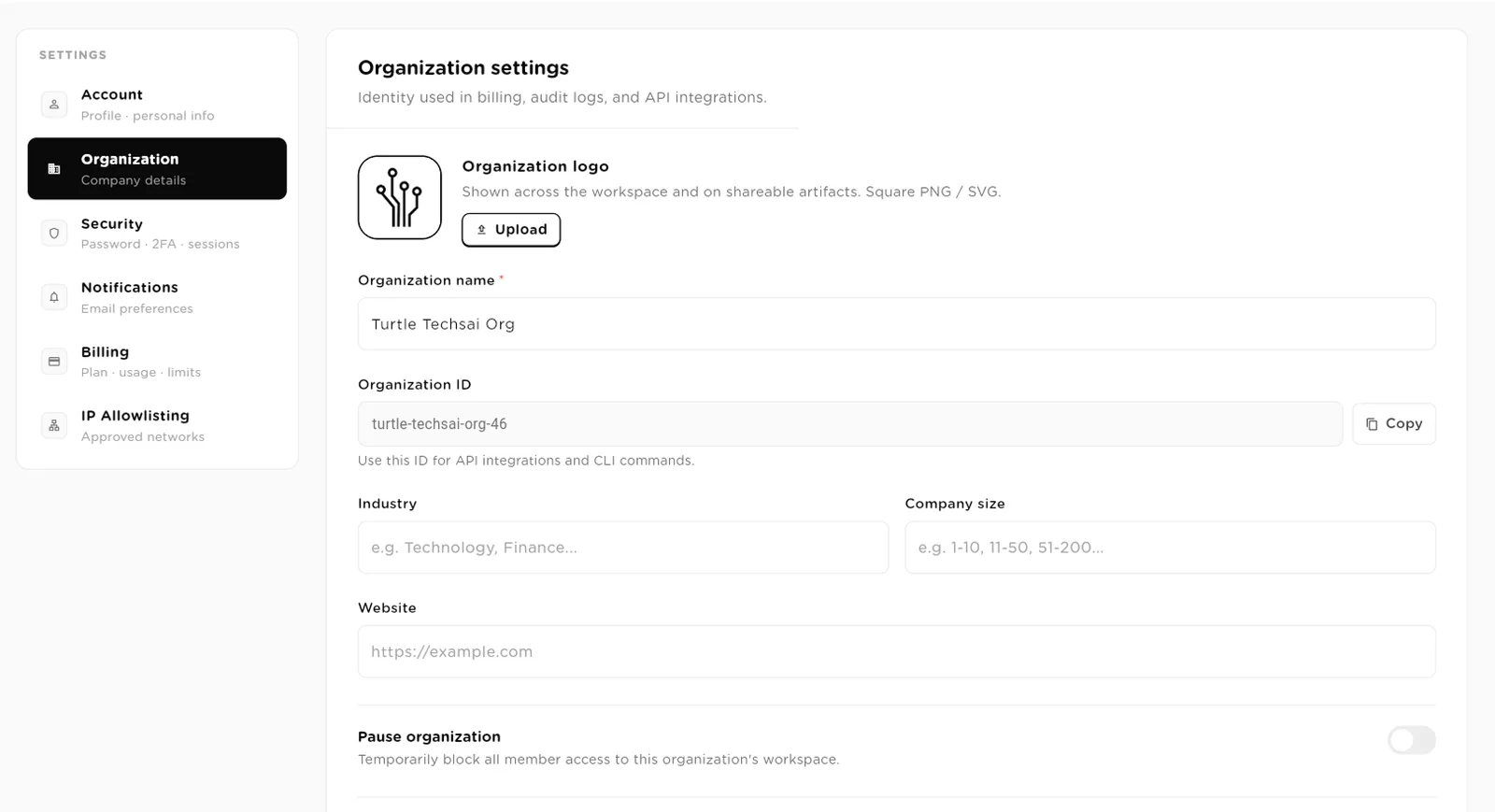
Organization settings: the identity used in billing, audit logs and API integrations.click to enlarge The same page holds the AI disclosure, the sentence shown to anyone who chats with your agents on a public link, embed or shared page. It is covered inSettings & security.
Set how many runs execute at once
The Parallel runs row controls how many agent runs can execute at the same time across the whole organization. The default is one: runs execute one at a time, and anything else that is triggered waits in the queue and starts when the slot frees. Use the minus and plus buttons to change it, from 1 up to 10. When runs are in progress the row shows how many are running right now. Owners and admins can change this setting.
Pause the organization
Pause organization is a switch that temporarily blocks all member access to the organization's workspace. While it is on, every way of starting work is refused: agents, teams, AI employees, schedules and other triggers, public links, API keys, Slack and forms. Turn the switch off to resume. Resuming changes nothing else, so an agent or trigger you paused on its own before stays paused. Only the owner or an admin can pause or resume.
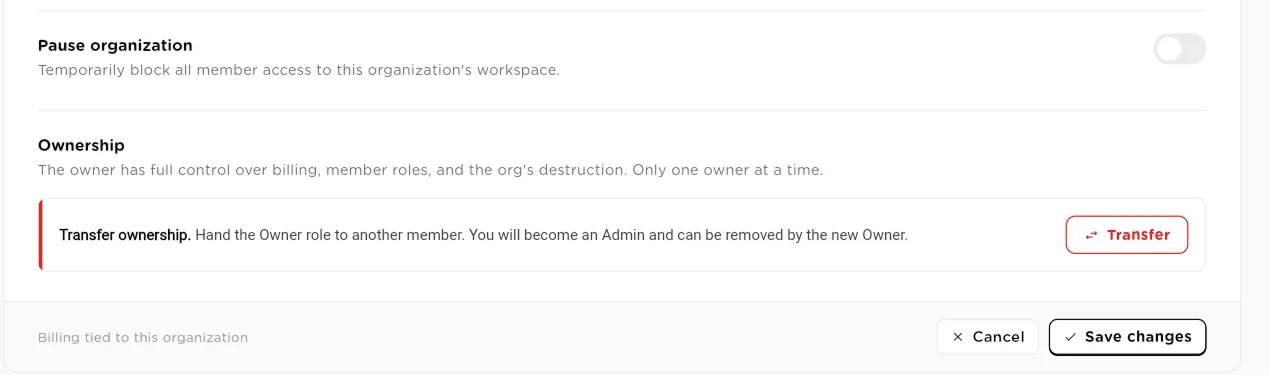
Pause organization and Transfer ownership sit at the bottom of the Organization settings.click to enlarge Transfer ownership
An organization has exactly one owner, who has full control over billing, member roles and deleting the organization. Under Ownership, the owner can click Transfer to hand the Owner role to another member. After the transfer you become an Admin, and the new owner can remove you.
Choose a plan
Click Upgrade on the plan card at the bottom of the sidebar, or openSettings, then Billing, then Upgrade. TheChoose a plan screen shows the four plans side by side, with aMonthly or Annual switch (annual gives two months free) and a currency picker. You pay for completed runs only. Agents, teams and automations are free to build. Only the owner can change the plan or buy credit; admins can see billing.
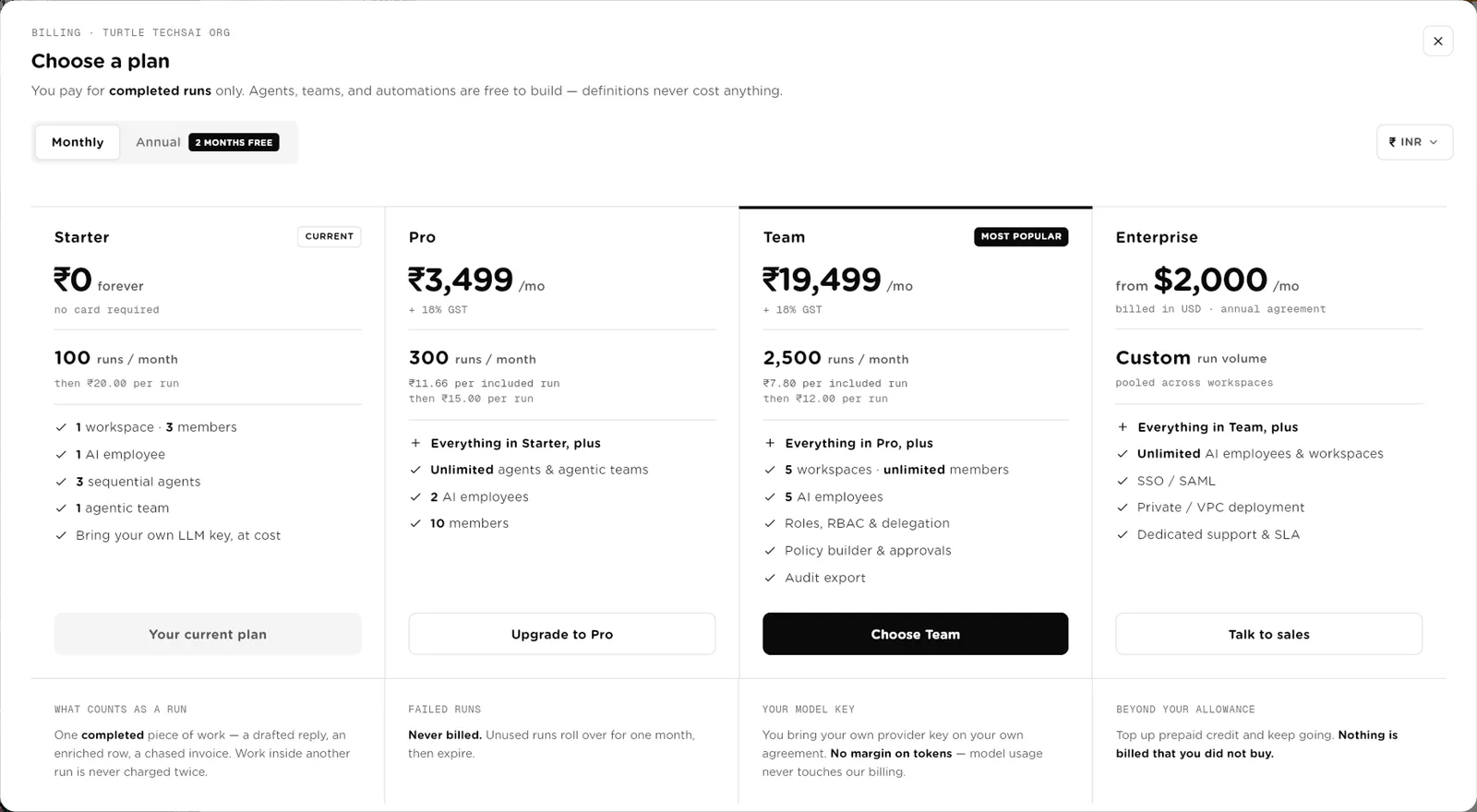
Choose a plan: what each plan includes, what counts as a run, and what happens beyond your allowance.click to enlarge
Plans at a glance
Every plan is metered by completed runs. A run is one completed piece of work, such as a drafted reply, an enriched row or a chased invoice. Failed runs are never billed, and work that runs inside another run is not charged twice. Unused runs roll over for one month. You bring your own model key on every plan, so model usage is billed by your provider, not by Turtle AI Coworker. Prices below are in US dollars and exclude tax.
| Plan | Type | What it does |
|---|---|---|
Starter | free | 100 runs a month, then $0.25 per run from prepaid credit. 1 workspace, 3 members, 1 AI employee, 3 sequential agents, 1 agentic team, 2 active automations, 5 tables, 1 knowledge base, 3 integrations, 7 days of audit history. No card required. |
Pro | $49 / month | 300 runs a month, then $0.20 per run. 1 workspace, 10 members, 2 AI employees, unlimited agents, teams and automations, 50 tables, 10 knowledge bases, unlimited integrations, 30 days of audit history, spend caps and digests. $490 a year on annual billing. |
Team | $299 / month | 2,500 runs a month, then $0.15 per run. 5 workspaces, unlimited members, 5 AI employees, roles and delegation, the policy builder and approvals, budgets, audit export and 365 days of audit history. $2,990 a year on annual billing. |
Enterprise | from $2,000 / month | Annual agreement with a custom run volume pooled across workspaces. Unlimited AI employees and workspaces, SSO / SAML, private deployment, and dedicated support. Contact sales. |
Field reference
| Setting | Type | What it does |
|---|---|---|
Organization name | text | Required. Shown in the sidebar, on shared pages, in billing and in the audit trail. |
Organization logo | image | Square PNG or SVG. Shown across the workspace and on shareable artifacts. |
Organization ID | read only | A stable identifier for this organization, with a Copy button, used for API integrations. |
Industry | text | Optional, for example Technology or Finance. |
Company size | text | Optional, for example 11-50. |
Website | url | Optional company website. |
AI disclosure | text | Required sentence shown to anyone chatting with your agents on a public link, embed or shared page. See Settings & security. |
Parallel runs | 1 to 10 | How many agent runs execute at once across the organization. Default 1. Extra runs wait in a queue. |
Pause organization | switch | Blocks all member access and refuses every new run until you resume. Owner or admin. |
Transfer ownership | action | Owner only. Hands the Owner role to another member; you become an Admin. |
Workspace name | text | Set in Create Workspace. Owner or admin. |
Workspace description | text | Optional note shown with the workspace. |
Related
- Users & roles: invite people into the organization and set what they can do.
- Groups & access: share workers and tables with sets of people.
- Settings & security: your profile, two-factor authentication, notifications and billing.
- Solution Packs & templates: install a complete department into a workspace.