
Agentic Teams
One chat surface backed by several specialist sub-agents, where every message is routed by intent to the right specialist and handed back.
An Agentic Team is a single chat interface backed by several sub-agents configured inside one team. You talk to the team the way you would talk to one assistant. Behind the scenes, each message you send is routed by intent to the specialist best equipped to answer, that specialist replies, and control comes back to you. Your next message can be about something completely different, and it routes to a different specialist. The whole roster runs under one shared scope, one cost and runtime budget, and one shared knowledge layer.
This is a conversational surface, not an autonomous batch pipeline. There is no fixed order the agents run in and no predetermined sequence of steps. The team simply holds a set of specialists and a routing brain that reads each request and picks who should handle it, turn by turn.
When to use a team
Reach for a team when you want one conversational surface that has to handle several intents or areas of expertise. Instead of building one overloaded agent that tries to be good at everything, or making people pick the right agent themselves, you compose narrow specialists behind a single chat and let intent routing send each question to the right one.
- A support or ops chat where one question is about billing, the next is about a technical fault, and the next is a policy lookup, each needing a different specialist.
- A subject-matter desk split by domain, with one specialist per area and a router that picks the right one per message.
- A workspace assistant that answers cross-cutting questions from a broad-read router but delegates focused drafting or writes to narrow specialists.
- Any surface where you want to mix models: a cheaper model for routine specialists and a stronger one for the router and judgment-heavy replies.
If the job is really one worker running an ordered task list start to finish, use aSequential Agent instead. If you want a named coworker that owns a whole role and remembers context between sessions, hire an AI Employee.
How a team handles a message
Every message follows the same loop. You send a message, the router reads its intent, it hands the message to the matching specialist, and the specialist replies to you. Then the loop starts over for your next message, which may route somewhere else entirely.
The router is the accented node above because it is the piece that makes a team a team. It is configured as a prompt (the Team Instructions), not a diagram you wire by hand. You name each specialist and state which kind of request goes to which one, and the router dispatches accordingly at run time.
Build a team step by step
Teams live under Build, Agentic Teams in the workspace. The steps below cover every action, from creating the team to chatting with it and reading the routing in the trace.
Create a team
Open the Agentic Teams list to see every team you can run, filtered by scope (All, Organization, Personal, Drafts) with search and status controls. Each card shows the team's roster, health metrics and status. Choose Create team in the page header, or use Import teamto bring one in. A team that has never validated stays a Draft until you clear its errors. Both Create and Edit open the Team Editor.
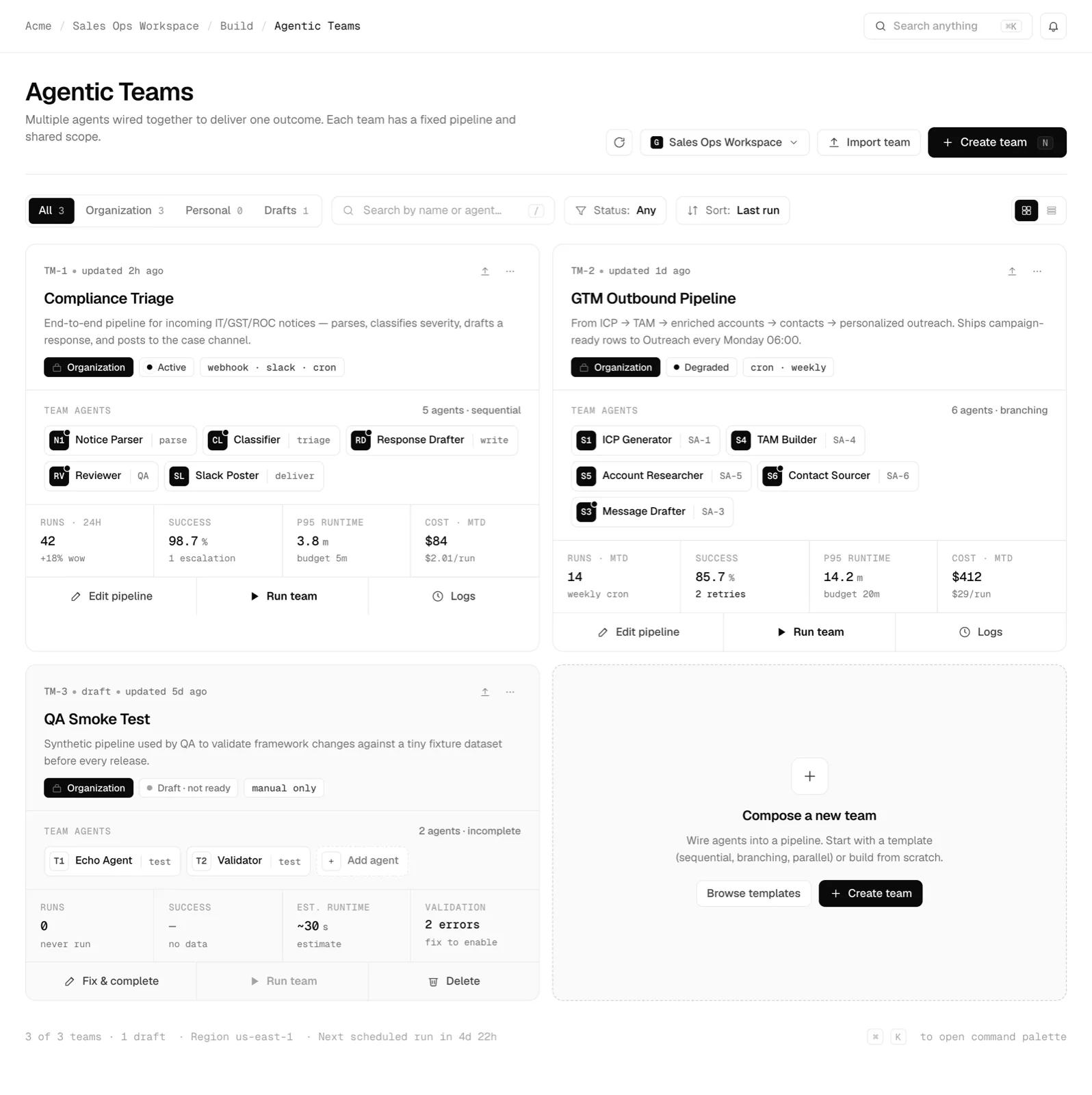
The teams list: scope tabs, a card per team with its roster and health, and Create team in the header.click to enlarge Add sub-agents and describe each one's intent
The Team Editor splits in two. The left pane configures what the team is; the right rail,Agents on this team, is the roster and stays docked whichever left tab is active. Choose Add agent to open a four-step wizard, then set the agent'sName, Model, Description andInstructions. Write the description and instructions to make the agent'sarea of expertise clear, because that is what the router matches against. Add one specialist per intent the chat needs to handle, plus a broad-read router that also does final review.
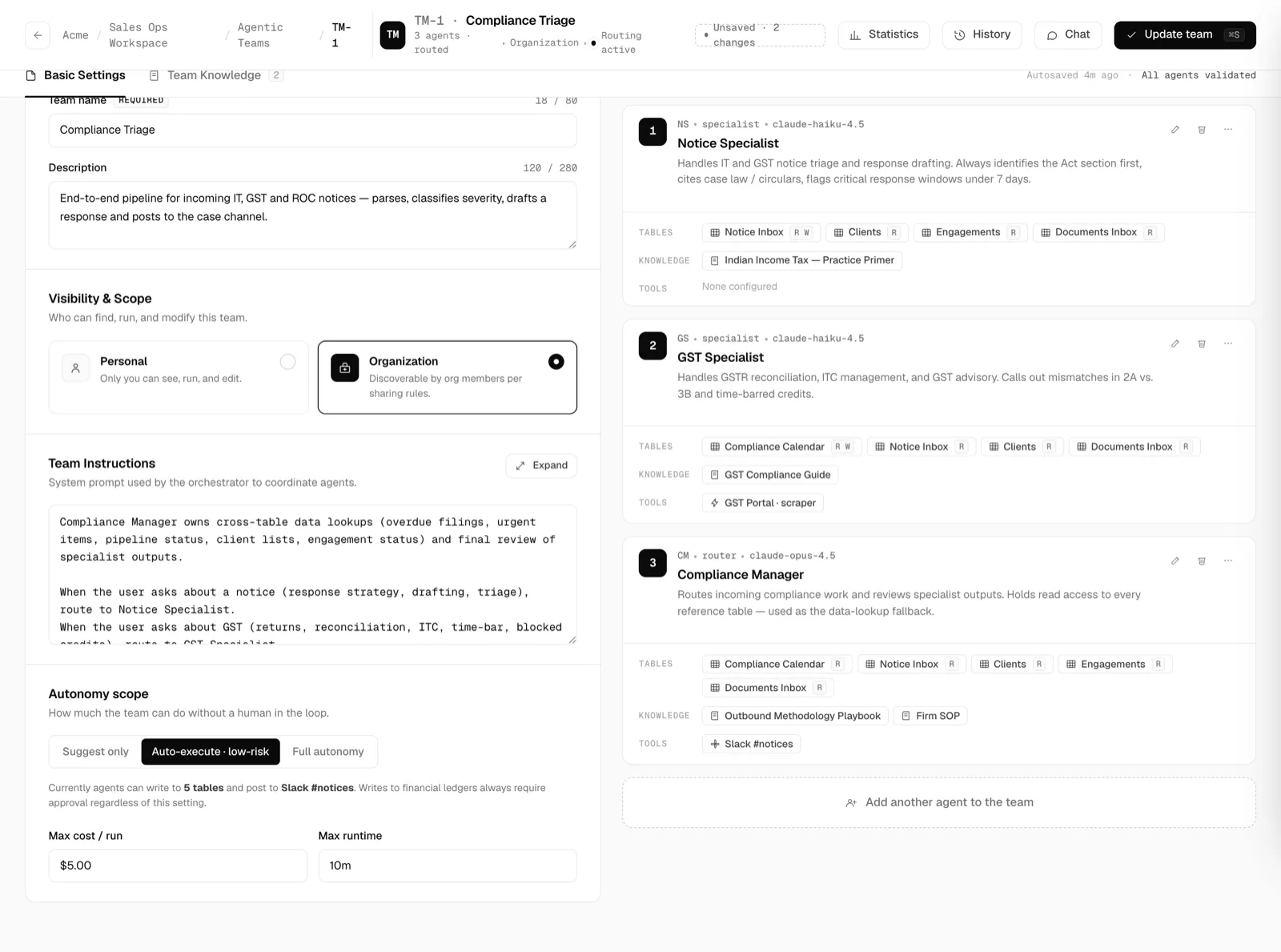
The Team Editor: team-level settings on the left, the specialist roster docked on the right. Each card shows an agent's model, tables, knowledge and tools.click to enlarge Configure routing and shared scope
Routing lives in the Team Instructions field on the Basic Settings tab. This is the system prompt the router uses to coordinate the roster. Give the router a role sentence, then one routing rule per specialist, for example: when the request is about a notice, route to the Notice Specialist; when it is about GST, route to the GST Specialist. Name a default agent for cross-cutting requests or broad data lookups, and state which agent does final review. Keep each rule about akind of request rather than an exact phrasing so routing generalizes. Set the team'sVisibility and Scope here too: Personal keeps it to you, Organization makes it discoverable to your org. Each specialist's own reach (its tables, knowledge and tools) is set per agent in the wizard's later steps.
Set the team's model, budget and health
On Basic Settings, choose the team's Autonomy scope: Suggest only (the team proposes, a human executes), Auto-execute low-risk (it runs low-risk actions and escalates the rest), or Full autonomy (it executes everything within scope). A plain-language hint restates exactly what the current setting permits, and a hard guardrail can still force human approval for sensitive writes regardless of the level you pick. Set the two required budget ceilings, Max cost per runand Max runtime; a run halts if it exceeds either. Per agent, pick aModel in the wizard, mixing cheaper models for routine specialists with a stronger one for the router. Teams validate before they leave Draft: the editor tab bar showsAll agents validated when the roster is complete, and the list flags Degraded teams that are missing their success target.
Attach shared knowledge, tools and table access
On the Team Knowledge tab, attach shared knowledge bases every agent can semantic-search, and choose how they combine with each agent's own bases: Merge,Team only, or Fallback if agent empty. Inside each agent's wizard, step 2 attaches that agent's own knowledge bases, step 3 grants the external Tools it may call, and step 4 sets Table access with independent Read, Create, Update and Delete pills per table. Grant least privilege: keep reference tables Read-only, give a target table only the writes it needs, and concentrate delivery tools (messaging, posting) on a single agent so the team's outbound surface is easy to audit.
Deploy the team as a chat surface
A team is meant to be talked to, so you deploy it wherever your people already chat. The same routed team can be reached from in-app chat in the workspace, embedded as awebsite chat widget, connected to Slack orMicrosoft Teams, or called programmatically through the API and SDK. In every channel the behavior is identical: each incoming message is routed by intent to the right specialist and answered in the same conversation.
Chat with the team and read the routing in the trace
Open Chat from the editor's top bar to talk to the team. Send a message, read the specialist's reply, then send a different-intent message and watch it route elsewhere. Every turn is traced: the trace shows which specialist the router chose for each message, what that agent read, which tools it called and what it wrote, so you can confirm the per-message routing and audit the team's full reach. Save with Update team to promote a validated draft to Active.
Reference: team settings
Every setting on the team itself, configured on the two left tabs of the Team Editor.
| Setting | Type | What it does |
|---|---|---|
Team name | text, required | Display name across the workspace. Live character counter, up to 80 characters. |
Description | text | One-paragraph summary of what the team delivers, shown on the team card. Up to 280 characters. |
Visibility & Scope | Personal | Organization | Who can find, run and edit the team. Personal is only you; Organization is discoverable by org members per sharing rules. |
Team Instructions | prompt | The router's system prompt. Names each specialist and states one routing rule per intent, plus a default agent and who does final review. This is what makes routing happen; there is no visual graph to draw. An Expand button opens a full-screen editor. |
Autonomy scope | 3-way control | How much the team may do unattended: Suggest only (human executes), Auto-execute low-risk (runs low-risk actions, escalates the rest), or Full autonomy (executes everything in scope). Sensitive writes can still require approval by guardrail. |
Max cost / run | currency, required | Hard spend ceiling per run. The run halts if it is exceeded. |
Max runtime | duration, required | Wall-clock ceiling per run. The run is auto-stopped past it. |
Team Knowledge | KB list | Shared, read-only knowledge bases every agent on the team can semantic-search. Attach from the workspace or create a new base. Each row shows document and chunk counts and sync health. |
Override behaviour | 3-way control | How team knowledge combines with each agent's own bases at run time: Merge with agent KBs, Team only, or Fallback if agent empty. |
Per-agent settings (the add-agent wizard)
Each specialist is configured in a four-step wizard opened from the Agents rail. These settings belong to the individual agent's role on this team.
| Setting | Type | What it does |
|---|---|---|
Name | text, required | The specialist's display name, shown on its roster card. |
Model | dropdown | The model this agent runs on. Mix cheaper models for routine specialists with a stronger one for the router. |
Description | text | Short summary of the agent's specialty, up to 280 characters. Helps the router match intent to this agent. |
Instructions | prompt | The agent's operating prompt, up to 4000 characters. |
Knowledge base | KB list | The bases this agent can semantic-search, separate from the team-level shared layer. |
Tools | tool grid | External tools this agent may call at run time. Each shows a Connected or Not connected status. Grant only what the agent needs. |
Table access | R / C / U / D per table | Which tables the agent may touch and which operations on each: independent Read, Create, Update and Delete pills, enforced at run time. Defaults to Read-only. |