
AI Employees
Hire a persistent digital worker, give it a role, resources, and memory, then delegate work by chat, schedule, or event.
What an AI Employee is
An AI Employee is an autonomous digital worker you hire and delegate to, not a chatbot you prompt turn by turn. You give it a role, standing instructions, a set of resources, and its own memory. From there it plans its own multi-step work, runs in the background, remembers people and decisions across sessions, and pauses to ask for approval on risky moves.
Where a Sequential Agent is one job you invoke directly, an AI Employee is a whole role that persists. It wraps many capabilities under one identity, puts a conversation surface in front of them, and routes each request to the right resource on its own.
When to use one
- You want a standing coworker for a function (support, compliance, sales ops) that anyone can just talk to.
- The work is open-ended and spans several agents, tables, knowledge bases, and tools rather than a single fixed procedure.
- You need durable memory: the worker should remember preferences, accounts, and past decisions across sessions.
- You want recurring or event-driven work to run unattended, with approval gates on anything that writes.
Reach for a single Sequential Agent instead when the task is one repeatable procedure with typed inputs that you call directly. An employee contains agents: you assign them to it as skills.
How it works
You delegate work one of three ways. The employee plans the steps, acts through its resources, holds any risky write at an approval gate, then returns a result and updates its memory.
The employee orchestrates four resource types: Agents as specialist sub-workers it hands off to, Tables under per-table read/create/update/delete permissions, Knowledge bases it semantic-searches on the default engine, and Tools it can call. It carries three tiers of memory: short-term (the current turn), working (a rolling window of the recent conversation), and long-term (durable facts and preferences it stores and reuses).
Build and run an employee
The whole lifecycle spans three screens: a roster you hire from, a single-page editor that configures the employee, and a workspace where you put it to work.
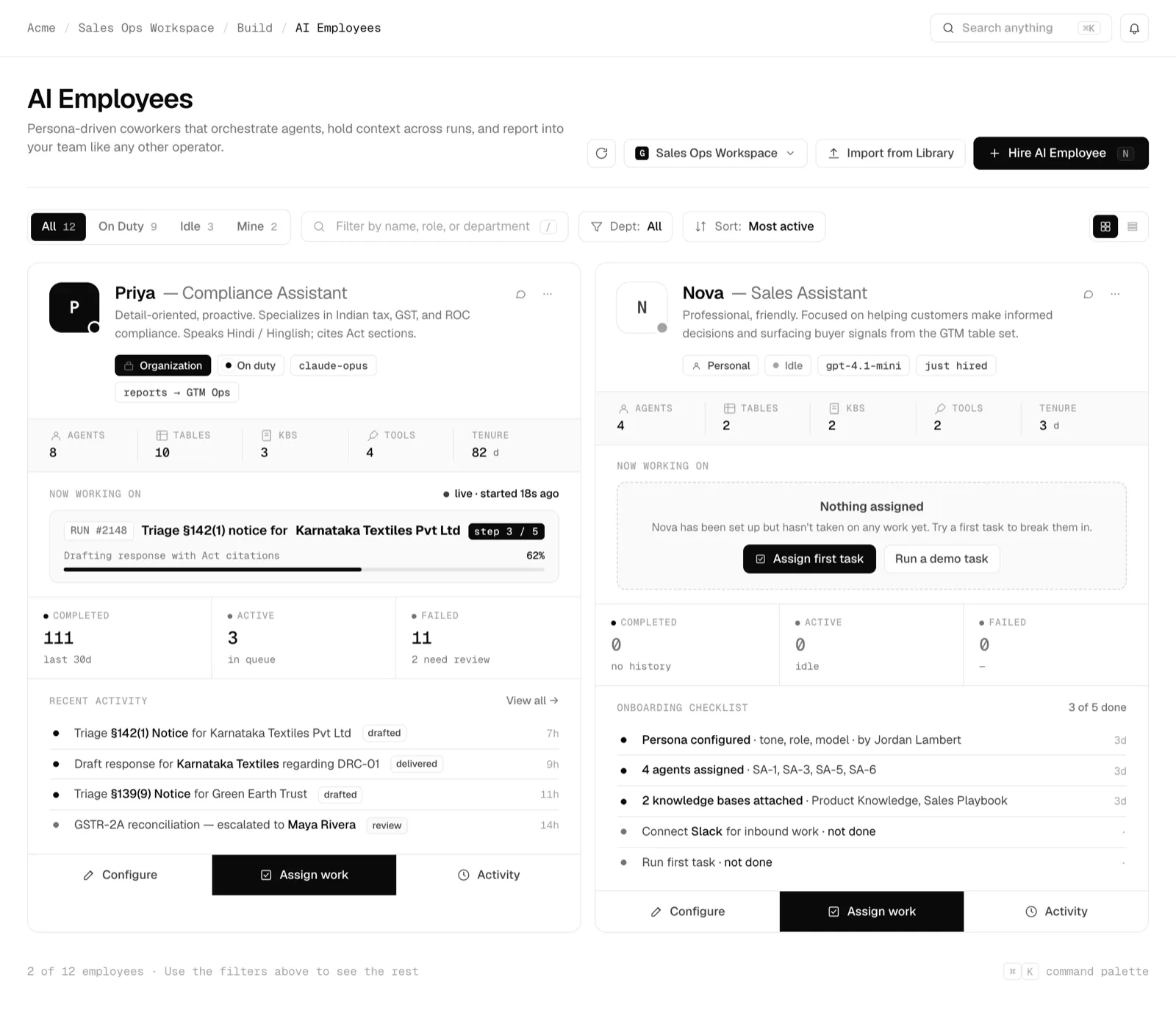
Create the employee
From the roster, choose Hire AI Employee (or import one from the library) to open the editor. The editor is a single scrolling page of numbered sections, all open by default. Fill them top to bottom, then save with Update employee.
- Identity: name, role or title, a one-line description, and visibility (Personal so only you can chat, or Organization so the whole workspace can).
- Welcome & voice: a personality preset (Professional, Friendly, Casual, Formal, or Custom), a free-form communication-style note layered on top, and a welcome message that renders in a live preview as you type.
- Skills: the agents, tables, knowledge bases, and tools the employee may use (covered in the next step).
- Instructions: optional rules or workflows that override default behavior, plus two conversation-memory toggles.
- Where it works: the channels people reach it through and the schedules or events that run it.
- Advanced: model, reasoning depth, autonomy scope, and execution caps.
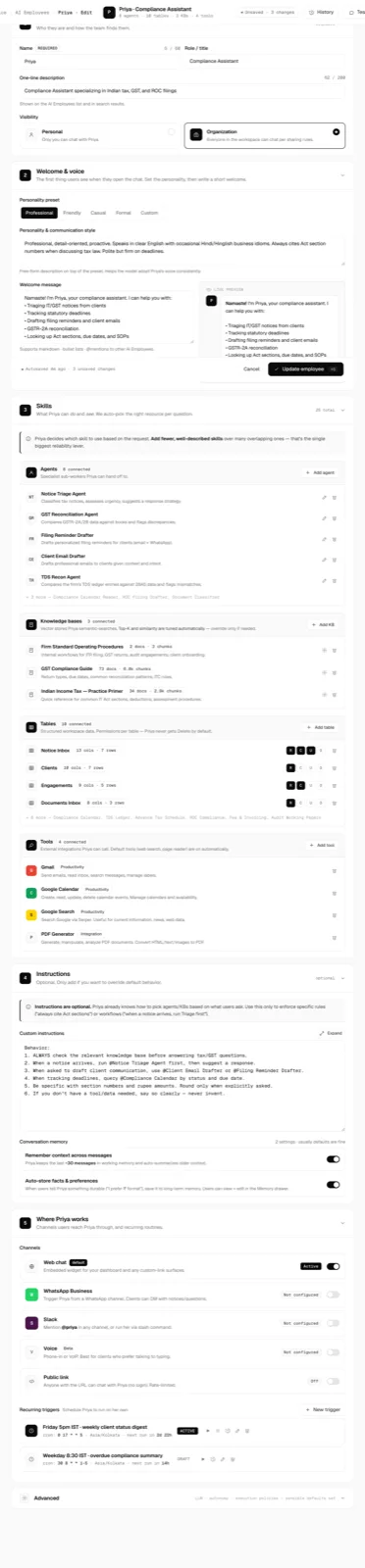
The editor: a numbered accordion covering identity, voice, skills, instructions, channels, and an Advanced block.click to enlarge Attach resources
In the Skills section, connect the four resource groups the employee orchestrates. Each group has a count, an Add button, and a list of connected rows.
- Agents: specialist sub-workers the employee routes matching requests to.
- Tables: each connected table carries its own permission grid, Read, Create, Update, Delete. Grant only what the role needs and leave Delete off unless it genuinely must remove rows. An optional usage hint tells the employee when to query the table.
- Knowledge bases: vector stores the employee searches on the default engine. Retrieval is tuned automatically, with a per-source override if you need one.
- Tools: external integrations it can call. Default tools such as web search and page reader are on automatically.
Description quality is the biggest reliability lever here: the employee picks a skill by matching each one's one-line description against the request, so write those as if they were the only thing it reads.
Set the autonomy scope and approval gates
In Advanced, the autonomy scope decides how independently the employee may act. The editor offers three levels, from full oversight to none:
- Suggest only: the employee drafts everything and a person runs every action.
- Supervised: it reads and calls safe tools on its own, but every write waits for approval. This is the usual default and is exactly what makes the workspace surface an approval gate on each write.
- Full autonomy: it acts without approval. Use only when its writes are safe to run unattended.
Alongside the scope, set Max actions per turn to cap tool calls per message (0 means unlimited), and keep Show planning in chat on to watch the plan tick through in real time.
Configure memory
The employee keeps three tiers of memory: short-term within a turn, a working window of the recent conversation, and long-term durable storage. Two toggles in the Instructions section govern the last two:
- Remember context across messages keeps a rolling window of recent messages in working memory and auto-summarizes older context.
- Auto-store facts & preferences saves durable statements to long-term memory, editable later in the workspace Memory tab.
In the workspace you can review long-term entries by category (facts, preferences, instructions, task summaries, relationships), pin the ones that must be retained, and edit or delete any entry by hand.
Put it to work three ways
Once saved, you delegate to the employee through any of three activation modes:
- Chat: delegate on demand in the workspace composer. The employee classifies each message as a chat reply, a task to run, or a status check, then handles it. You can force a specific agent, run the task in the background, or require approval for that message.
- Schedule: a recurring or one-time trigger runs the employee on a cron, evaluated in a timezone you set. Preset chips seed common schedules such as every weekday or the first of the month.
- Events: a tool or webhook signal triggers a run. Event triggers are guarded by dedupe, filter, debounce, and rate-limit controls so a noisy source cannot flood the employee with runs.
Work from the employee workspace
The workspace pairs a conversation column with a work rail. The conversation shows your messages, the employee's routing hand-offs, and artifact cards that carry their own Approve & send or Discard gate. The right rail has three tabs: Now for the in-flight run and its pending approvals, Tasks for the filterable run history with a step-level audit, and Memory for durable entries.
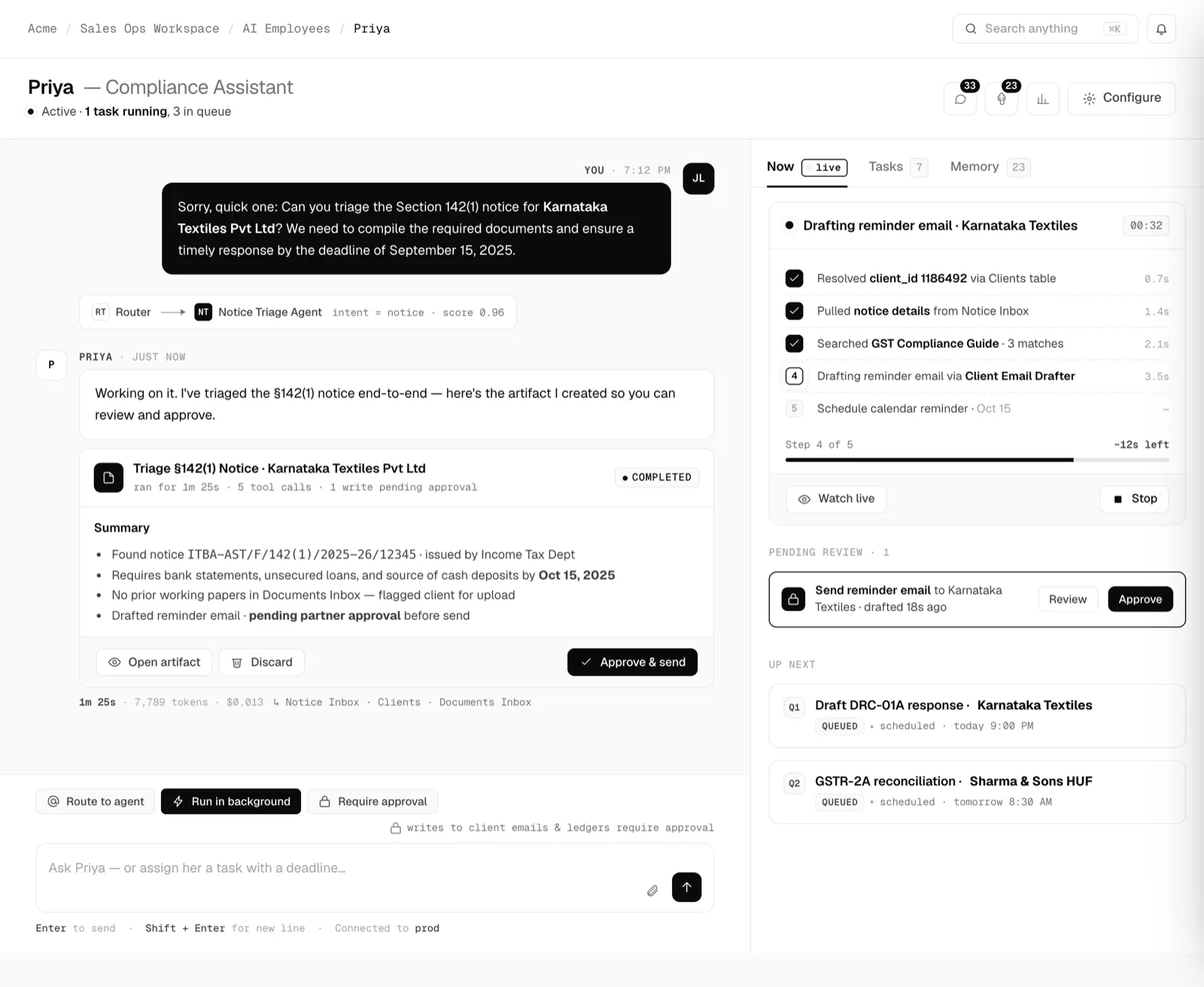
The workspace: chat and artifact cards on the left, and a Now / Tasks / Memory rail on the right.click to enlarge
Editor field reference
The settings you configure per employee, grouped by editor section.
| Field | Type | What it does |
|---|---|---|
Name | text | Display name across the roster, chat, and run records. Required, up to 60 characters. |
Role / title | text | The persona's job title, shown after the name. |
Description | text | One line shown on the roster and in search. Up to 200 characters. |
Visibility | radio | Personal (only you can chat) or Organization (the whole workspace can, per sharing rules). |
Personality preset | segmented | Starting tone: Professional, Friendly, Casual, Formal, or Custom. |
Communication style | textarea | Free-form voice description layered on the preset. |
Welcome message | textarea | Opening bubble shown when the chat opens. Supports markdown, bullets, and mentions. |
Agents | list | Specialist sub-workers the employee routes matching requests to. |
Tables | list | Structured data, each with an R / C / U / D permission grid and an optional usage hint. Delete is off by default. |
Knowledge bases | list | Vector stores searched on the default engine. Retrieval is tuned automatically. |
Tools | list | External integrations the employee can call. Default tools are on automatically. |
Custom instructions | textarea | Optional rules or workflows that override default behavior. |
Remember context across messages | toggle | Keeps a rolling window of recent messages in working memory. On by default. |
Auto-store facts & preferences | toggle | Saves durable statements to long-term memory. On by default. |
Channels | list | Where people reach the employee: web chat, a connected chat app, team chat, voice-capable, or a rate-limited public link. |
Triggers | list | Recurring or one-time schedules (cron plus timezone) and event triggers that run the employee unattended. |
Model | select | The model behind the employee. Per-message cost lands in the audit trail. |
Reasoning depth | segmented | Fast & cheap, Balanced, or Deep & thorough. |
Autonomy | radio | Suggest only, Supervised, or Full autonomy. Supervised (writes need approval) is the usual default. |
Show planning in chat | toggle | Displays the task plan and step ticks in real time. On by default. |
Max actions per turn | integer | Hard cap on tool calls per message. 0 means unlimited. |