
Sequential Agents
Build a single worker that does one job end to end: typed inputs, ordered tasks, scoped access to your data and tools, and a fully traced result.
A Sequential Agent is the platform's core worker. It takes a set of typed inputs, runs an ordered list of tasks against the tools, knowledge, and tables you grant it, and returns a result that is traced end to end. Reach for one whenever a job can be written as a repeatable procedure: given X, do these steps, produce Y.
An agent is the building block you later compose into an Agentic Team or hand to an AI Employee. Each piece of an agent is yours to configure, and every run leaves a record of what it read, which tools it called, and what it wrote.
When to use a Sequential Agent
Pick the worker shape that matches the work:
- Use a Sequential Agent when the job is one well-defined procedure with a clear start and finish: enrich a record, summarize a document, draft an email, extract fields, run a scheduled reconciliation.
- Use an Agentic Team when the work arrives as a conversation and different messages need different specialists. A team is a chat surface that routes each message by intent to the right sub-agent under one shared scope.
- Use an AI Employee when you want a named coworker that owns a whole role, remembers context across sessions, and plans its own multi-step work.
Because an agent has one job and a fixed shape, it is the easiest worker to test, price, and audit, which is exactly why it is the unit you reuse everywhere else.
How a run is shaped
Every run follows the same path. Inputs come in, the ordered tasks run top to bottom, each task reads from and writes to only the resources you scoped, and the whole thing lands as a traced result you can open and inspect.
Build an agent step by step
Agents live on the Agents screen, where each one shows its name, model, visibility, and status. Open one to edit it, or create a new one. The editor splits in two: a left tab bar configures what the agent is and what it can touch, and a docked right rail holds the workflow, the ordered task list that is the heart of the agent.
Create an agent and set its basics
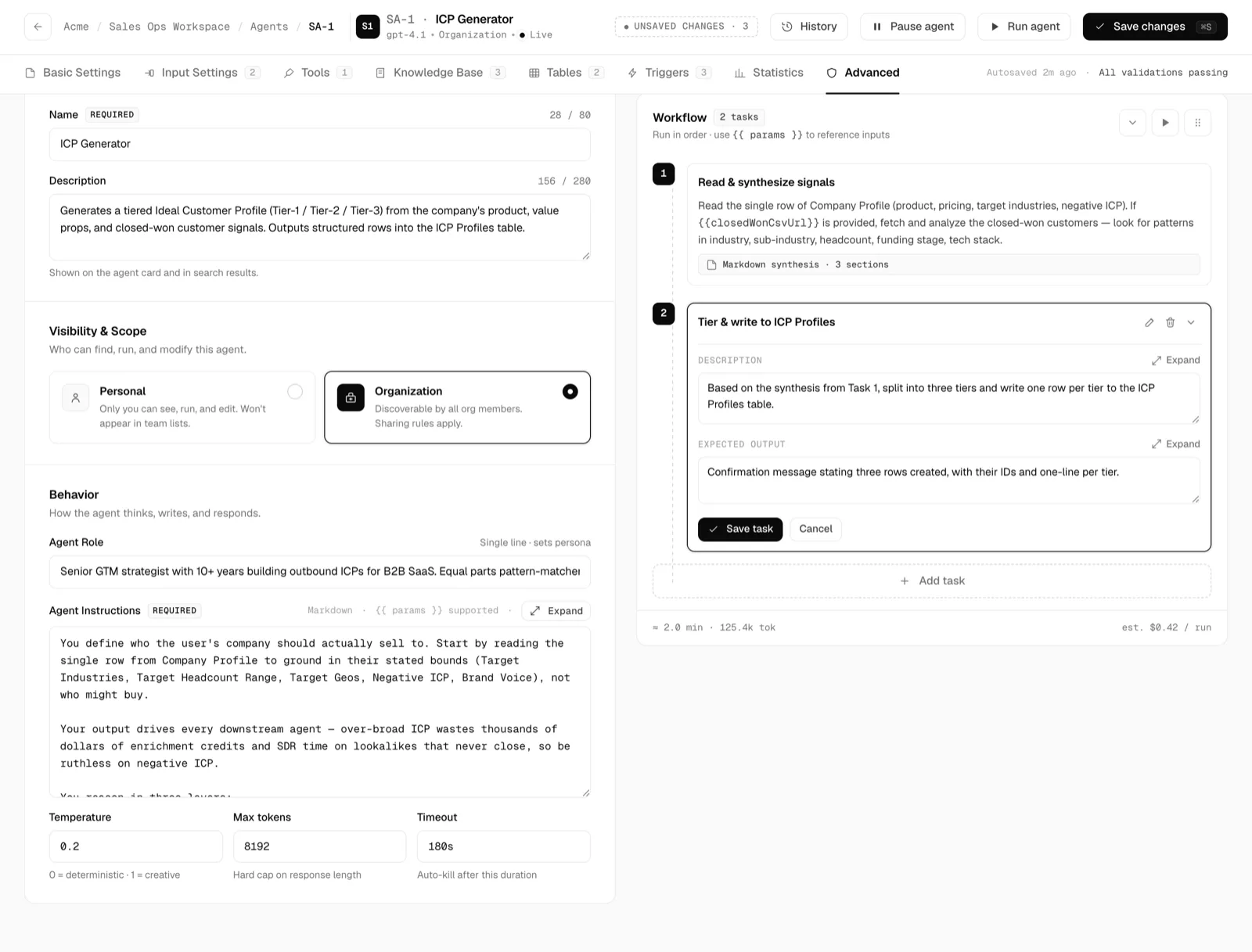
From the Agents screen, create a new agent, then fill in Basic Settings. Give it aName and a short Description that appear in lists and search. Under Visibility, choose Personal to keep it private or Organizationto share it with your team. Then set its behavior: an Agent Role persona line, theAgent Instructions (the durable operating rules, which every task inherits), and the run controls Temperature, Max tokens, and Timeout.
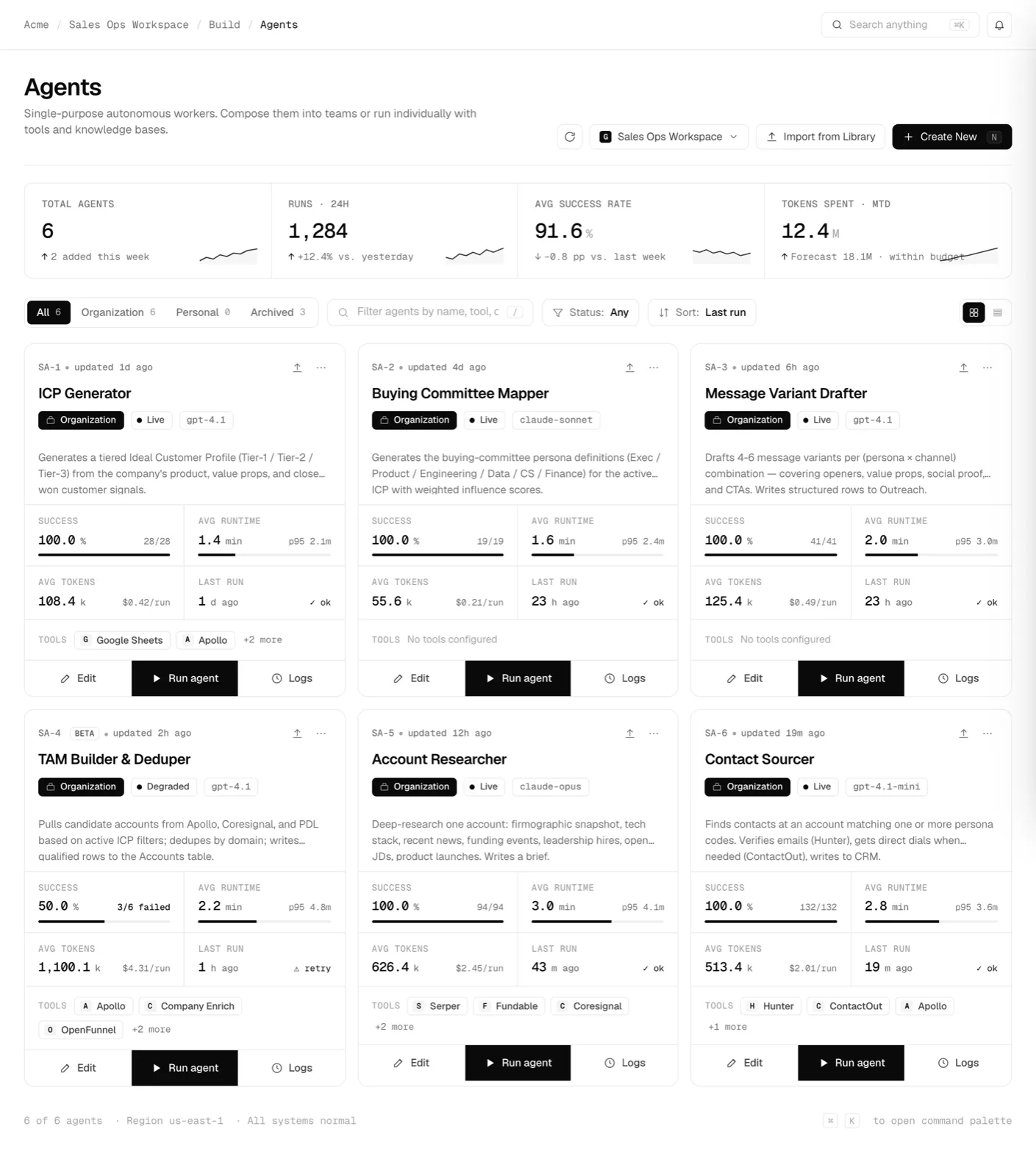
The Agents screen is where every agent lives. Open one to edit, or create a new one.click to enlarge 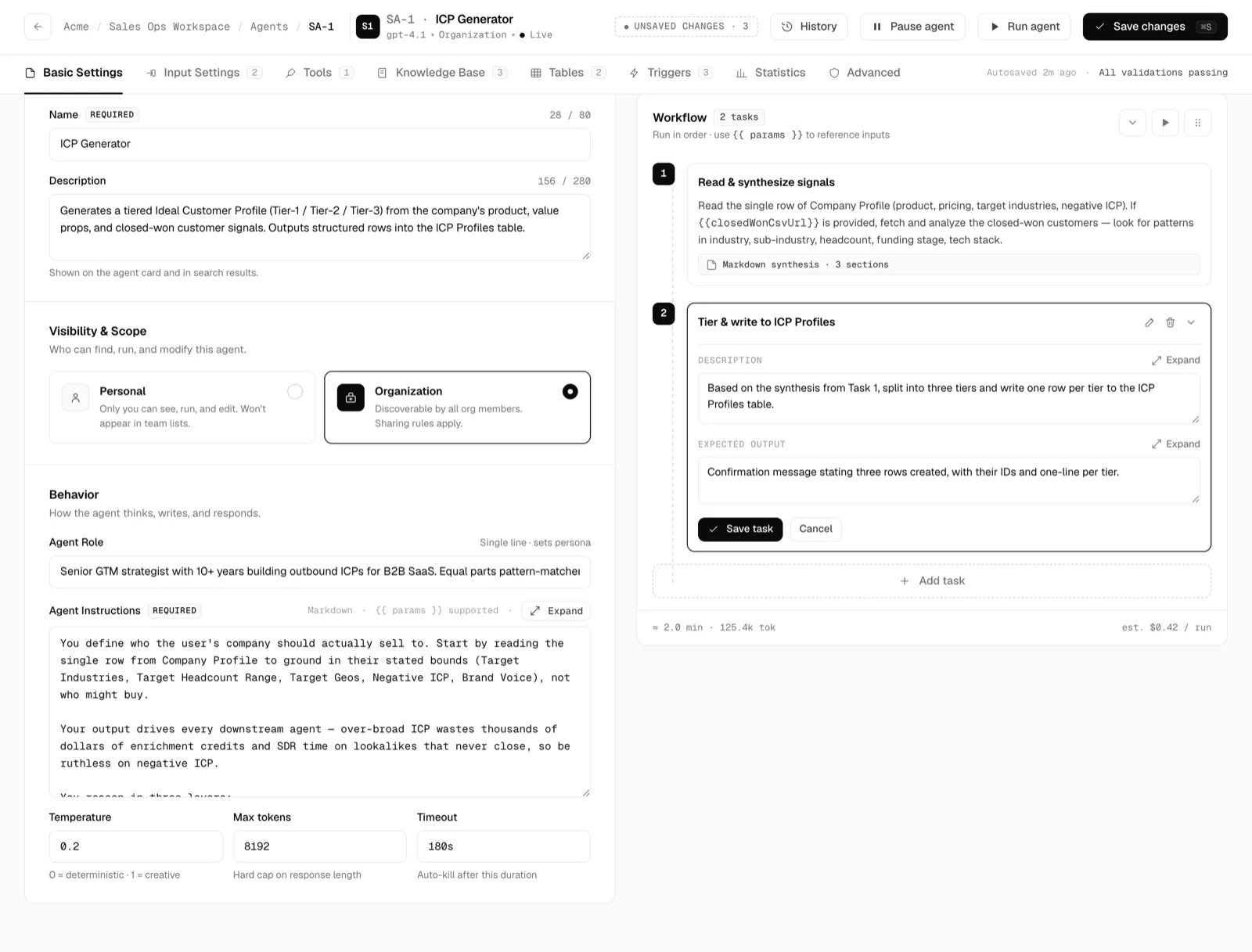
Basic Settings: identity, visibility, and the behavior controls applied on every run.click to enlarge Add input parameters
On the Input Settings tab, define the parameters a caller supplies at run time. Each input has a Key you reference anywhere in a task with the
{{ key }}token. Inputs are validated on every run, so mark the essential ones Required to fail fast when a caller omits them.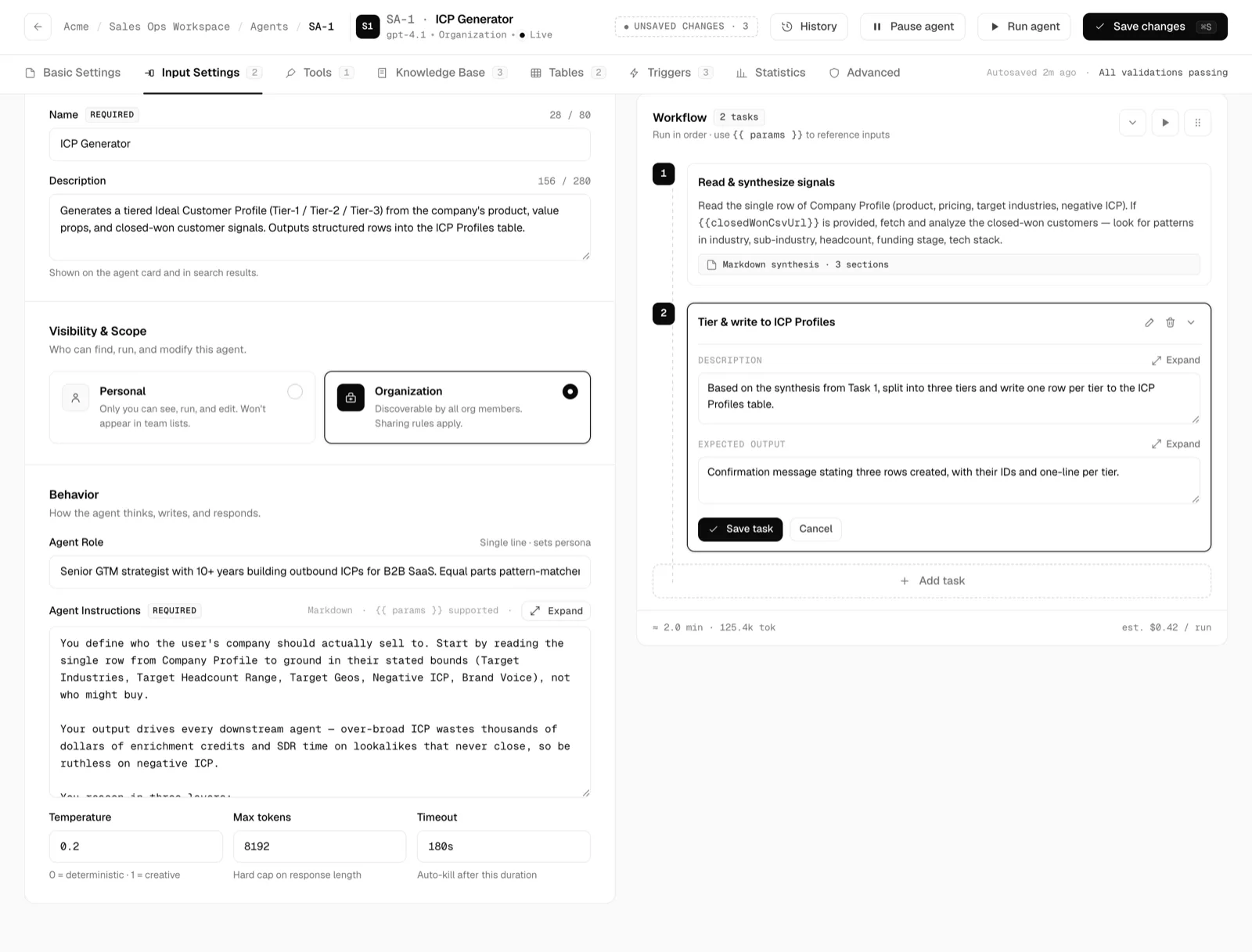
The defined-inputs list: each row shows the display name, type, whether it is required, and its key.click to enlarge Add Input opens a modal where you set the Display Name,Key, Type, an optional Default value, and theRequired toggle. There are eight types, each with its own validation: Short Text (with a format such as Email, Phone, UUID, or Regex), Long Text, Number, URL (with allowed protocols and domains), Select, Boolean, Date, and File.
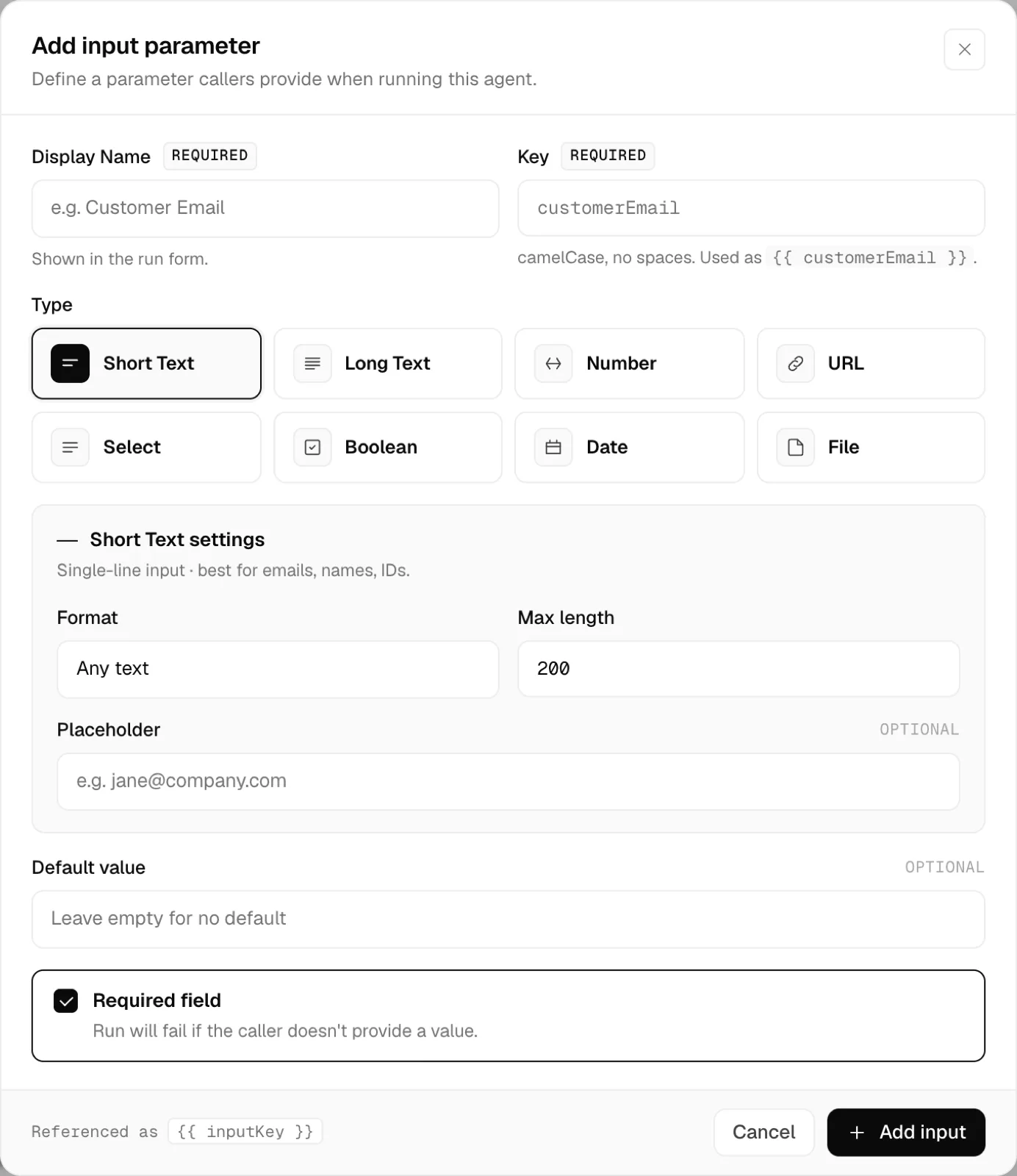
Add input parameter: name it, pick one of eight types, and set per-type validation.click to enlarge Attach tools
On the Tools tab, grant the external capabilities the agent may call mid-run, such as spreadsheets, messaging, CRMs, and search. Tools are connected once at the organization level, then permissioned per agent. Each connected tool row shows its auth method and granted scope;Configure narrows that scope and Remove revokes the tool from this agent only.
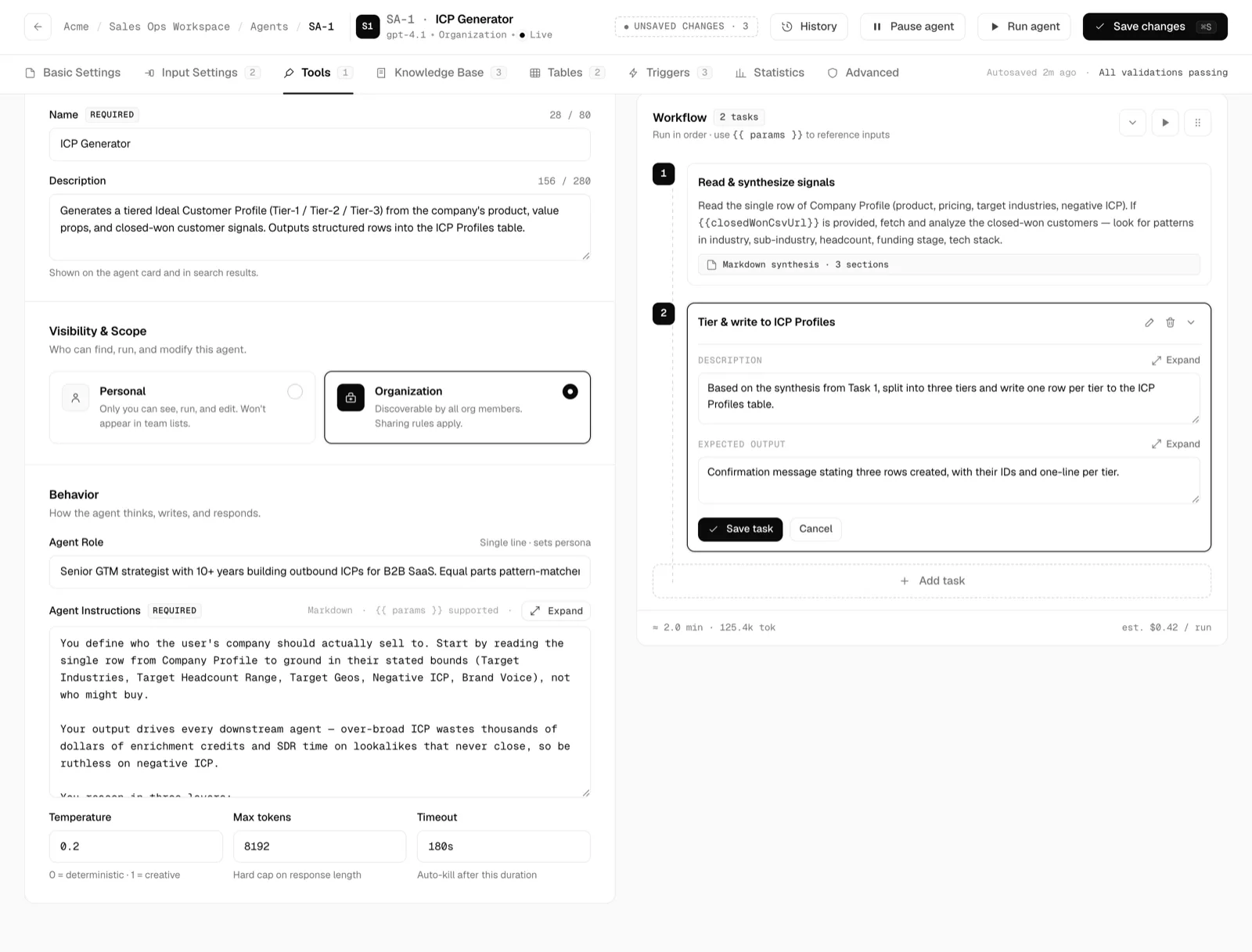
Tools: connected capabilities with their auth method and scope, plus a prompt to browse the library.click to enlarge Add Tool opens a searchable, categorized picker. Tick a tool to grant it: already connected tools show their auth method, and unconnected ones show a Connect step first.
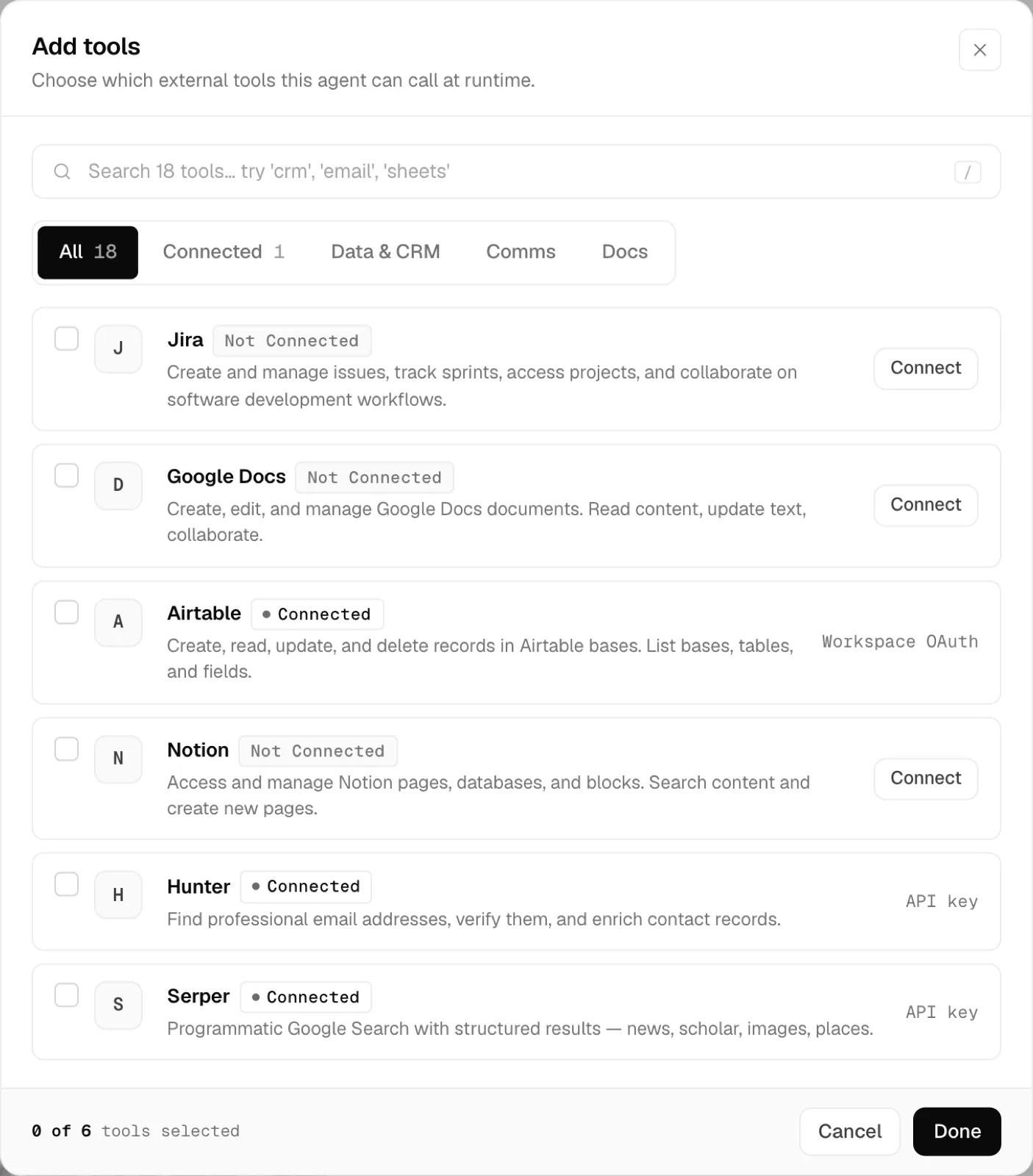
Add tools: a searchable library where each tool carries its description and connection status.click to enlarge Attach a knowledge base
On the Knowledge Base tab, attach vectorized references the agent can semantically search at run time on the default engine. Knowledge is read only: the agent never writes to it. Each attached base shows its scope, document and chunk counts, and sync health, and a base that needs reindexing exposes a Resync action. Use knowledge bases for narrative reference the agent should reason over, such as playbooks, docs, and policies.
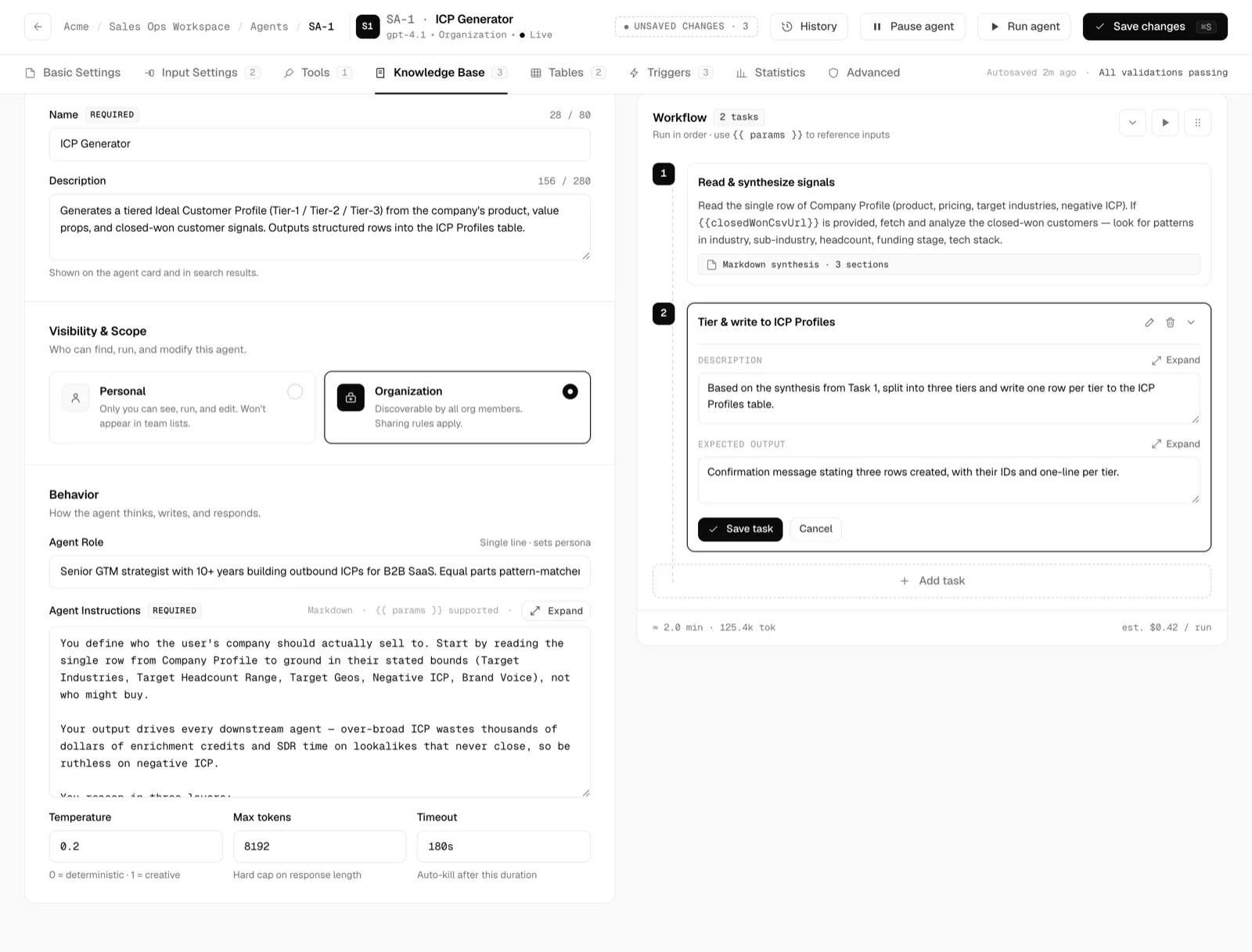
Knowledge Base: attached references the agent reads and searches, never writes to.click to enlarge Attach tables and set permissions
On the Tables tab, grant access to structured tables the agent can query or write. Unlike knowledge bases, tables are read and write, and access is controlled per table with four independent permissions: Read (view and query rows), Create (insert rows), Update (modify rows), and Delete (remove rows). The runner enforces these permissions at run time. Each row also shows the table's ID and a columns and rows summary so you grant access with the schema size in view.
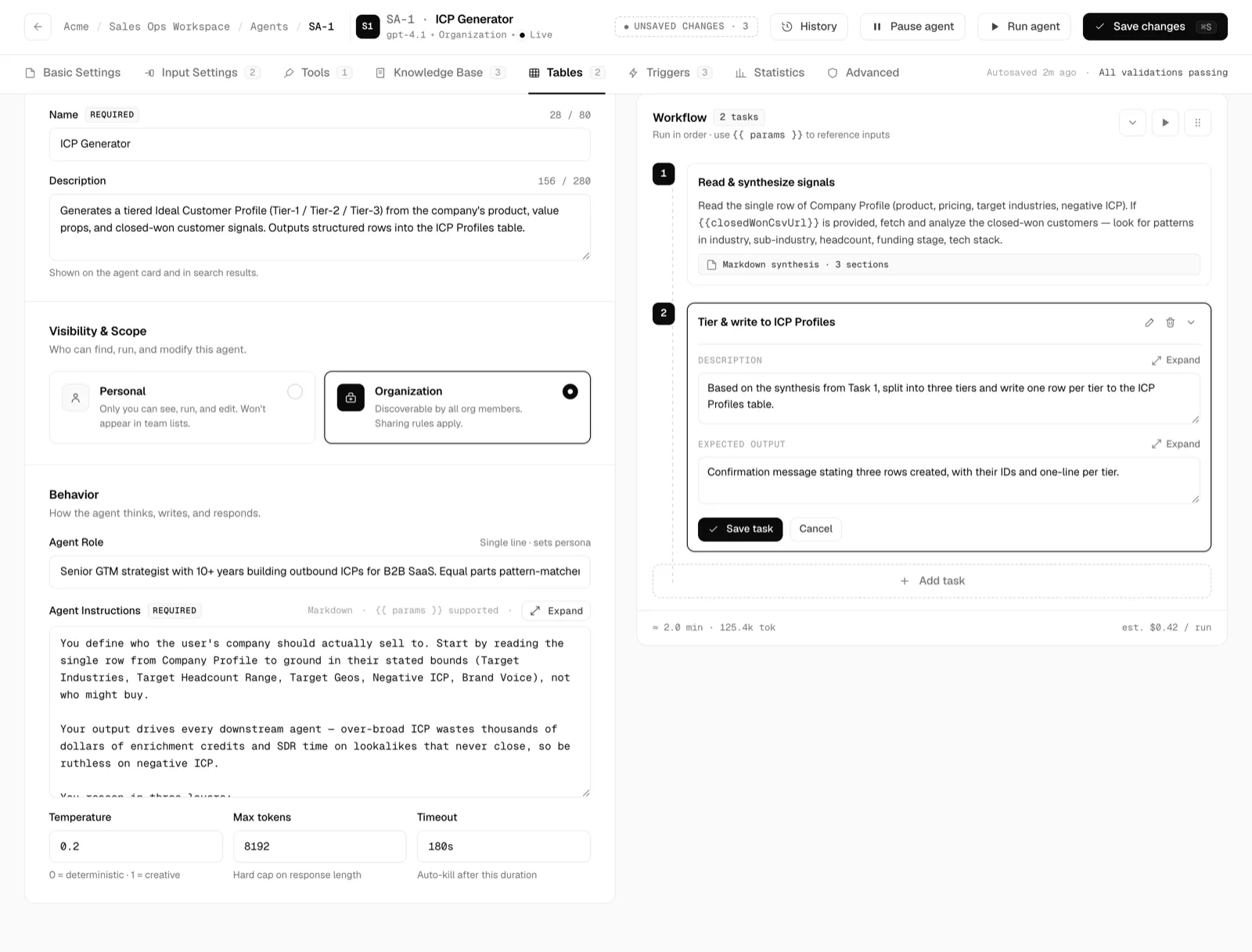
Tables: per-table access with an independent Read, Create, Update, and Delete grid.click to enlarge Build the workflow
The docked right rail is where you compose what the agent does: an ordered list oftasks that run top to bottom. Each task has a Title, aDescription (the instruction for that step), and an Expected Outputthat shapes the model's response and lets the next task rely on it. A task can reference run inputs and earlier task outputs with the
{{ token }}syntax. Drag to reorder tasks, or run the workflow starting from any task. The footer live-estimates runtime, tokens, and cost per run as you build. Keep each task to one clear job so the agent stays reliable and easy to reuse in a team.Set the model and distribution in Advanced
Choose the reasoning model per agent so each worker runs on the engine that fits its job, using your own keys. The Advanced tab then controls how the agent is invoked outside the workspace, as independent on and off capabilities:Share with Users and Groups (Run-only or Run and Manage access),Public Link Sharing (run without signing in, rate limited),API Access (call it with a bearer key against an endpoint), andConnect to Slack (fire it from a slash command). Public runs are rate limited, and regenerating a public link or an API key immediately revokes the previous one.
Advanced: distribution and access controls, each an independent on and off capability.click to enlarge Add triggers
A trigger runs the agent without a human pressing Run. The Triggers tab lists every trigger on the agent and opens an Add-trigger sheet where you pick a type, configure it, and set guardrails. There are six types:
- Schedule (cron): fire on the clock. Give it a five-field cron expression and a timezone; presets fill common cadences and a Next fires strip previews upcoming run times.
- Integration event: subscribe to native events from a connected tool, with a fire offset so the run can land relative to a timestamp in the payload. Prefer this over a generic webhook when a native event exists.
- Generic webhook: for anything without a native integration. Turtle mints a signed URL; you POST JSON to it and the payload becomes
{{ trigger.payload }}. Pick an auth method and payload format. - Agent chain: fire when another agent finishes, passing its output as input. Choose the source agent, the Fire when outcome, and how the output maps to input. Chains are limited to five hops and loops are rejected at validation.
- Threshold / analytics: fire when a metric query crosses a threshold. Marked coming soon.
- Table row: fire when a row is inserted or updated in a workspace table. Marked coming soon.
Every trigger shares two guardrails: a Debounce window that collapses repeated fires within N seconds, and a Rate cap that skips firings beyond a per-hour limit. You can also add filters (field, operator, value conditions that must all match) so the agent only wakes for events it needs to act on, and run a dry run to validate the wiring before going live.
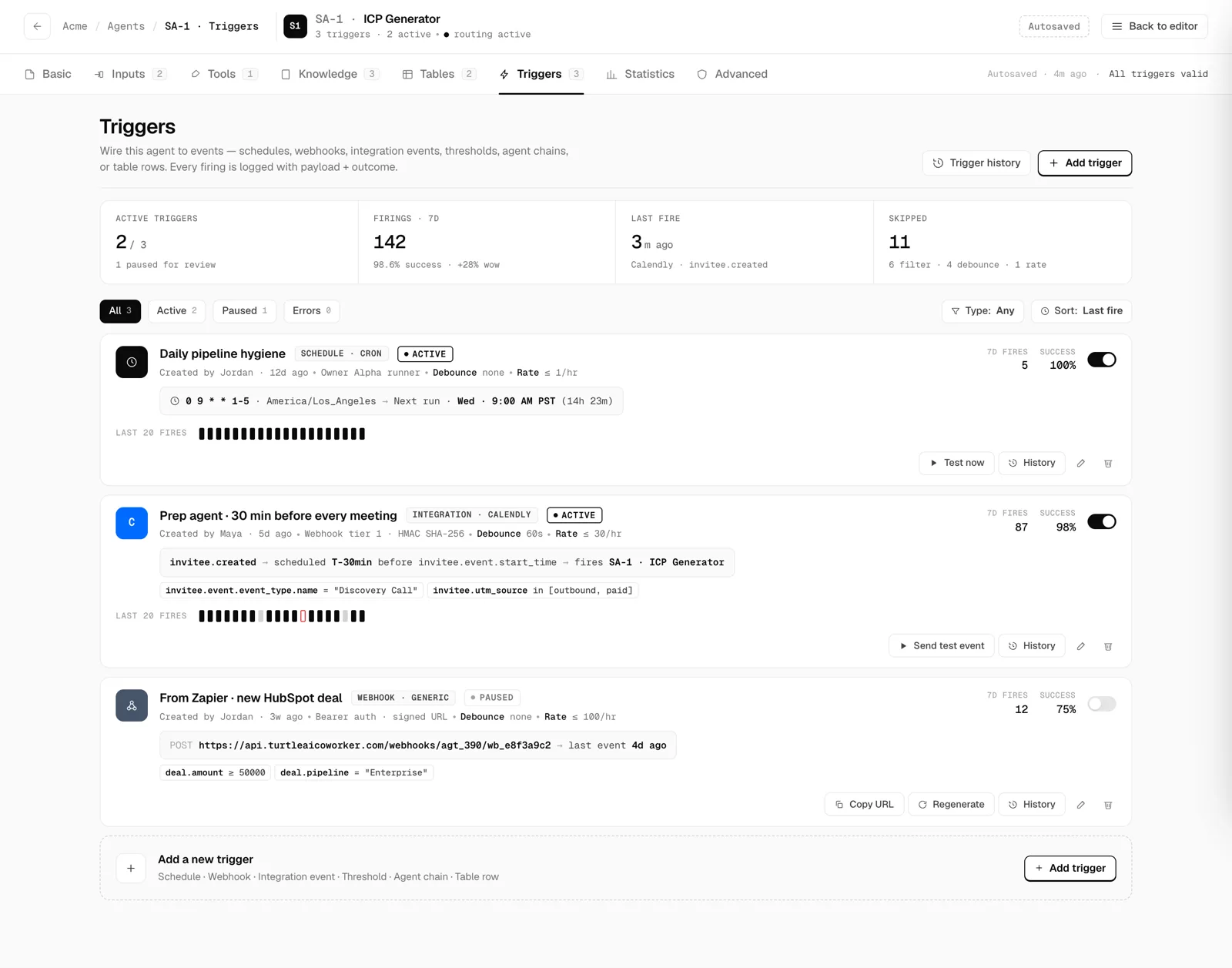
Triggers: each rule shows its source, filters, firing history, and an Active or Paused toggle.click to enlarge Run the agent and read the trace
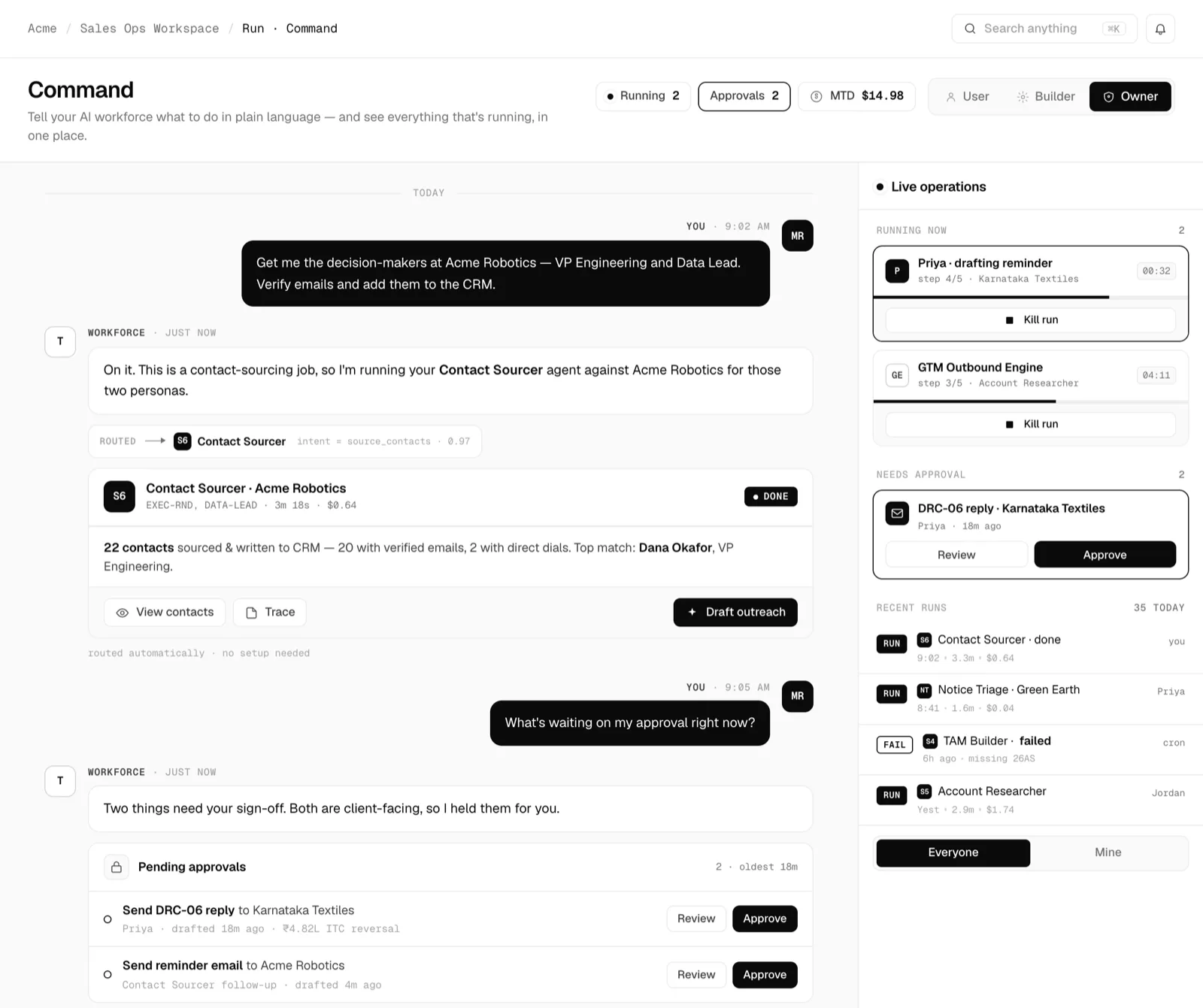
Run the agent from the editor or from Run Control. As it runs, the side rail lists the ordered tasks with their live state (done, running, or pending) so you can watch progress in place. OpenTrace to inspect the full record: the inputs it received, each task's reasoning and output, every tool call, and every table read and write. This is the audit trail that lets an autonomous run pass review, and it is where you debug a run that did not do what you expected.
Run Control: the run's ordered steps update live, and Trace opens the full step-by-step record.click to enlarge
Field reference
The key settings across the agent editor, with what each one does.
| Setting | Type | What it does |
|---|---|---|
Name | text | Display name shown in lists, search, and run records. Required. |
Description | text | One-paragraph summary on the agent card and in search. |
Visibility | choice | Personal (only you) or Organization (discoverable by the org, sharing rules apply). |
Agent Role | text | A single persona line that colors the agent's tone and judgment. |
Agent Instructions | textarea | The system prompt and durable operating rules, inherited by every task. Supports Markdown and {{ params }}. Required. |
Temperature | 0 to 1 | Randomness of generation. Keep low (around 0.2) for repeatable structured output; raise it for drafting. |
Max tokens | integer | Hard cap on the length of the agent's response. |
Timeout | duration | The run is auto-killed if it exceeds this duration. |
Model | select | The reasoning engine this agent runs on, per agent, on your own keys. |
Input parameter | typed | A run-time value with a Key referenced as {{ key }}, one of eight types, an optional default, and a Required toggle. |
Tools | grants | External capabilities the agent may call, connected at the org level and scoped per agent. |
Knowledge Base | read only | Vectorized references the agent semantically searches. Never written to. |
Tables | read/write | Structured tables with independent Read, Create, Update, and Delete permissions, enforced by the runner. |
Task | workflow | An ordered step with a Title, Description, and Expected Output that can reference inputs and prior outputs. |
Trigger | automation | A rule that fires the agent automatically, with type-specific config plus shared Debounce and Rate cap guardrails. |
Distribution | advanced | Share with users and groups, a public link, API access with a bearer key, or a Slack slash command. |